

Integrations
Integrations
The Integrations section allows users to configure external platform connections and manage API keys.
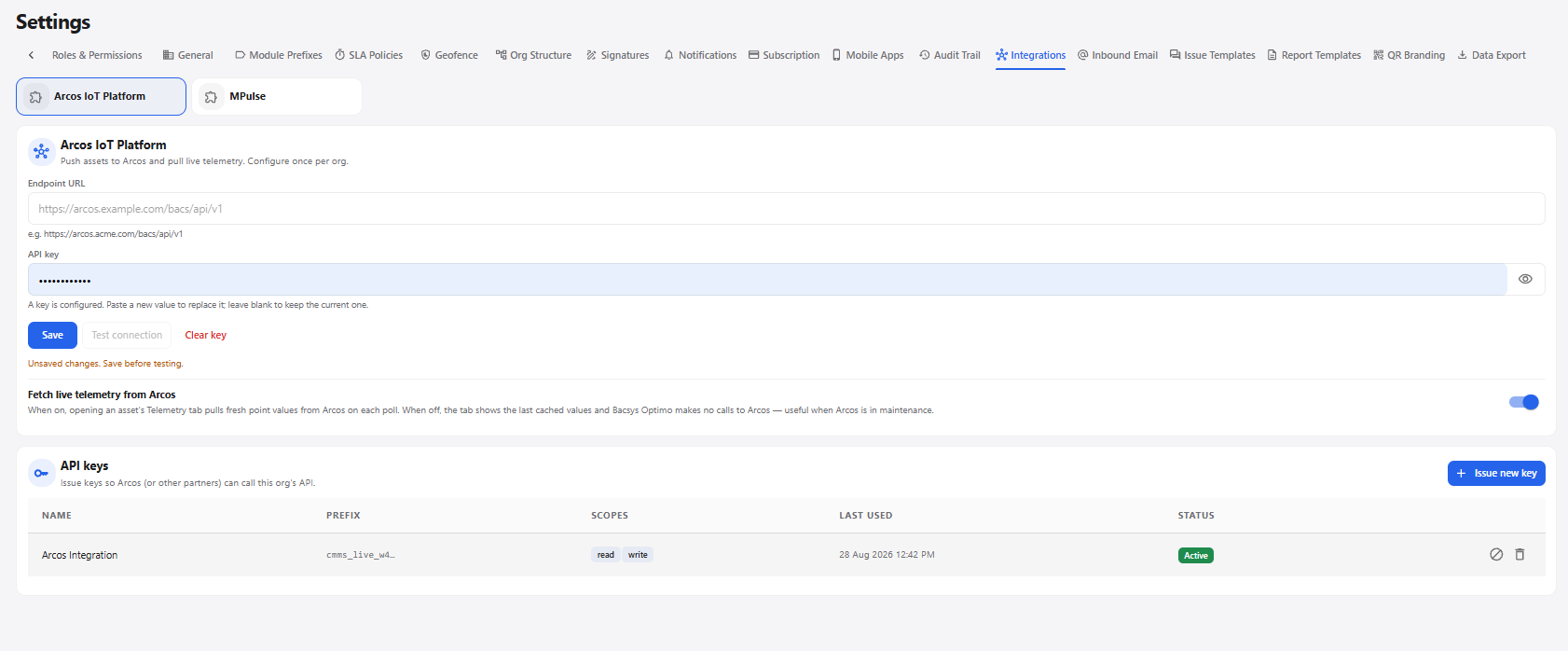
Arcos IoT Platform
| Field / Option | Description |
|---|---|
| Arcos IoT Platform | Selects the Arcos IoT Platform integration. |
| MPulse | Selects the MPulse integration. |
| Endpoint URL | Enter the Arcos API endpoint URL. |
| API key | Enter the API key used to connect to Arcos. |
| Save | Saves the integration configuration. |
| Test connection | Tests the configured connection. |
| Clear key | Removes the currently configured API key. |
| Fetch live telemetry from Arcos | Enables or disables fetching live telemetry values from Arcos when viewing an asset's Telemetry tab. |
API Keys
The API Keys section allows users to create and manage keys that Arcos or other supported partners can use to access the API.
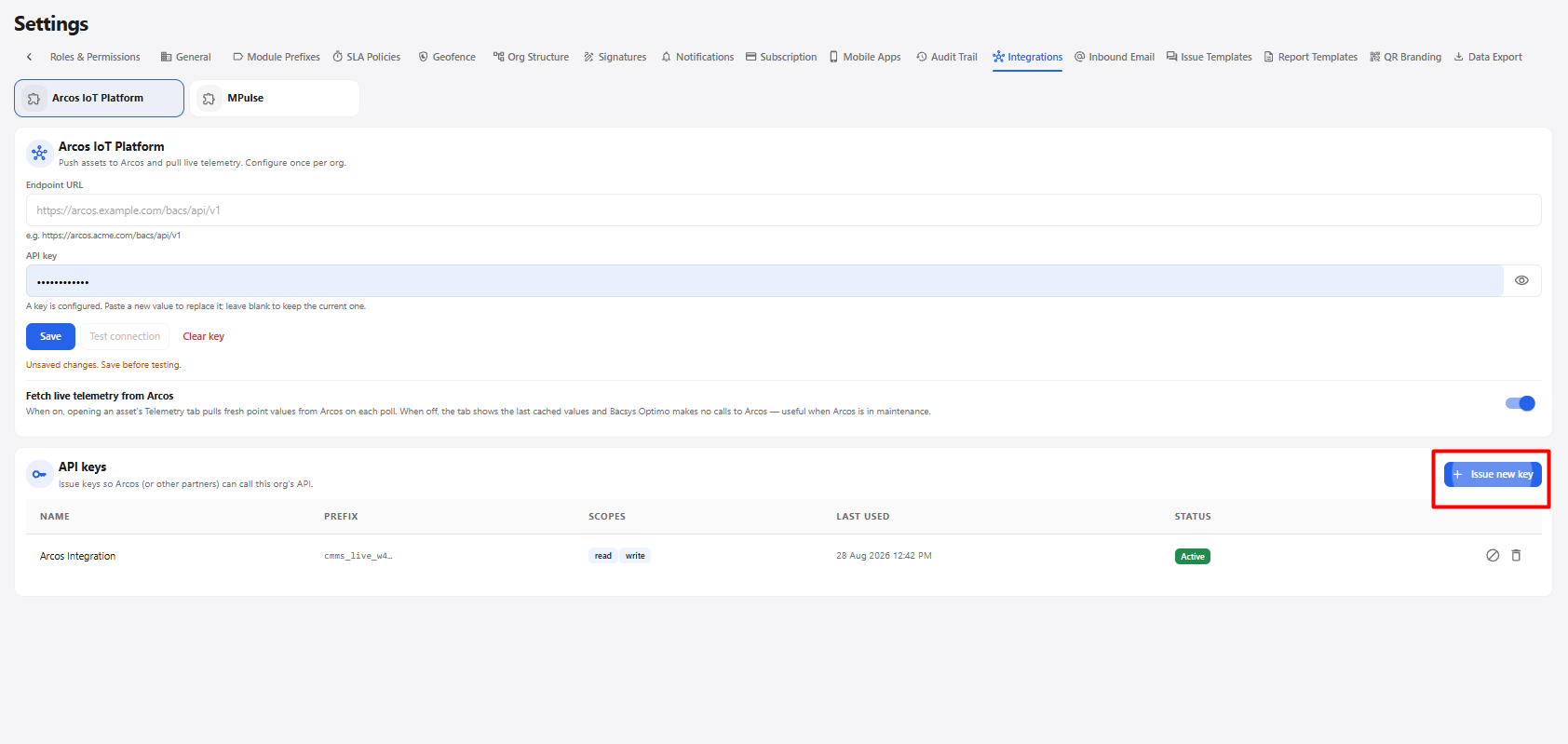
| Field / Option | Description |
|---|---|
| Issue new key | Opens the API key creation pop-up. |
| Name | Enter a name to identify the API key. |
| Scopes | Select the permissions for the API key, such as read and write. |
| Issue key | Creates the API key after the required information is entered. |
| Cancel | Closes the pop-up without creating the key. |
| Status | Displays whether the API key is active. |
| Last used | Displays the last time the API key was used. |
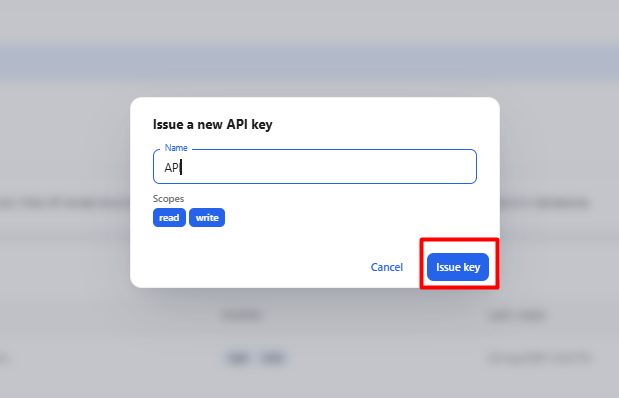
Create API Key
- Open Integrations.
- Select Arcos IoT Platform.
- In the API Keys section, click + Issue new key.
- Enter the API key Name.
- Select the required Scopes such as read or write.
- Click Issue key.
- The new API key is created and added to the API Keys list.
API Key Workflow
Open Settings
      ↓
Select Integrations
      ↓
Select Arcos IoT Platform
      ↓
Click + Issue new key
      ↓
Enter API Key Name
      ↓
Select Required Scopes
      ↓
Click Issue key
      ↓
API Key Created
      ↓
API Key Appears in API Keys List
MPulse
The MPulse integration allows users to create webhook endpoints for receiving device events.
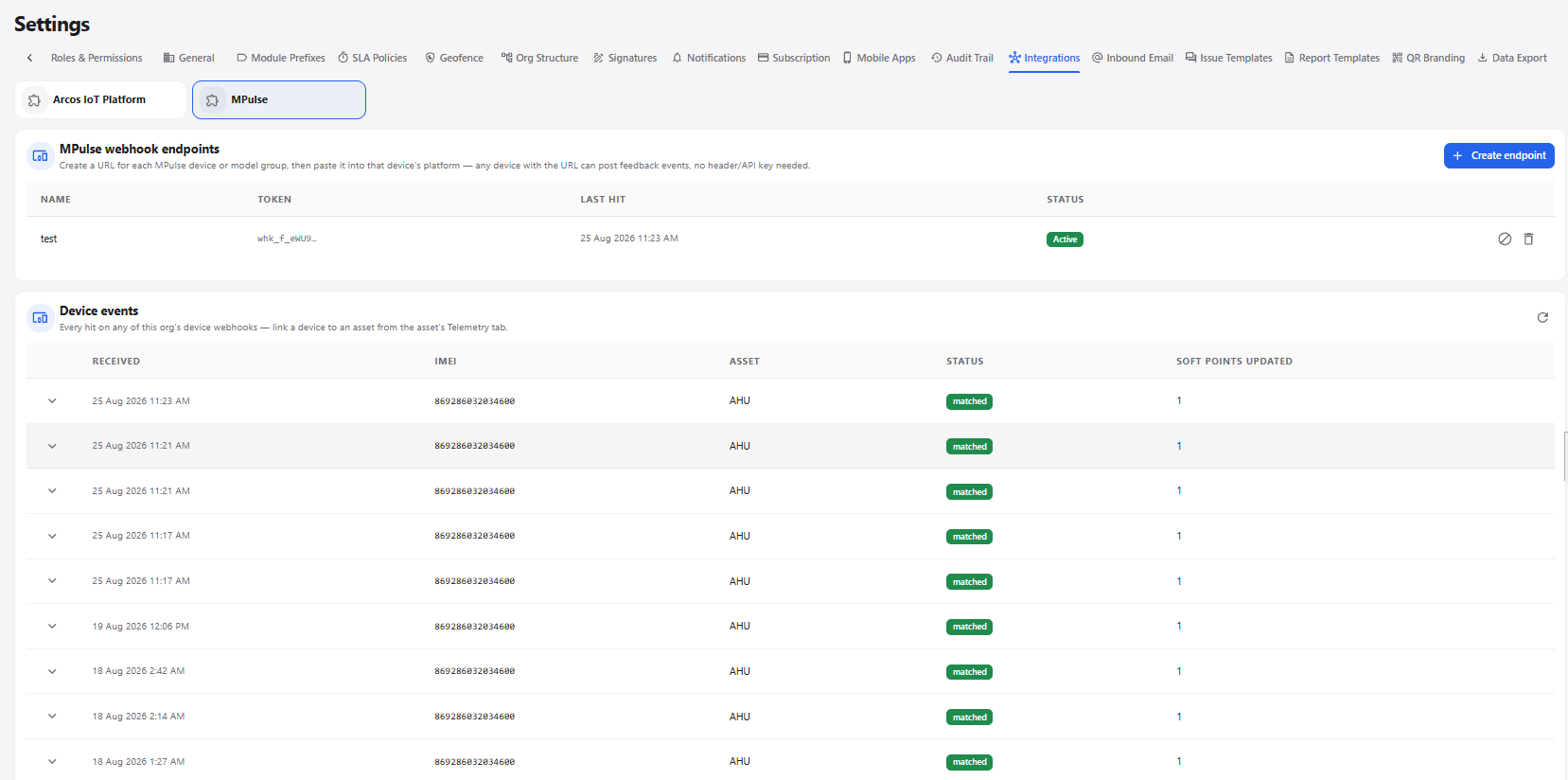
Create Webhook Endpoint
- Open Settings.
- Select Integrations.
- Select MPulse.
- Click + Create endpoint.
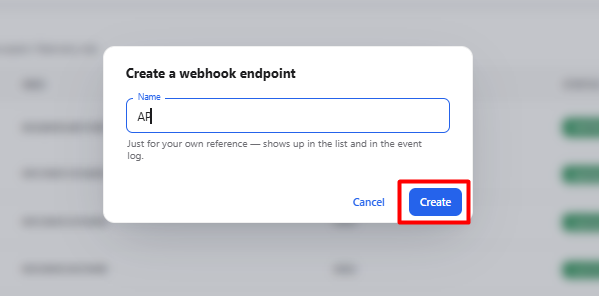
- Enter the Name for the webhook endpoint.
- Click Create.
- The webhook endpoint is created and displayed in the MPulse webhook endpoints list.
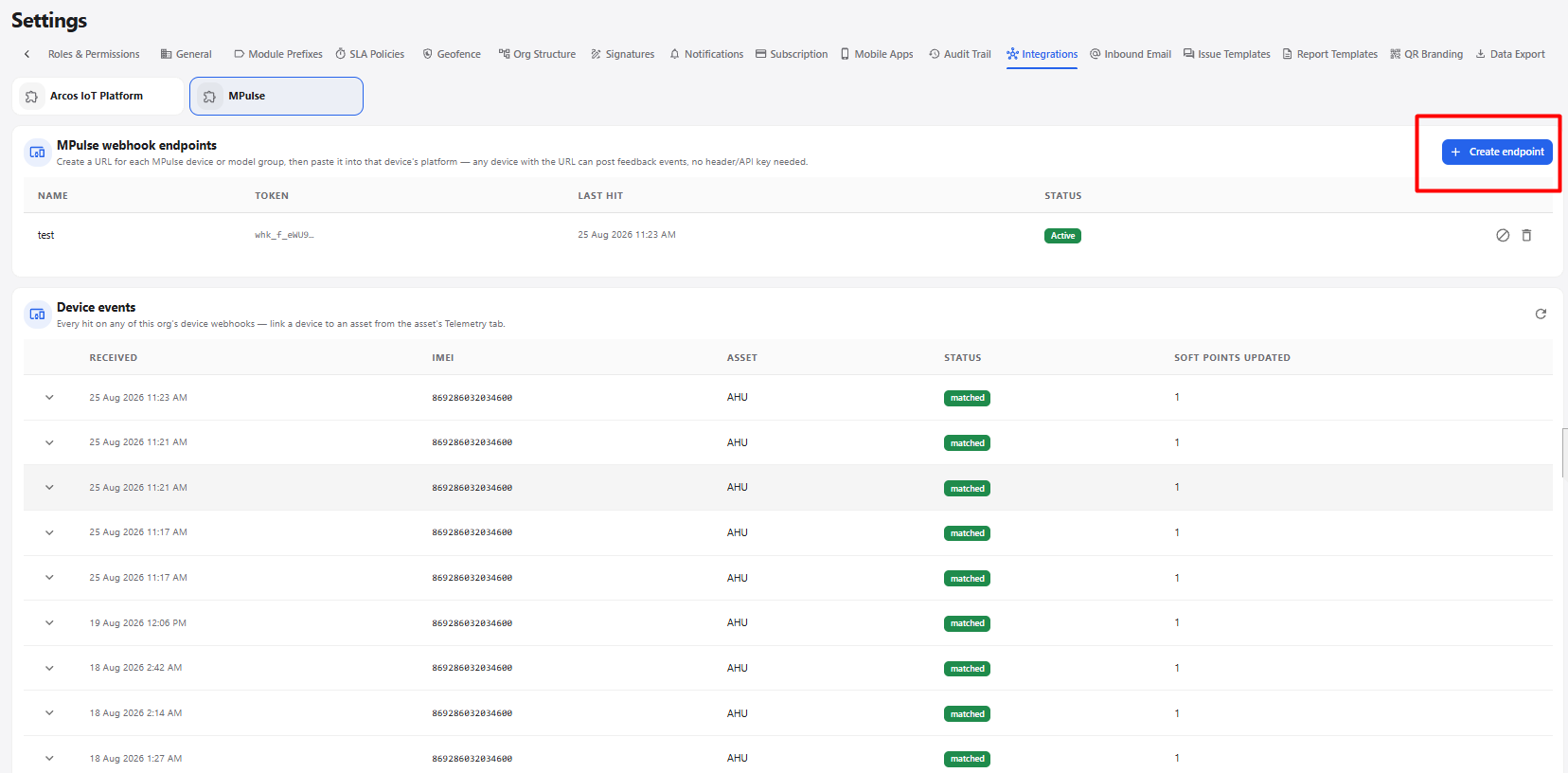
| Field / Option | Description |
|---|---|
| MPulse | Opens the MPulse integration settings. |
| + Create endpoint | Opens the Create a webhook endpoint pop-up. |
| Name | Enter a name to identify the webhook endpoint. |
| Create | Creates the webhook endpoint after the name is entered. |
| Cancel | Closes the pop-up without creating the endpoint. |
Device Events
The Device events section displays events received through the configured MPulse webhook endpoints.
| Field | Description |
|---|---|
| Received | Displays when the device event was received. |
| IMEI | Displays the device IMEI associated with the event. |
| Asset | Displays the asset associated with the device event. |
| Status | Displays the event matching status. |
| Soft points updated | Displays the number of soft points updated by the event. |
Webhook Endpoint Workflow
Open Settings
      ↓
Select Integrations
      ↓
Select MPulse
      ↓
Click + Create endpoint
      ↓
Enter Endpoint Name
      ↓
Click Create
      ↓
Webhook Endpoint Created
      ↓
Device Events Received
      ↓
View Received / IMEI / Asset / Status / Soft Points Updated