

SLA Policies
SLA Policies
The SLA Policies section allows users to create policies that define response and resolution time targets for work orders.
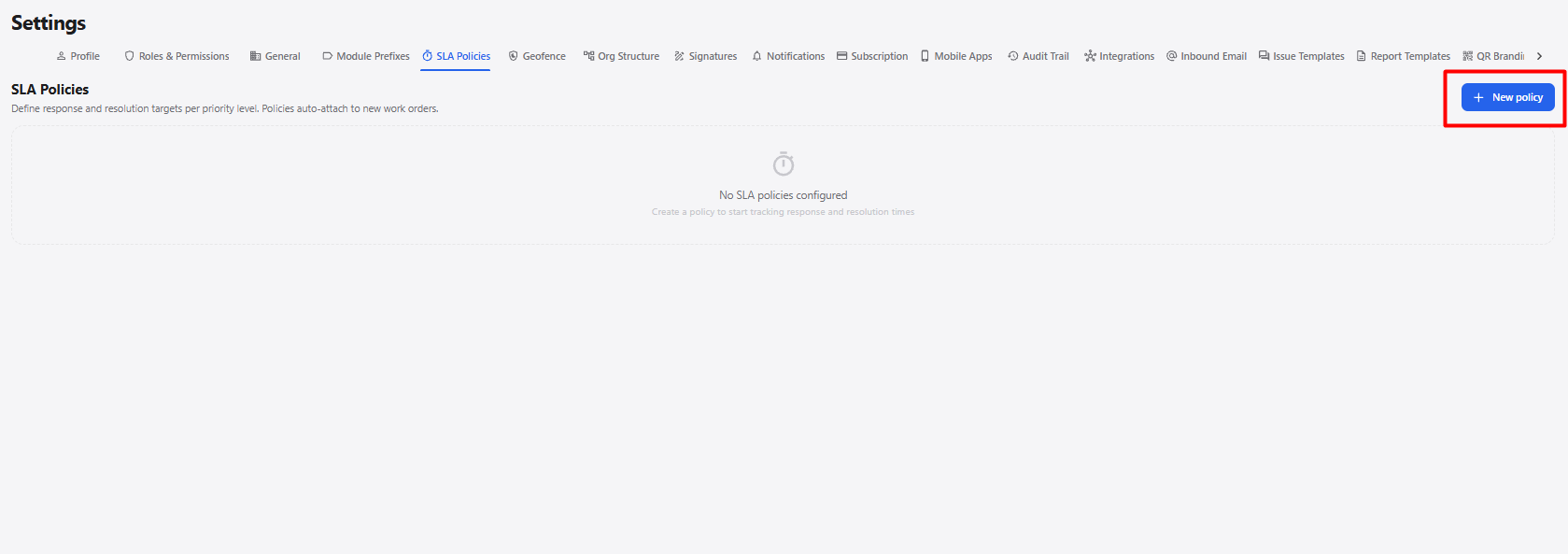
1. New SLA Policy
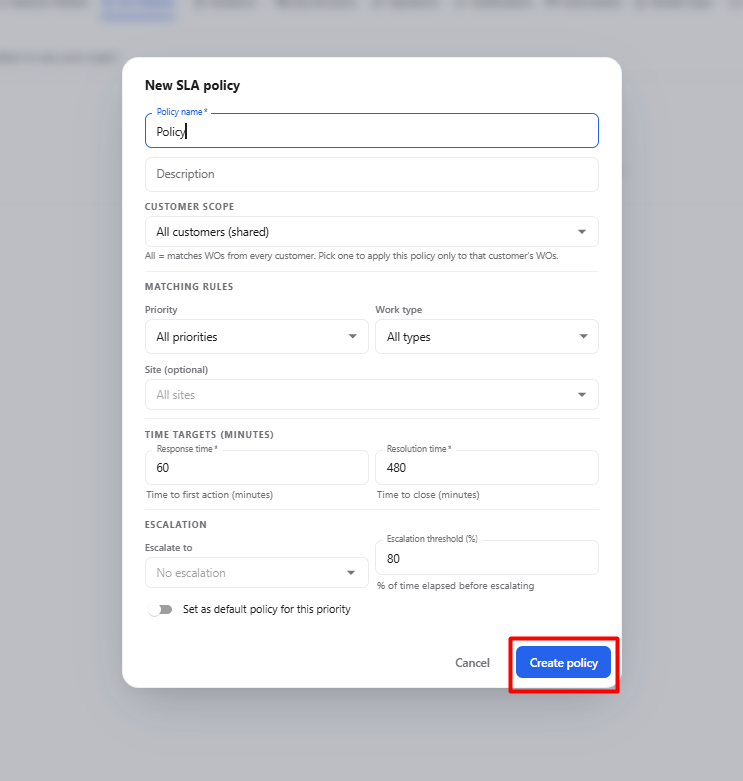
| Field / Option | Description |
|---|---|
| Policy name* | Enter the name of the SLA policy. |
| Description | Enter a description for the policy, if required. |
| Customer Scope | Select whether the policy applies to all customers or a specific customer. |
| Priority | Select the priority to which the SLA policy applies. |
| Work type | Select the work type to which the SLA policy applies. |
| Site (optional) | Select the site where the SLA policy should apply. |
| Response time* | Define the target time for the first action in minutes. |
| Resolution time* | Define the target time for closing the work order in minutes. |
| Escalate to | Select who should receive the escalation when the threshold is reached. |
| Escalation threshold (%) | Define the percentage of the SLA time that must elapse before escalation. |
| Set as default policy for this priority | Sets the policy as the default SLA policy for the selected priority. |
| Cancel | Closes the pop-up without creating the policy. |
| Create policy | Creates the SLA policy after the required information is entered. |
1.1 Create SLA Policy Workflow
Open SLA Policies
      ↓
Click + New policy
      ↓
New SLA Policy Pop-up
      ↓
Enter Policy Name
      ↓
Enter Description
      ↓
Select Customer Scope
      ↓
Configure Matching Rules
      ↓
Set Response and Resolution Time
      ↓
Configure Escalation
      ↓
Click Create policy
      ↓
SLA Policy Created
2. SLA Policy Management
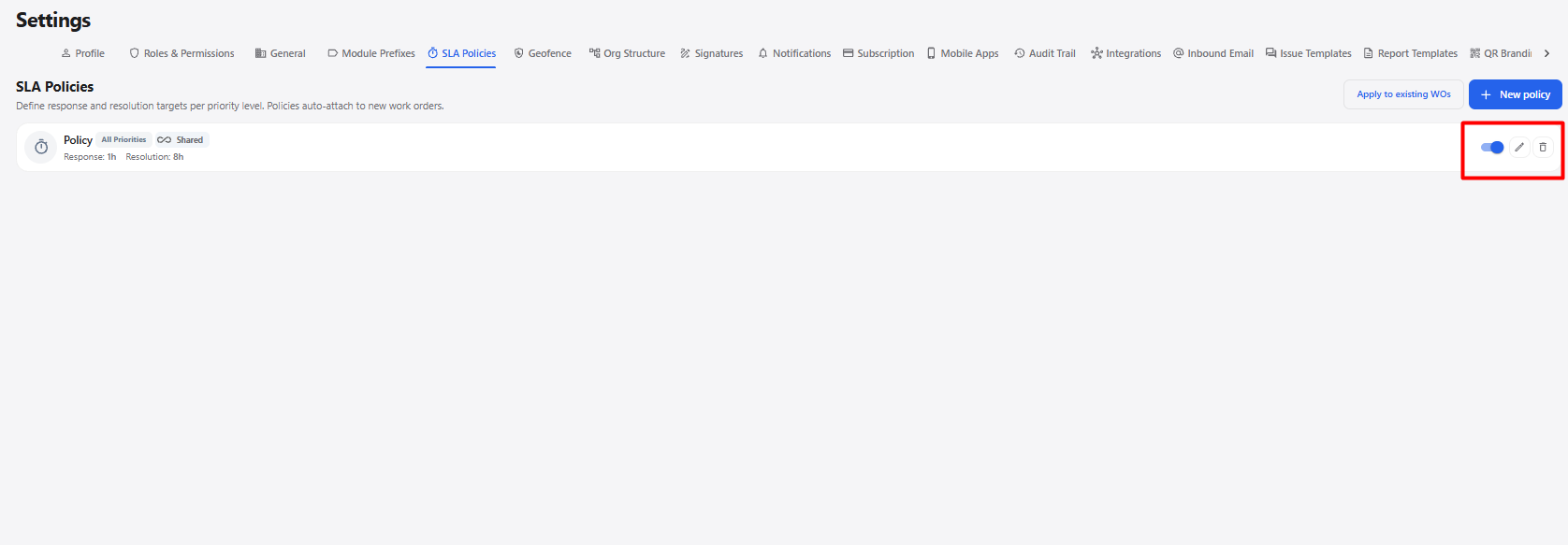
After creating an SLA policy, the policy is displayed in the SLA Policies list.
| Option | Description |
|---|---|
| Enable / Disable | Allows the SLA policy to be enabled or disabled. |
| Edit | Allows the existing SLA policy configuration to be updated. |
| Delete | Deletes the selected SLA policy. |
| Apply to existing WOs | Applies the selected SLA policy to existing work orders. |
| New policy | Opens the New SLA Policy pop-up to create another SLA policy. |