

Profile
Profile
The Profile section allows users to manage their personal account information, profile photo, password, and account security settings.
1. Profile Information
The Profile section displays the user's account information and allows the user to update their profile details.
Profile Photo Options
When the user clicks the profile photo, the available photo options are displayed:
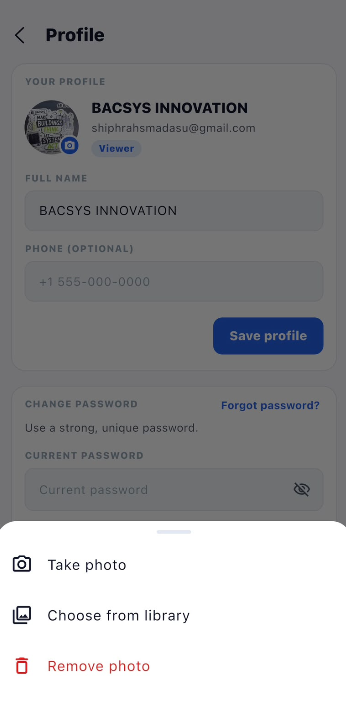
| Option | Description |
|---|---|
| Take Photo | Opens the device camera so the user can capture a new profile photo. |
| Choose from Library | Opens the device photo library so the user can select an existing photo. |
| Remove Photo | Removes the existing profile photo. |
Profile Fields and Actions
The following fields and actions are available on the Profile page:
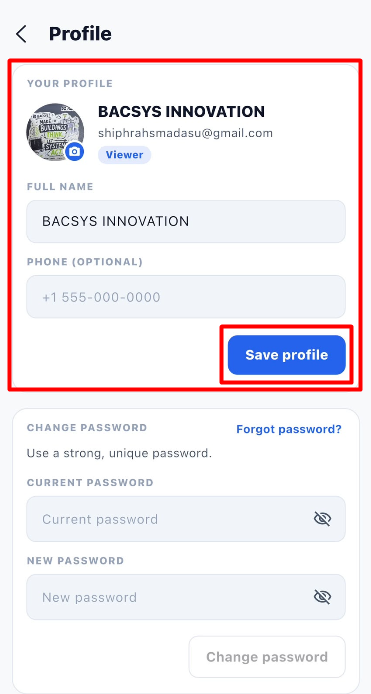
| Field / Option | Description |
|---|---|
| Full Name | Displays the user's full name and allows the user to update it. |
| Phone (Optional) | Allows the user to enter or update a phone number. This field is optional. |
| Save Profile | Saves the updated profile information. |
Steps to Update Profile
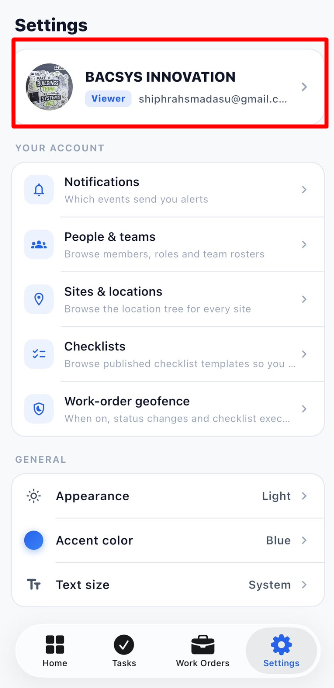
- Open Settings.
- Click the user's profile section at the top of the Settings page.
- The Profile page is displayed.
- To change the profile photo, click the photo icon.
- Select one of the available options:
- Take Photo
- Choose from Library
- Remove Photo
- Update the Full Name, if required.
- Enter or update the Phone (Optional) field, if required.
- Click Save Profile.
- The updated profile information is saved.
2. Change Password
The Change Password section allows users to change their existing account password.
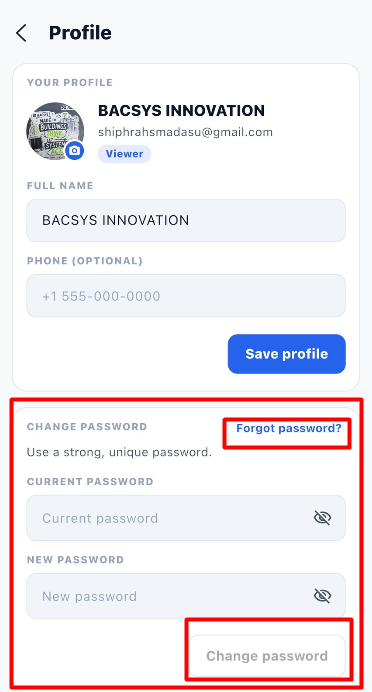
| Field / Option | Description |
|---|---|
| Current Password | Enter the password currently associated with the account. |
| New Password | Enter the new password that should be used for the account. |
| Show / Hide Password | Allows the user to show or hide the entered password. |
| Forgot password? | Allows the user to start the password recovery process if the current password is forgotten. |
| Change password | Updates the account password using the entered information. |
Steps to Change Password
- Open Settings.
- Open the user's Profile.
- Scroll to the Change Password section.
- Enter the Current Password.
- Enter the required New Password.
- Use the password visibility icon to show or hide the password if required.
- Click Change password.
- The password is updated for the account.
Forgot Password
If the user does not remember the current password:
- Open the Change Password section.
- Click Forgot password?.
- Follow the password recovery process.
- Set a new password as instructed.
3. Two-Factor Authentication
The Two-Factor Authentication section provides an additional layer of security for the user account.
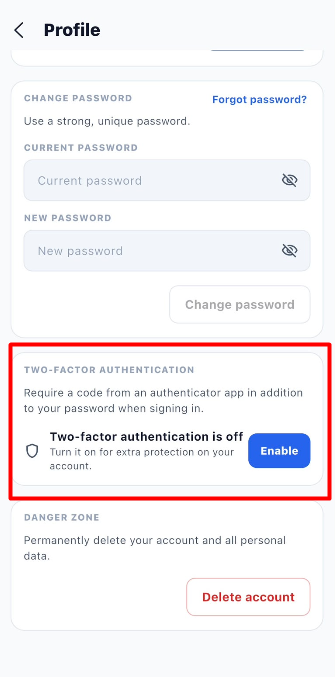
Two-factor authentication requires an additional verification code from an authenticator application when signing in.
| Field / Option | Description |
|---|---|
| Two-factor authentication is off | Indicates that two-factor authentication is currently disabled. |
| Enable | Enables two-factor authentication for the account. |
| Authenticator app | Used to generate the additional verification code required during sign-in. |
Steps to Enable Two-Factor Authentication
- Open Settings.
- Open the user's Profile.
- Scroll to the Two-Factor Authentication section.
- Verify that two-factor authentication is currently off.
- Click Enable.
- Follow the displayed setup instructions.
- Complete the authenticator app setup.
- Two-factor authentication is enabled for the account.
- During future sign-ins, an additional verification code will be required.
4. Danger Zone
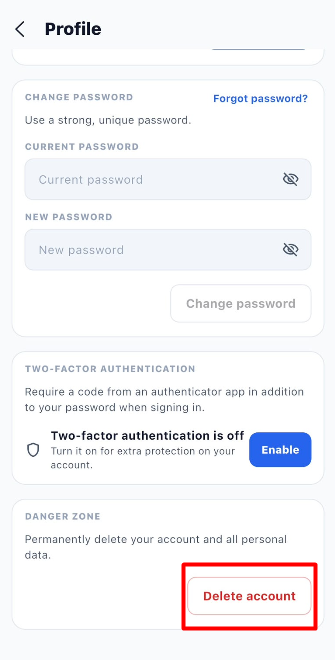
The Danger Zone contains the option to permanently delete the user's account and associated personal data.
| Field / Option | Description |
|---|---|
| Danger Zone | Contains account actions that can permanently affect the user's account. |
| Delete account | Permanently deletes the user's account and personal data. |
Delete Account
The Delete account option should be used carefully because account deletion is a permanent action.
Steps
- Open Settings.
- Open the user's Profile.
- Scroll to the Danger Zone section.
- Review the account deletion information.
- Click Delete account.
- Follow the confirmation process, if displayed.
- The account and personal data are permanently deleted.
Two-Factor Authentication Workflow
Open Settings
      ↓
Open Profile
      ↓
Scroll to Two-Factor Authentication
      ↓
Check Two-Factor Authentication Status
      ↓
Two-Factor Authentication is Off
      ↓
Click Enable
      ↓
Set Up Authenticator App
      ↓
Complete Authentication Setup
      ↓
Two-Factor Authentication Enabled
      ↓
Sign In to Optimo Lite
      ↓
Enter Password
      ↓
Enter Authentication Code
      ↓
Access Account