

Help & Support
Submit feedback, contact support, and access help resources.
Help & Support
The Help & Support section provides users with three options: Feedback, Email, and Resources. Users can report bugs, request new features, ask questions, contact the support team, and access documentation and tutorials.
1. Feedback
The Feedback tab allows users to share issues, suggest improvements, report confusing workflows, or ask questions about the application. Users can submit feedback with a title and description.
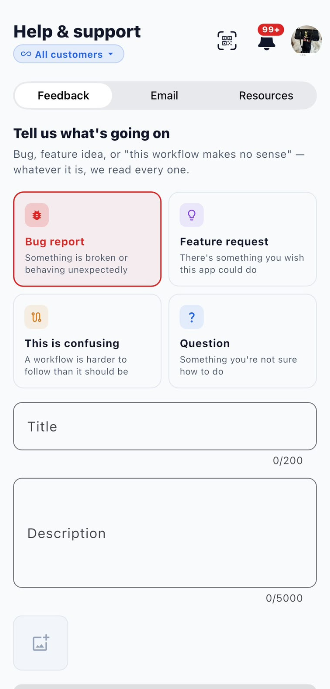
Feedback Categories
| Category | Description |
|---|---|
| Bug report | Use this option when something is broken or behaves unexpectedly. |
| Feature request | Suggest a new feature or an improvement to the application. |
| This is confusing | Report a workflow or feature that is difficult to understand. |
| Question | Ask about something you are unsure how to use. |
Fields in the Feedback Form
| Field | Description |
|---|---|
| Title | Enter a short title describing the issue, request, or question. The limit shown is 200 characters. |
| Description | Explain the issue or provide details about your feedback. The limit shown is 5,000 characters. |
| Attachment | Use the attachment option to add supporting information, where needed. |
| Send feedback | Submit the feedback after completing the required information. |
Steps to Submit Feedback
- Open Help & Support.
- Select the Feedback tab.
- Choose the appropriate category: Bug report, Feature request, This is confusing, or Question.
- Enter a title describing your feedback.
- Provide details in the Description field.
- Add an attachment if needed.
- Click Send feedback to submit your feedback.
- Review the Your submissions section to check your previously submitted feedback and its displayed status.
Note: The submission list can display the status of previously submitted feedback, such as Resolved.
2. Email Support
The Email tab provides a dedicated email address that customers can use to contact the team and raise maintenance requests through email.
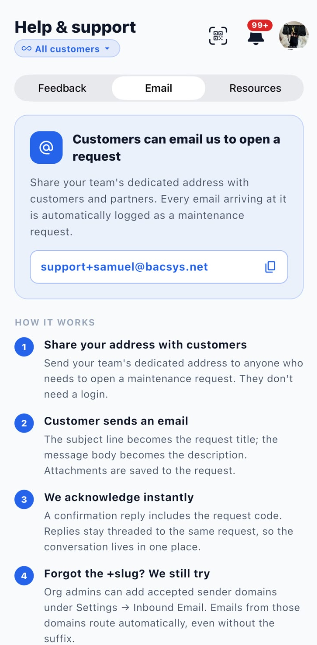
How Email Support Works
The screen displays the team's dedicated email address and explains how incoming emails are handled.
| Step | Description |
|---|---|
| 1. Share your address with customers | Share the displayed support email address with customers or partners who need to raise a maintenance request. |
| 2. Customer sends an email | The email subject becomes the request title, and the message body becomes the description. Attachments are saved to the request. |
| 3. Request is acknowledged | A confirmation reply includes the request code. Replies are attached to the same request so the conversation stays in one place. |
| 4. Sender and email access | Organization administrators can configure accepted sender domains under Settings → Inbound Email. |
Steps to Use Email Support
- Open Help & Support.
- Select the Email tab.
- Review the support email address displayed on the screen.
- Use the copy icon to copy the address.
- Share the address with the appropriate customers or partners.
- Ask them to send an email describing their maintenance issue.
- The incoming email is automatically logged as a maintenance request, according to the configured email settings.
Note: The displayed email address is specific to the current organization. Use the address shown in your application rather than an address from another organization.
3. Resources
The Resources tab provides links to learning materials, documentation, and support options that help users understand and use the application.
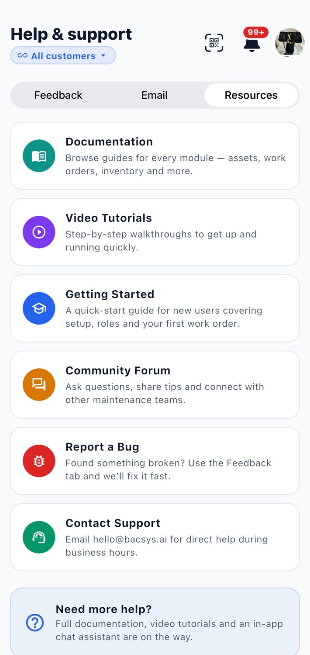
Available Resources
| Resource | Description |
|---|---|
| Documentation | Browse guides for application modules, including assets, work orders, inventory, and other features. |
| Video Tutorials | Follow step-by-step video walkthroughs to learn how to set up and use the application. |
| Getting Started | Access a quick-start guide covering setup, roles, and creating your first work order. |
| Community Forum | Ask questions, share tips, and connect with other maintenance teams. |
| Report a Bug | Open the Feedback tab to report something that is broken or not working as expected. |
| Contact Support | Use the displayed support email address to request direct assistance during business hours. |
Steps to Access Resources
- Open Help & Support.
- Select the Resources tab.
- Review the available resources.
- Select the resource relevant to your needs.
- Follow the available instructions or contact details.
The page also displays a Need more help? section, which highlights documentation, video tutorials, and an in-app chat assistant as additional support options.
4. End-to-End Help & Support Workflow
Open Help & Support
        ↓
Choose a Support Option
        ↓
  ┌──────────────┬──────────────┐
  ↓              ↓              ↓
Feedback        Email        Resources
  ↓              ↓              ↓
Choose a       Copy the      Select the
feedback       displayed     required
category       email address resource
  ↓              ↓              ↓
Enter title    Share the     Open guides,
and details    address or    tutorials, or
  ↓            send an       support links
Add attachment email
if required      ↓
  ↓            Email is logged
Click Send     as a maintenance
feedback       request, according
  ↓            to configuration
Review
submission
status