

Accent Color
1. Accent Color
The Accent color setting allows users to customize the primary color used throughout the Optimo Lite application. Users can select an available color from the Accent color palette.
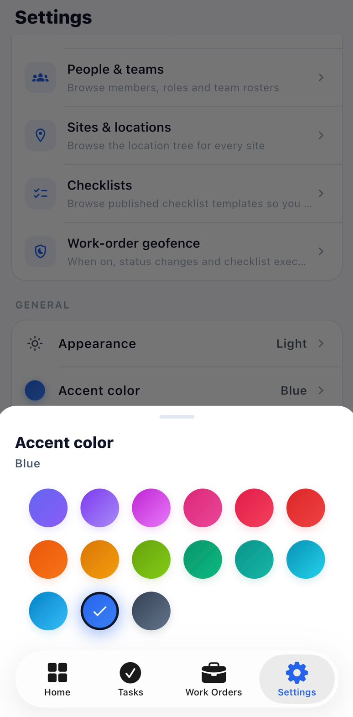
Accent Color Options
The Accent color pop-up displays multiple color options that can be selected according to the user's preference.
| Option | Description |
|---|---|
| Accent color | Opens the color selection panel. |
| Color palette | Displays the available accent colors. |
| Selected color | The currently selected color is indicated with a check mark. |
1.1 Select an Accent Color
Steps
- Open Settings.
- Under the General section, select Accent color.
- The Accent color pop-up is displayed.
- Review the available colors in the color palette.
- Click the required color.
- A check mark is displayed on the selected color.
- The selected accent color is applied to the application interface.
1.2 Current Accent Color
The currently selected accent color is displayed next to Accent color in the Settings page.
For example:
| Setting | Selected Value |
|---|---|
| Accent color | Blue |
Accent Color Workflow
Open Settings
      ↓
Open Accent Color
      ↓
Accent Color Palette
      ↓
Select Required Color
      ↓
Selected Color Marked with Check
      ↓
Accent Color Updated
      ↓
New Accent Color Applied to the Application