

Appearance
1. Appearance
The Appearance setting allows users to choose how the Optimo Lite application is displayed. Users can select System, Light, or Dark mode based on their preference.
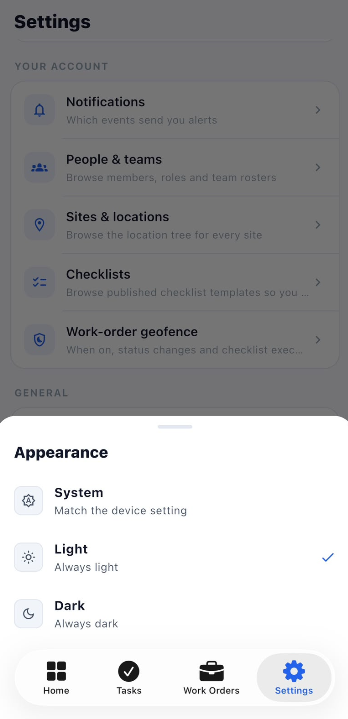
Appearance Options
| Option | Description |
|---|---|
| System | Matches the appearance setting configured on the user's device. |
| Light | Displays the application using the light theme. |
| Dark | Displays the application using the dark theme. |
1.1 Select Appearance Mode
Steps
- Open Settings.
- Under the General section, select Appearance.
- The Appearance pop-up is displayed.
- Select one of the available options:
- System
- Light
- Dark
- A check mark is displayed next to the currently selected option.
- The application appearance is updated according to the selected mode.
1.2 System Mode
The System option follows the appearance setting configured on the user's device.
Steps
- Open Settings.
- Select Appearance.
- Select System.
- Optimo Lite follows the device's configured appearance setting.
1.3 Light Mode
The Light option displays Optimo Lite using the light theme.
Steps
- Open Settings.
- Select Appearance.
- Select Light.
- The application switches to the light theme.
1.4 Dark Mode
The Dark option displays Optimo Lite using the dark theme.
Steps
- Open Settings.
- Select Appearance.
- Select Dark.
- The application switches to the dark theme.
Appearance Workflow
Open Settings
      ↓
Open Appearance
      ↓
Appearance Options
      ↓
   ┌───────────────┬───────────────┬
   ↓               ↓               ↓
 System          Light            Dark
   ↓               ↓               ↓
Device Theme    Light Theme     Dark Theme
   ↓               ↓               ↓
      Application Appearance Updated