

Details
Manage organization information and regional preferences.
Details
The Details page allows users to view their organization information and configure regional preferences. These preferences are applied across all screens in the application.
Users can update the organization name, currency, date format, time format, and timezone, then save the changes.
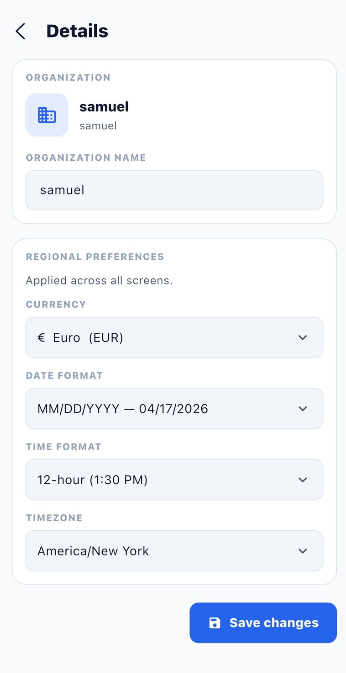
1. Organization Information
The Organization section displays the current organization information.
| Field | Description |
|---|---|
| Organization | Displays the organization name and its associated identifier. |
| Organization Name | Displays the organization name and allows users to update it. |
Steps to Update Organization Information
- Open the Details page.
- Locate the Organization section.
- Review the existing organization information.
- Update the Organization Name field if required.
2. Regional Preferences
The Regional Preferences section allows users to configure how currency, dates, times, and timezones are displayed throughout the application.
Note: These preferences are applied across all screens.
Available Settings
| Setting | Description | Example from Screenshot |
|---|---|---|
| Currency | Selects the currency used for displaying monetary values. | Euro (EUR) |
| Date Format | Determines how dates are displayed. | MM/DD/YYYY — 04/17/2026 |
| Time Format | Determines whether time is displayed using a 12-hour or another available format. | 12-hour (1:30 PM) |
| Timezone | Sets the timezone used by the application. | America/New York |
Steps to Configure Regional Preferences
- Open the Details page.
- Navigate to the Regional Preferences section.
- Open the Currency dropdown and select the required currency.
- Open the Date Format dropdown and select the preferred date format.
- Open the Time Format dropdown and select the preferred time format.
- Open the Timezone dropdown and select the appropriate timezone.
- Review all selected settings.
- Click Save changes to save the updated preferences.
3. Save Changes
After updating the organization information or regional preferences, click Save changes to save your updates.
Steps to Save Changes
- Review the organization name and regional preferences.
- Confirm that all selected values are correct.
- Click Save changes.
- Verify that the updated settings are displayed.
4. Important Notes
- Regional preferences are applied across all screens.
- Select the correct currency, date format, time format, and timezone for your organization.
- Review your changes before saving.
- The screenshot shows the available fields and the Save changes button; it does not show a save confirmation message.
5. End-to-End Details Workflow
Open the Application
        ↓
Navigate to Details
        ↓
Review Organization Information
        ↓
Update Organization Name if Required
        ↓
Open Regional Preferences
        ↓
Select Currency
        ↓
Select Date Format
        ↓
Select Time Format
        ↓
Select Timezone
        ↓
Review All Changes
        ↓
Click Save Changes
        ↓
Organization Details and Preferences Saved
        ↓
Preferences Applied Across All Screens