

Module Prefixes
Configure custom prefixes for work orders and checklist.
Module Prefixes
The Module Prefixes page allows users to customize the prefixes used to generate identification codes for different modules in the application.
These prefixes help users identify records easily, such as assets, inventory parts, work orders, locations, vendors, and requests.
1. View Module Prefixes
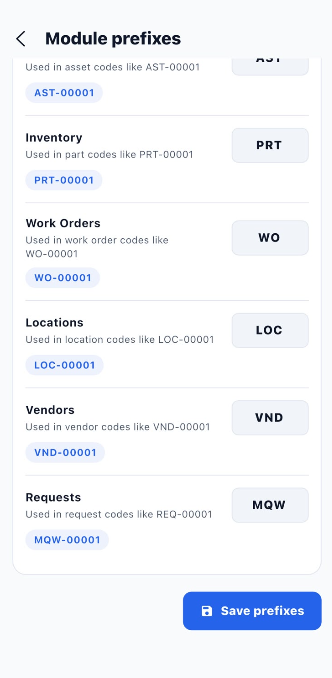
The page displays the available modules, their current prefixes, and an example of how each prefix appears in a generated record code.
Available Modules and Prefixes
| Module | Description | Example Code |
|---|---|---|
| Assets | Used in asset identification codes. | AST-00001 |
| Inventory | Used in inventory part codes. | PRT-00001 |
| Work Orders | Used in work order codes. | WO-00001 |
| Locations | Used in location codes. | LOC-00001 |
| Vendors | Used in vendor codes. | VND-00001 |
| Requests | Used in request codes. | MQW-00001 |
Each module has an editable prefix field displayed on the right side of its row.
2. Change a Module Prefix
Users can change the existing prefix to match their organization's naming conventions.
Steps to Update a Prefix
- Open the application's settings.
- Navigate to Module Prefixes.
- Locate the module whose prefix you want to change.
- Click the prefix field beside the module.
- Replace the existing prefix with the required value.
- Repeat these steps for any other modules you want to update.
- Review the updated prefixes and their example codes.
- Click Save prefixes to save the changes.
3. Save Updated Prefixes
After updating the required prefixes, click Save prefixes at the bottom of the page.
| Option | Description |
|---|---|
| Prefix field | Allows you to edit the prefix associated with a module. |
| Example code | Shows how the prefix appears in an identification code. |
| Save prefixes | Saves the updated module prefixes. |
Important: Review each prefix carefully before saving. The screenshot shows the prefix fields and the Save prefixes button, but it does not confirm whether changing a prefix updates existing records or applies only to newly generated codes.
4. Important Notes
- Use clear and recognizable prefixes for each module.
- Keep prefixes consistent with your organization's naming conventions.
- Check the example code before saving your changes.
- Click Save prefixes after making updates.
- Verify the saved prefixes in the Module Prefixes page.
5. End-to-End Module Prefix Workflow
Open Application Settings
        ↓
Navigate to Module Prefixes
        ↓
View Available Modules
        ↓
Select the Required Module Prefix
        ↓
Edit the Prefix
        ↓
Repeat for Other Modules if Required
        ↓
Review Updated Prefixes
        ↓
Check the Example Codes
        ↓
Click Save Prefixes
        ↓
Module Prefixes Saved
        ↓
Verify the Updated Prefixes