

SLA
SLA Policies
The SLA policies section allows administrators to define response and resolution time targets for work orders based on priority and other matching rules. Policies can automatically attach to new work orders when the configured rules match.
1. View SLA Policies
The SLA policies page displays the policies configured in the application.
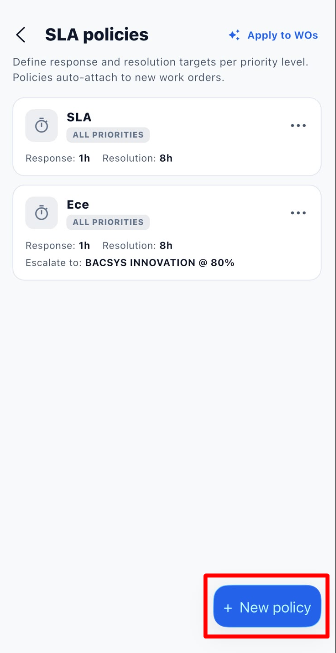
Each policy card displays the policy name, priority coverage, response target, resolution target, and escalation information, when configured.
| Field / Option | Description |
|---|---|
| Policy Name | Displays the name of the SLA policy. |
| All Priorities | Indicates that the policy applies to all priority levels. |
| Response | Displays the target time for responding to a work order. |
| Resolution | Displays the target time for resolving a work order. |
| Escalate to | Displays the configured escalation recipient, when applicable. |
| + New policy | Opens the form to create a new SLA policy. |
| Apply to WOs | Provides an option to apply SLA policies to work orders. |
Steps to View SLA Policies
- Open the SLA policies page.
- Review the available policies.
- Check the response and resolution targets displayed on each policy card.
- Review the escalation information, if configured.
- Click + New policy to create another policy.
2. Create a New SLA Policy
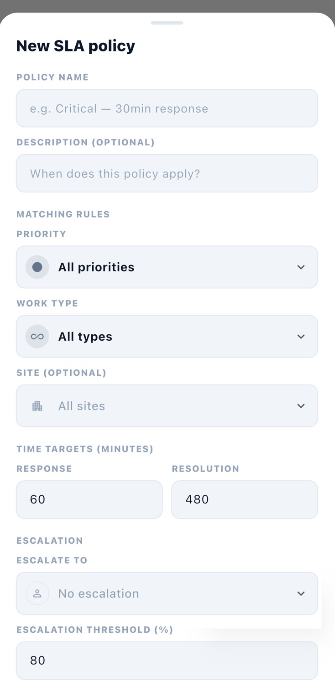
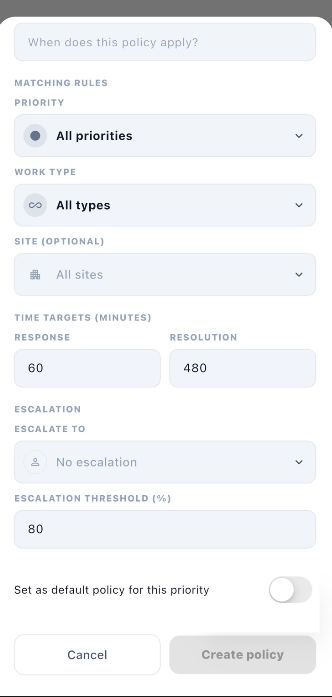
Click + New policy to open the New SLA policy form. Enter the policy details, configure the matching rules and time targets, and select escalation settings if required.
2.1 Policy Details
| Field | Description | Required |
|---|---|---|
| Policy Name | Enter a name that identifies the SLA policy, such as Critical — 30min response. | Yes |
| Description (Optional) | Describe when or under what circumstances the policy should apply. | No |
2.2 Matching Rules
Matching rules determine which work orders the SLA policy applies to.
| Field | Description |
|---|---|
| Priority | Select the priority level to which the policy applies, or choose All priorities. |
| Work Type | Select the applicable work type, or choose All types. |
| Site (Optional) | Select a specific site or choose All sites. |
2.3 Time Targets
Time targets define how quickly a work order should receive a response and be resolved.
| Field | Description |
|---|---|
| Response | Enter the target response time in minutes. |
| Resolution | Enter the target resolution time in minutes. |
For example, the form shows 60 minutes for Response and 480 minutes for Resolution.
2.4 Escalation Settings
Escalation settings determine who should be notified or involved when a work order reaches the configured escalation threshold.
| Field | Description |
|---|---|
| Escalate to | Select the person or recipient to whom the issue should be escalated, or leave it as No escalation. |
| Escalation Threshold (%) | Enter the percentage threshold at which escalation should occur. |
| Set as default policy for this priority | Enable this option if the policy should be the default for its configured priority. |
Steps to Create an SLA Policy
- Open the SLA policies page.
- Click + New policy.
- Enter a name in Policy Name.
- Add a description, if required.
- Select the required Priority.
- Choose the applicable Work Type.
- Select a Site, or leave it as All sites if no site restriction is required.
- Enter the Response target in minutes.
- Enter the Resolution target in minutes.
- Select an Escalate to recipient, if required.
- Enter the Escalation Threshold (%).
- Enable Set as default policy for this priority if appropriate.
- Review all the configured settings.
- Click Create policy.
- Verify that the new policy appears on the SLA policies page.
Note: The form shows response and resolution targets in minutes. Choose values that match your organization's service requirements.
3. Manage an Existing SLA Policy
Each SLA policy card includes a three-dot menu (⋯) that provides additional actions.
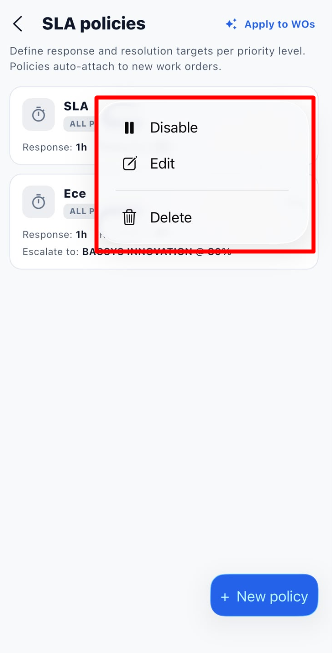
Available Options
| Option | Description |
|---|---|
| Disable | Disables the selected SLA policy. |
| Edit | Opens the policy for updating its configuration. |
| Delete | Deletes the selected policy. |
3.1 Disable a Policy
- Open the SLA policies page.
- Find the policy you want to disable.
- Click its three-dot menu (⋯).
- Select Disable.
- Follow any confirmation prompt displayed by the application.
3.2 Edit a Policy
- Open the SLA policies page.
- Find the policy you want to update.
- Click its three-dot menu (⋯).
- Select Edit.
- Update the policy details, matching rules, time targets, or escalation settings as required.
- Save the changes using the available save option.
3.3 Delete a Policy
- Open the SLA policies page.
- Find the policy you want to remove.
- Click its three-dot menu (⋯).
- Select Delete.
- Confirm the deletion if prompted.
Important: Review the selected policy before disabling or deleting it. These actions affect the policy configuration, so make sure the correct policy is selected.
4. Apply SLA Policies to Work Orders
The Apply to WOs option is available at the top of the SLA policies page. It provides an action for applying SLA policies to work orders.
Steps
- Open the SLA policies page.
- Review the available SLA policies.
- Click Apply to WOs.
- Follow the options displayed by the application to continue.
Note: The supplied screenshot shows the Apply to WOs option but does not show the subsequent screen or its detailed behavior.
5. End-to-End SLA Policy Workflow
Open the SLA Policies Page
        ↓
Review Existing SLA Policies
        ↓
Click + New Policy
        ↓
Enter Policy Name
        ↓
Add Description if Required
        ↓
Configure Priority, Work Type, and Site
        ↓
Set Response and Resolution Targets
        ↓
Configure Escalation Settings if Required
        ↓
Choose Default Policy Setting if Appropriate
        ↓
Review the Policy Details
        ↓
Click Create Policy
        ↓
Verify the Policy Appears in the List
        ↓
Open the Three-Dot Menu to Manage the Policy
        ↓
Edit, Disable, or Delete as Required
        ↓
Use Apply to WOs if Needed