

Home
1. Home Dashboard
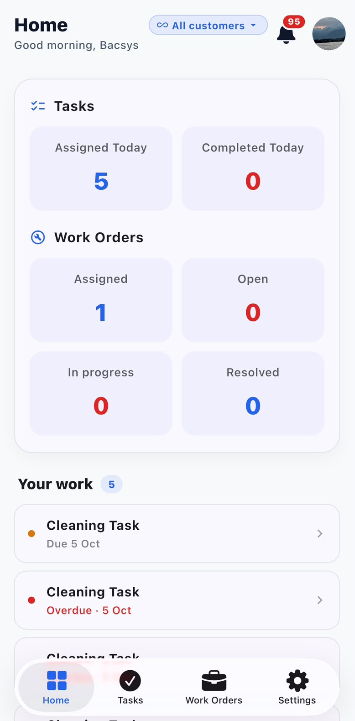
The Home Dashboard provides a quick overview of the user's tasks, work orders, notifications, and assigned work.
1.1 Select a Customer
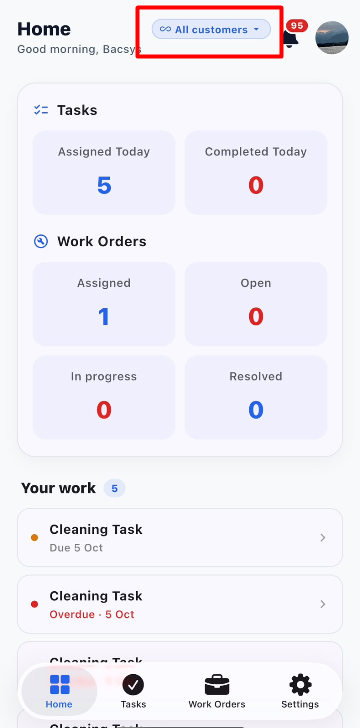
- Open the Home page.
- Click All customers at the top of the dashboard.
- Select the required customer.
- The dashboard updates according to the selected customer.
- The related sites, tasks, and work orders are displayed based on the selected customer.
1.2 Check Notifications
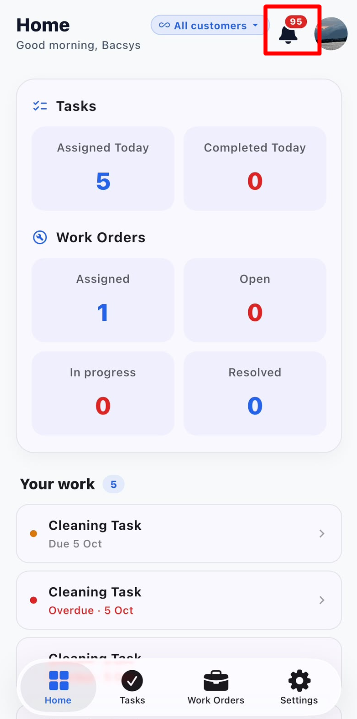
- Click the Notification icon.
- View the available notifications.
- Check updates related to tasks, work orders, and other activities.
- Open a notification when further action or information is required.
1.3 Check Tasks
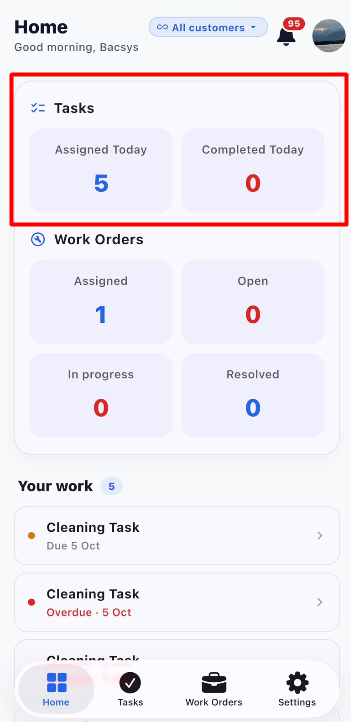
- Go to the Tasks section on the Home dashboard.
- Check Assigned Today to see the number of tasks assigned for the current day.
- Check Completed Today to see the number of tasks completed today.
- Click the task information to open the Tasks page when required.
1.4 Check Work Orders
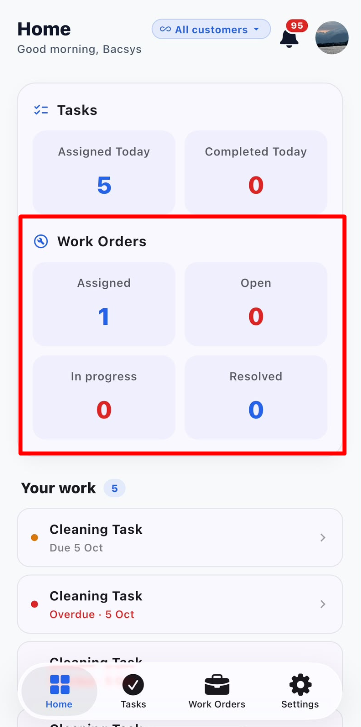
- Go to the Work Orders section.
- Check the number displayed for each work order status.
- Review the following statuses:
- Assigned – Work orders assigned to the user.
- Open – Work orders that are currently open.
- In progress – Work orders currently being worked on.
- Resolved – Work orders that have been resolved.
- Click a status to open the corresponding Work Orders page.
- For example, clicking In progress opens the In Progress work orders page.
1.5 Check Your Work
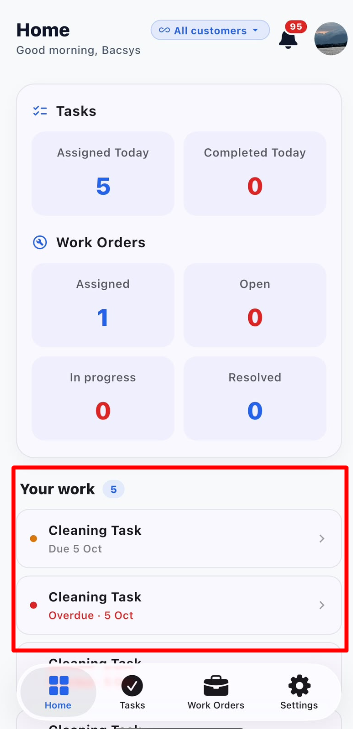
- Scroll to the Your work section.
- View the tasks assigned to the current user.
- Check the task name and due date.
- Tasks marked Overdue require attention because their due date has passed.
- Click a task to open its details.
1.6 Navigate Using the Bottom Menu
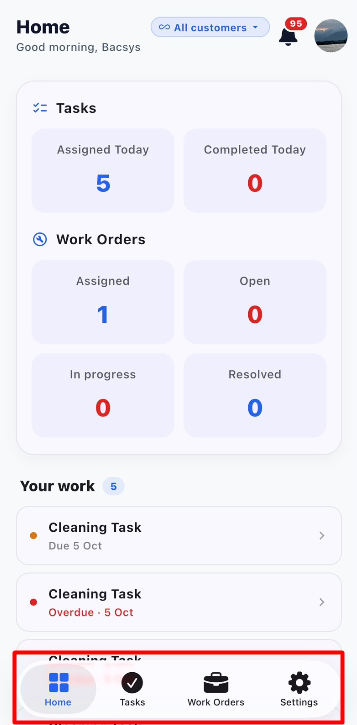
- Click Home to return to the Home dashboard.
- Click Tasks to open the Tasks module.
- Click Work Orders to open the Work Orders module.
- Click Settings to open the application settings.
1.7 Home Dashboard Workflow
Open Optimo Lite
      ↓
Home Dashboard
      ↓
Select Customer
      ↓
View Customer-Specific Information
      ↓
Check Notifications
      ↓
Check Tasks
      ↓
Check Work Orders
      ↓
Check Your Work
      ↓
Select Required Task or Work Order
      ↓
Open the Corresponding Details Page