

Login
Optimo Lite
Bacsys Optimo Lite provides a secure login and workspace setup process. Users can either sign in using an existing account, request access from the administrator, or use an invite code to create and set up a workspace.
1. Sign In
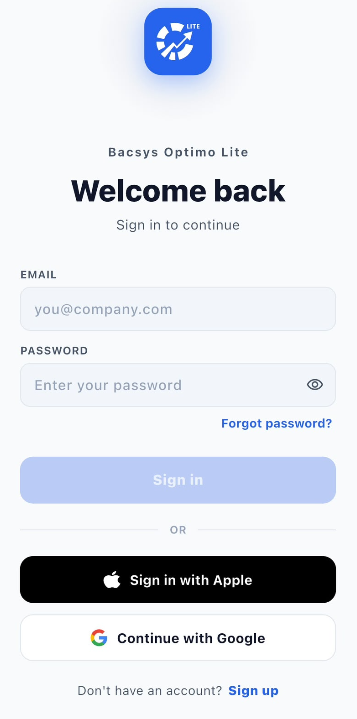
The Sign In page allows existing users to access Optimo Lite using their registered account credentials.
| Field / Option | Description |
|---|---|
| Enter the email address registered with the Optimo Lite account. | |
| Password | Enter the password associated with the account. |
| Show / Hide Password | Allows the user to view or hide the entered password. |
| Forgot password? | Allows the user to recover or reset the account password if it is forgotten. |
| Sign in | Verifies the entered credentials and opens the Optimo Lite workspace. |
| Sign in with Apple | Allows the user to access Optimo Lite using an Apple account. |
| Continue with Google | Allows the user to access Optimo Lite using a Google account. |
| Sign up | Allows a new user to request access or continue using an invite code. |
2. Request Access
If the user does not have an Optimo Lite account or workspace access, click Sign up and select Request access.
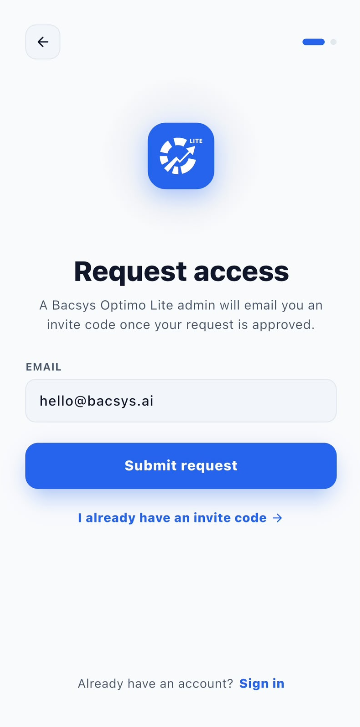
The Request access page allows the user to send an access request to the Optimo Lite administrator.
| Field / Option | Description |
|---|---|
| Enter the email address that will be used to request access. | |
| Submit request | Sends the access request to the Optimo Lite administrator for approval. |
| I already have an invite code | Allows the user to skip the access request and continue directly with an invite code. |
| Sign in | Returns the user to the existing account login page. |
Request Access Process
- Click Sign up from the Sign In page.
- Select Request access.
- Enter the required Email address.
- Click Submit request.
- The request is sent to the Optimo Lite administrator.
- The administrator reviews and approves the request.
- After approval, the user receives the required invitation or invite code.
- The user can then continue with workspace setup.
3. Create Workspace
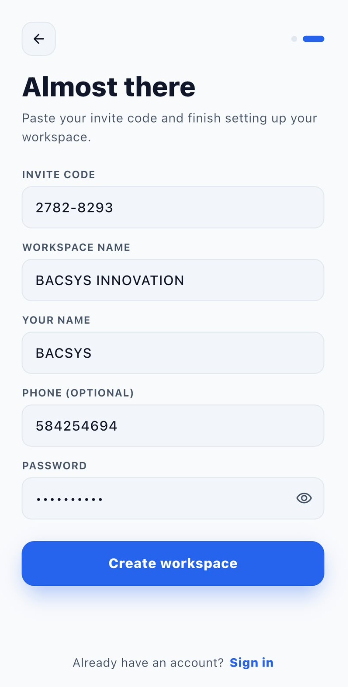
Users who already have an invite code can click I already have an invite code and complete the workspace setup.
| Field / Option | Description |
|---|---|
| Invite Code | Enter the invite code received from the administrator. |
| Workspace Name | Enter the name of the workspace to be created. |
| Your Name | Enter the name of the user who will access the workspace. |
| Phone (optional) | Enter a phone number if required. |
| Password | Create the password that will be used to access the account. |
| Show / Hide Password | Allows the entered password to be viewed or hidden. |
| Create workspace | Creates the workspace and completes the initial setup. |
| Sign in | Returns the user to the Sign In page. |
Workspace Creation Process
- Click I already have an invite code.
- Enter the Invite Code received from the administrator.
- Enter the Workspace Name.
- Enter Your Name.
- Enter the Phone number if required.
- Set the account Password.
- Review the entered information.
- Click Create workspace.
- The workspace is created and the user can sign in.
4. Optimo Lite Access Workflow
Open Optimo Lite
      ↓
Sign up
      ↓
Request Access
      ↓
Enter Email
      ↓
Click Submit request
      ↓
Admin Reviews Access Request
      ↓
Access Approved
      ↓
Receive Invite Code / Invitation
      ↓
I already have an invite code
      ↓
Enter Invite Code
      ↓
Enter Workspace Name
      ↓
Enter Your Name
      ↓
Enter Phone if Required
      ↓
Set Password
      ↓
Click Create workspace
      ↓
Workspace Created
      ↓
Sign In to Optimo Lite