

Alarm
Alarm Usage
The Alarm Usage section provides a centralized interface for monitoring, filtering, acknowledging, and exporting alarm information. It enables users to view active and historical alarms, helping them quickly identify system events, monitor alarm status, and generate alarm reports.
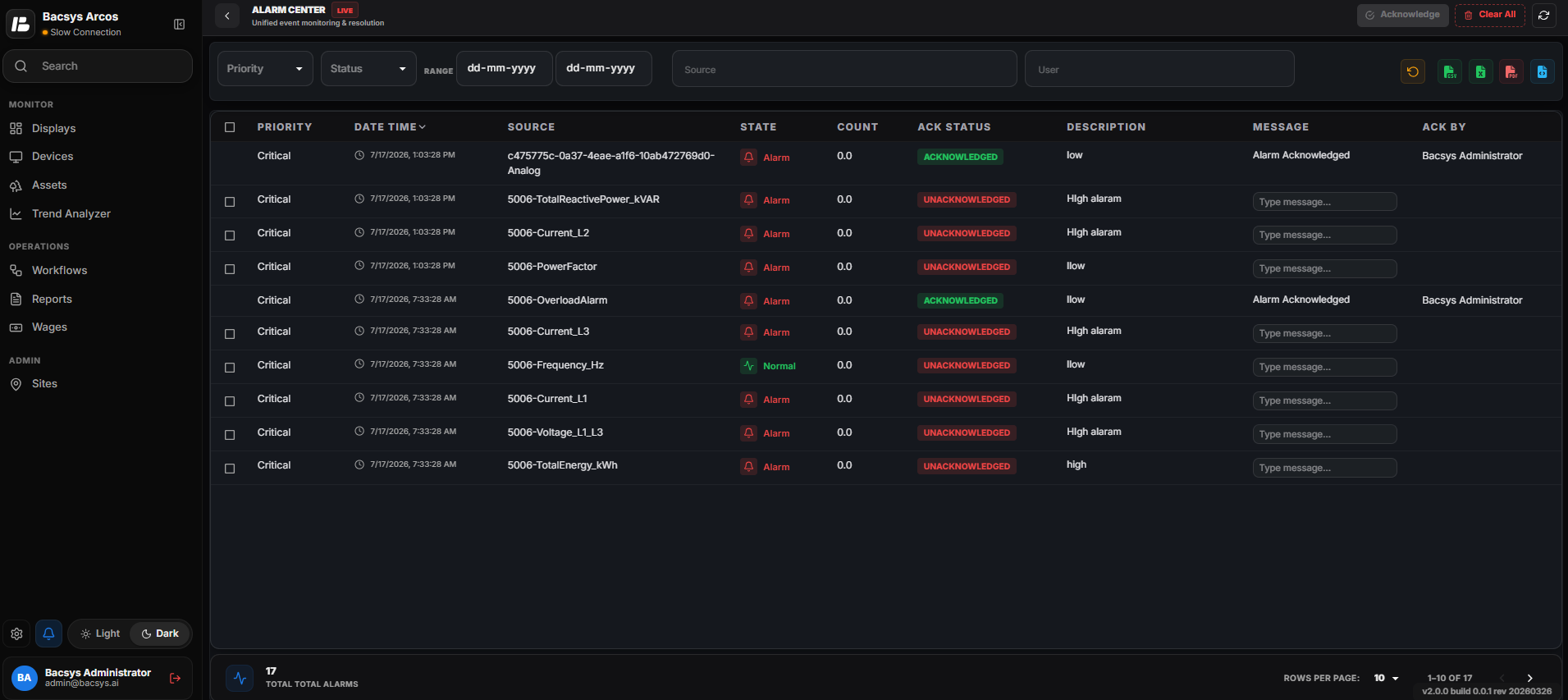
Alarm Usage Dashboard
Accessing Alarm Usage
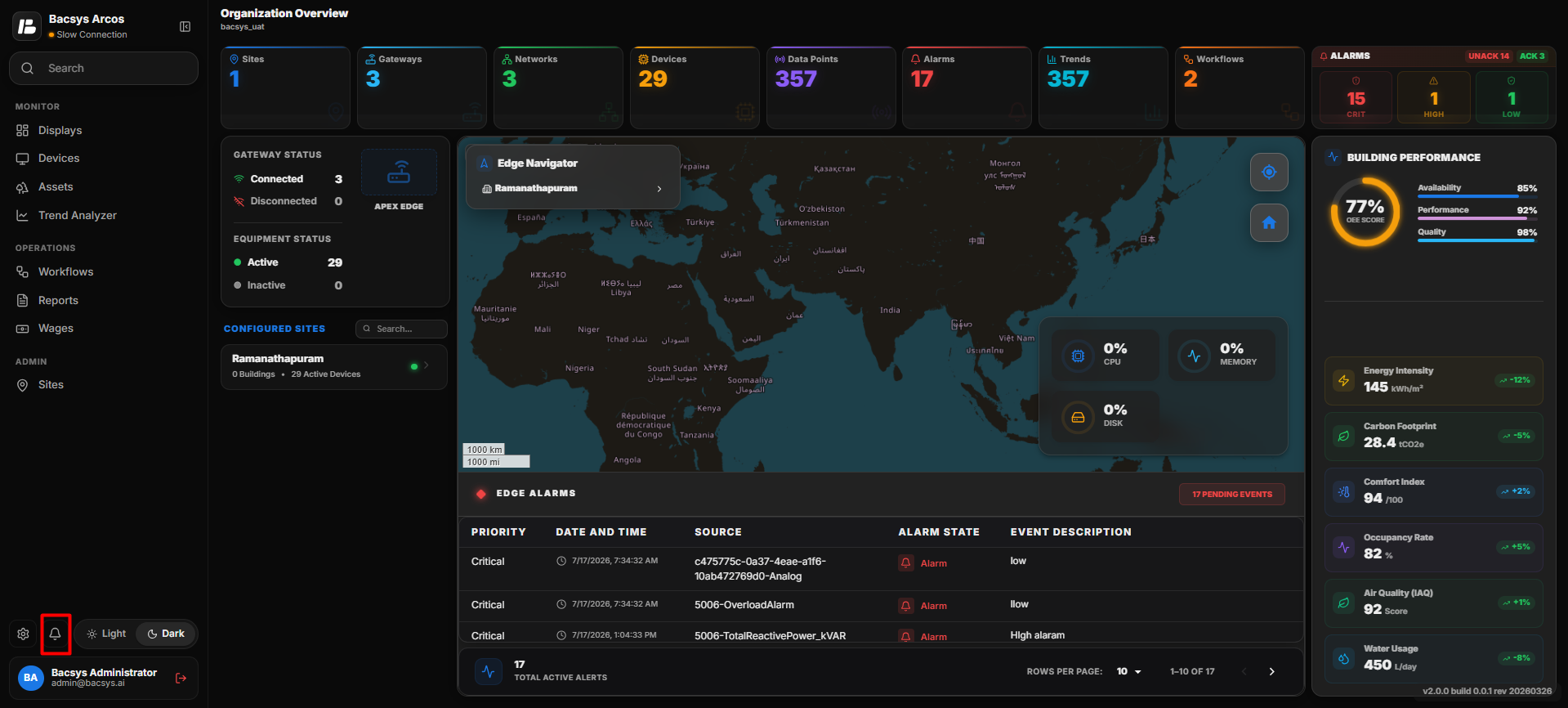
The Alarm icon is located in the application header beside the Settings icon. Clicking the Alarm icon opens the Alarm Usage dashboard.
Steps
- Locate the Alarm icon in the application header next to the Settings icon.
- Click the Alarm icon.
- The Alarm Usage dashboard opens and displays all active and historical alarms.
Filtering Alarm Data
The Filter section allows users to refine the displayed alarm records based on specific criteria.
Filter Options
Use the following filter options to refine the alarm records displayed in the Alarm Usage dashboard.
| Filter | Description |
|---|---|
| Priority | Select the alarm priority to filter records. Available options include Critical, High, and Low. |
| Status | Select the alarm status to display Acknowledged or Unacknowledged alarms. |
| Date Range | Select the Start Date and End Date to display alarms generated within a specific time period. |
| Source | Select the required source to display alarms generated from a specific device or system. |
| Username | Select a username to filter alarms generated or acknowledged by a specific user. |
| Filter | Click Filter to apply the selected criteria and display the matching alarm records. |
The system displays the alarm records that match the selected filter criteria.
Priority
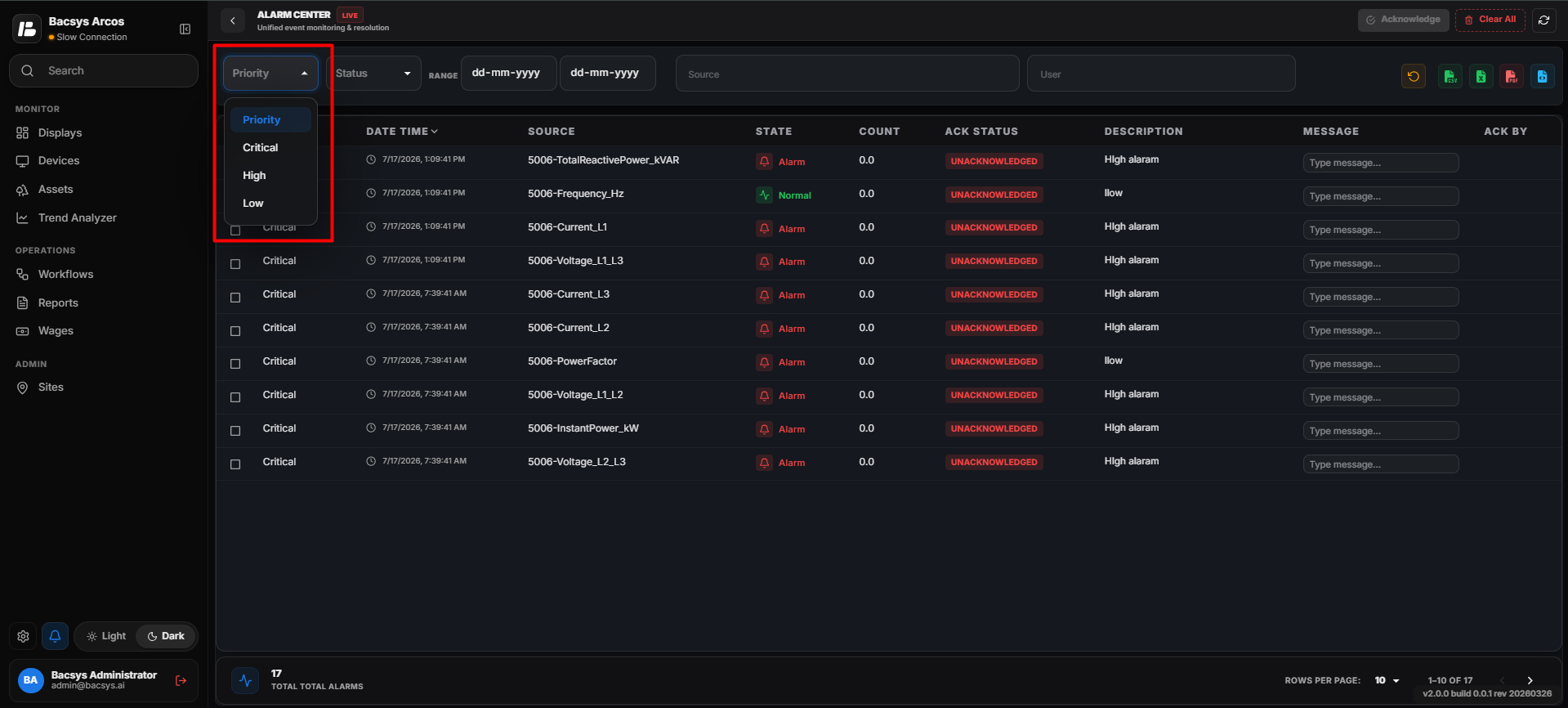
The following priority levels are available:
- Critical
- High
- Low
Status
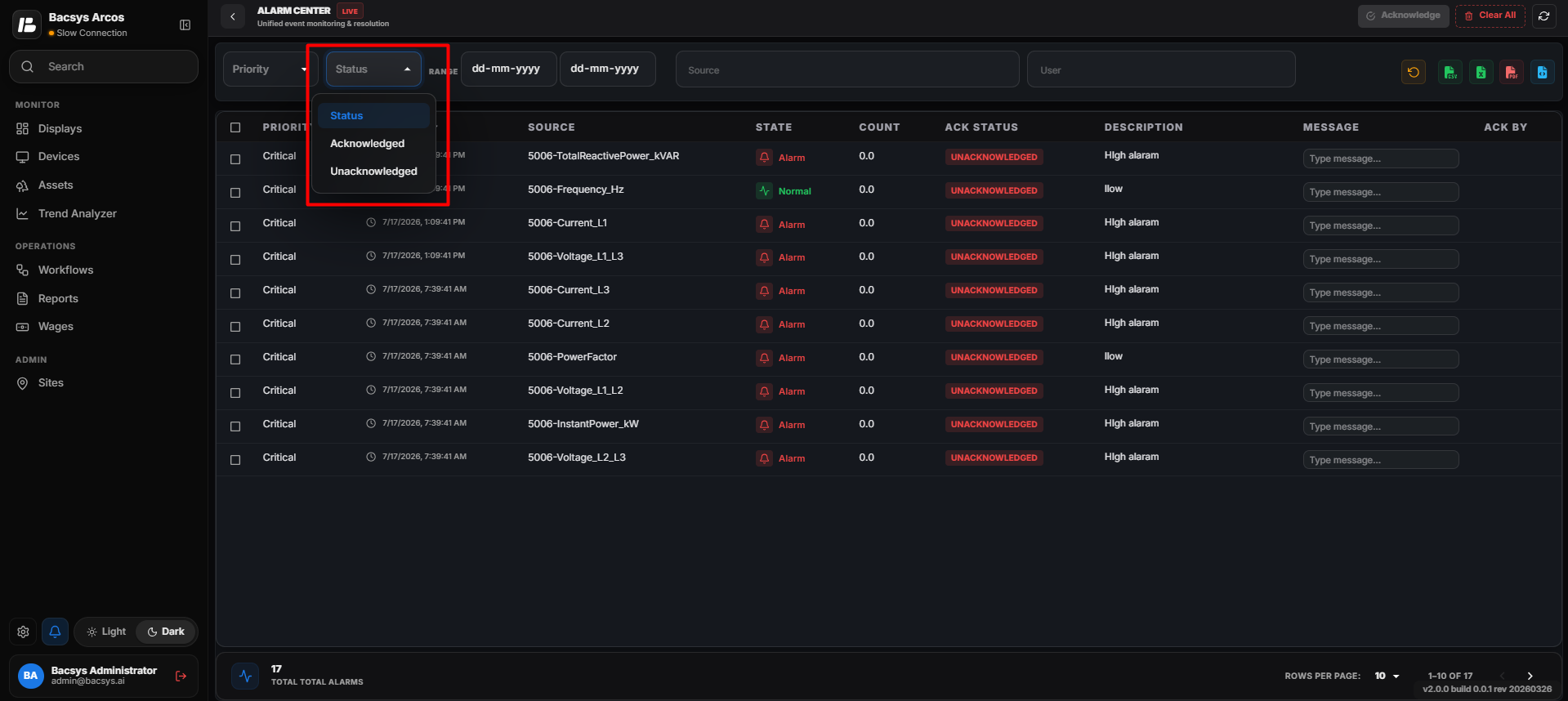
The following alarm status options are available:
- Acknowledged
- Unacknowledged
Date Range
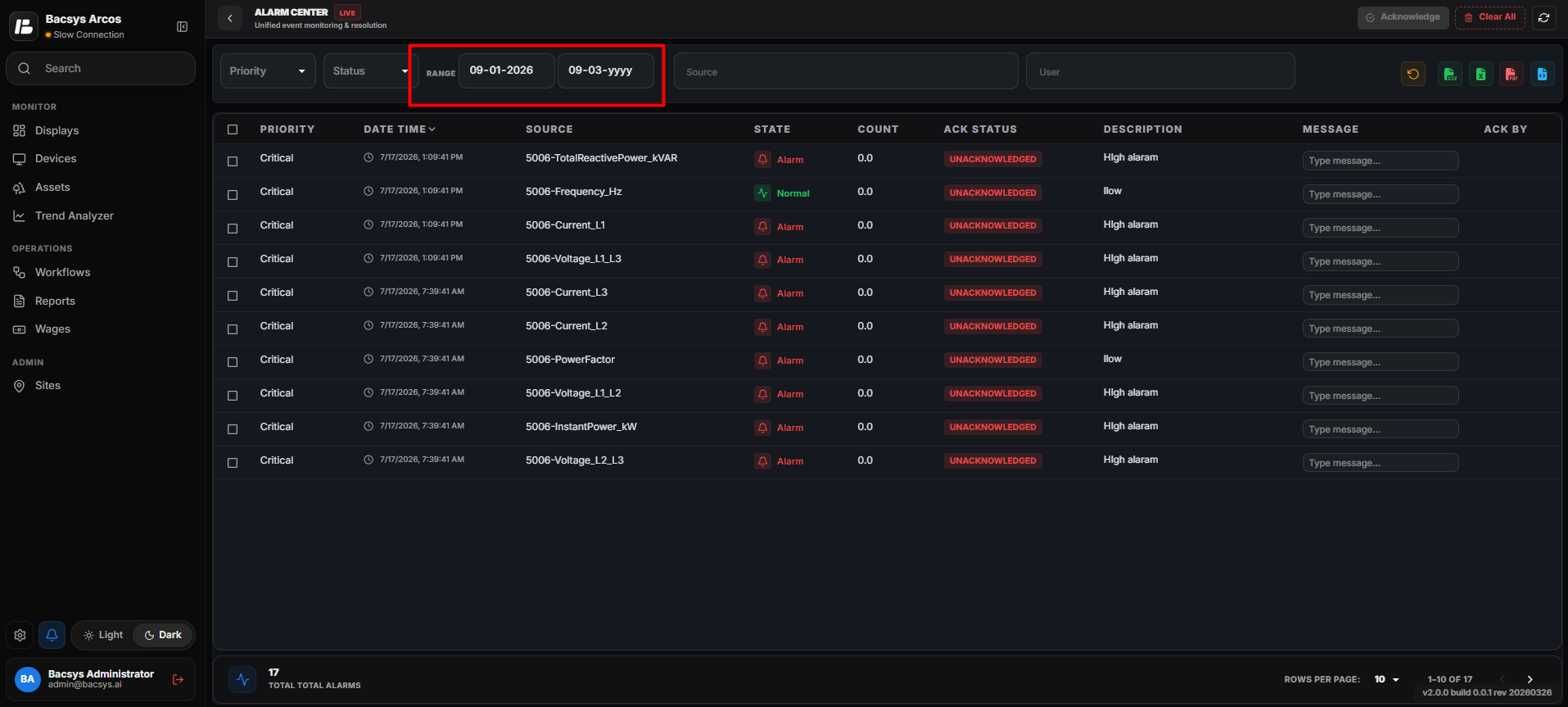
Select the required Start Date and End Date to display alarms generated during a specific period.
Source
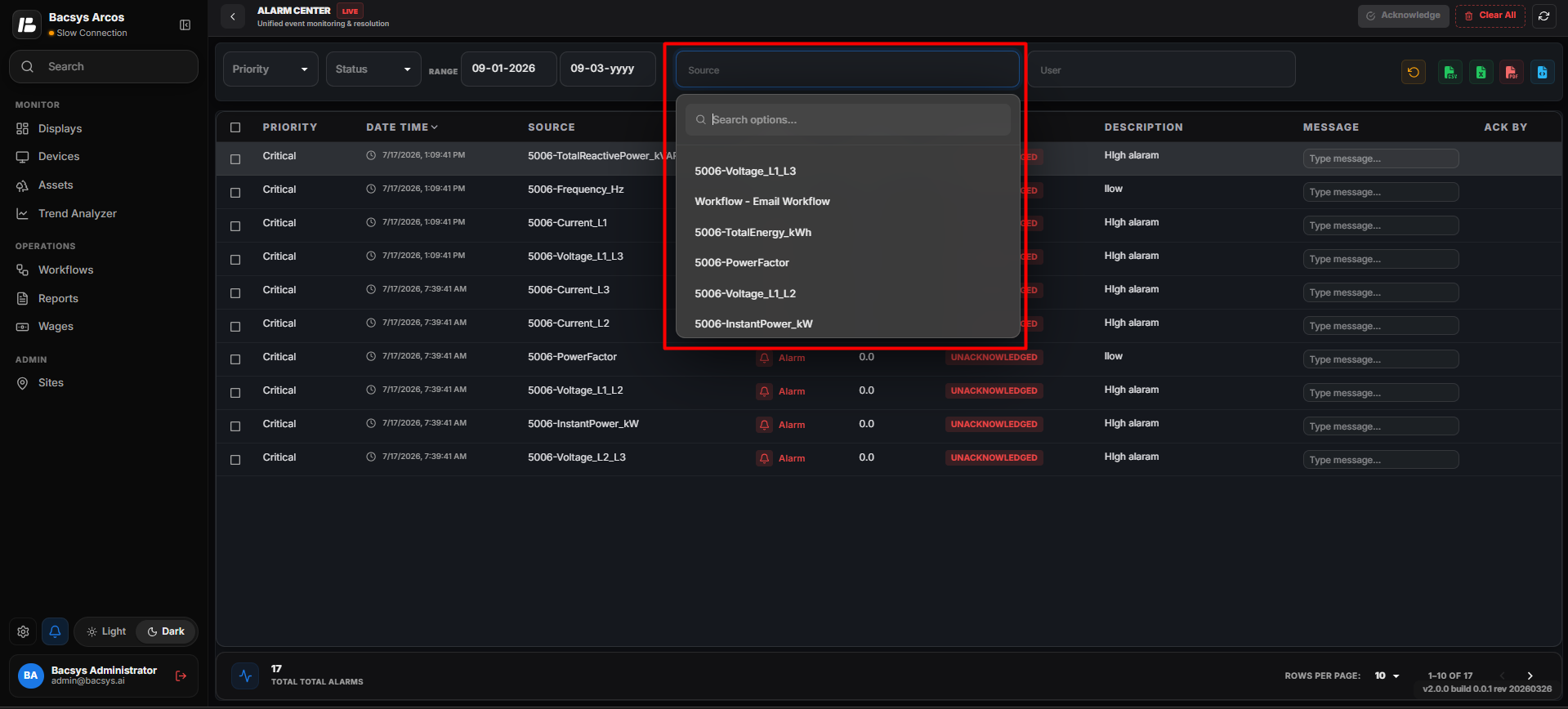
Select the required source to display alarms generated from a specific device or system.
Username
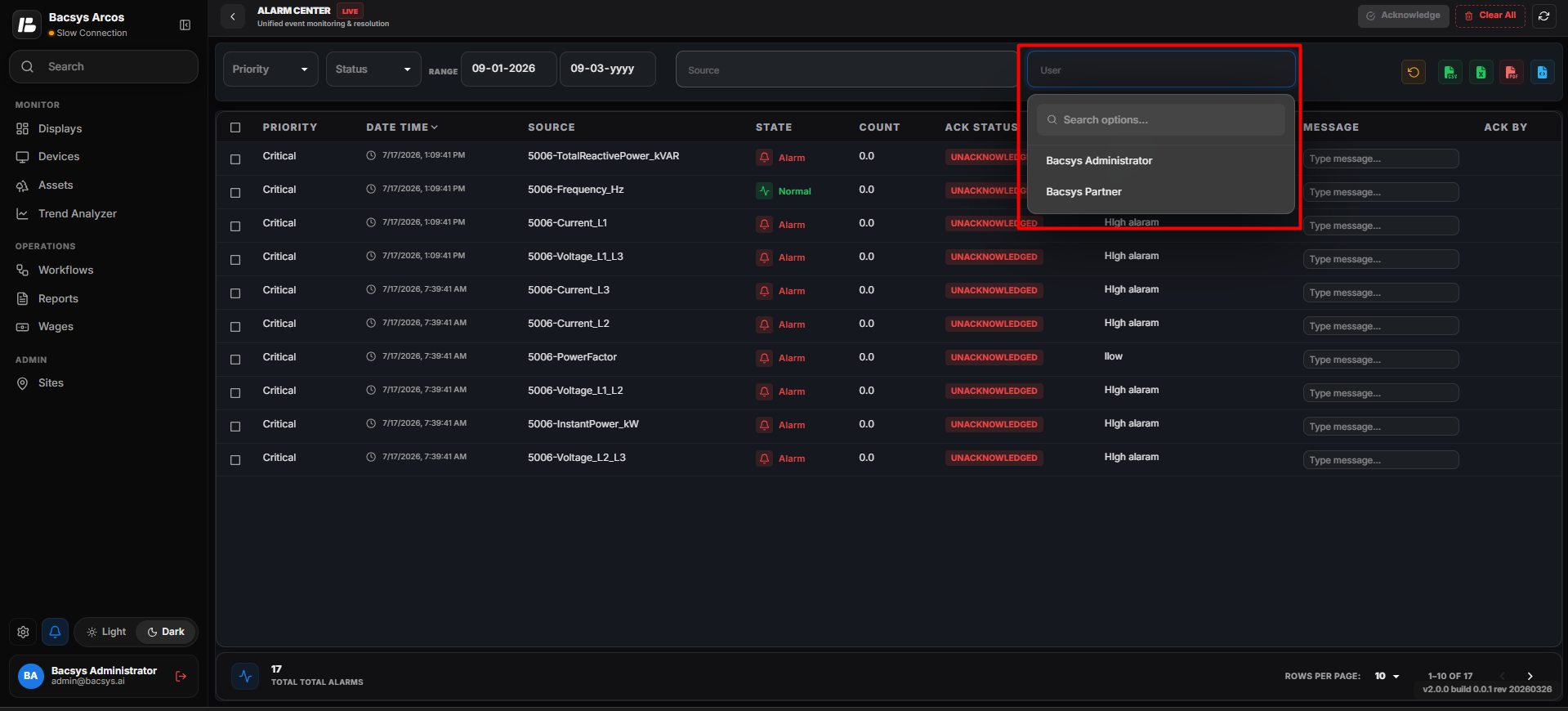
Select a username to display alarms generated or acknowledged by a particular user.
Refresh Alarm Data
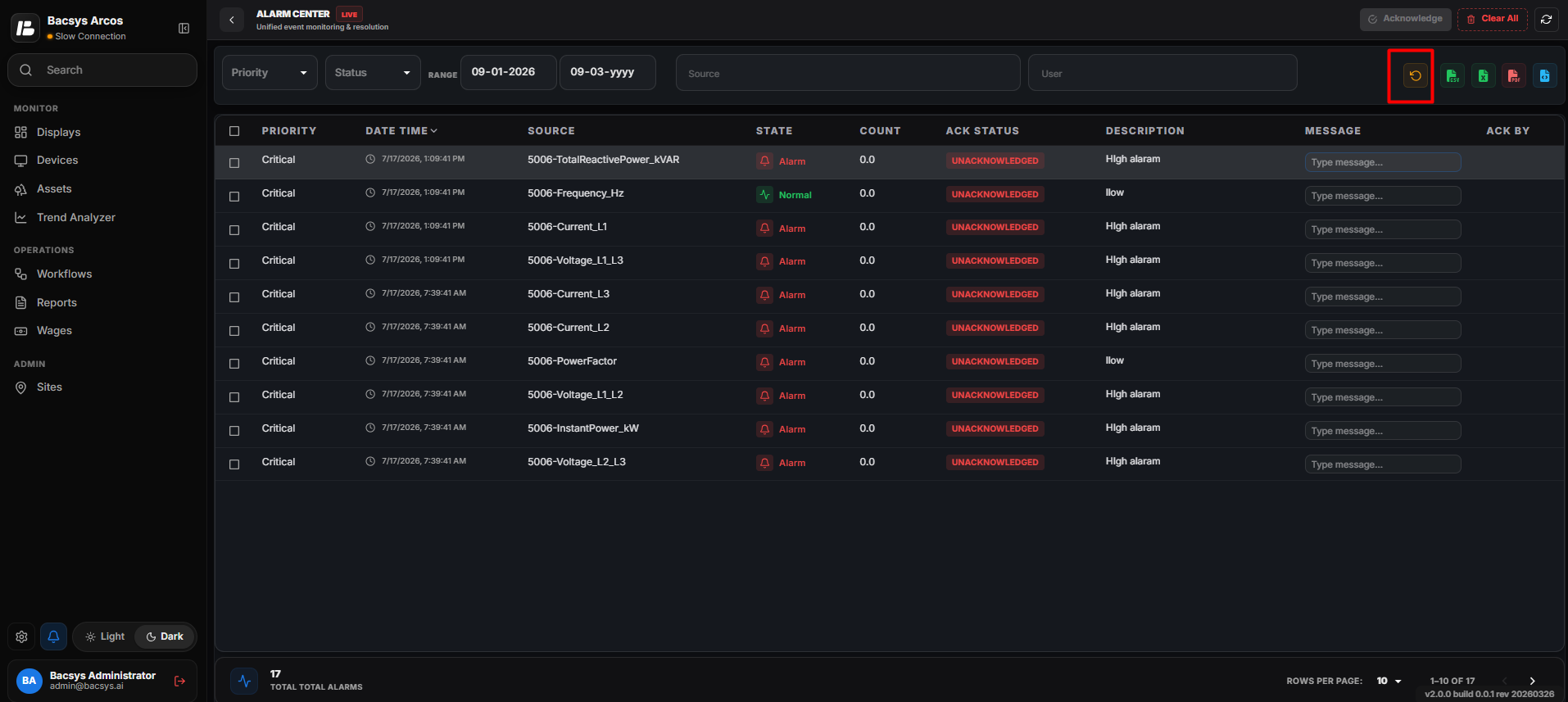
The Refresh option reloads the latest alarm information from the system.
Steps
- Click the Refresh icon.
- The system reloads the latest alarm records.
- The alarm list is updated automatically.
Export Alarm Data as CSV
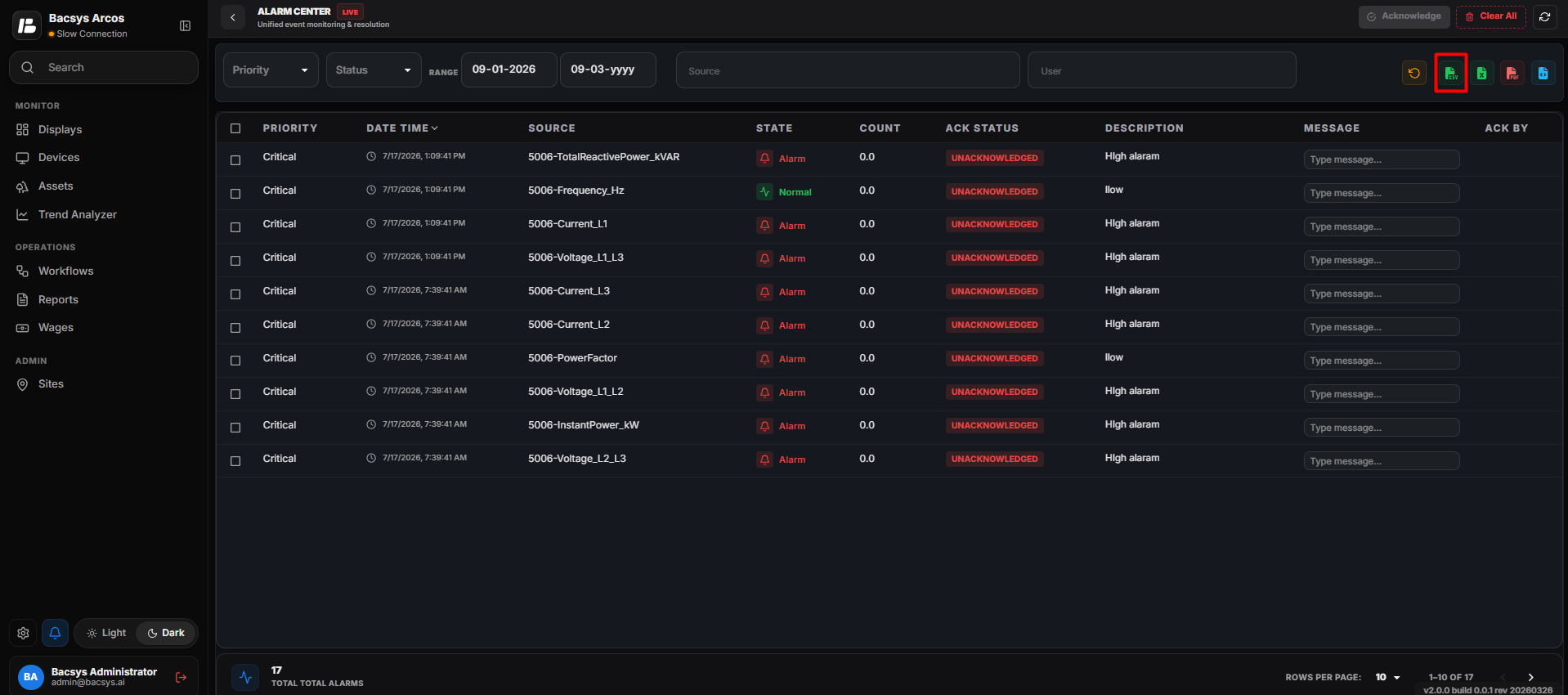
The Export CSV option allows users to download the filtered alarm records in CSV (Comma-Separated Values) format for reporting, analysis, or archival purposes.
Steps
- Apply the required alarm filters.
- Click Export CSV.
- The system generates the alarm report in CSV format.
- The CSV file is automatically downloaded to the configured download location.
Export Alarm Data as Excel
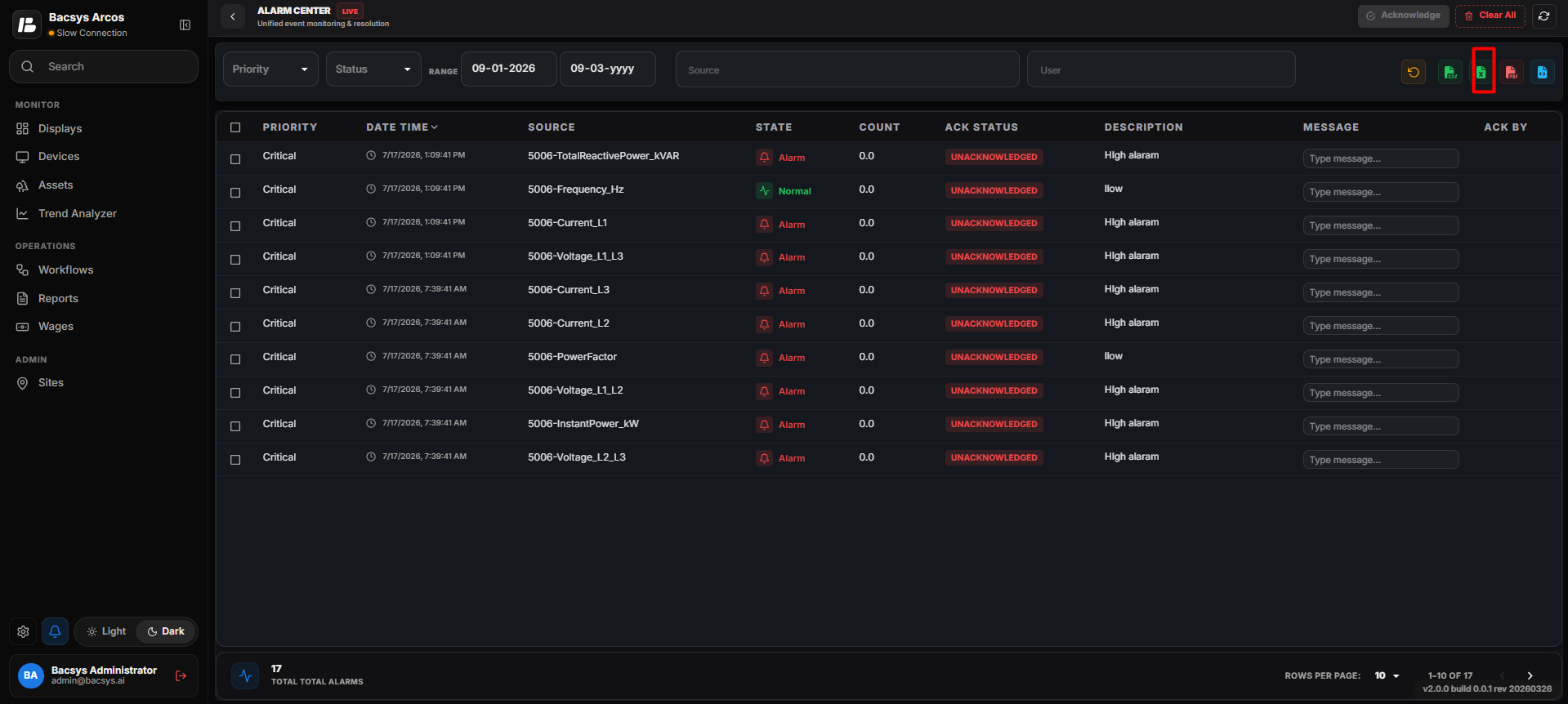
The Export Excel option allows users to download the filtered alarm records in Microsoft Excel (.xlsx) format for reporting, analysis, and record keeping.
Steps
- Apply the required alarm filters.
- Click Export Excel.
- The system generates the alarm report in Excel (.xlsx) format.
- The Excel file is automatically downloaded to the configured download location.
Export Alarm Data as PDF
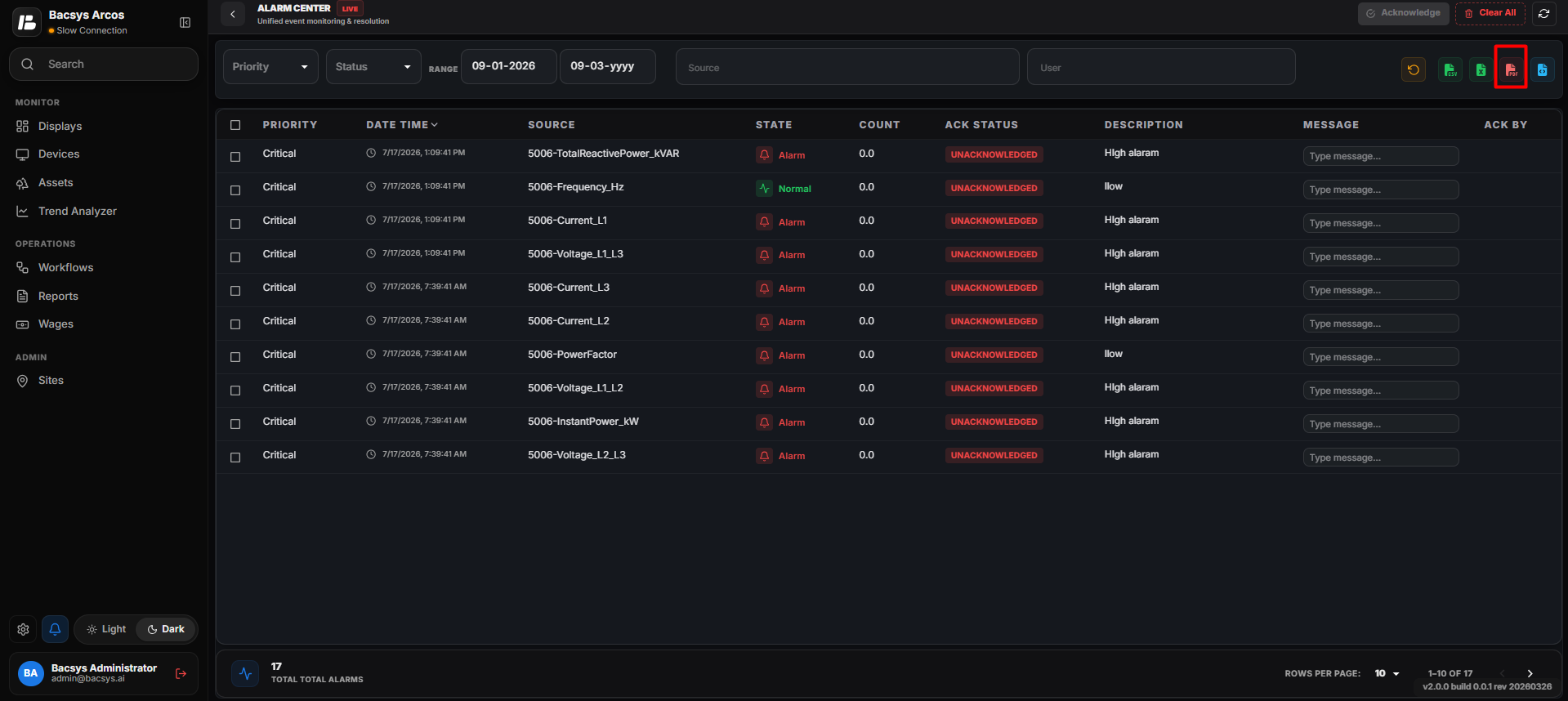
The Export PDF option allows users to generate and download the filtered alarm records as a PDF document for reporting, printing, and record keeping.
Steps
- Apply the required alarm filters.
- Click Export PDF.
- The system generates the alarm report in PDF format.
- The PDF file is automatically downloaded to the configured download location.
Export Alarm Data as JSON
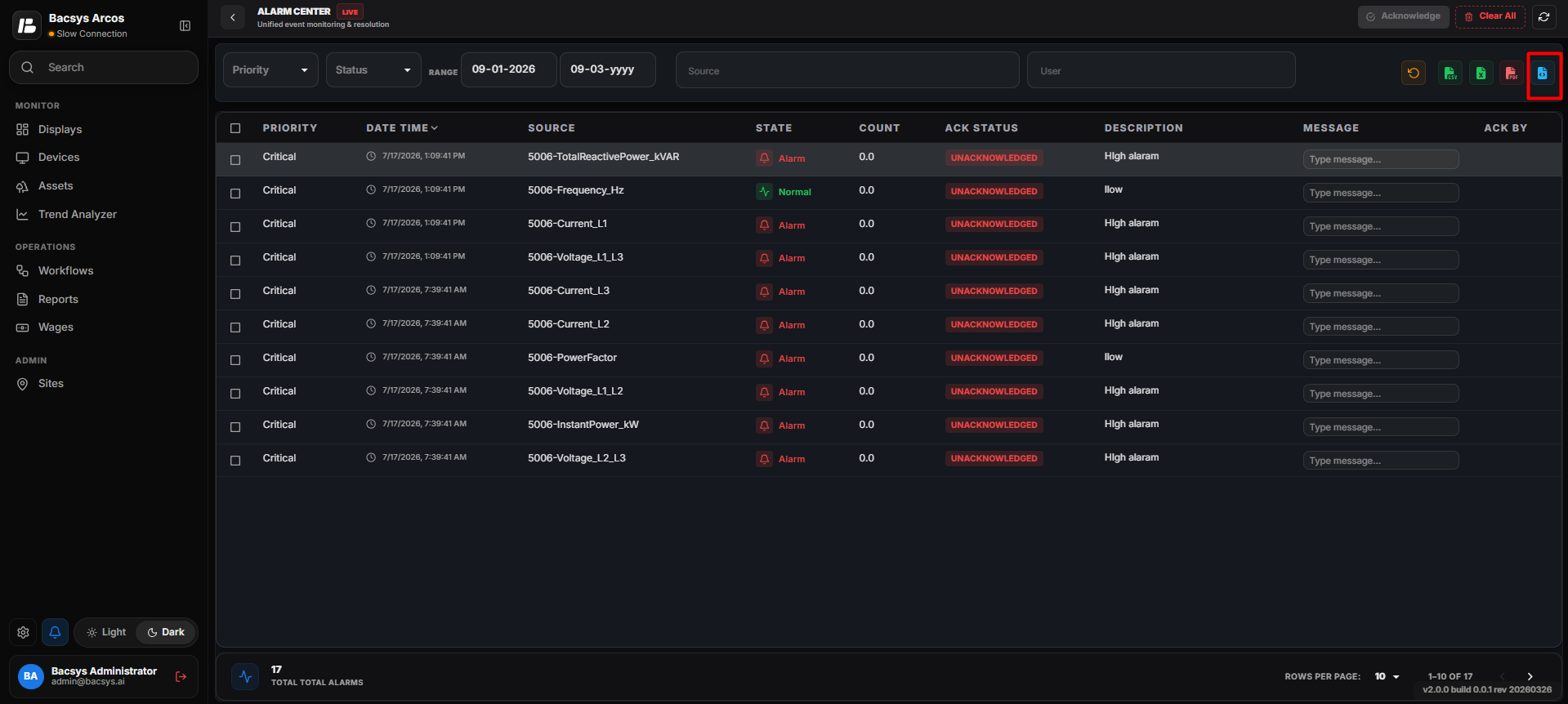
The Export JSON option allows users to download the filtered alarm records in JSON (JavaScript Object Notation) format for system integration, data exchange, and further processing.
Steps
- Apply the required alarm filters.
- Click Export JSON.
- The system generates the alarm data in JSON format.
- The JSON file is automatically downloaded to the configured download location.
Acknowledge Alarms
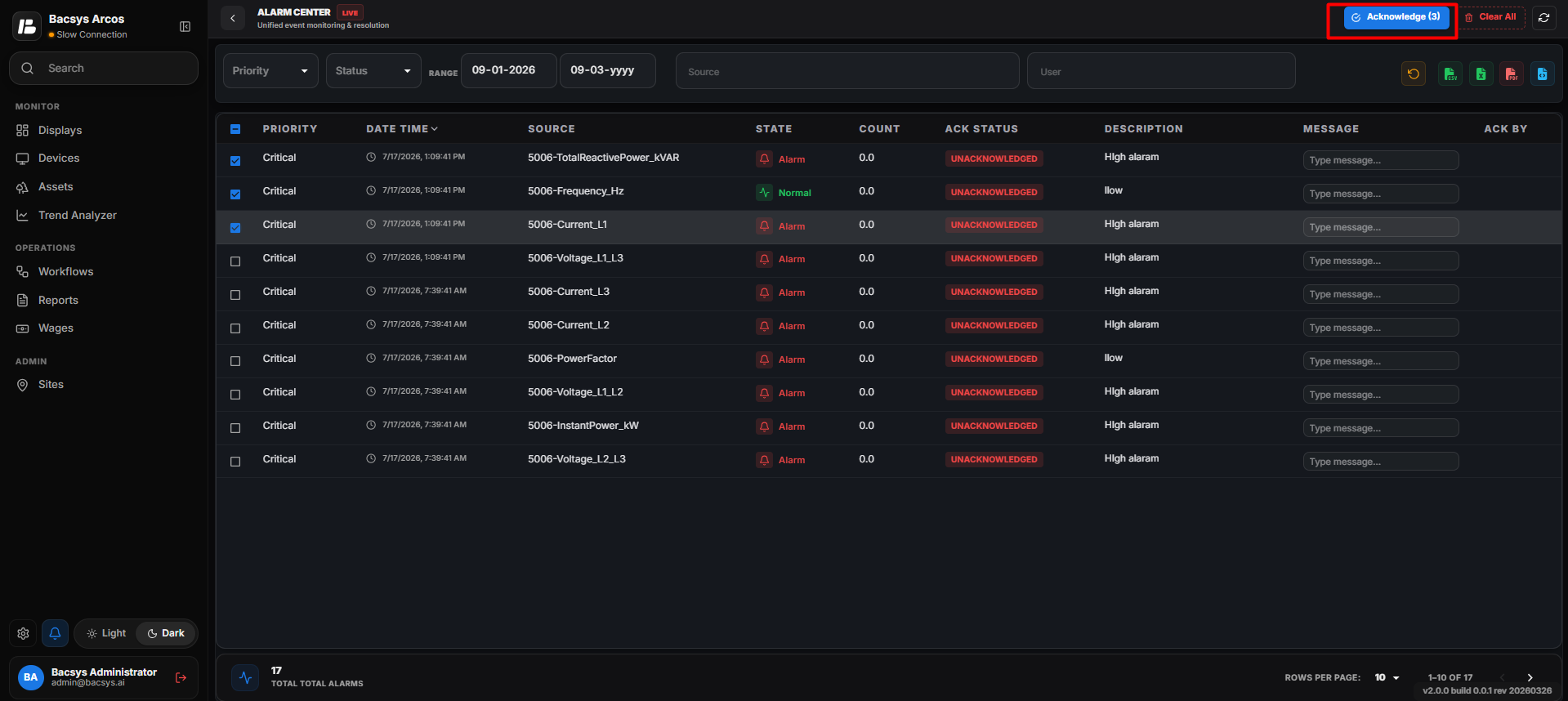
The Acknowledge Alarms option allows users to acknowledge selected alarms and update their status.
Steps
- Select one or more alarms from the alarm list.
- Click Acknowledge Alarms.
- The selected alarms are marked as Acknowledged.
- The updated status is displayed in the alarm table.
Clear All Alarms
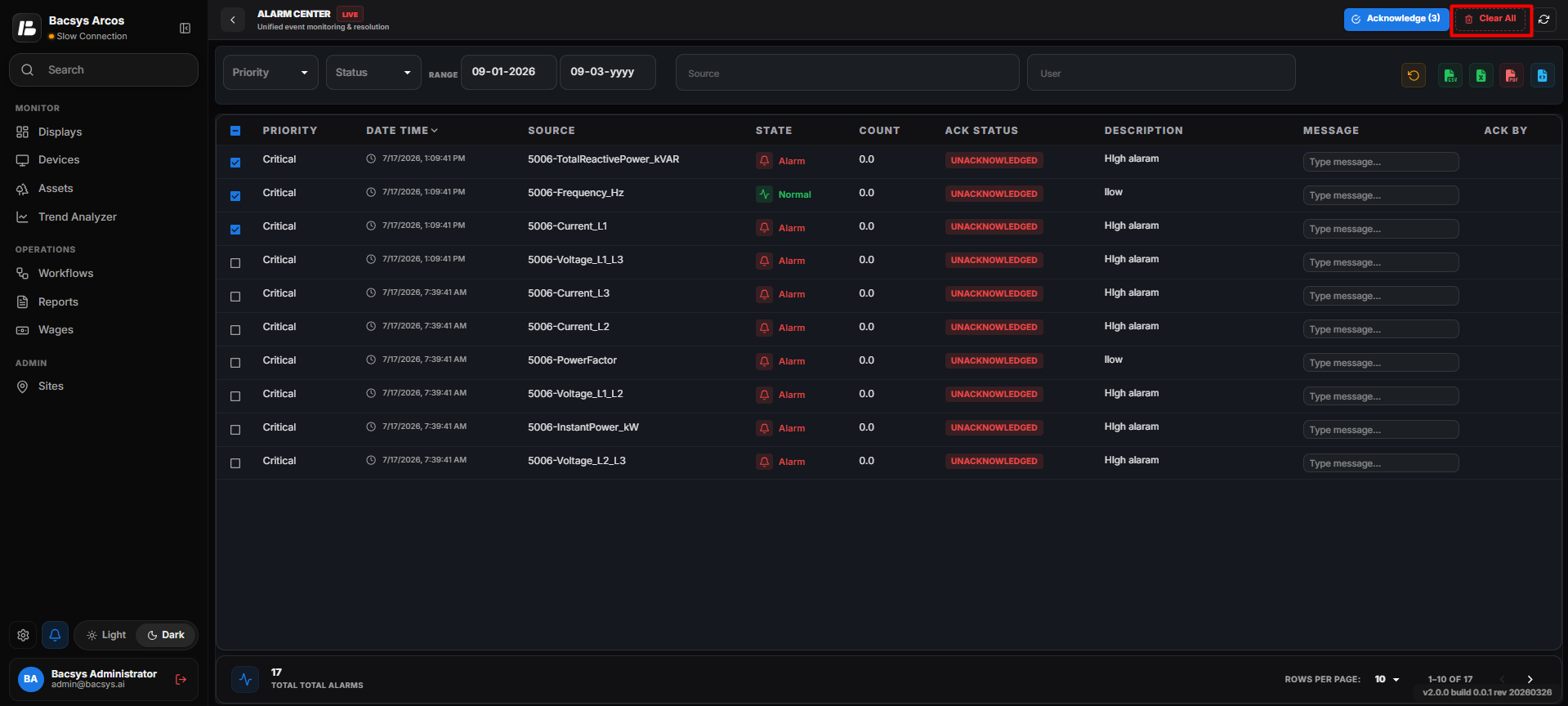
The Clear All Alarms option removes all active alarms from the current alarm list.
Steps
- Click Clear All Alarms.
- Confirm the action if prompted.
- All active alarms are removed from the current alarm list.
Note
Clearing alarms removes them from the active alarm list but does not delete the historical alarm records.
Alarm Table
The Alarm Table displays all alarm records based on the selected filter criteria.
The table includes the following information:
- Alarm Name
- Priority
- Status
- Source
- Username
- Timestamp
- Description
Users can search, filter, refresh, acknowledge, reset, clear, and export alarm records directly from the Alarm Usage dashboard.
Note
The displayed alarm records are updated based on the selected filter criteria and the latest available alarm information.