

Messages
Communication channels, notifications, and team messaging.
Messages
The Messages module allows users to communicate with other users through direct messages and group chats. A direct message is used to communicate with one person, while a group chat allows multiple people to communicate in the same conversation.
This guide explains how to open Messages, start a direct conversation, send messages, manage chat options, and create and use group chats.
1. Open the Messages Module
- Open the application.
- Navigate to the Messages module from the bottom navigation menu.
- The Messages page displays your existing conversations.
- Select the appropriate tab to view your conversations.
Available Options
| Option | Description |
|---|---|
| Chats | Displays individual conversations with other users. |
| Group Chat | Displays conversations involving multiple participants. |
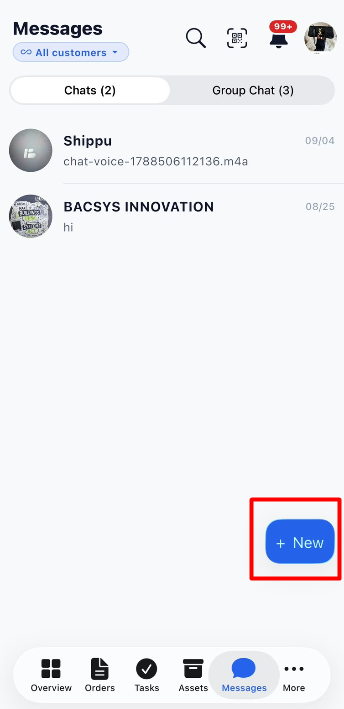
| + New | Opens the form to start a direct conversation or create a group chat. |
2. Start a New Conversation
Click + New on the Messages page to open the New conversation window.
The window provides two options:
- Direct: Start a conversation with one person.
- Group Chat: Create a conversation with multiple people.
Select the appropriate option based on how you want to communicate.
2.1 Start a Direct Message
A Direct message allows you to communicate privately with one selected person.
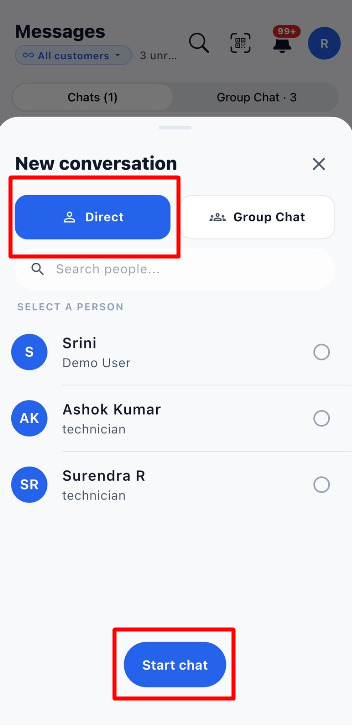
Steps to Start a Direct Message
- Open the Messages module.
- Click + New.
- Select Direct.
- Use the Search people... field to find a person, if required.
- Review the available users under Select a person.
- Select the intended person using the selection circle beside their name.
- Click Start chat.
The conversation opens, allowing you to send messages to the selected person.
Note: Check the person's name and role before clicking Start chat to ensure you select the correct recipient.
3. View and Manage Direct Chats
After starting a direct conversation, you can open it from the Chats list, send messages, view previous messages, and access additional conversation options.
3.1 View the Messages List
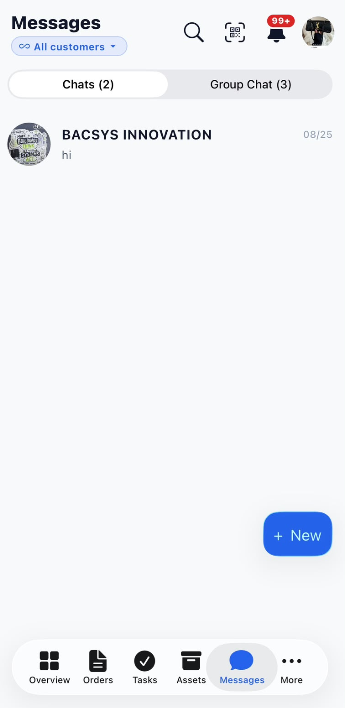
The Messages page displays your existing conversations. Each conversation can show the contact or group name, a preview of the latest message, and the date of the message.
To open an existing conversation:
- Open the Messages module.
- Select the Chats tab for individual conversations or the Group Chat tab for group conversations.
- Select the conversation you want to open.
3.2 Send a Direct Message
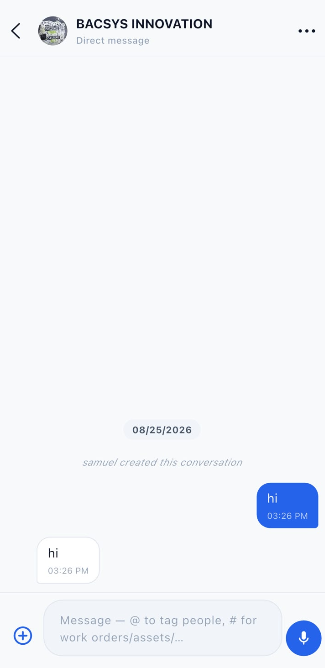
Once you open a direct conversation, you can read previous messages and send new ones.
Available Options
| Option | Description |
|---|---|
| Message field | Enter the message you want to send. |
| + icon | Access the available attachment options. |
| Microphone icon | Use voice input, where available. |
| Message timestamp | Shows the time associated with a message. |
Steps to Send a Message
- Open the Messages module.
- Select the Chats tab.
- Open the required conversation.
- Enter your message in the Message field at the bottom of the screen.
- Use the available send control to send the message.
- Review the conversation to see the messages displayed.
Tip: Keep your messages clear and relevant so the recipient can easily understand the information.
3.3 Direct Chat Options
The three-dot menu (⋯) in the top-right corner of a direct conversation provides additional options for managing the conversation.
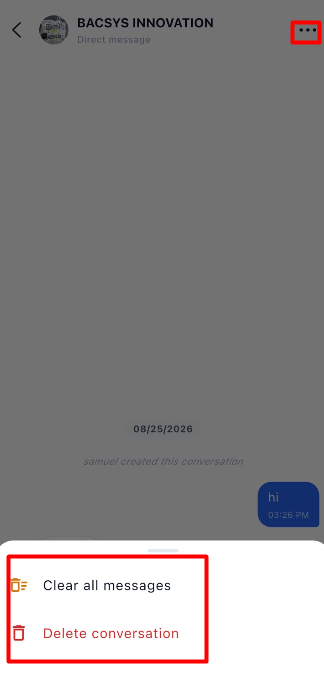
| Option | Description |
|---|---|
| Clear all messages | Clears the messages from the conversation. |
| Delete conversation | Deletes the conversation. |
Steps to Use Chat Options
- Open the required direct conversation.
- Click the three-dot menu (⋯) in the top-right corner.
- Select Clear all messages or Delete conversation, depending on your requirement.
- Follow any confirmation prompt displayed by the application.
Important: Clearing messages and deleting a conversation are different actions. Review the selected option carefully before proceeding.
4. Create and Use a Group Chat
A Group Chat allows multiple people to communicate in one conversation. You can give the group a name, select the members, and start sharing messages after creating the group.
4.1 Create a Group Chat
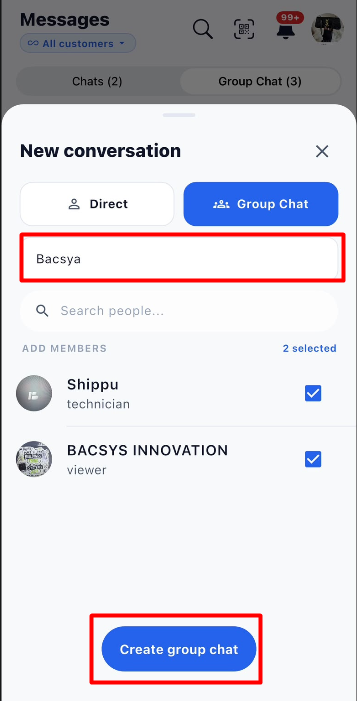
Steps to Create a Group Chat
- Open the Messages module.
- Click + New.
- Select Group Chat.
- Enter a name in the Group name field.
- Use the Search people... field to find specific users, if required.
- Under Add Members, select each person you want to include by clicking the checkbox beside their name.
- Review the selected members. The screen displays the number of selected members.
- Click Create group chat.
After the group is created, the group conversation opens.
Note: Choose a meaningful group name and verify the selected members before creating the group.
4.2 Send Messages in a Group Chat
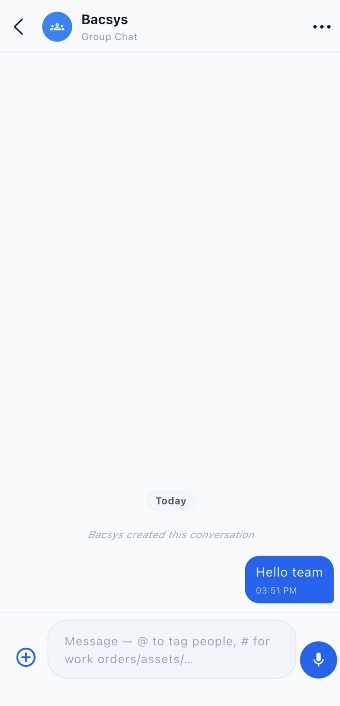
After creating a group, members can use the conversation to share messages and updates.
Steps to Send a Group Message
- Open the Messages module.
- Select the Group Chat tab.
- Open the required group.
- Enter your message in the Message field at the bottom of the screen.
- Use the available send control to send the message.
- Review the conversation to see the messages displayed.
Messages appear in the group conversation with their timestamps, helping members follow the discussion.
4.3 Group Chat Options
The group conversation provides the following messaging options:
| Option | Description |
|---|---|
| Group name | Identifies the group conversation. |
| Message field | Allows you to enter a message. |
| + icon | Provides access to the available attachment options. |
| Microphone icon | Allows voice input, where available. |
| Message timestamps | Help users identify when messages were sent. |
Important: Verify the group name and selected members before creating the group to ensure the intended people are included.
5. Important Notes
- Use Direct when you want to communicate with one person.
- Use Group Chat when you want multiple people to participate in the same conversation.
- Use the Search people... field to find a specific user.
- Review the recipient's name and role before starting a direct conversation.
- Enter a clear group name and select the intended members before creating a group.
- Use the Chats and Group Chat tabs to find existing conversations.
- Review the three-dot menu carefully before clearing messages or deleting a conversation.
6. End-to-End Messages Workflow
The following workflow summarizes how to start a conversation and communicate with other users.
Open the Messages module
        ↓
View the Chats and Group Chat tabs
        ↓
Click + New
        ↓
Choose a conversation type
        ↓
       ┌───────────────┐
       │                       │
       ▼                       ▼
     Direct                 Group Chat
       │                       │
       ▼                       ▼
Search for a person      Enter a group name
       │                       │
       ▼                       ▼
Select one person        Search for and select members
       │                       │
       ▼                       ▼
Click Start chat         Click Create group chat
       │                       │
       ▼                       ▼
Open the conversation    Open the group conversation
       │                       │
       └─────────┬───┘
                   ▼
          Enter a message
                   ↓
          Send the message
                   ↓
          Review the conversation
                   ↓
      Use chat options if required