

Apex Onboarding
Onboarding APEX
This guide will help you quickly connect to your APEX Controller for the first time.
Accessing APEX from Browser
-
Open any web browser (Chrome, Edge, Firefox).
-
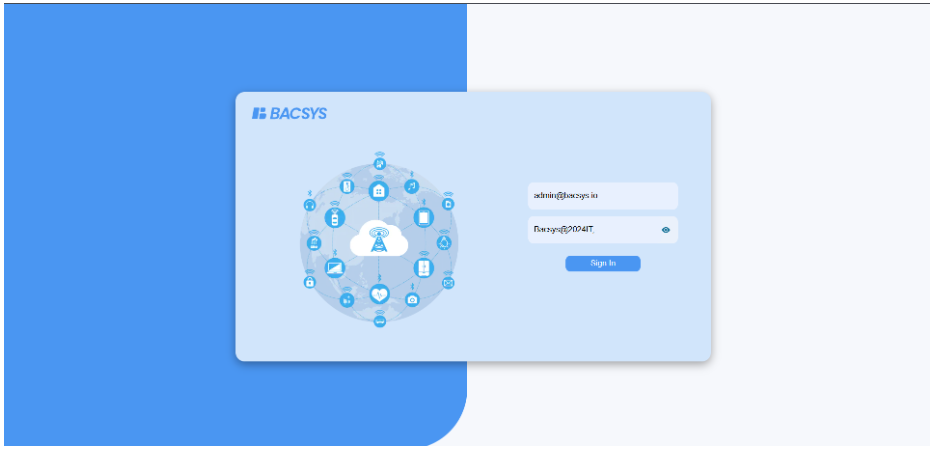
In the address bar, type: 192.168.1.10
- Email:
admin@bacsys.io - Password:
Bacsys@2024IT;-
- Email:
Network Configuration
This step ensures your laptop and the controller are on the same network range.
Hardware Connection
- Take an Ethernet cable.
- Plug one end into the controller’s Eth1 port.
- Plug the other end into your laptop’s Ethernet port.
Changing the IP Address of Your Laptop
To communicate with the controller, your laptop must be on the same IP range:
-
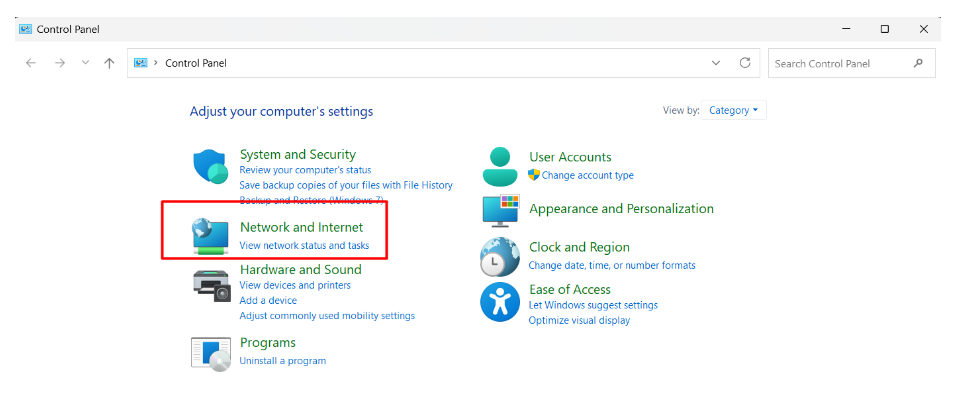
Open the Control Panel and navigate to Network and Internet.
-
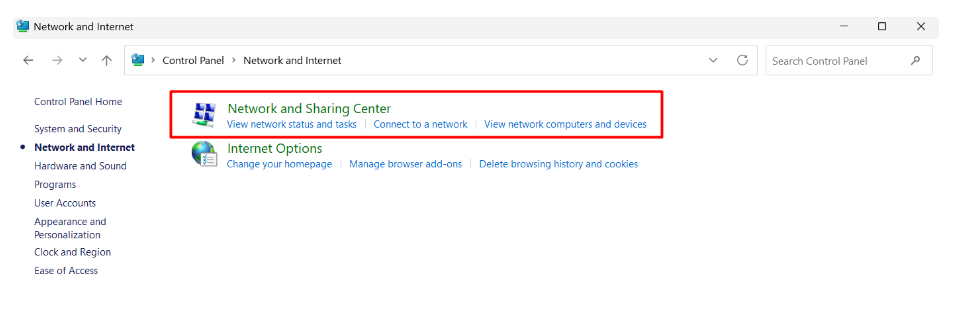
Click on Network and Sharing Center.
-
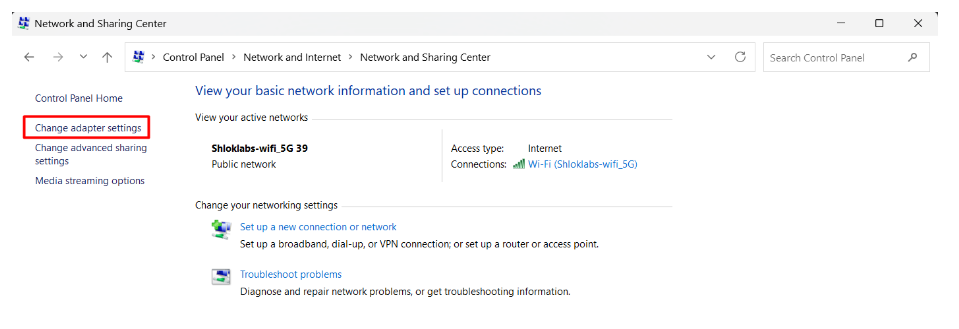
From the left panel, select Change adapter settings.
-
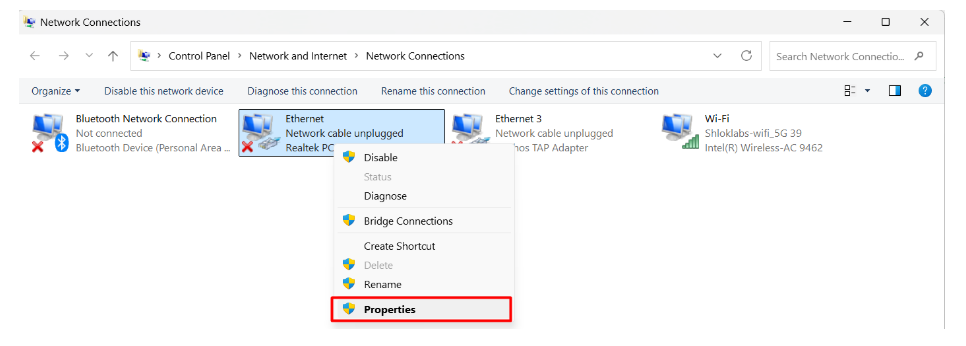
Right-click on your Ethernet connection and select Properties.
-
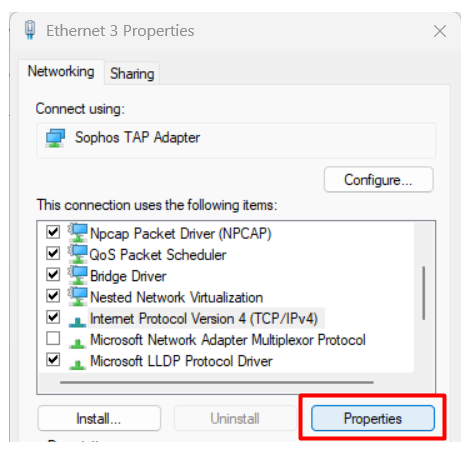
In the Ethernet Properties window, select Internet Protocol Version 4 (TCP/IPv4) and click Properties.
-
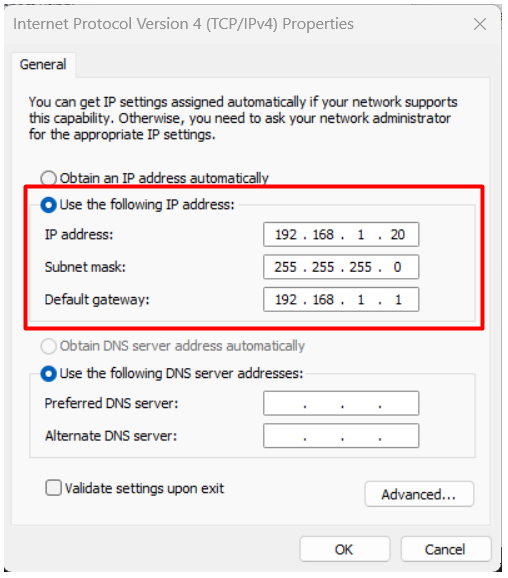
In the Internet Protocol Version 4 (TCP/IPv4) Properties dialog, select Use the following IP address.
-
Enter the IP address details as shown in the provided configuration image.