

My Profile
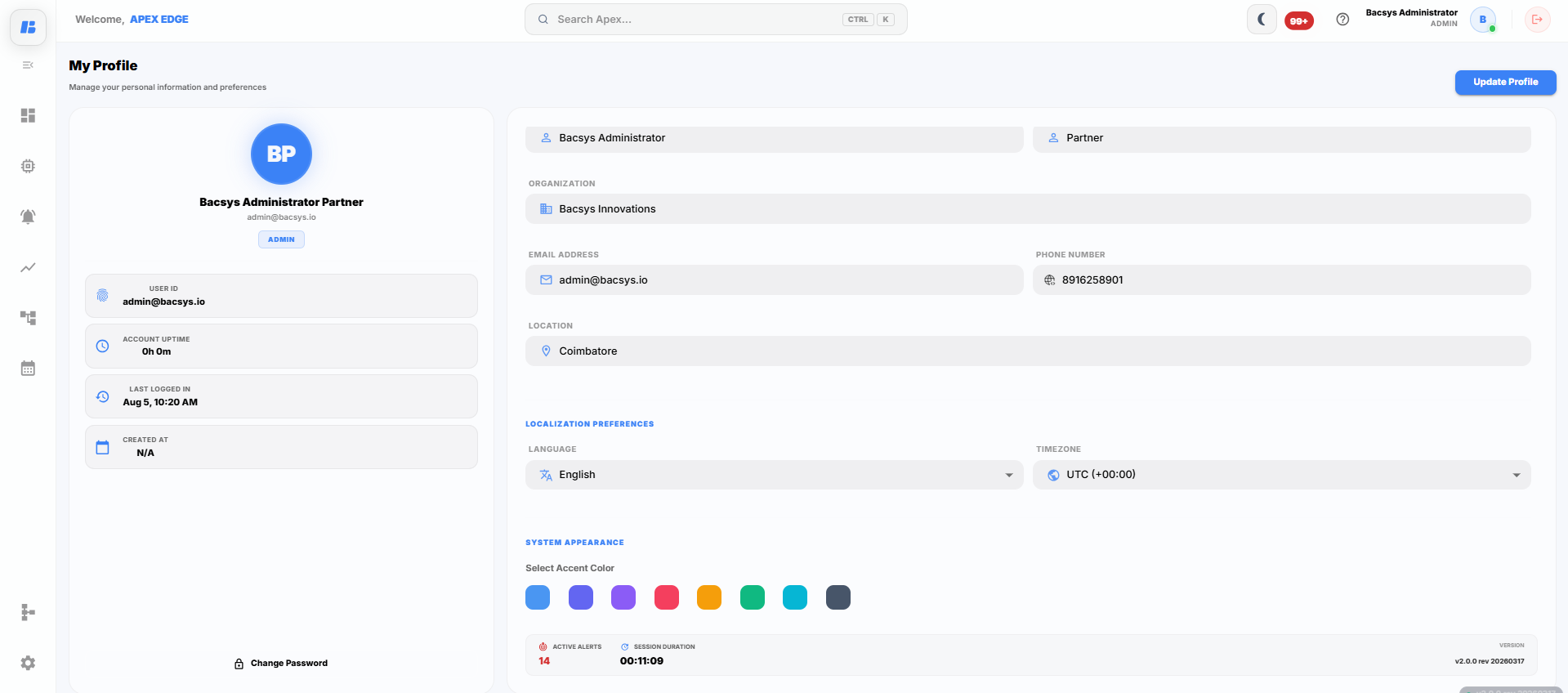
The My Profile page allows users to view their account information, update personal details, configure localization preferences, customize the system appearance, and change their account password.
Account Information
The left panel displays information about the currently logged-in user.
The following details are available:
| Field | Description |
|---|---|
| Profile Picture | Displays the profile avatar of the logged-in user. |
| User Name | Displays the name of the logged-in user. |
| Email Address | Displays the registered email address. |
| Role | Displays the assigned user role. |
| User ID | Displays the unique user identifier. |
| Account Uptime | Shows the duration for which the current session has been active. |
| Last Logged In | Displays the date and time of the previous login. |
| Created At | Displays the account creation date. |
Profile Information
The Profile Information section allows users to view and update their personal information.
The following fields are available:
| Field | Description |
|---|---|
| User Name | Displays the name of the logged-in user. |
| Role | Displays the assigned user role. |
| Organization | Displays the organization associated with the user account. |
| Email Address | Displays the registered email address. |
| Phone Number | Displays the user's contact number. |
| Location | Specifies the user's location. |
After modifying the required information:
- Click Update Profile.
The updated profile information is saved successfully.
Localization Preferences
The Localization Preferences section allows users to customize language and regional settings.
The following options are available:
| Field | Description |
|---|---|
| Language | Selects the display language used throughout the application. |
| Timezone | Selects the timezone used for displaying dates and times. |
After making the required changes:
- Click Update Profile.
The selected localization settings are applied to the user account.
System Appearance
The System Appearance section allows users to customize the application's accent color.
To change the accent color:
- Select one of the available color options.
- Click Update Profile.
The selected accent color is applied throughout the application interface.
Session Information
The bottom section displays additional information about the current session.
The following details are available:
| Field | Description |
|---|---|
| Active Alerts | Displays the number of active alerts currently present in the system. |
| Session Duration | Displays the duration of the current login session. |
| Version | Displays the current software version of the application. |
Change Password
The Change Password option allows users to securely update their account password.
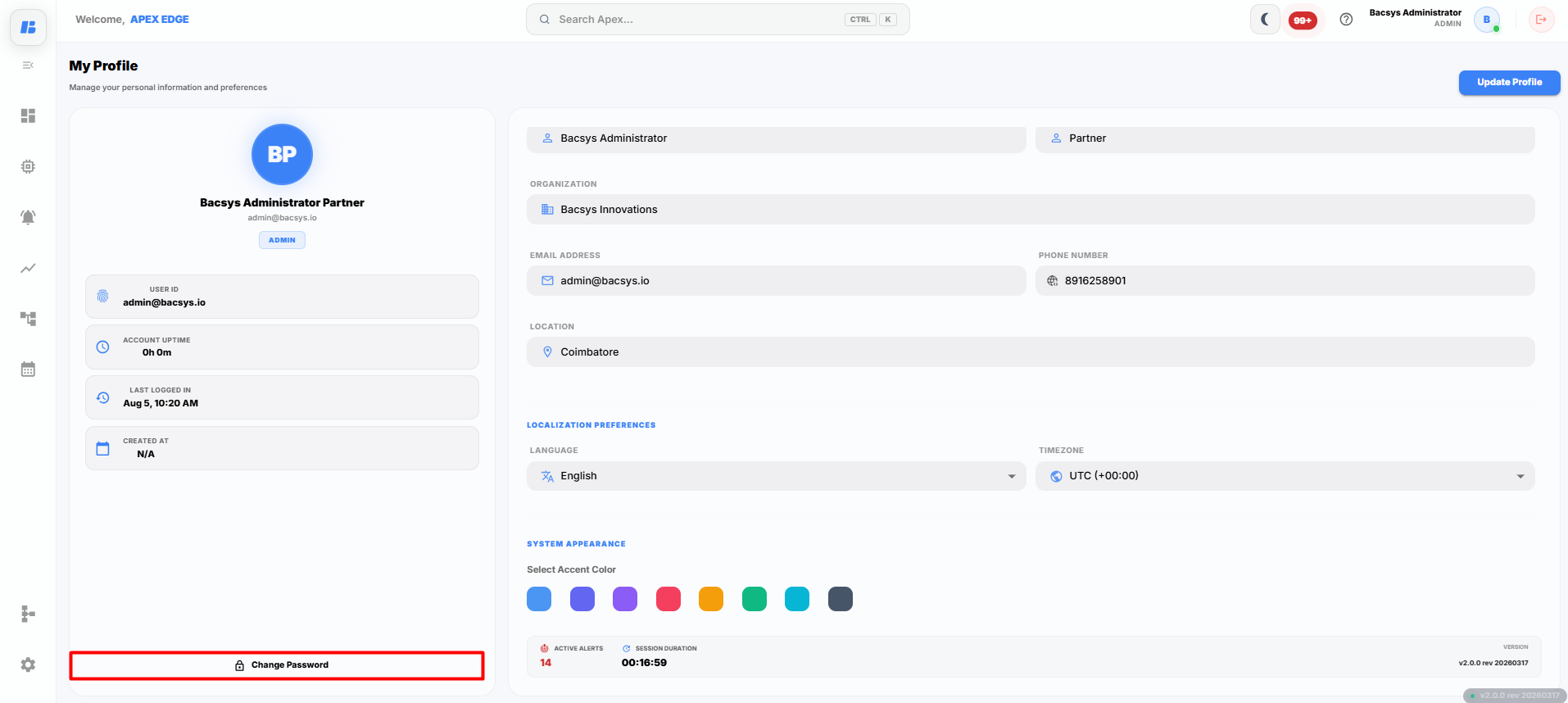
To change the password:
- Open the My Profile page.
- Click Change Password.
- The Reset Password dialog box is displayed.
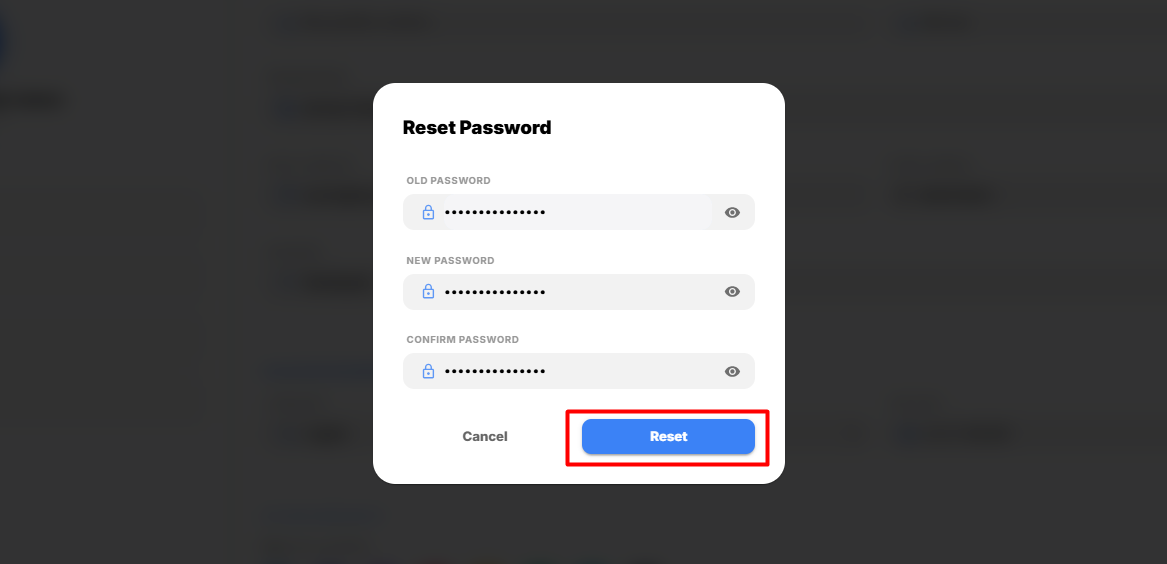
Enter the following information:
| Field | Description |
|---|---|
| Old Password | Enter your current account password. |
| New Password | Enter the new password that you want to use. |
| Confirm Password | Re-enter the new password to confirm it. |
After entering the required details:
- Click Reset to update the password.
- Click Cancel to close the dialog box without making any changes.
If the entered information is valid, the account password is updated successfully.
Complete Workflow
Follow the steps below to update your profile:
- Open My Profile.
- Review your account information.
- Update the required profile details.
- Select the preferred Language and Timezone.
- Choose the required Accent Color.
- (Optional) Click Change Password to update your account password.
- Click Update Profile.
The updated profile information and preferences are saved successfully.