

Platform Backup
The Platform Backup feature allows you to create a complete backup of the Bacsys platform database and restore it whenever required. This ensures that your platform configuration, device information, trends, reports, and other backend data are safely preserved and can be recovered in case of system failure or migration.
Accessing Platform Backup
- Navigate to Settings from the left navigation pane.
- In the Settings page, select Backup & Restore.
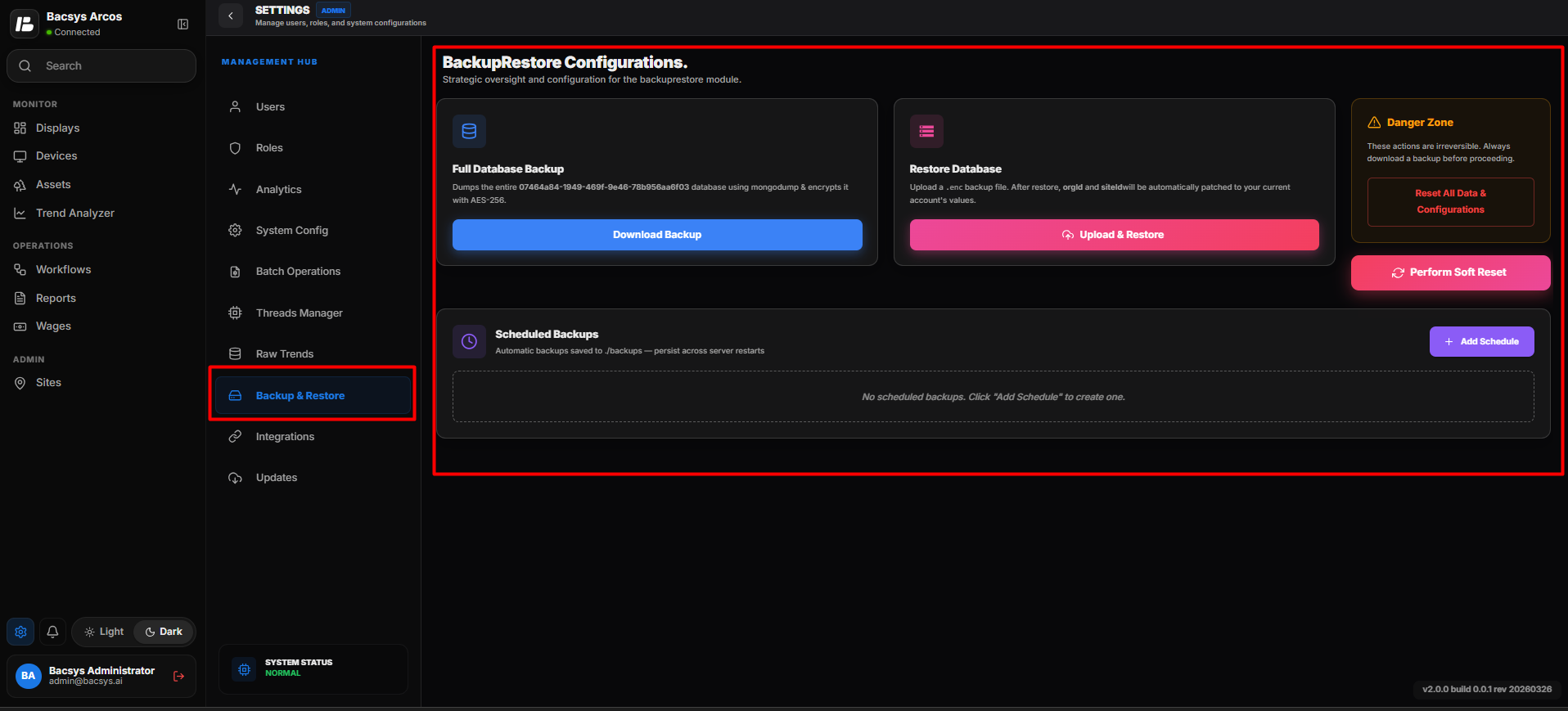
Platform Backup & Restore Configuration Screen
Downloading a Full Backup
The Full Download Backup option creates a complete backup of the platform's backend database and downloads it to your local computer.
Steps
- Open Settings > Backup & Restore.
- Click Full Download Backup.
- The system generates the backup automatically.
- The backup file is downloaded to your local machine.
- Store the downloaded backup file in a secure location for future use.
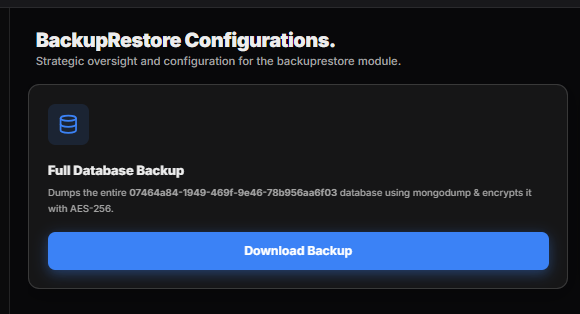
Downloading the Complete Platform Backup
Note
- The downloaded file contains the complete backend database and platform configuration.
- Keep the backup file in a secure location to prevent unauthorized access.
- It is recommended to create regular backups before making major configuration changes.
Uploading and Restoring a Backup
The Upload & Restore option allows you to restore the platform using a previously downloaded backup file.
Steps
- Open Settings > Backup & Restore.
- Click Upload & Restore.
- Browse to the previously downloaded backup file.
- Select the backup file and click Open.
- Click Restore to begin the restoration process.
- Wait until the restore process completes successfully.
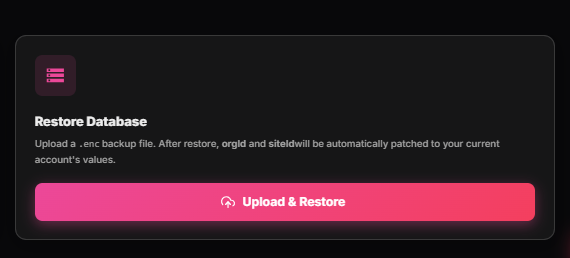
Uploading and Restoring a Platform Backup
Important
- Restore only backup files created using the Full Download Backup feature.
- Restoring a backup replaces the existing platform database with the selected backup.
- Ensure that a recent backup is available before performing a restore operation.
- The platform may restart automatically after the restoration is completed.
Scheduled Backup
The Scheduled Backup feature allows users to automatically create platform backups at predefined intervals. Once a backup schedule is configured, the system generates and downloads the backup automatically according to the selected schedule.
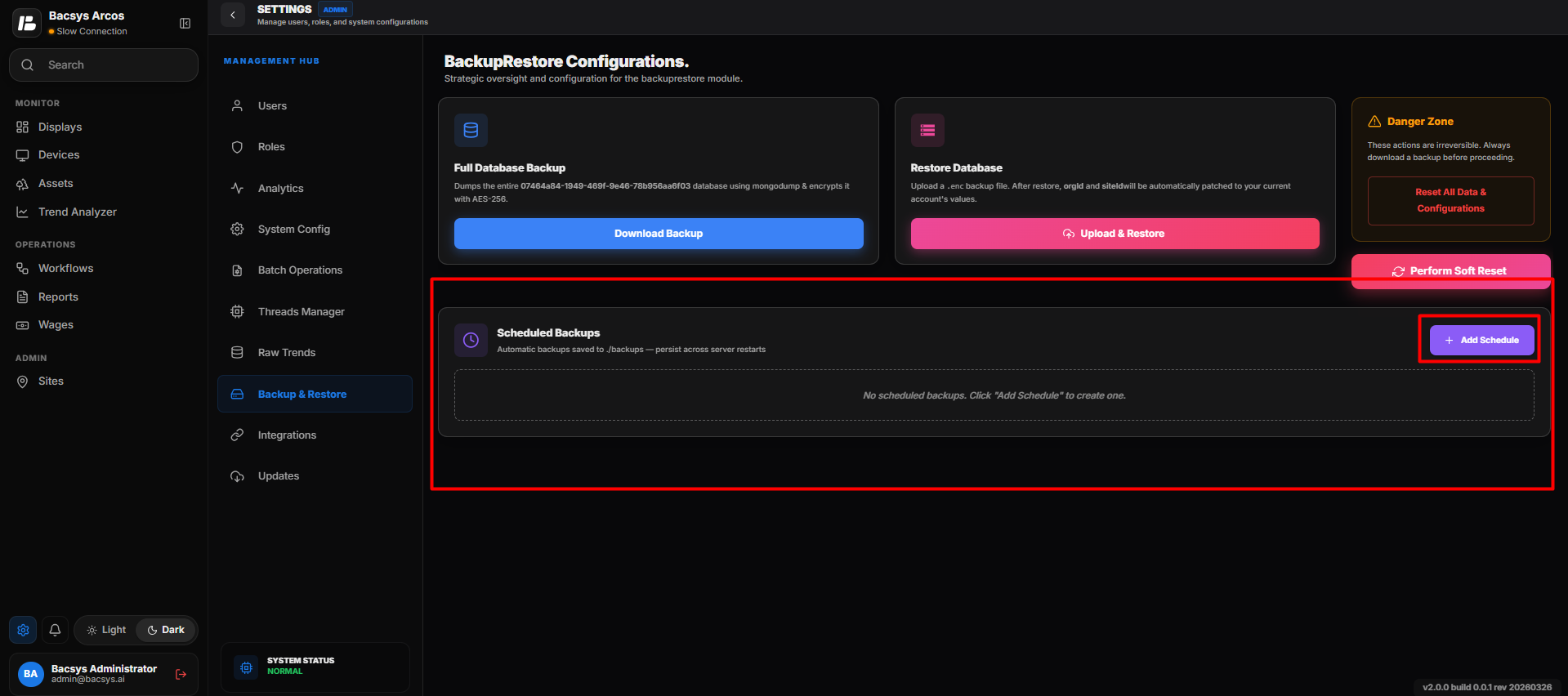
Scheduled Backup
Creating a Backup Schedule
- Navigate to Settings > Backup & Restore.
- Select the Scheduled Backup tab.
- Click Add Schedule.
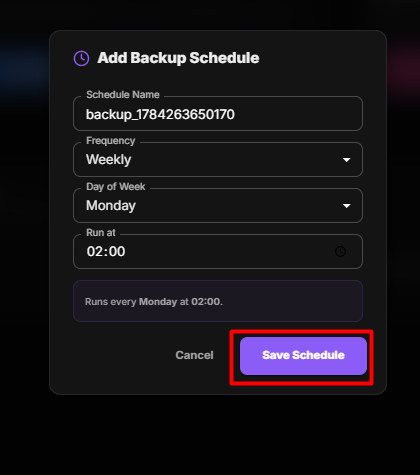
The Add Schedule dialog box appears.
Schedule Name
Enter a unique name to identify the backup schedule.
Frequency
Select how often the backup should be created.
The available options are:
- Weekly
- Monthly
- Quarterly
- Yearly
- Custom Date
Schedule Configuration
Depending on the selected frequency, configure the required schedule.
For example, when Weekly is selected:
- Select the Day of the Week.
- Specify the Run At time when the backup should be created automatically.
For other frequencies, configure the corresponding date and time as required.
Saving the Schedule
- Review the schedule configuration.
- Click Save Schedule.
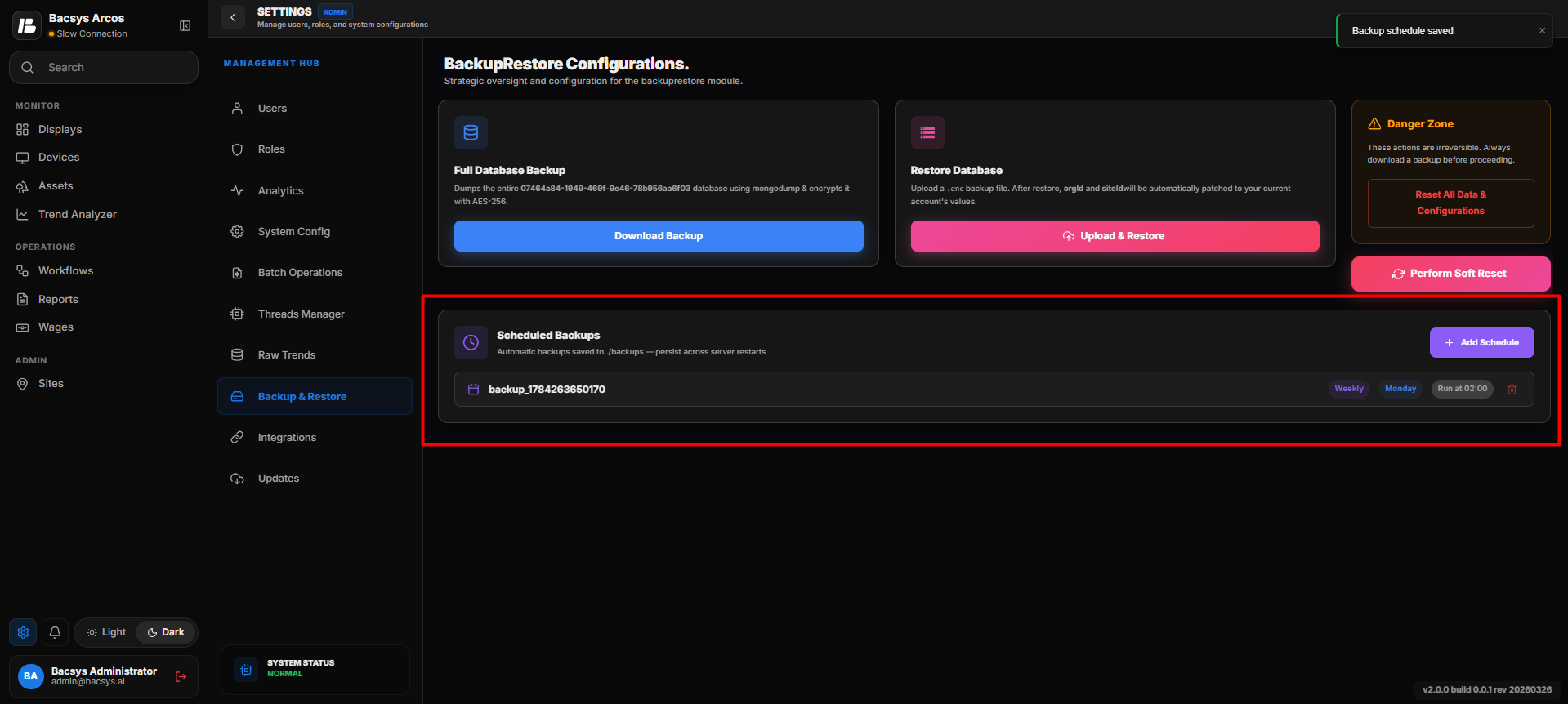
The backup schedule is saved successfully.
Note
- Once the schedule is saved, the platform automatically generates a backup at the configured date and time.
- The generated backup is automatically downloaded to the configured download location.
- Multiple backup schedules can be created to meet different backup requirements.