

Requests
Submit, search, and track maintenance requests from your team.
Requests
The Requests module allows users to report maintenance issues that need attention from the maintenance team. Users can describe a problem, set its priority, select the site and location, and submit the request for review.
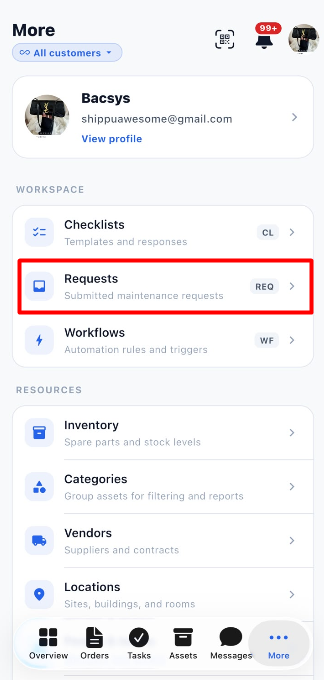
Users can also check request statuses, search for existing requests, and apply filters to find the information they need.
1. View Maintenance Requests
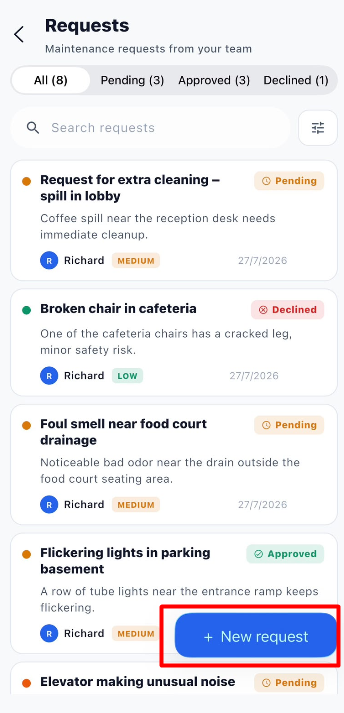
The Requests page displays maintenance requests submitted by users. Each request card provides information about the reported problem, its priority, requester, current status, and submission date.
1.1 Available Status Tabs
The tabs at the top of the page allow users to view requests according to their current status. The number displayed beside each tab indicates the number of requests in that category.
| Status | Description |
|---|---|
| All | Displays all available maintenance requests, regardless of their status. |
| Pending | Displays requests awaiting review or a decision. |
| Approved | Displays requests that have been approved. |
| Declined | Displays requests that have been declined. |
1.2 Information Displayed on a Request Card
| Field | Description |
|---|---|
| Request Title | Displays a short description of the reported problem. |
| Problem Description | Provides additional details about the maintenance issue. |
| Requester | Displays the name of the person who submitted the request. |
| Priority | Indicates the importance of the issue, such as Low or Medium. |
| Status | Displays whether the request is Pending, Approved, or Declined. |
| Date | Displays the date associated with the request. |
Steps to View Requests by Status
- Open the Requests module.
- Select All to view all available requests.
- Select Pending to view requests awaiting a decision.
- Select Approved to view approved requests.
- Select Declined to view declined requests.
- Review the request cards displayed under the selected tab.
Note: The count beside each status tab helps users understand how many requests are available in that category.
2. Create a New Request
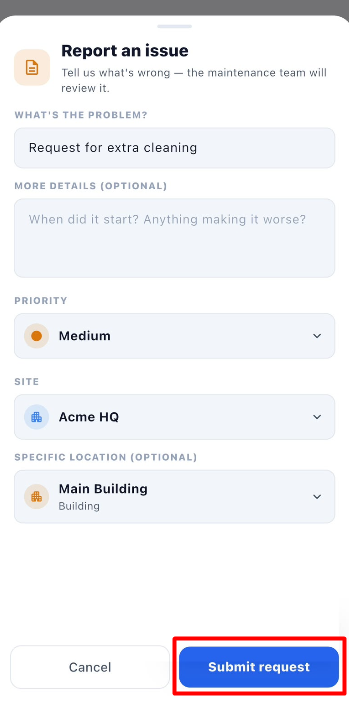
Click + New request on the Requests page to open the Report an issue form. Use this form to describe the maintenance problem and provide the information needed by the maintenance team.
2.1 Request Details
| Field | Description | Required |
|---|---|---|
| What's the problem? | Enter a short, clear title describing the maintenance issue. | Yes |
| More details (optional) | Provide additional information, such as when the issue started or what is making it worse. | No |
| Priority | Select the appropriate priority for the reported issue. | Yes |
| Site | Select the site where the issue occurred. | Yes |
| Specific location (optional) | Select the exact location of the issue within the chosen site. | No |
2.2 Steps to Submit a Request
- Open the Requests module.
- Click + New request.
- Enter a short problem title in What's the problem?.
- Add more information in More details (optional), if required.
- Select the appropriate Priority.
- Choose the required Site.
- Select the Specific location (optional), if applicable.
- Review all the entered information.
- Click Submit request.
- Return to the Requests page and check the submitted request.
Tip: Enter a clear problem title and provide enough details to help the maintenance team understand the issue.
Note: The form identifies More details and Specific location as optional fields.
3. Search and Review Requests
The Requests page provides a search field that helps users find a specific maintenance request without manually reviewing every request card.
3.1 Search Requests
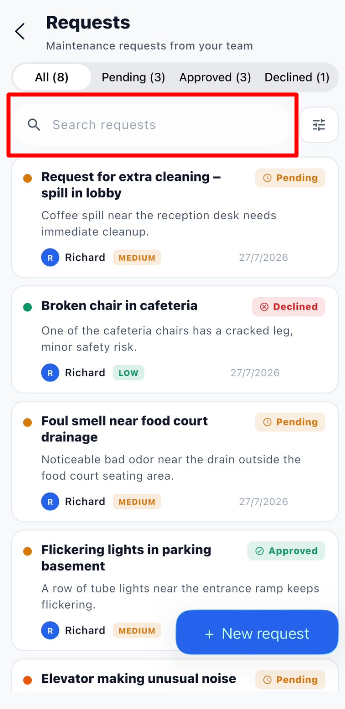
The Search requests field allows users to search for relevant requests.
Steps to Search
- Open the Requests module.
- Click the Search requests field.
- Enter relevant search text.
- Review the matching requests displayed on the page.
- Select the required request to review its information, where supported.
Tip: Use relevant words from the request title or description to help locate the required request.
3.2 Apply Filters to Requests
Click the Filter icon beside the search field to open the Filters panel. This panel allows users to narrow down requests by priority and choose how the results are sorted.
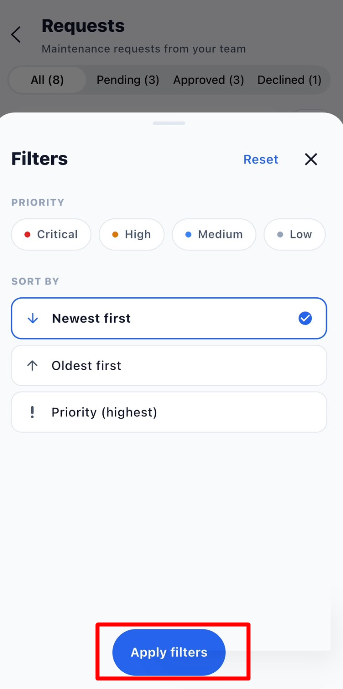
Available Filter Options
Priority
| Option | Description |
|---|---|
| Critical | Filters requests marked as Critical. |
| High | Filters requests marked as High priority. |
| Medium | Filters requests marked as Medium priority. |
| Low | Filters requests marked as Low priority. |
Sort By
| Option | Description |
|---|---|
| Newest first | Displays the newest requests first. |
| Oldest first | Displays the oldest requests first. |
| Priority (highest) | Sorts requests by priority, showing higher-priority requests first. |
Steps to Apply Filters
- Open the Requests module.
- Click the Filter icon beside the search field.
- Select the required priority, such as Critical, High, Medium, or Low.
- Choose a sorting option under Sort By.
- Click Apply filters.
- Review the requests displayed using the selected criteria.
Additional Filter Options
| Option | Description |
|---|---|
| Reset | Clears the selected filter settings. |
| Close (X) | Closes the Filters panel. |
Important: Use the status tabs to view requests by status. Use the Filters panel to narrow down requests by priority or change their sorting order.
4. Important Notes
- Enter a clear problem title so the maintenance team can understand the reported issue.
- Add more details when additional information is needed to explain the problem.
- Select the correct priority and site.
- Choose a specific location when applicable.
- Review the request details before clicking Submit request.
- Use the All, Pending, Approved, and Declined tabs to view requests by status.
- Use Search requests to find relevant requests.
- Use the Filter panel to narrow down requests by priority and sorting order.
- Check the request status after submission to see its current state.
5. End-to-End Request Workflow
The following workflow summarizes how to submit a maintenance request and find it later.
Open Requests Module
        ↓
View Existing Requests
        ↓
Click + New request
        ↓
Report an Issue Form Opens
        ↓
Enter Problem Title
        ↓
Add More Details if Required
        ↓
Select Priority
        ↓
Select Site
        ↓
Select Specific Location if Required
        ↓
Review Request Information
        ↓
Click Submit request
        ↓
Request Submitted
        ↓
Return to Requests List
        ↓
View Request Status
        ↓
Use Search or Status Tabs
        ↓
Apply Filters if Required
        ↓
Find and Review the Request