

Overview
The Device Module allows you to:
- View the number of networks connected to the Edge platform.
- View and manage network, device and points properties.
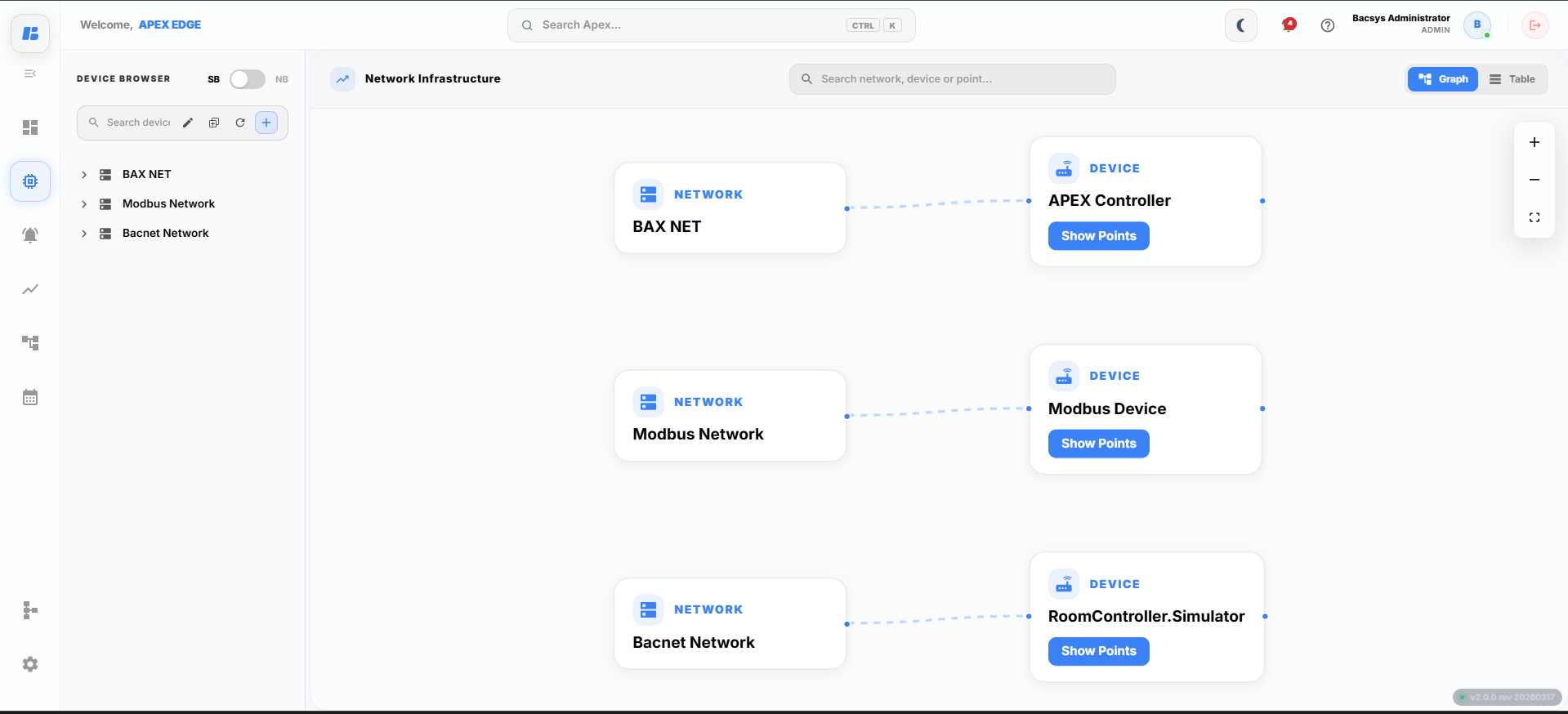 Devices Screen
To access the Device Module:
- Click on the Device icon on the main menu.
- Click on the Menu icon on the top left to view the browser menu.
- Alternatively, click on (>) to Expand or (<) Collapse the browser menu.
- The Device Browser lists all created and configured networks in the BACSYS Edge platform.
SB and NB Device Browser
The Device module consists of two browser menus,
1. Device Browser - South Bound [SB]:
- It allows you to create a network to connect a device and its points.
- Also it allows you to view and manage the network, device and its points properties.
2. Device Browser - North Bound [NB]:
- It is used to export the points connected in the network to an external platform.
- Also the exported points can be deleted at your convenience.
Network
Creating a Network
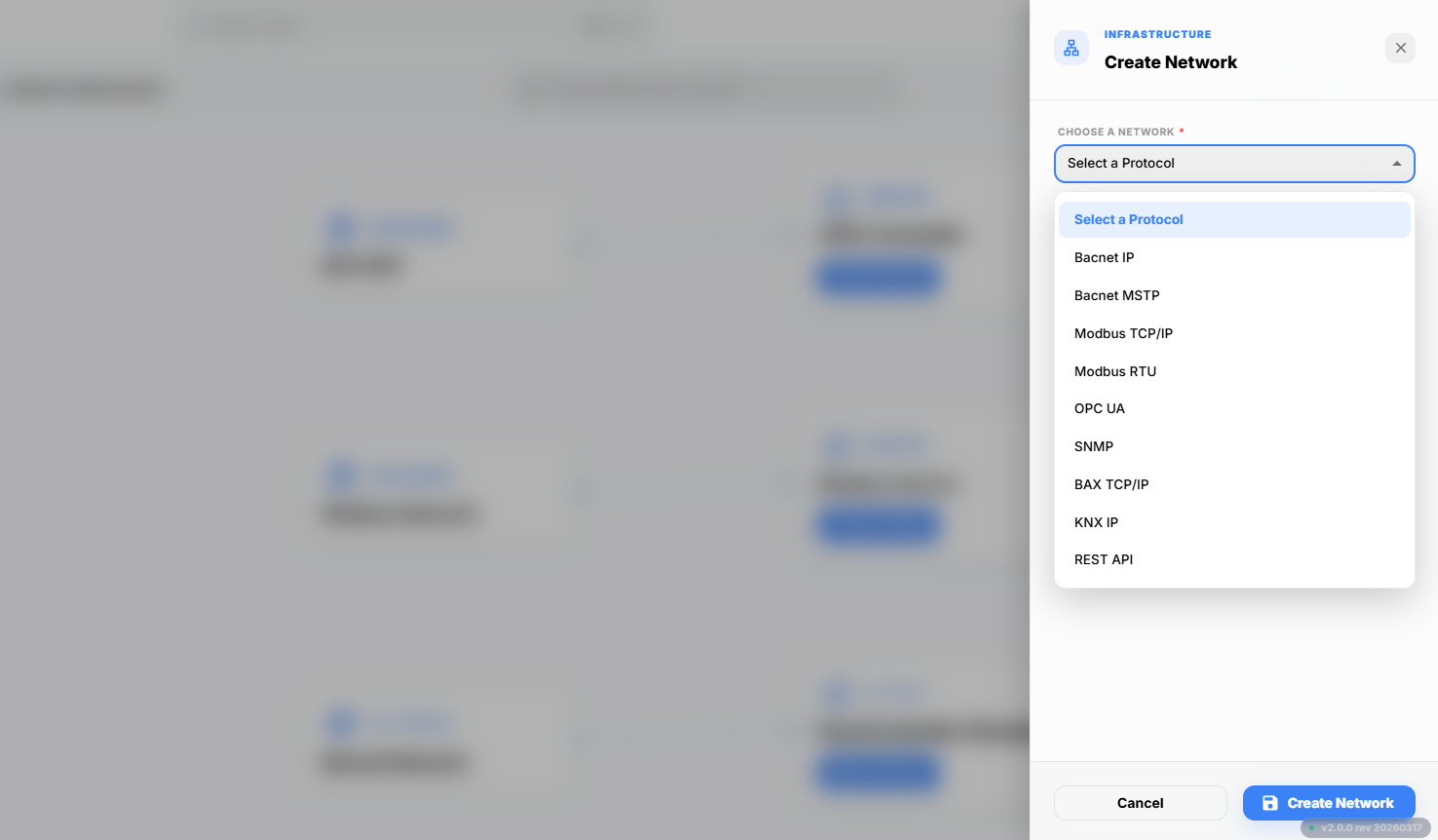 Creating a new network Screen
Supported Communication Protocols
| Protocol | Applications | Technical Information |
|---|---|---|
| BACnet IP | BACnet IP (Building Automation and Control Network over Internet Protocol) is widely used in Building Management Systems (BMS) for communication between HVAC systems, lighting controls, fire alarms, access control systems, energy meters, and other building automation devices over Ethernet networks. | BACnet IP uses the BACnet application protocol over UDP/IP (default port 47808 (0xBAC0)). It supports both IPv4 and IPv6 and provides services such as Who-Is/I-Am, Read Property, Write Property, Change of Value (COV), Alarm & Event Management, Scheduling, and Trend Logging. |
| BACnet MSTP | BACnet MS/TP (Master-Slave/Token-Passing) is commonly used to connect field devices such as VAV controllers, thermostats, sensors, actuators, and other building automation equipment over an RS-485 serial network. | BACnet MS/TP operates on an RS-485 communication bus using a Token-Passing mechanism that allows only one device to transmit at a time. It supports baud rates from 9.6 kbps to 115.2 kbps, accommodates up to 128 devices on a network segment, and ensures reliable communication in building automation systems. |
| Modbus TCP/IP | Modbus TCP/IP is extensively used in industrial automation for communication with PLCs, SCADA systems, energy meters, Variable Frequency Drives (VFDs), power analyzers, and IoT gateways over Ethernet. | Modbus TCP/IP operates over Ethernet using TCP Port 502. It follows a Client-Server architecture where clients initiate requests and servers respond. Communication uses Modbus function codes to read and write Coils, Discrete Inputs, Input Registers, and Holding Registers. |
| Modbus RTU | Modbus RTU is widely used in manufacturing plants, power distribution systems, water treatment facilities, and industrial automation environments where serial communication is required. | Modbus RTU operates over RS-232 or RS-485 using binary encoding, making communication efficient and reliable in noisy environments. It uses CRC (Cyclic Redundancy Check) for error detection and follows a Master-Slave communication model. |
| OPC UA | OPC Unified Architecture (OPC UA) is used in SCADA systems, Manufacturing Execution Systems (MES), Industrial IoT (IIoT), and enterprise-level industrial automation for secure data exchange. | OPC UA is a platform-independent, service-oriented communication protocol supporting TCP/IP, HTTPS, and WebSockets. It provides built-in authentication, encryption, digital certificates, historical data access, event notifications, and vendor-independent interoperability. |
| SNMP | Simple Network Management Protocol (SNMP) is used to monitor and manage network devices such as routers, switches, servers, UPS systems, firewalls, and industrial network equipment. | SNMP operates over UDP Port 161 for requests and UDP Port 162 for traps (notifications). It follows a Manager-Agent architecture and uses a Management Information Base (MIB) to monitor device health, status, and performance. |
| BAX TCP/IP | BAX TCP/IP is the proprietary communication protocol developed by BACSYS for communication between APEX Controllers, BACSYS Edge Controllers, gateways, and other BACSYS ecosystem devices. | BAX TCP/IP operates over Ethernet using a Client-Server architecture. It is optimized for real-time data transfer, device discovery, point synchronization, configuration management, and secure communication between BACSYS devices. |
| KNX IP | KNX IP is widely used in smart building automation for controlling lighting, HVAC, blinds, room automation, energy management, and access control over IP networks. | KNX IP extends the KNX standard by transmitting KNX telegrams over Ethernet networks. It supports Tunneling and Routing modes, enabling remote configuration, diagnostics, and seamless integration with existing KNX installations. |
| REST API | REST API enables integration between APEX, cloud platforms, web applications, mobile applications, analytics platforms, and third-party software for data exchange and remote device management. | REST APIs follow the Representational State Transfer (REST) architecture using HTTP/HTTPS protocols. They support GET, POST, PUT, PATCH, and DELETE methods and typically exchange data in JSON format. Authentication methods include API Keys, Basic Authentication, OAuth, and JWT. |
| MQTT | MQTT (Message Queuing Telemetry Transport) is widely used in Industrial IoT (IIoT), smart buildings, cloud integration, telemetry, and remote monitoring applications for lightweight device communication. | MQTT follows a Publish-Subscribe messaging architecture where devices publish messages to topics through an MQTT Broker. It operates over TCP/IP (default ports 1883 and 8883 for secure communication), supports QoS Levels 0, 1, and 2, retained messages, Last Will and Testament (LWT), and SSL/TLS encryption. |
Device Properties
| Field | Description |
|---|---|
| Device Name | Name of the device. |
| Device Description | Description of the device. |
| Device Instance | Device ID or instance identifier. |
| Device MacAddress | MAC address of the device. |
Point Properties
| Field | Description |
|---|---|
| Point Name | Name of the point. |
| Point Description | Description of the point. |
| Data Type | Datatype of the point (Analog, Binary or Multistate Input/Output Values). |
| Point Instance | Point ID or instance identifier. |
| Point Poll Status | Current status of data polling for this point. |
| Last Poll Time | Date and time when the data point was last polled or updated. |
| Engineering Unit | Units for the point |
|
Live Data Section
| Field | Description |
|---|---|
| Point Name | Displays the entered point name. |
| Point Description | Displays the entered point description. |
| Unit | Indicates the unit of measurement. |
| Point Type | Specifies the type of the point. |
| Present Value | Displays the current value of the point. |
| Mode | Allows selection between 'Auto' or 'Manual'. |
| Output Value | Sets the desired output value. |
| Read Access | Indicates if the point is 'Read Only' or 'Read/Write'. |
Creating Export Device
-
- Click on the New Device button under the device browser panel in North Bound [NB] mode.
-
- Create new device pop-up appears, where you can choose the type of network and enter its respective details
-
- Select a protocol to export and then enter the necessary details in the fields and then click Create button to create a new device to export in the selected protocol.
- Get Organization ID, API Key, Secret Key, CA certificate, Client certificate, Client key from ARCOS platform.
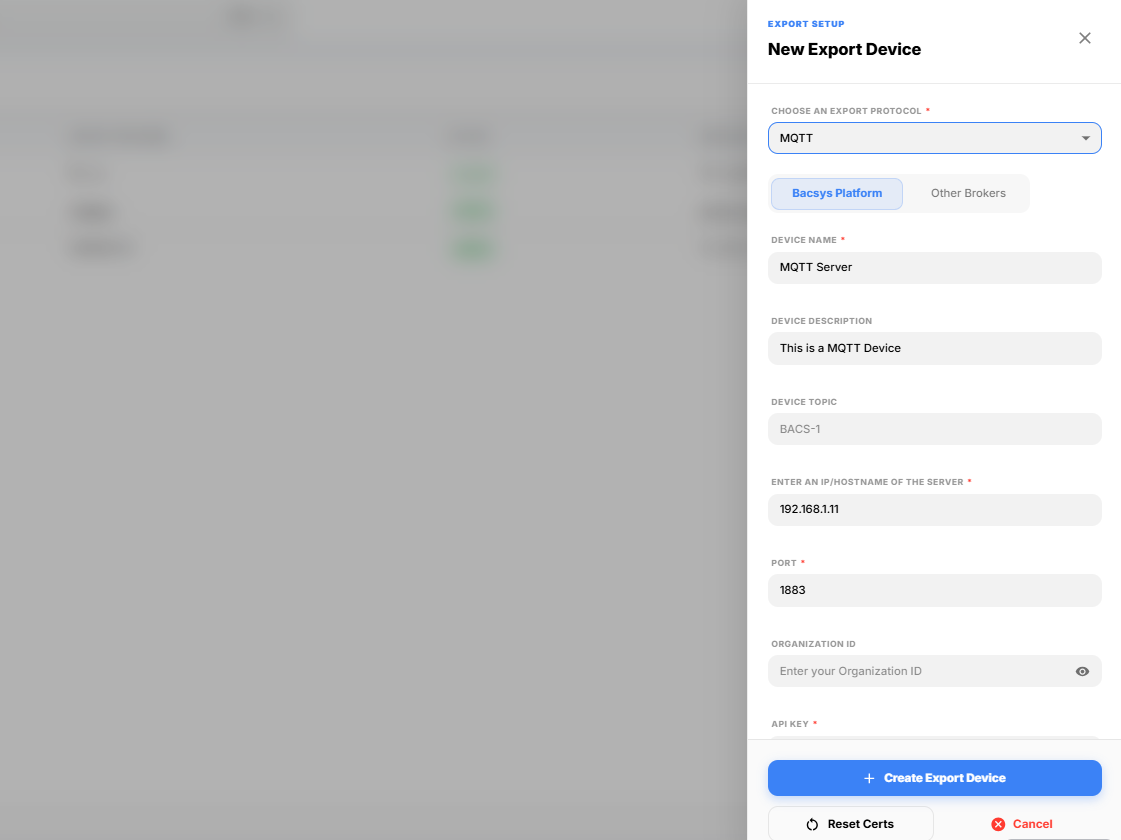 Export Device Screen
- Select a protocol to export and then enter the necessary details in the fields and then click Create button to create a new device to export in the selected protocol.
| Field | Description |
|---|---|
| Export To | Select the desired network from the list (Bacnet/MQTT/BAX). |
| Device Name | Enter a desired name for the device. |
| Device Description | Enter a needed description for the device. |
| Device Topic | Enter a topic for the device. |
| ARCOS Hostname/IP Address | Enter the IP address or Hostname of the ARCOS at destination. |
| Enter Port Number | Enter the port number corresponding to the destination IP address. |
| Organization ID | Enter the Organization ID from ARCOS. |
| API Key | Enter the API Key from ARCOS. |
| Secret Key | Enter the Secret Key from ARCOS. |
| Device Latitude and Longitude | Enter the location coordinates (Latitude and Longitude) of the APEX device. |
| CA Certificate (X.509) | Upload the CA Certificate generated from ARCOS. |
| Client Certificate (X.509) | Upload the Client Certificate generated from ARCOS. |
| Client Key (X.509) | Upload the Client Key generated from ARCOS. |
| Broker Username (Basic Auth) | Enter Broker Username. |
| Broker Password (Basic Auth) | Enter Broker Password. |
| Reset Certs | Click Reset Certs button to reset the uploaded certificates for X.509. |
| Create | Click Create button to create device for export operation. |
| Cancel | Click Cancel button to cancel the export operation and return to the previous screen. |
Exporting Points
-
- Choose the created device under the device browser panel in North Bound [NB] mode.
-
- Click on the Add Points button to add points to the device, Select the needed points to export or use select all to add all the points and then click Export button to export the points.
-
- Click on the Start Exporting button to Start Exporting the points to ARCOS.
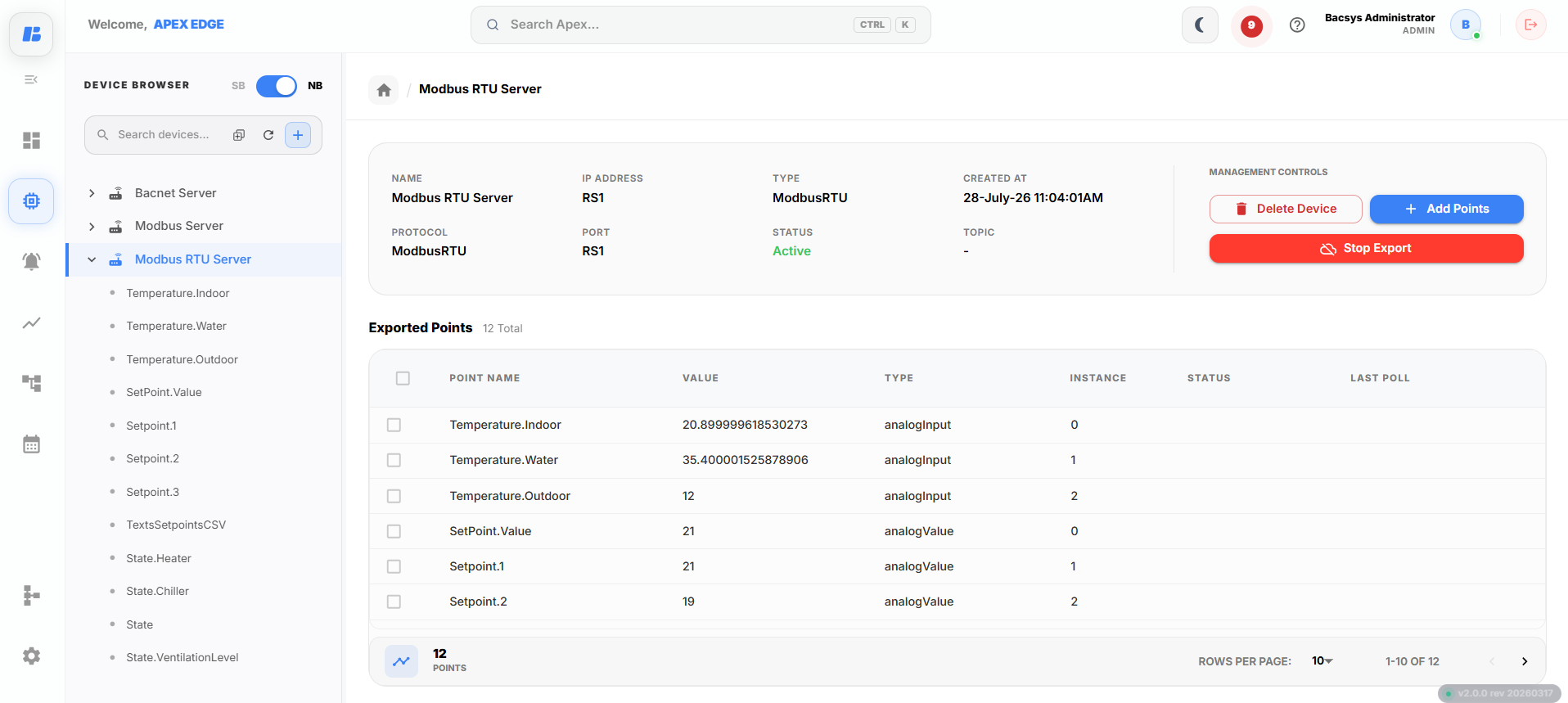 Export Device Screen
Field Description Delete Device Click on Delete Device to delete the current device. Add Points Click on Add Points to add points in the device for export. Start Exporting Click on Start Exporting to begin exporting the points to ARCOS. Stop Publishing Click on Stop Publishing to stop exporting the points to ARCOS. Delete Selected Points Select desired points from the table and click on Delete Selected Points to delete them.