

Batch Operation Configuration
The Batch Operation Configuration module allows users to apply configuration changes to multiple points simultaneously. Users can select a network, choose a device, search for the required points, and apply configuration settings in bulk.
Selecting Points
Before performing any batch operation, users must select the points that will be updated.
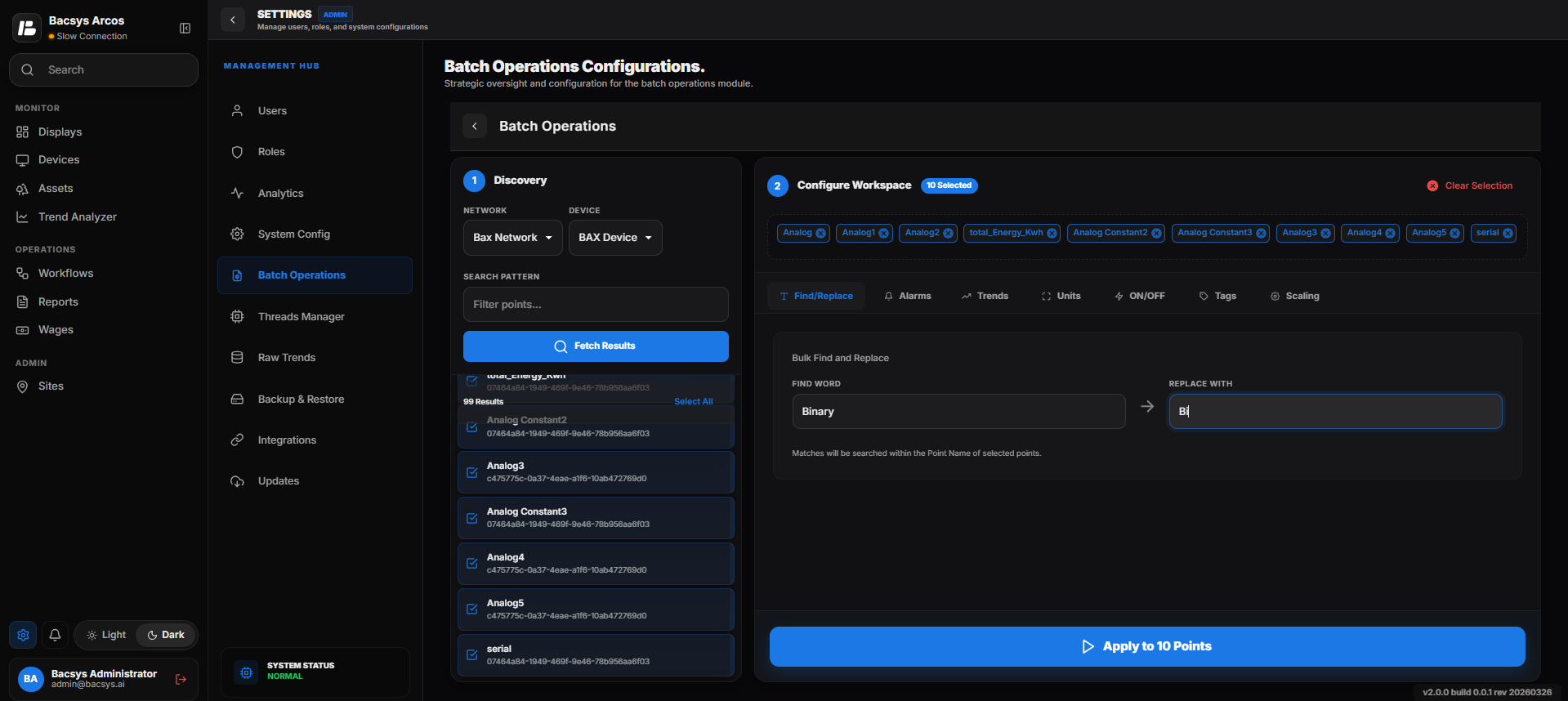
Select Network, Device, and Points
Steps
- Select the required Network.
- Select the required Device.
- Use the Search box to locate the required points.
- Select one or more points from the list.
- Choose the required batch operation.
- Configure the required settings.
- Click Apply.
The selected configuration is applied to all selected points.
Find / Replace
Find / Replace
The Find / Replace feature allows users to replace text in multiple selected points simultaneously.
Steps
- Select the required Network.
- Select the required Device.
- Search and select the required points.
- Enter the text in Find.
- Enter the replacement text in Replace With.
- Click Apply.
The selected text is replaced in all selected points.
Alarm Configuration
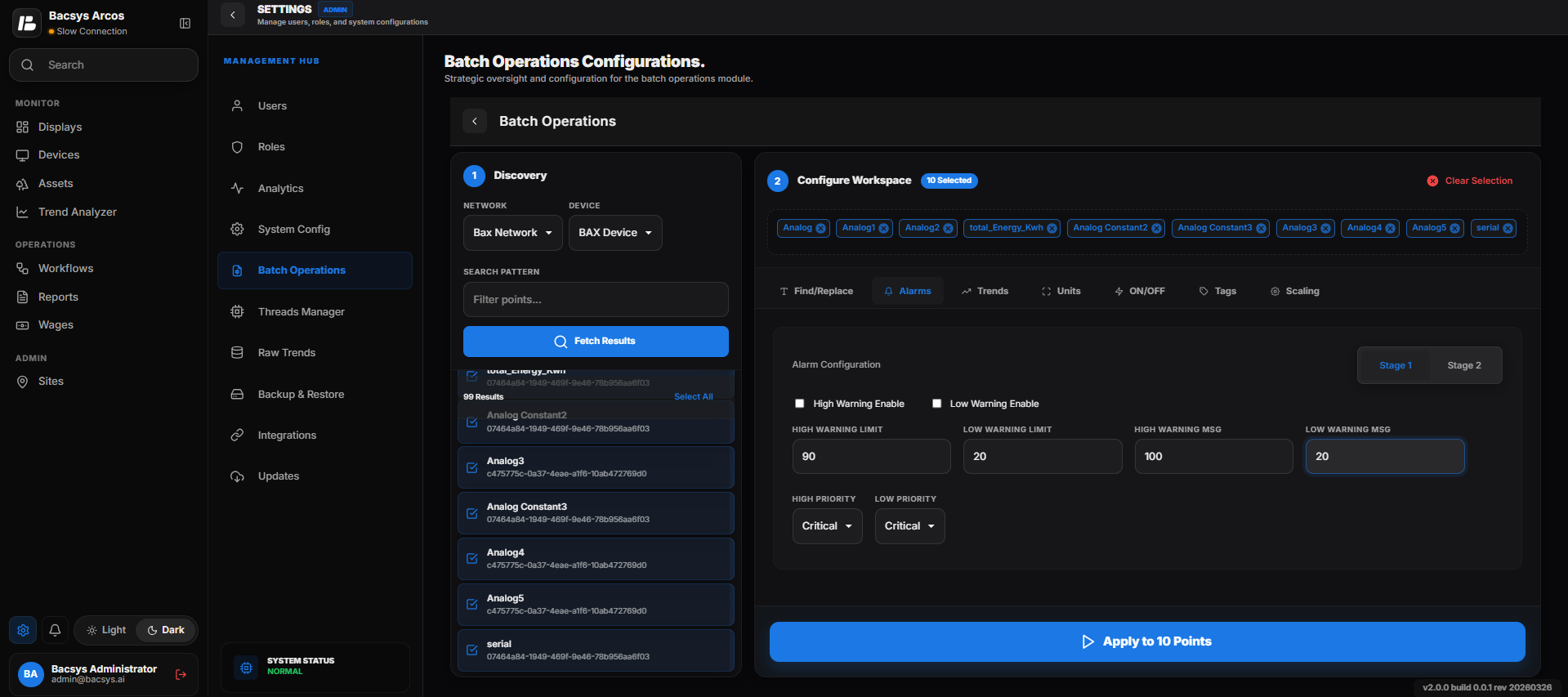
Alarm Configuration
The Alarm Configuration section allows users to configure alarm settings for multiple points at the same time.
Steps
- Select the required Network.
- Select the required Device.
- Search and select the required points.
- Configure the required alarm settings.
- Click Apply.
The alarm configuration is applied to all selected points.
Alarm Settings
| Field | Description |
|---|---|
| High Warning Enable | Enables the high warning condition. |
| Low Warning Enable | Enables the low warning condition. |
| High Warning Limit | Sets the upper alarm threshold. |
| Low Warning Limit | Sets the lower alarm threshold. |
| High Warning Message | Displays when the high warning is triggered. |
| Low Warning Message | Displays when the low warning is triggered. |
| High Priority | Sets the priority for high alarms. |
| Low Priority | Sets the priority for low alarms. |
Trends Configuration
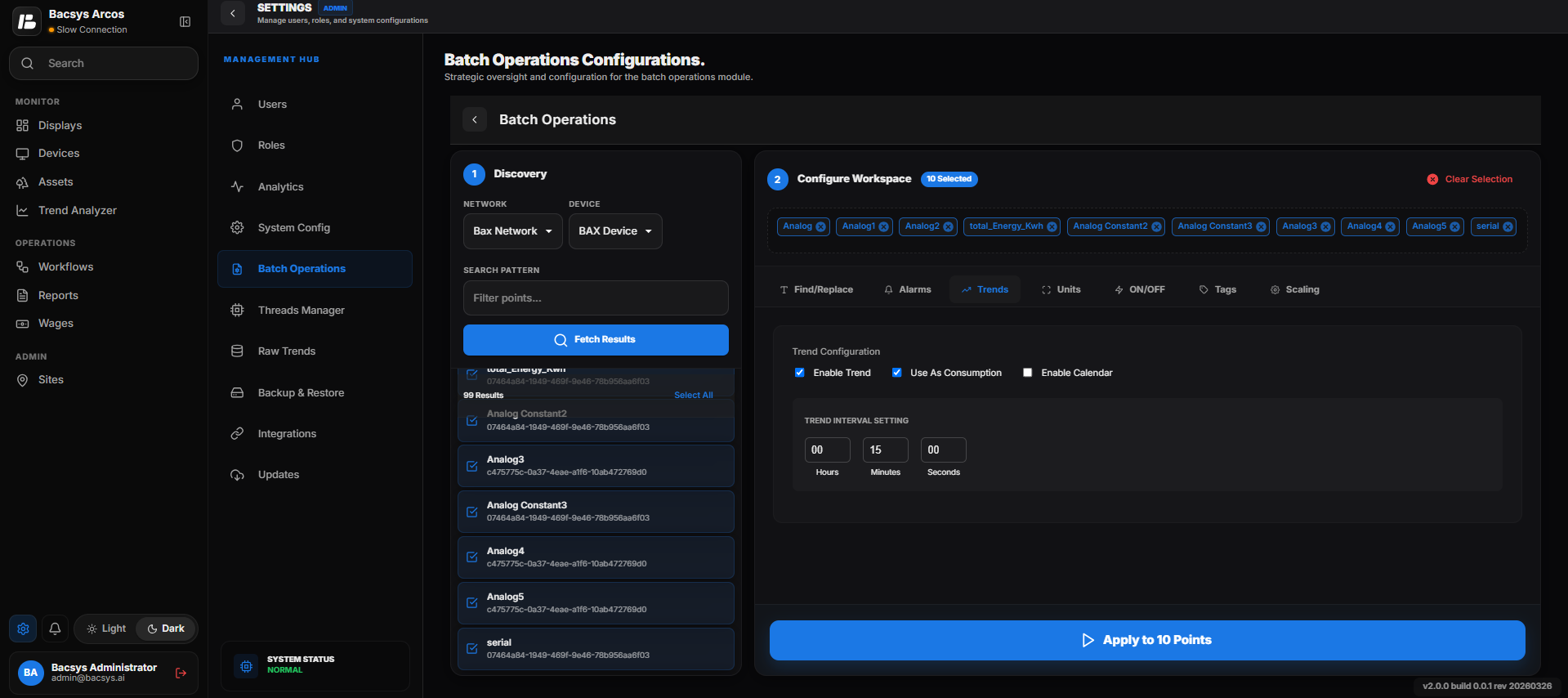
Trends Configuration
The Trends Configuration section allows users to configure trend settings for multiple points.
Steps
- Select the required Network.
- Select the required Device.
- Search and select the required points.
- Configure the required trend settings.
- Click Apply.
The trend configuration is applied to all selected points.
Unit Configuration
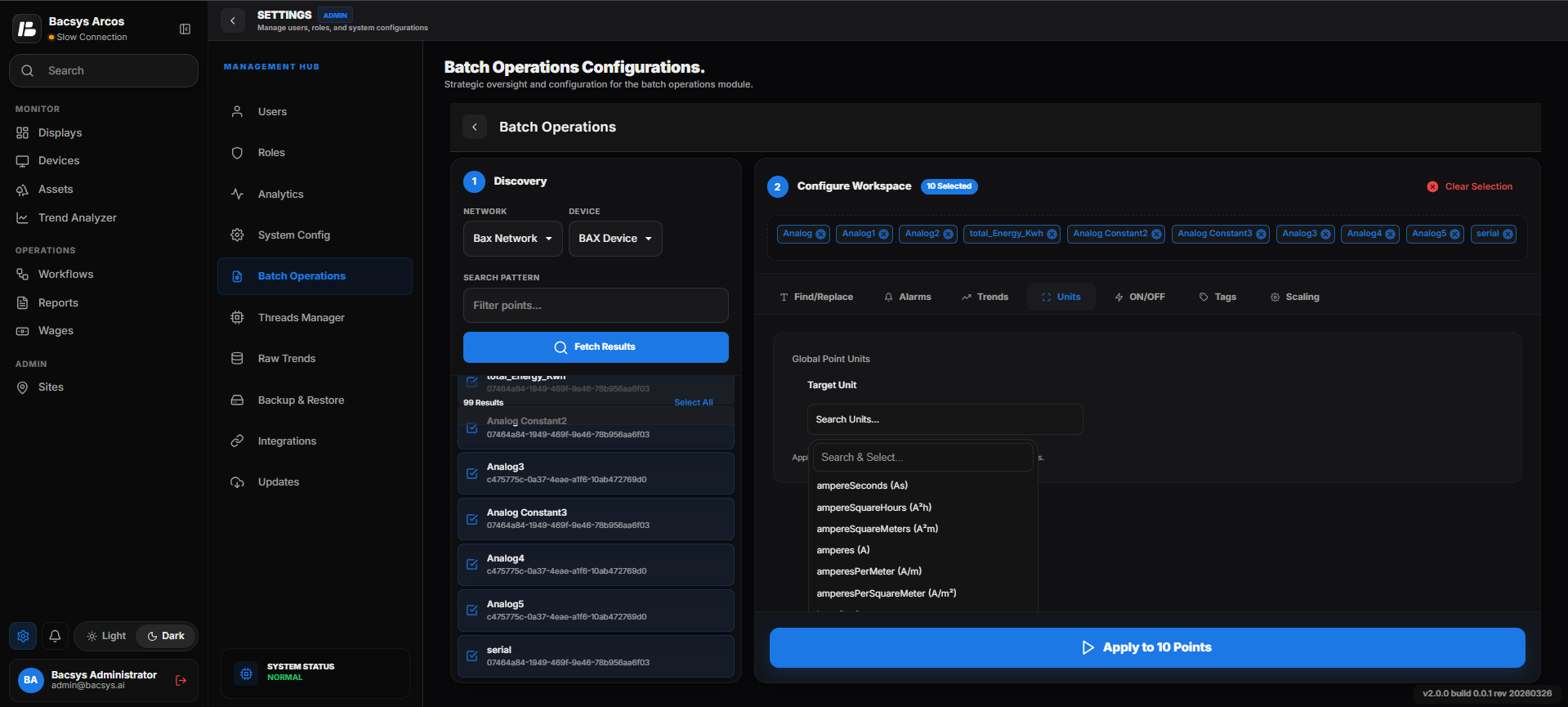
Unit Configuration
The Unit Configuration section allows users to update the measurement units for multiple selected points.
Steps
- Select the required Network.
- Select the required Device.
- Search and select the required points.
- Select the required Target Unit.
- Click Apply.
The selected unit configuration is applied to all selected points.
ON/OFF Configuration
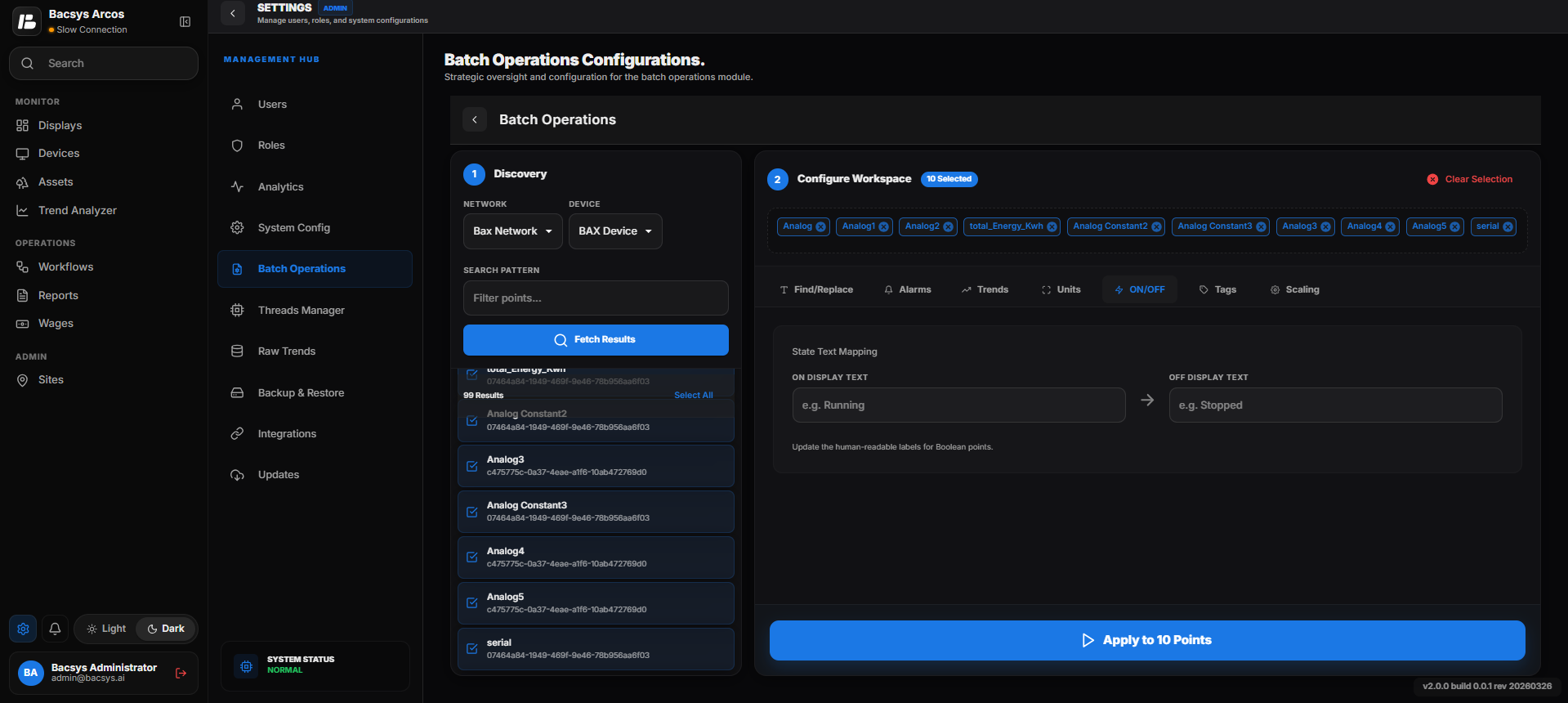
ON/OFF Configuration
The ON/OFF Configuration section allows users to configure the display text for digital points.
Steps
- Select the required Network.
- Select the required Device.
- Search and select the required points.
- Enter the required ON Display Text.
- Enter the required OFF Display Text.
- Click Apply.
The configuration is applied to all selected points.
Tags
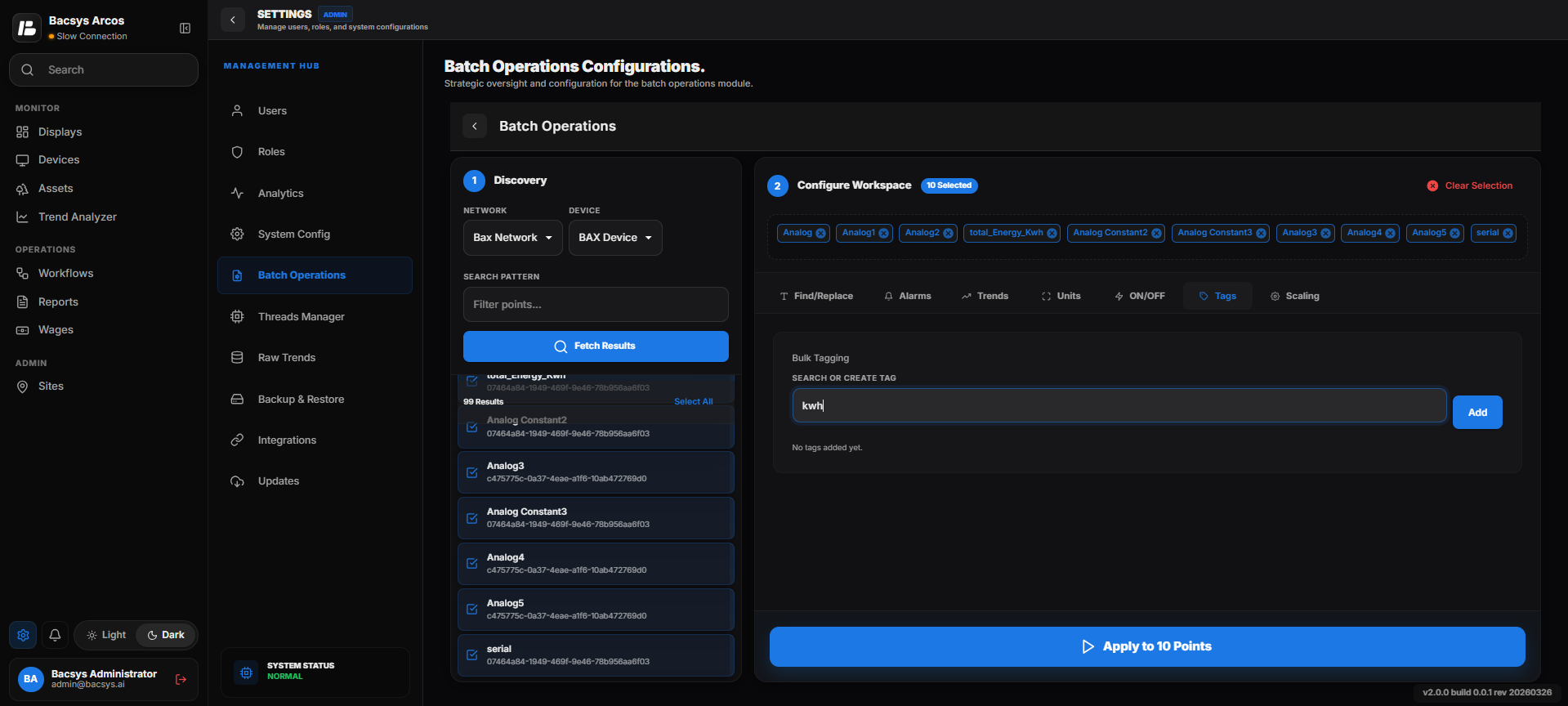
Tags
The Tags section allows users to assign one or more tags to multiple selected points.
Steps
- Select the required Network.
- Select the required Device.
- Search and select the required points.
- Search for an existing tag or create a new tag.
- Click Add.
- Click Apply.
The selected tags are assigned to all selected points.
Scaling Configuration
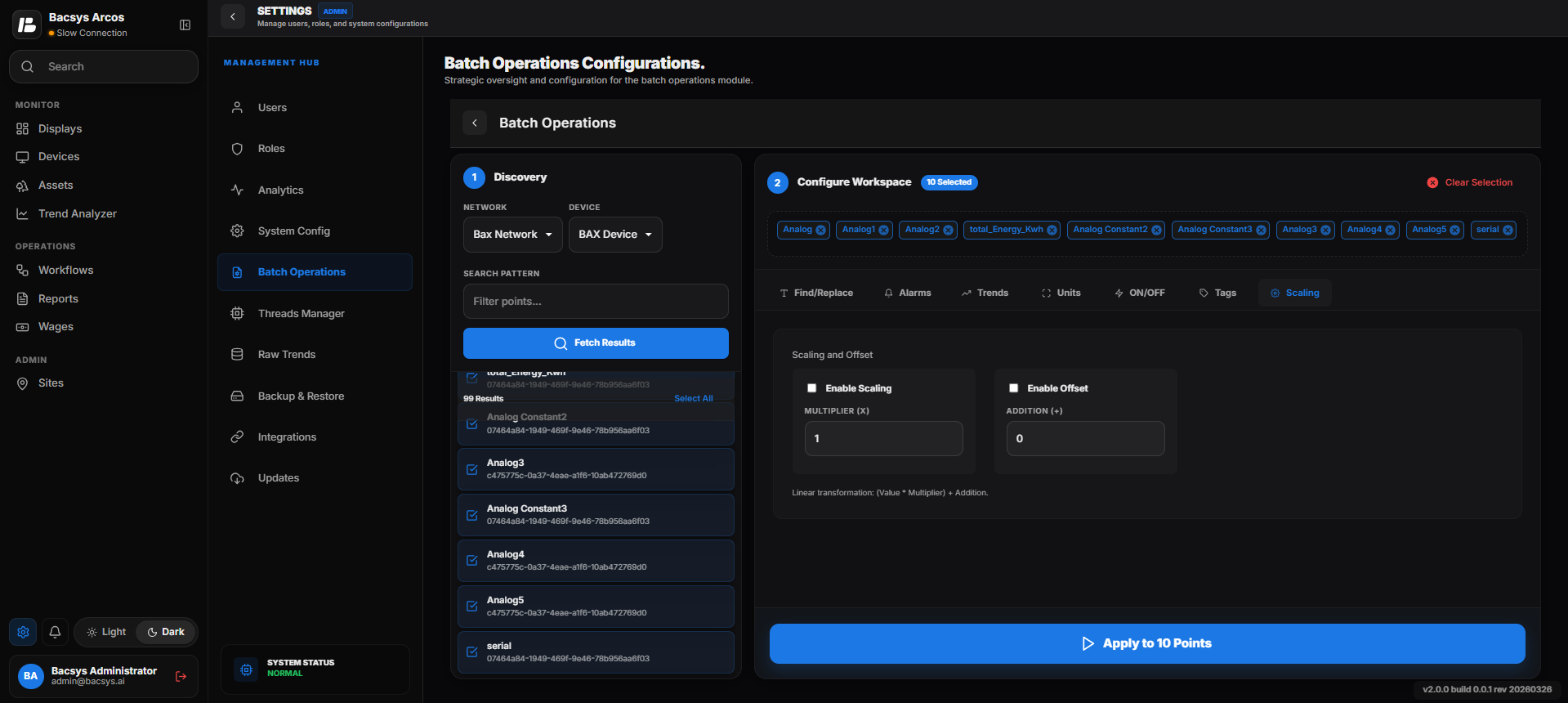
Scaling Configuration
The Scaling Configuration section allows users to configure scaling values for multiple selected points.
Steps
- Select the required Network.
- Select the required Device.
- Search and select the required points.
- Enable Scaling, if required.
- Enter the Scaling value.
- Enter the Offset value.
- Click Apply.
The scaling configuration is applied to all selected points.
Note
- Batch operations allow users to update multiple points simultaneously, reducing manual configuration time.
- Only the selected points are updated when the Apply button is clicked.
- Users can select as many points as required before applying the configuration.