

Users
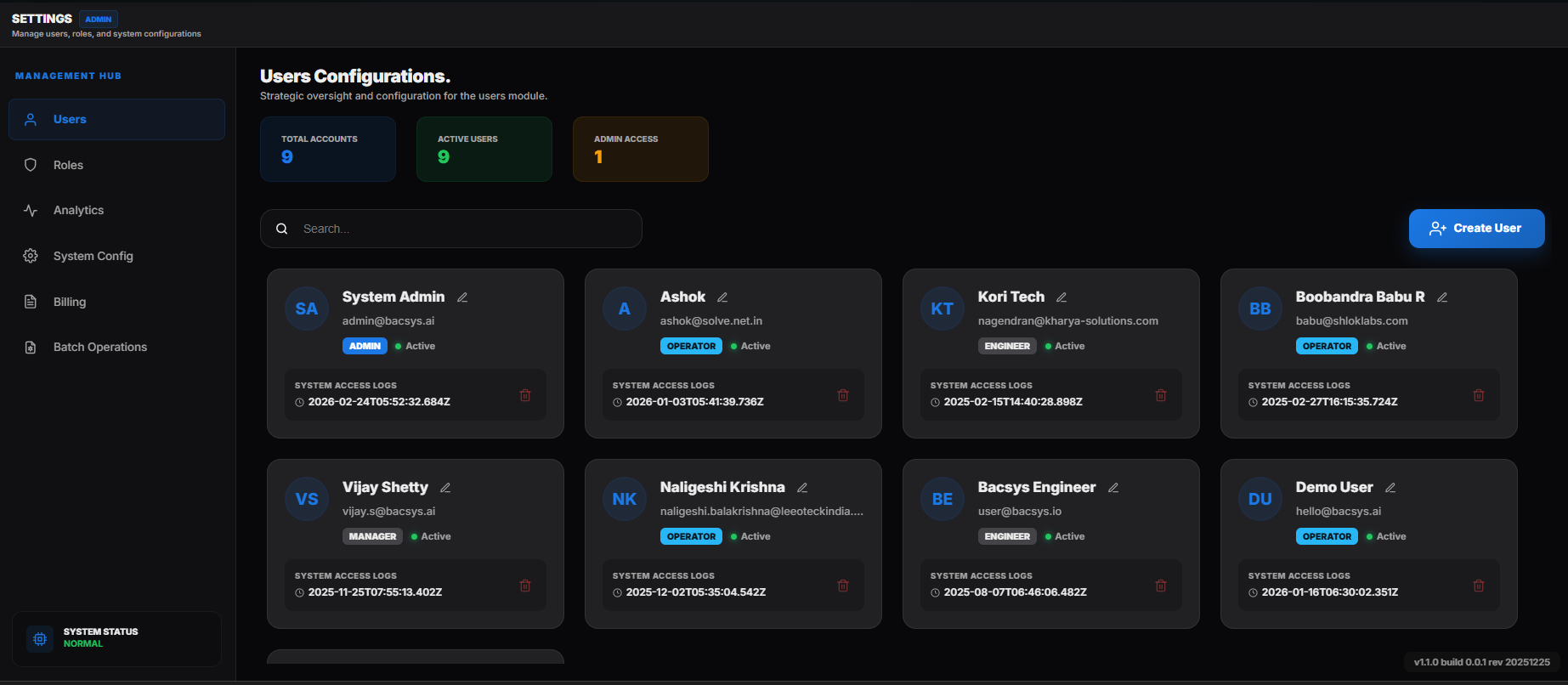
Administrator user can add, modify, or remove user accounts, ensuring proper access control and user administration within Bacsys platform.
 Settings users
To access User Configuration,
- Go to Settings in the Navigation pane.
- Under the settings browers pane, click on Users menu. The User Configuration menu is displayed.
User Configuration
Creating a User
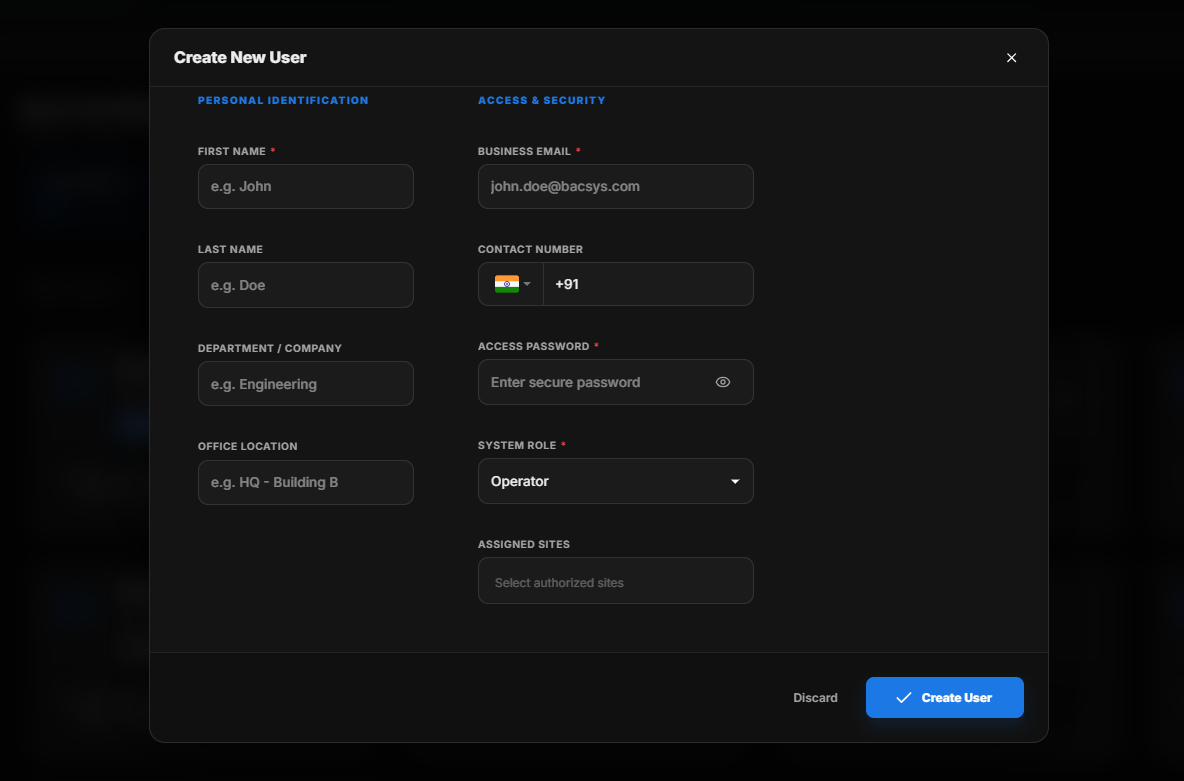
The Create User button, located at the top-right corner of the page, allows you to add a new user to the platform.
Steps to Create a User:
- Click on the Create User button.
- A pop-up form appears, prompting you to enter the necessary user details.
 Settings users
- Fill in the required fields, such as name, email, role, and other relevant information.
- Click the Create User button to confirm and add the new user.
- If you wish to cancel the process, click the Cancel button to close the pop-up without saving changes.
Once created, the new user will be added to the system and assigned the specified role and permissions.
 Settings users
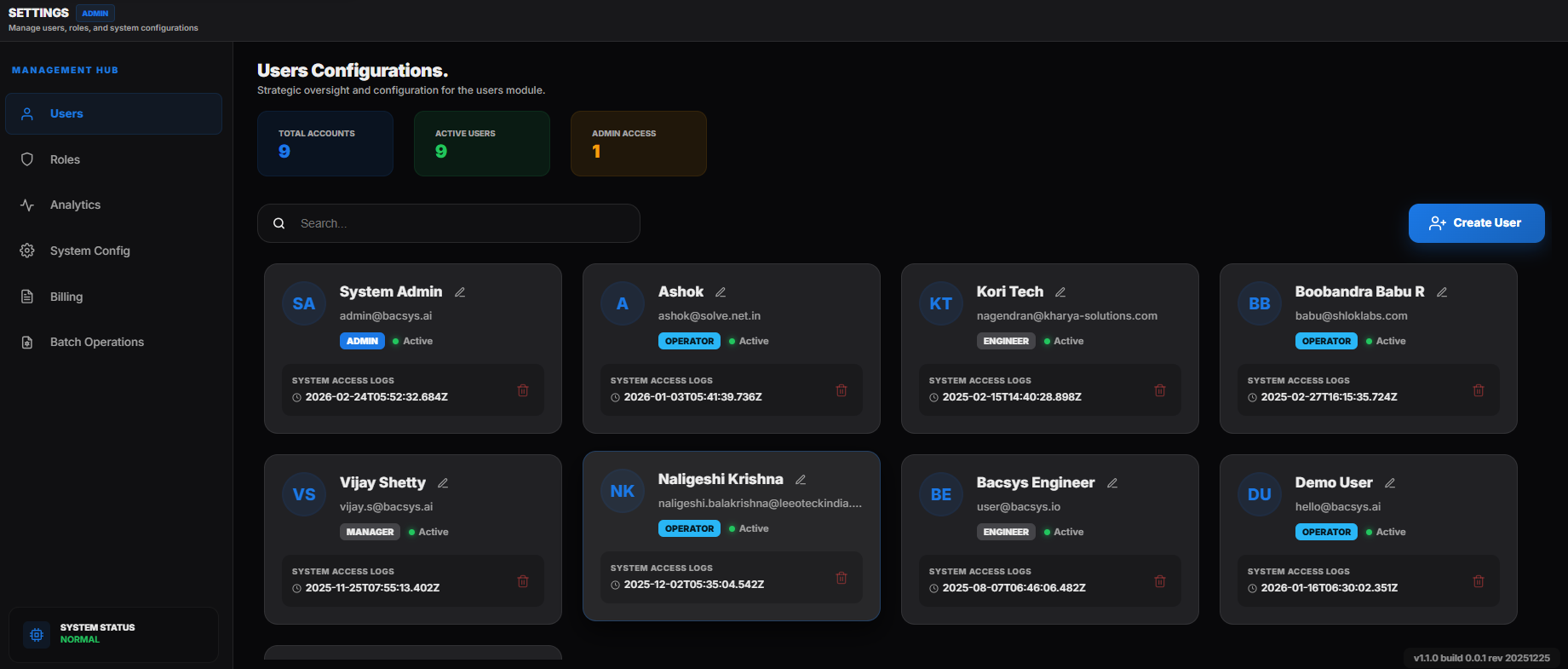
- Full Name: The complete name of the user as registered.
- Role: The assigned role that determines the user's permissions and access levels.
- Status: Indicates whether the user account is Active or Inactive.
- Last Access Time: The most recent date and time the user logged into the platform.
Action:
Edit:
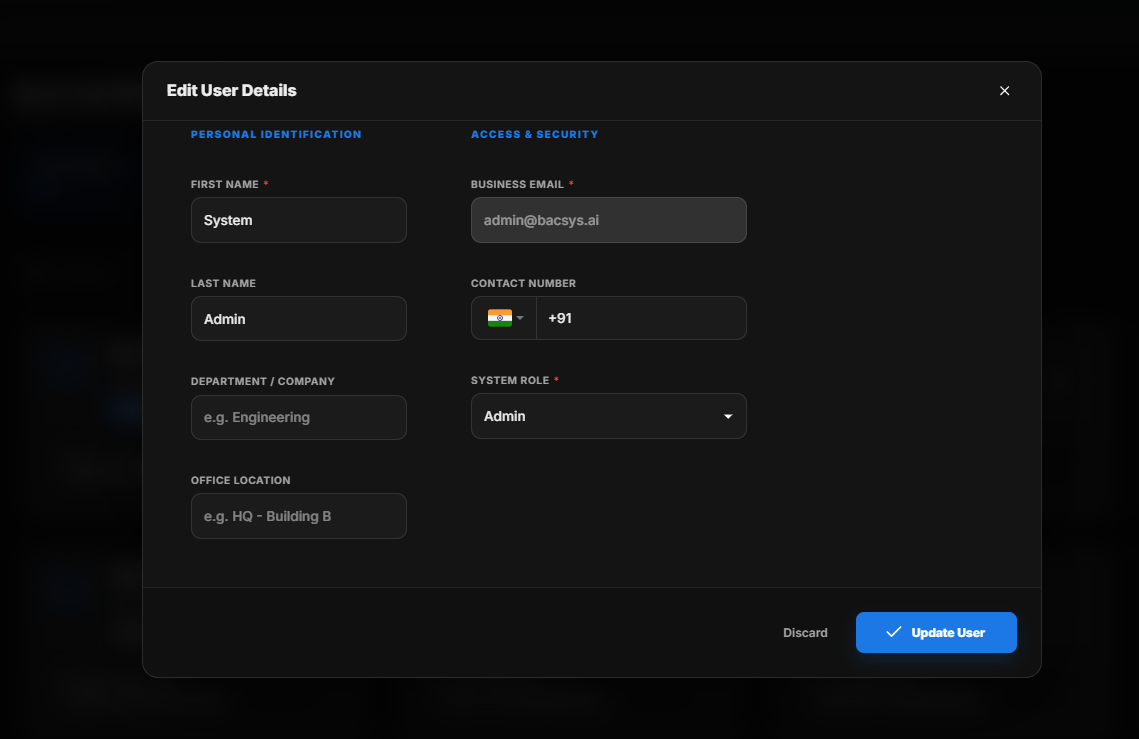
- Click on "Edit" button, to edit an existing user.
- The Edit User Info pop-up appears as follows,
 Settings users edit
- Edit in the required fields.
- Click Update User button to save the edited informations.
- Click Cancel button to cancel the process.
Delete:
- Click on "Delete" button to delete an existing user.
- The respective user will be deleted.