

Roles
Define roles and assign permissions to users based on their responsibilities, ensuring secure and role-based access to platform functionalities.
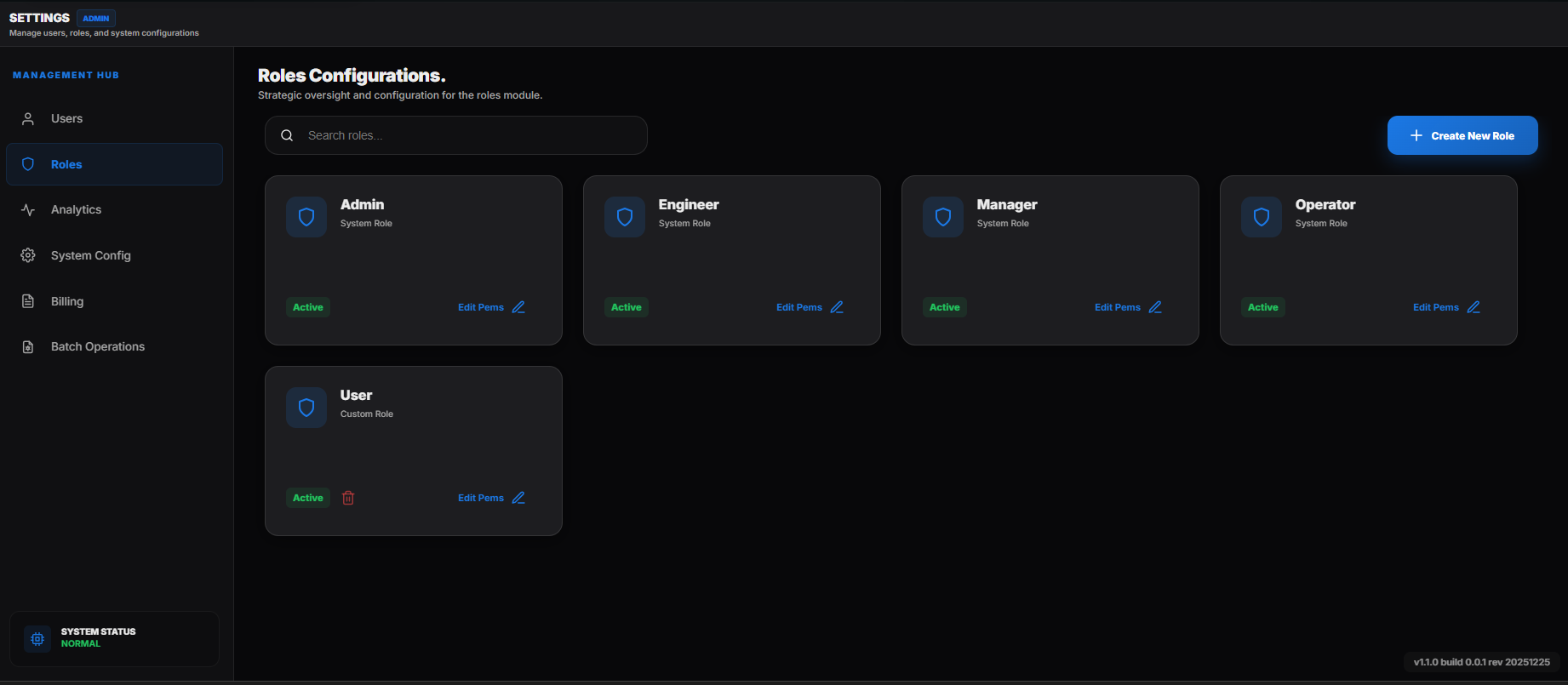 Settings Roles
To access Roles,
-
Go to Settings in the navigation pane.
-
In Settings browers pane, click on Roles menu.
Create New Role
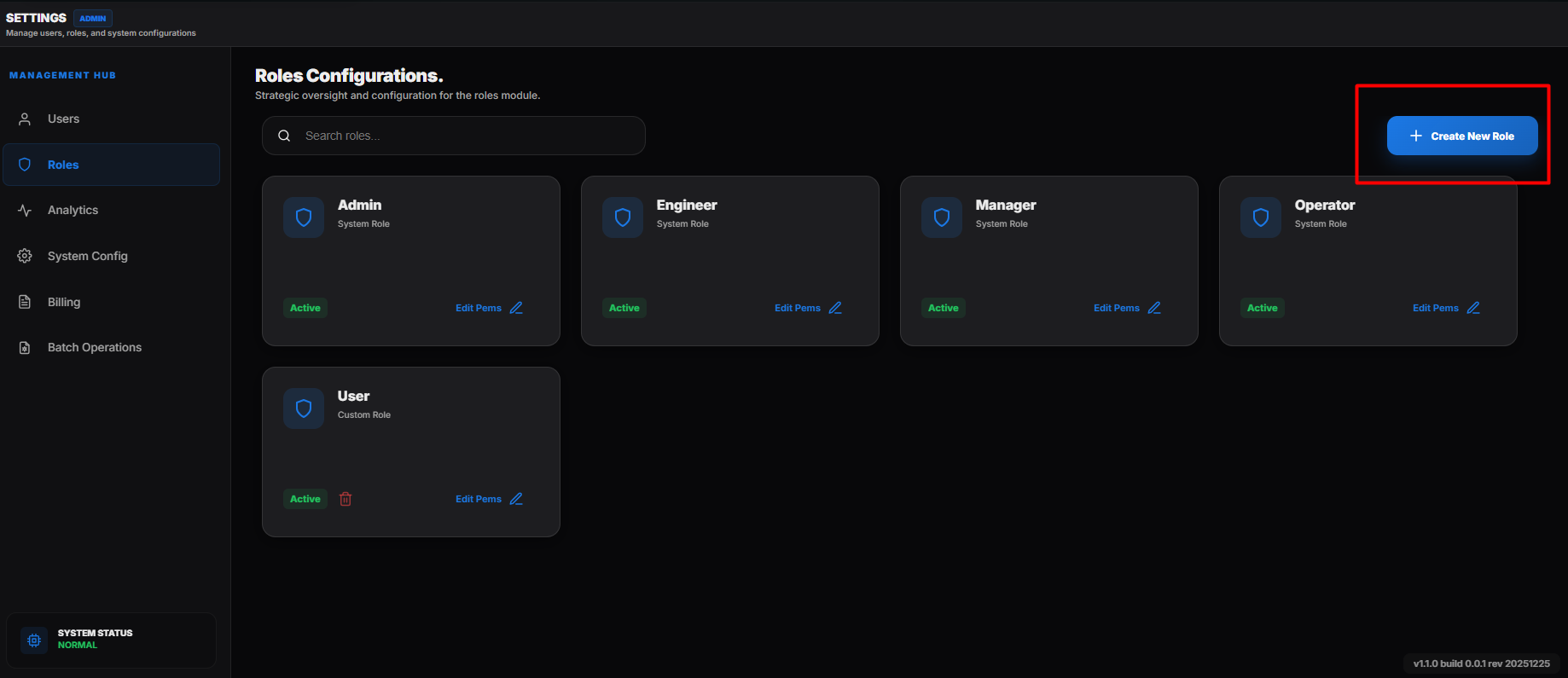 Create a new role
To create a new role:
- Click on the Create Role button.
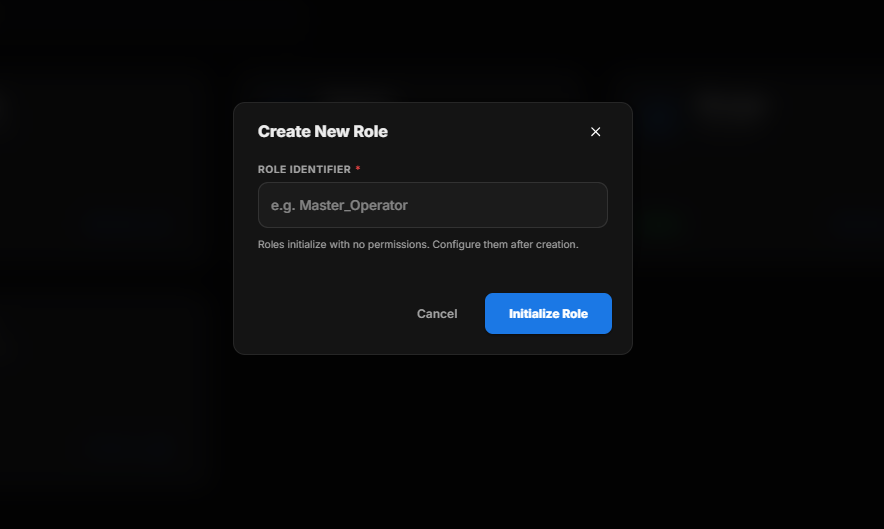 Initialize Role
- Enter the required Role Identifier.
- Click on Initialize Role to proceed with role configuration.
After initialization, permissions and access settings can be assigned to the newly created role.
Edit Role & Full Access
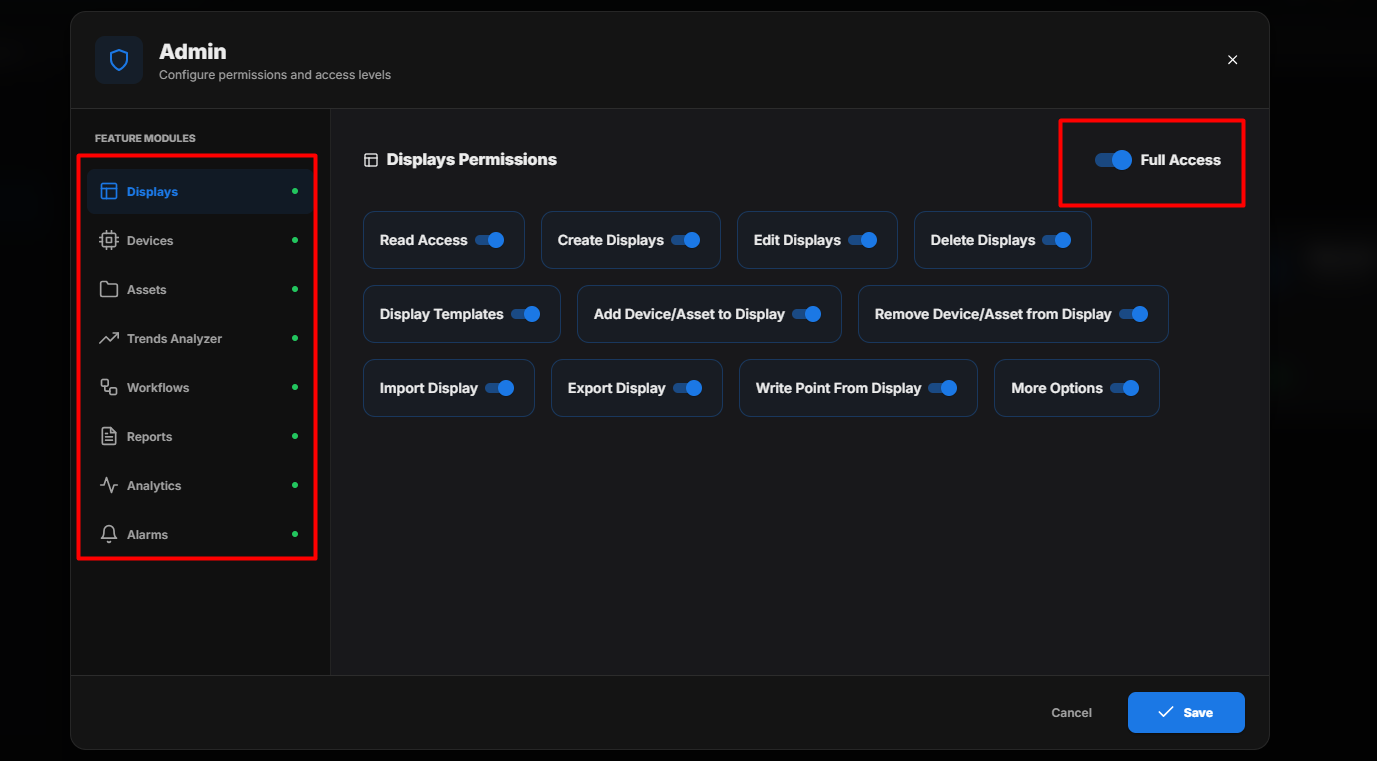 Initialize Role
After creating a role:
- Click the Edit button to modify the role permissions.
- Users can enable Full Access for the role.
- Click Save to apply the changes.
When Full Access is enabled, the role will have access to the following modules:
- Display
- Devices
- Assets
- Trends Analyzer
- Workflow
- Reports
- Analytics
- Alarms
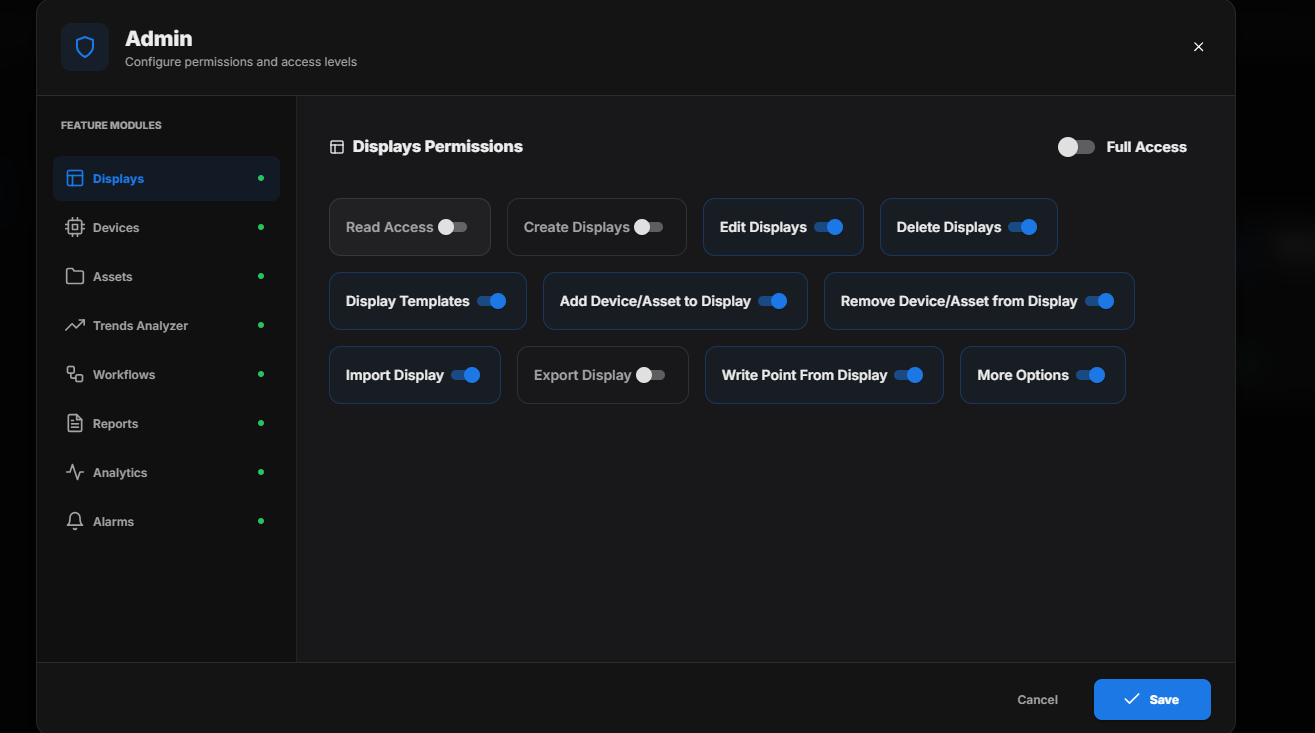
Managing Role Access
 Initialize Role
If access to a specific module should not be granted:
- Use the Toggle Switch next to the respective module.
- Turn OFF the switch to remove access.
- Turn ON the switch to grant access.
After configuring the required permissions, click Save to apply the changes.
Roles Configurations
- The access to Role Configuration is available only for the Administrator user.
- The Role Name and the Roles are listed down in the first column.
- The modules of Edge platform are listed in the latter columns along with their respective read and write controls.
- The Administrator can edit the read and write control for each roles in each modules.
- Upon finishing the changes, the administrator user can click Save Roles button to save the changes made.