

Batch Operations
The Batch Operations module allows users to apply configuration changes to multiple points simultaneously. Instead of modifying each point individually, users can select multiple points and update common properties in a single operation.
Using this module, you can:
- Search and select multiple points.
- Find and replace point names.
- Configure alarm settings.
- Configure trend settings.
- Update engineering units.
- Configure ON/OFF display text.
- Add tags to multiple points.
- Configure scaling and offset values.
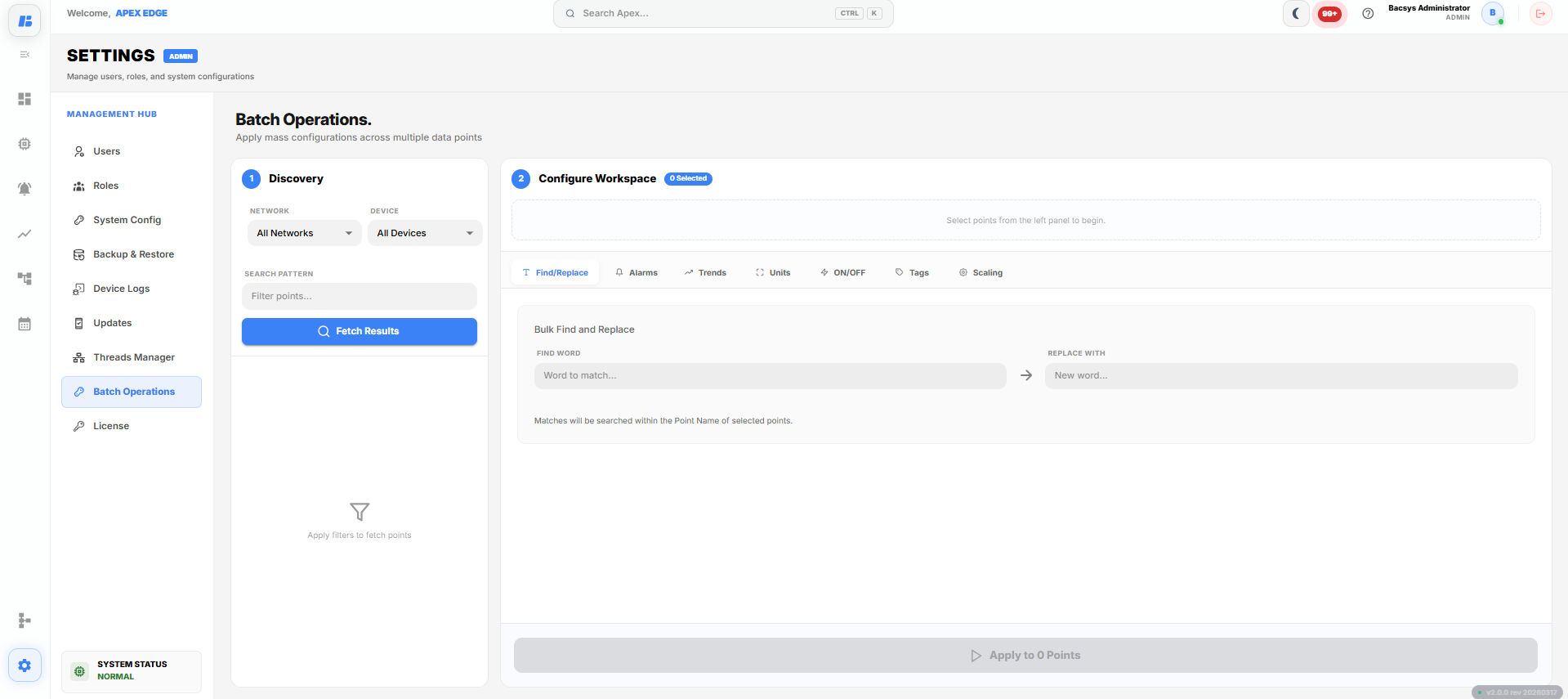
Batch Operations
Discovery
The Discovery section is used to search and select the points that will be included in the batch operation.
To discover points:
- Open Settings.
- Select Batch Operations.
- Select the required Network.
- Select the required Device.
- (Optional) Enter a keyword in the Search Pattern field to filter points.
- Click Fetch Results.
The matching points are displayed in the results list.
Select one or more points from the list. The selected points are added to the Configure Workspace.
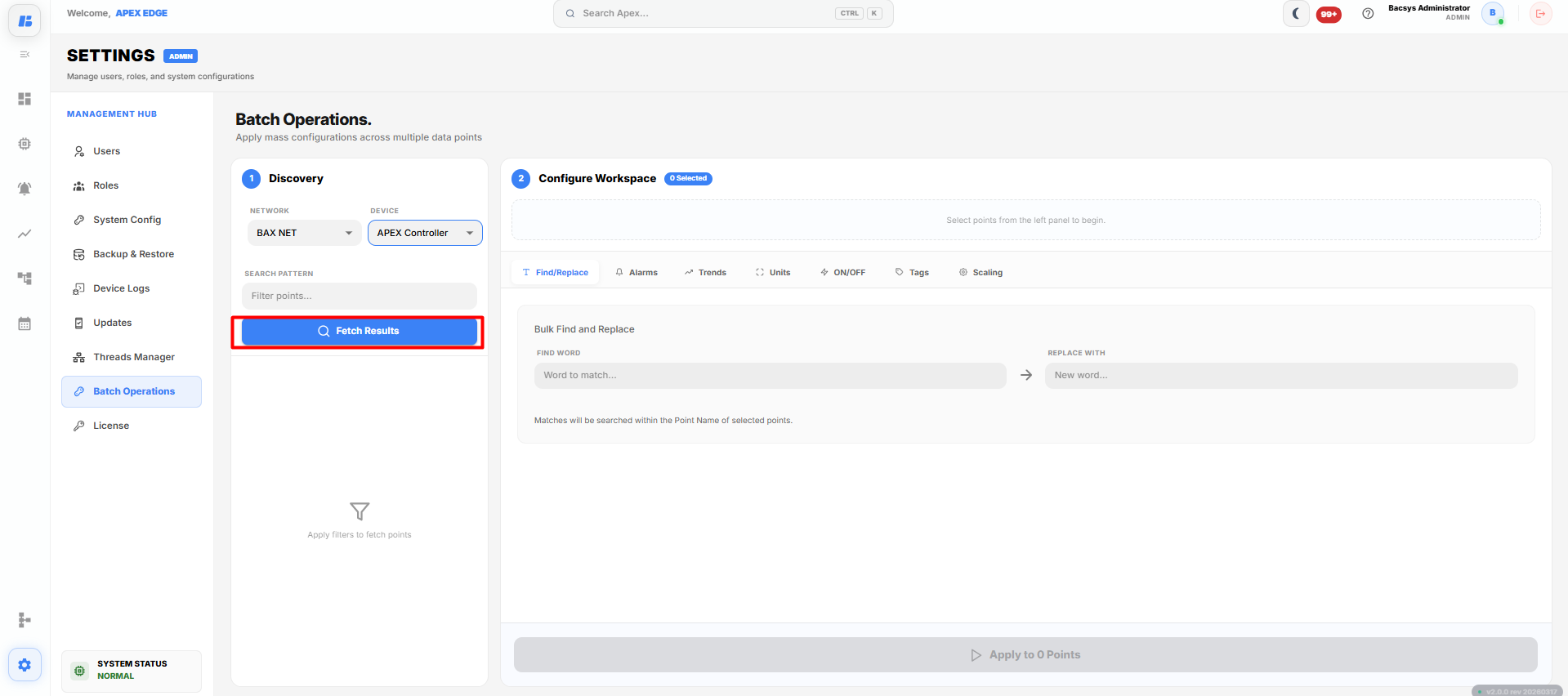
Batch Operations - Discovery
Configure Workspace
The Configure Workspace displays all selected points and allows you to apply configuration changes to them simultaneously.
The following configuration tabs are available:
- Find/Replace
- Alarms
- Trends
- Units
- ON/OFF
- Tags
- Scaling
After configuring the required settings, click Apply to Points to update all selected points.
Find/Replace
The Find/Replace tab allows users to replace a word or text in the names of multiple selected points.
To perform a bulk find and replace:
- Select one or more points.
- Open the Find/Replace tab.
- Enter the text to search for in the Find Word field.
- Enter the replacement text in the Replace With field.
- Click Apply to Points.
The specified word is replaced in all selected point names.
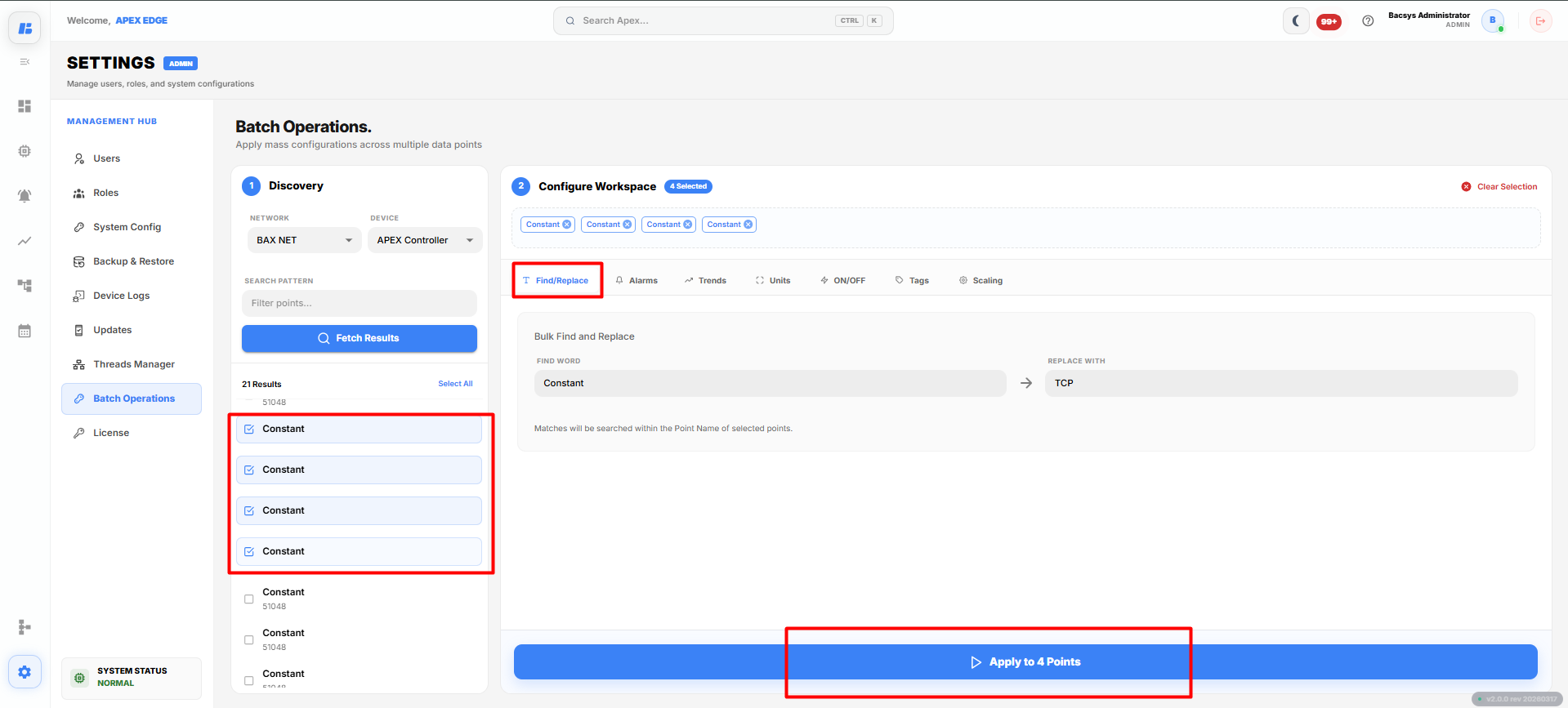
Batch Operations - Find/Replace
Alarms
The Alarms tab allows users to configure alarm settings for multiple points simultaneously.
The following settings are available:
| Field | Description |
|---|---|
| High Alarm Enable | Enables or disables the high alarm. |
| Low Alarm Enable | Enables or disables the low alarm. |
| High Alarm Limit | Specifies the high alarm threshold. |
| Low Alarm Limit | Specifies the low alarm threshold. |
| High Alarm Message | Specifies the message displayed when the high alarm is triggered. |
| Low Alarm Message | Specifies the message displayed when the low alarm is triggered. |
| High Priority | Selects the priority level for the high alarm. |
| Low Priority | Selects the priority level for the low alarm. |
After configuring the required alarm settings, click Apply to Points.
The alarm configuration is applied to all selected points.
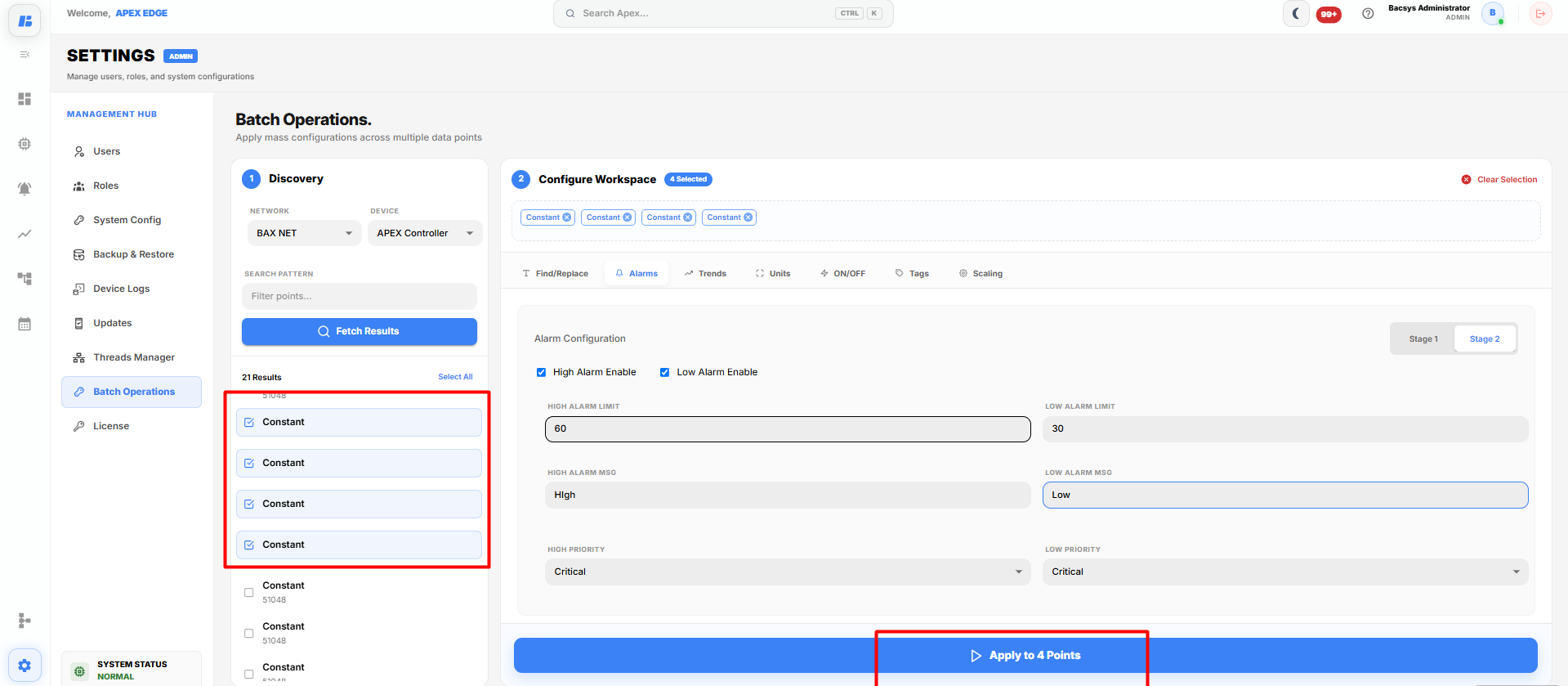
Batch Operations - Alarms
Trends
The Trends tab allows users to configure trend logging for multiple points.
The following options are available:
| Field | Description |
|---|---|
| Enable Trend | Enables trend logging. |
| Use As Consumption | Configures the trend as a consumption point. |
| Enable Calendar | Enables calendar-based trend logging. |
| Trend Interval | Specifies how frequently data is recorded. |
| Record Limit | Specifies the maximum number of records retained. |
After configuring the required trend settings, click Apply to Points.
The trend configuration is applied to all selected points.
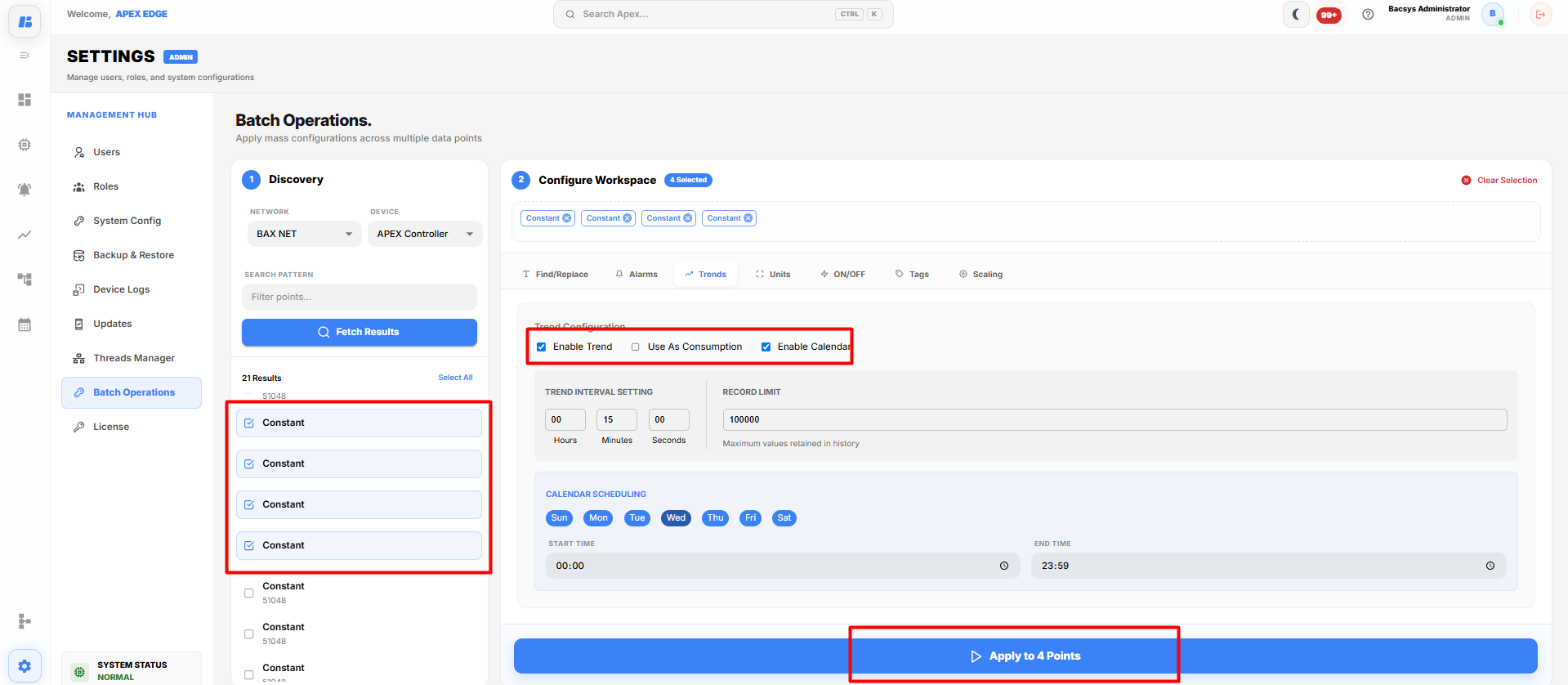
Batch Operations - Trends
Units
The Units tab allows users to update the engineering unit for multiple points.
To change the unit:
- Select the required points.
- Open the Units tab.
- Select the required Target Unit from the list.
- Click Apply to Points.
The selected engineering unit is applied to all selected points.
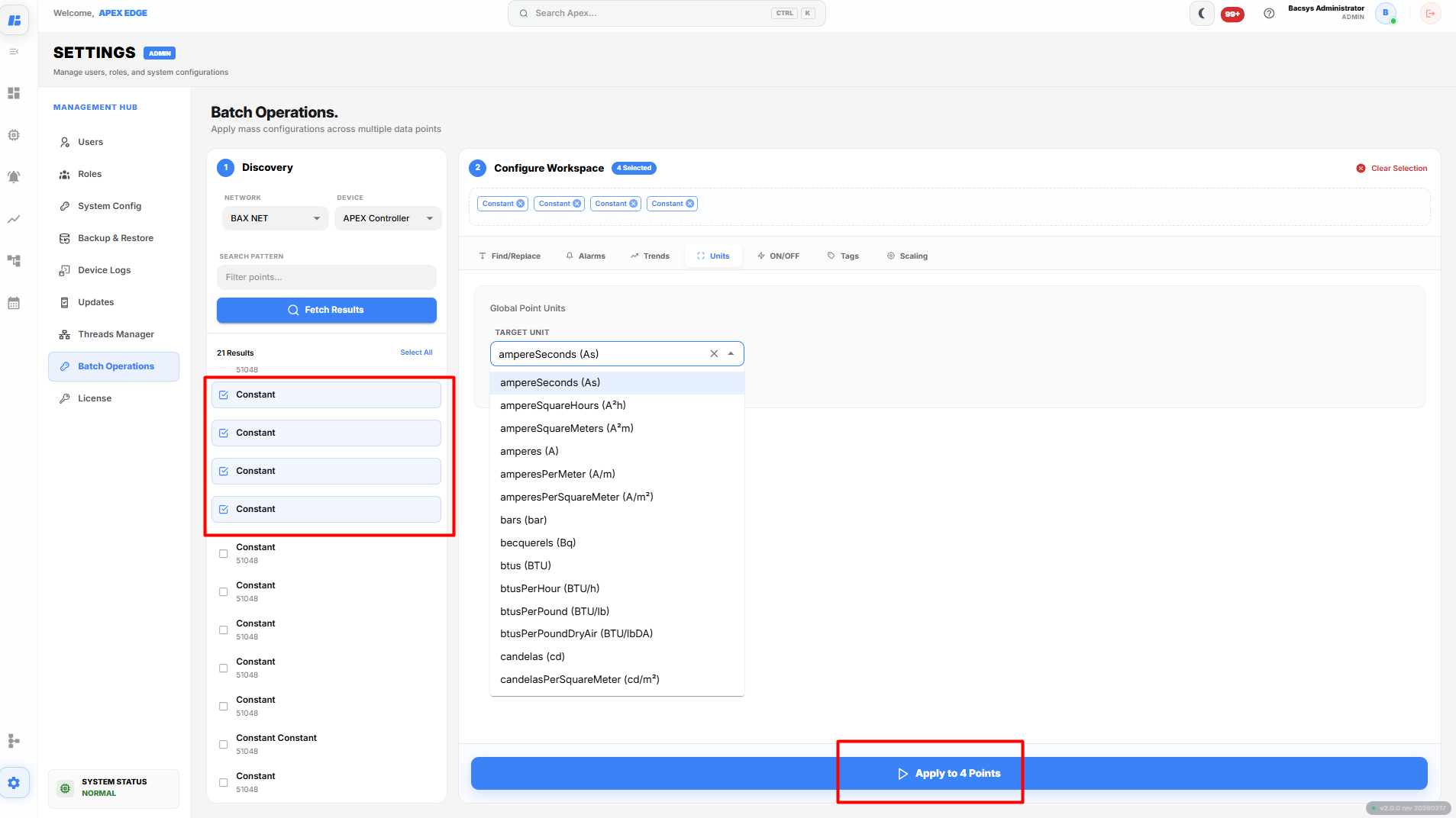
Batch Operations - Units
ON/OFF
The ON/OFF tab allows users to configure custom display text for Boolean points.
The following fields are available:
| Field | Description |
|---|---|
| ON Display Text | Text displayed when the point value is ON. |
| OFF Display Text | Text displayed when the point value is OFF. |
After entering the required values, click Apply to Points.
The display text is updated for all selected Boolean points.
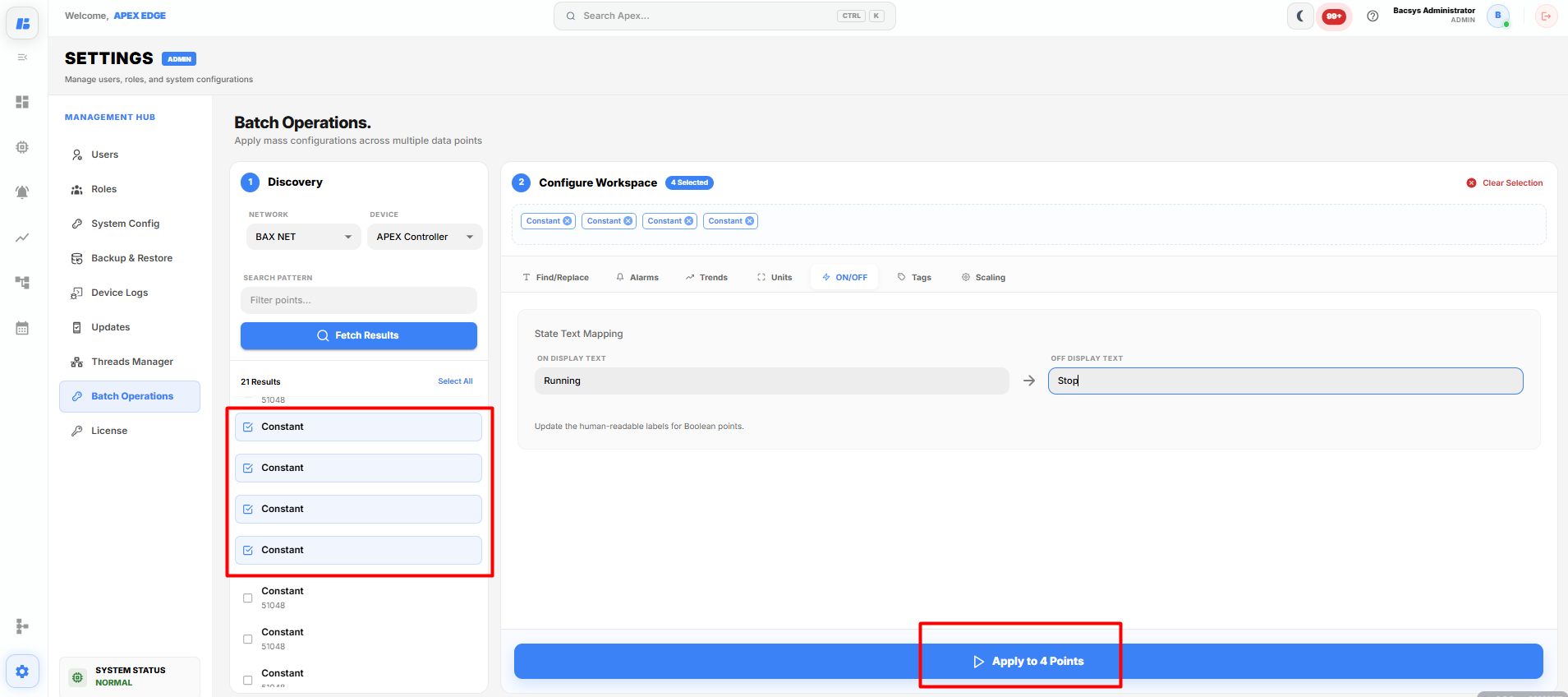
Batch Operations - ON/OFF
Tags
The Tags tab allows users to assign one or more tags to multiple points.
To add tags:
- Select the required points.
- Open the Tags tab.
- Search for an existing tag or type a new tag.
- Press Enter to add the tag.
- Click Apply to Points.
The selected tags are assigned to all selected points.
Existing tags are preserved, and the new tags are appended to each selected point.
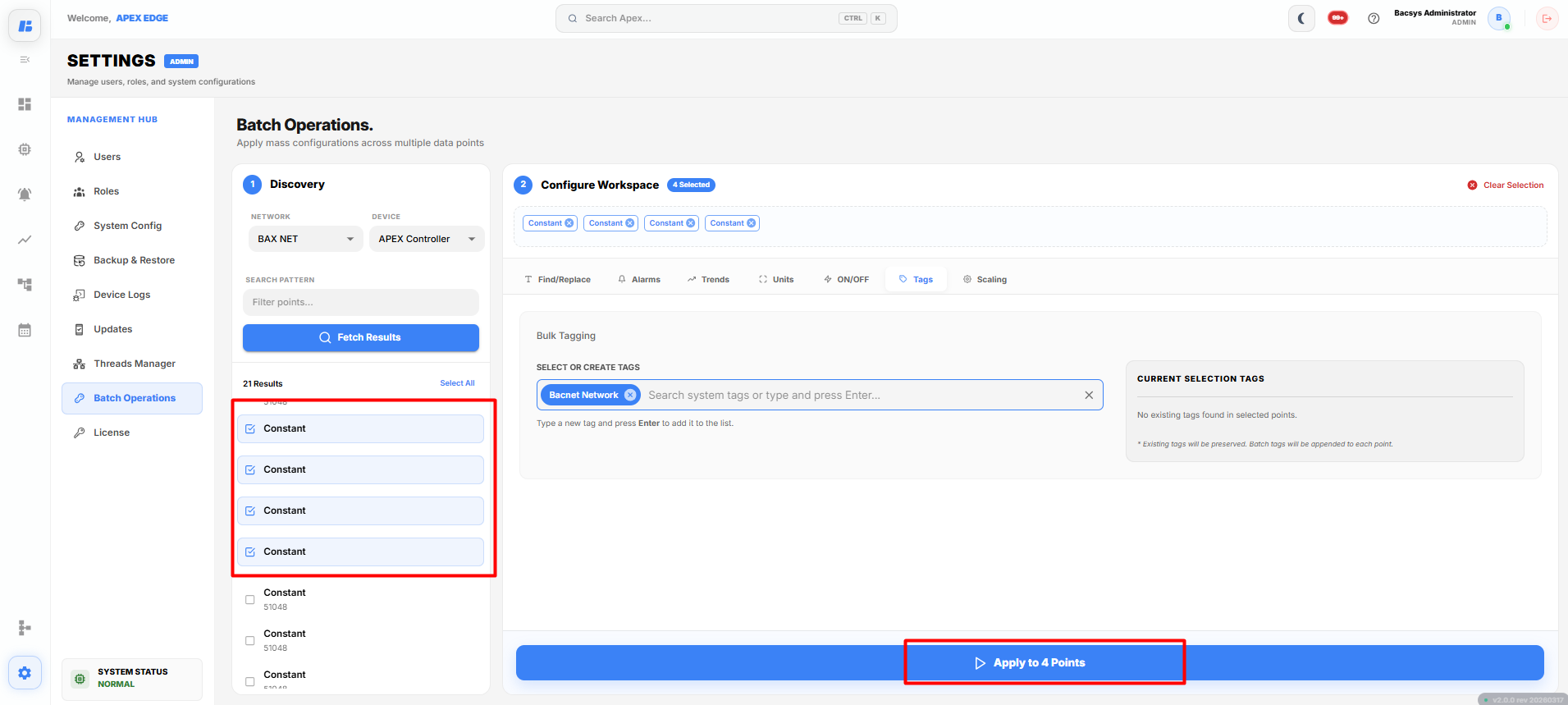
Batch Operations - Tags
Scaling
The Scaling tab allows users to configure scaling and offset values for multiple points.
The following options are available:
| Field | Description |
|---|---|
| Enable Scaling | Enables multiplication scaling. |
| Multiplier (X) | Multiplies the incoming value by the specified factor. |
| Enable Offset | Enables offset calculation. |
| Addition (+) | Adds the specified value after scaling. |
Scaling is calculated using the following formula:
Scaled Value = (Value × Multiplier) + Addition
After configuring the required values, click Apply to Points.
The scaling configuration is applied to all selected points.
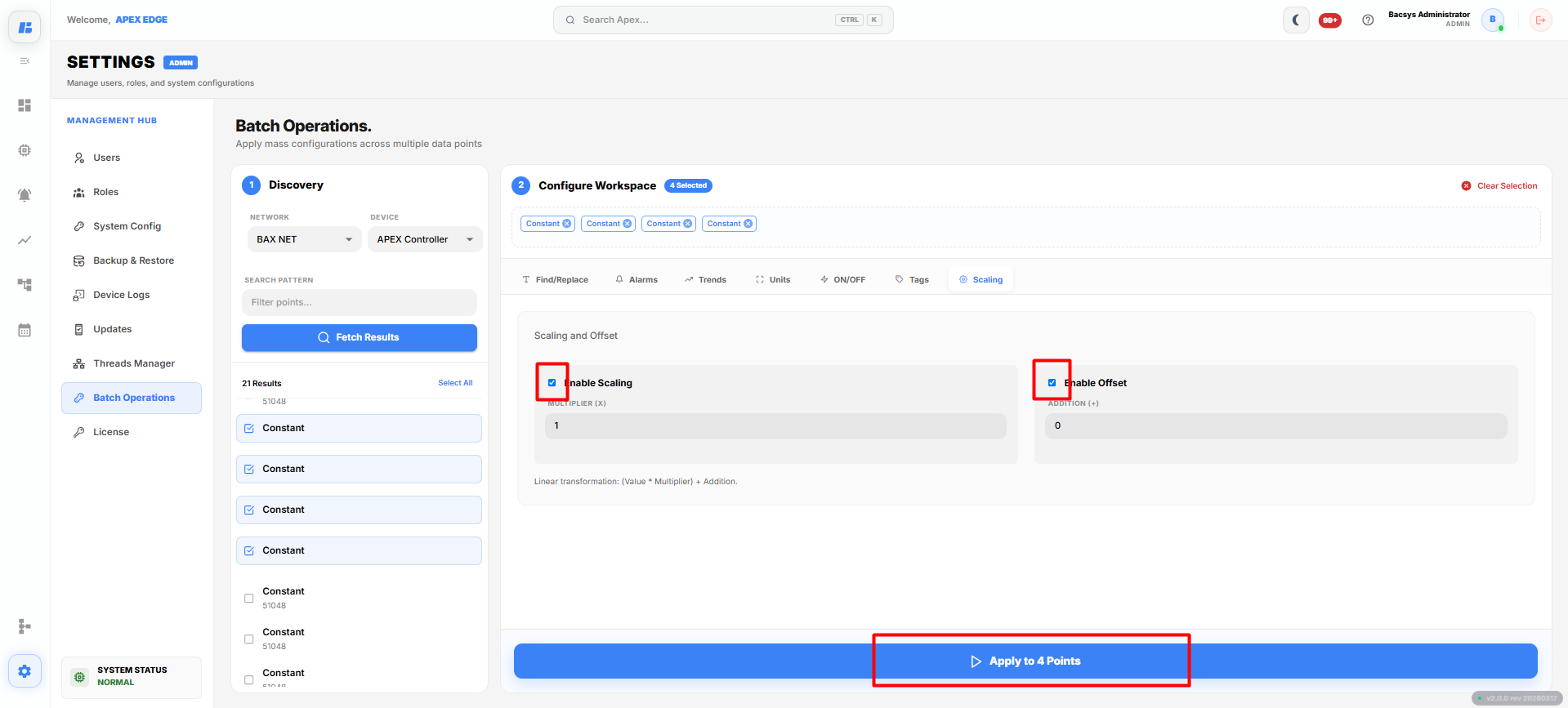
Batch Operations - Scaling
Complete Workflow
Follow the steps below to apply batch configurations:
- Open Settings.
- Select Batch Operations.
- Select the required Network.
- Select the required Device.
- (Optional) Enter a search keyword.
- Click Fetch Results.
- Select the required points from the results list.
- The selected points appear in the Configure Workspace.
- Select one of the configuration tabs:
- Find/Replace
- Alarms
- Trends
- Units
- ON/OFF
- Tags
- Scaling
- Configure the required settings.
- Click Apply to Points.
The selected configuration is applied to all selected points simultaneously.