

Roles
The Roles module allows administrators to manage user roles and configure access permissions for each module in the Edge platform.
Using the Roles module, administrators can:
- View all available roles.
- Configure read and write permissions for each module.
- Modify role permissions.
- Save updated role configurations.
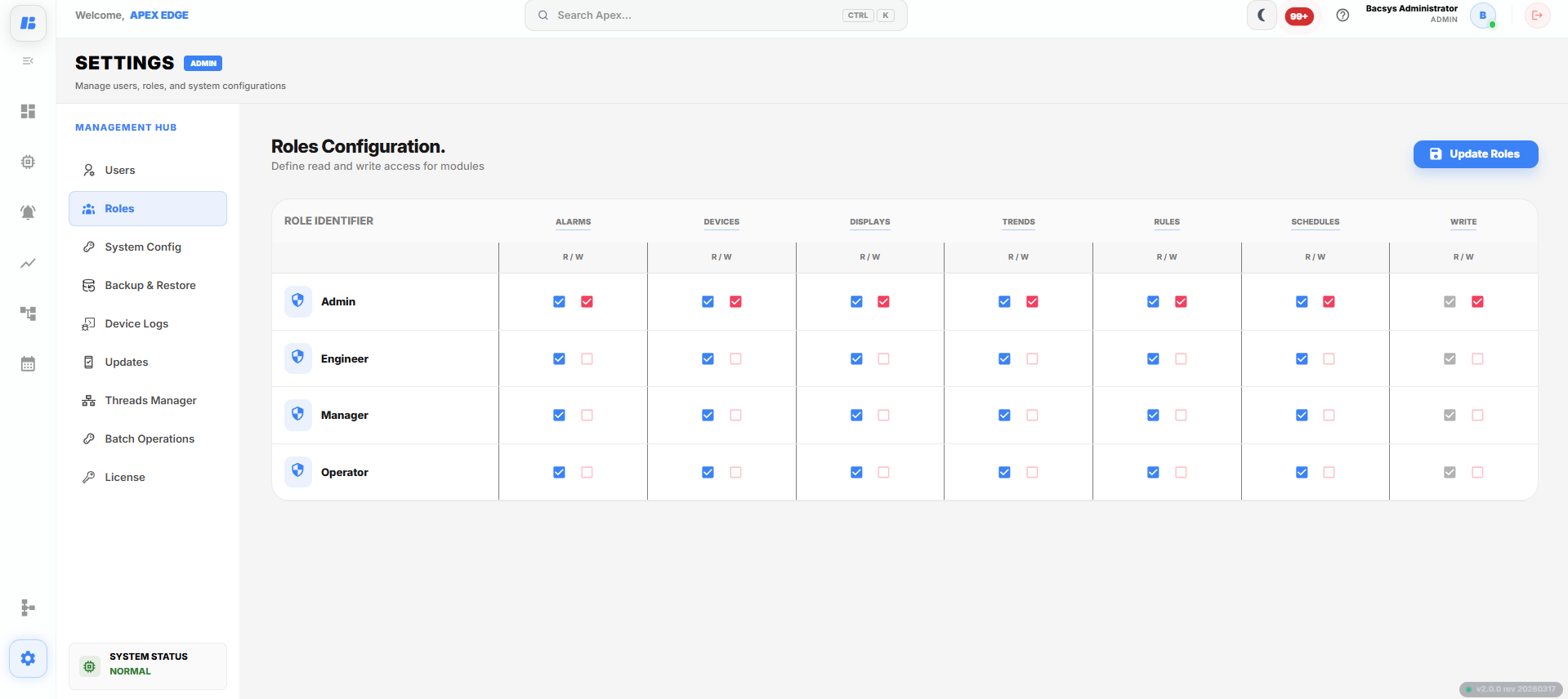
Roles Configuration
Accessing the Roles Module
To access the Roles module:
- Navigate to Settings from the navigation pane.
- Select Roles from the Settings browser.
The Roles Configuration page is displayed.
Note: Only users with the Administrator role can access and modify the Roles configuration.
Configuring Roles
The Roles Configuration page displays all available roles and their access permissions for each module.
The page contains the following information:
| Field | Description |
|---|---|
| Role Name | Displays the list of available user roles. |
| Modules | Displays all available Edge platform modules. |
| Read | Allows users assigned to the role to view data within the selected module. |
| Write | Allows users assigned to the role to create, edit, or delete data within the selected module. |
To modify role permissions:
- Select the required role.
- Locate the required module.
- Enable or disable the Read permission as required.
- Enable or disable the Write permission as required.
- Repeat the process for additional modules, if necessary.
- Click Save Roles to save the updated permissions.
The selected role is updated with the configured access permissions.
Complete Workflow
Configure user roles by following the workflow below:
- Open Settings.
- Select Roles.
- Choose the required user role.
- Review the configured permissions for each module.
- Enable or disable the required Read permissions.
- Enable or disable the required Write permissions.
- Repeat the process for additional modules, if required.
- Click Save Roles to apply the changes.
The selected role is updated successfully, and users assigned to that role receive the configured access permissions.