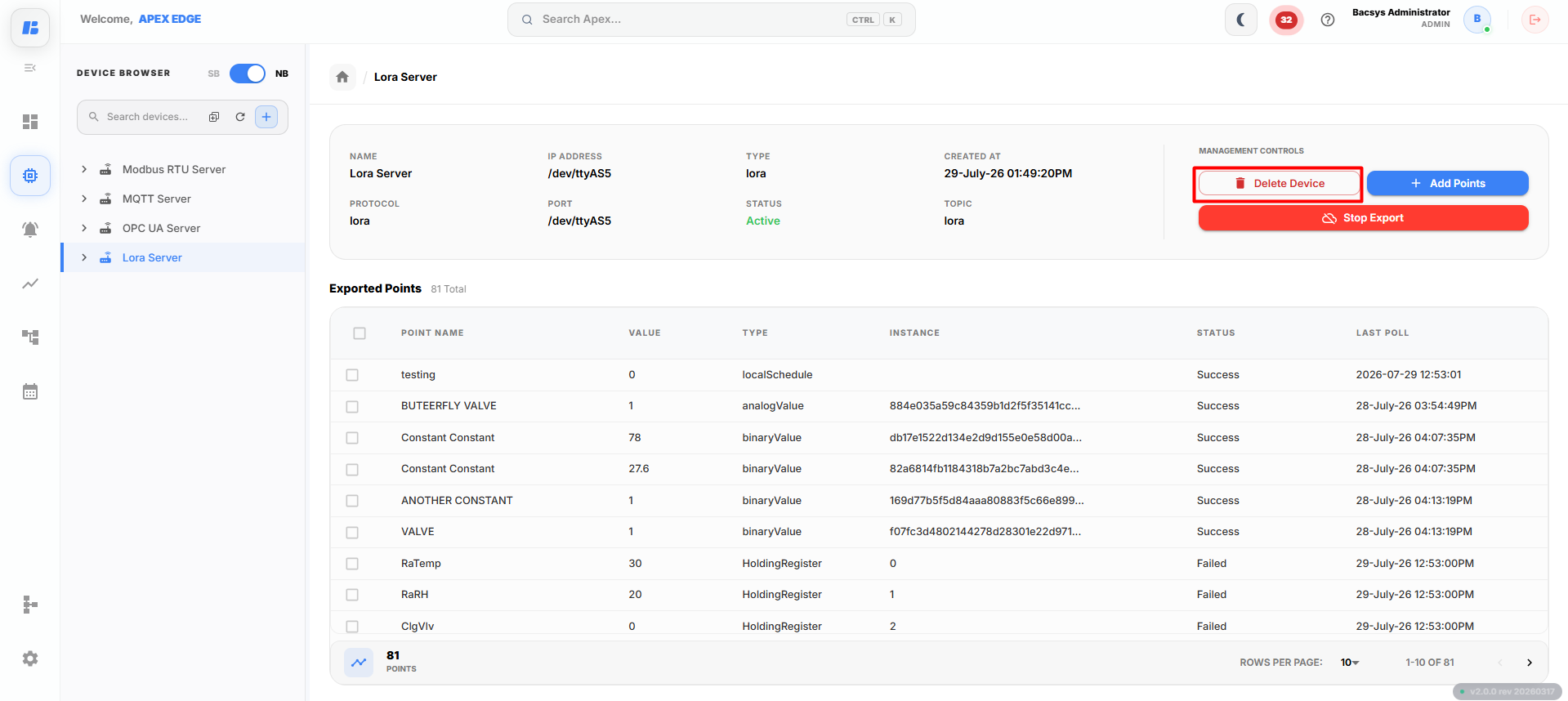
Configuring Lora
The LoRa section allows users to configure a LoRa export device and export selected data points.
Step 1: Create a LoRa Export Device
Click New Device and select LoRa from the Choose a New Device dropdown.
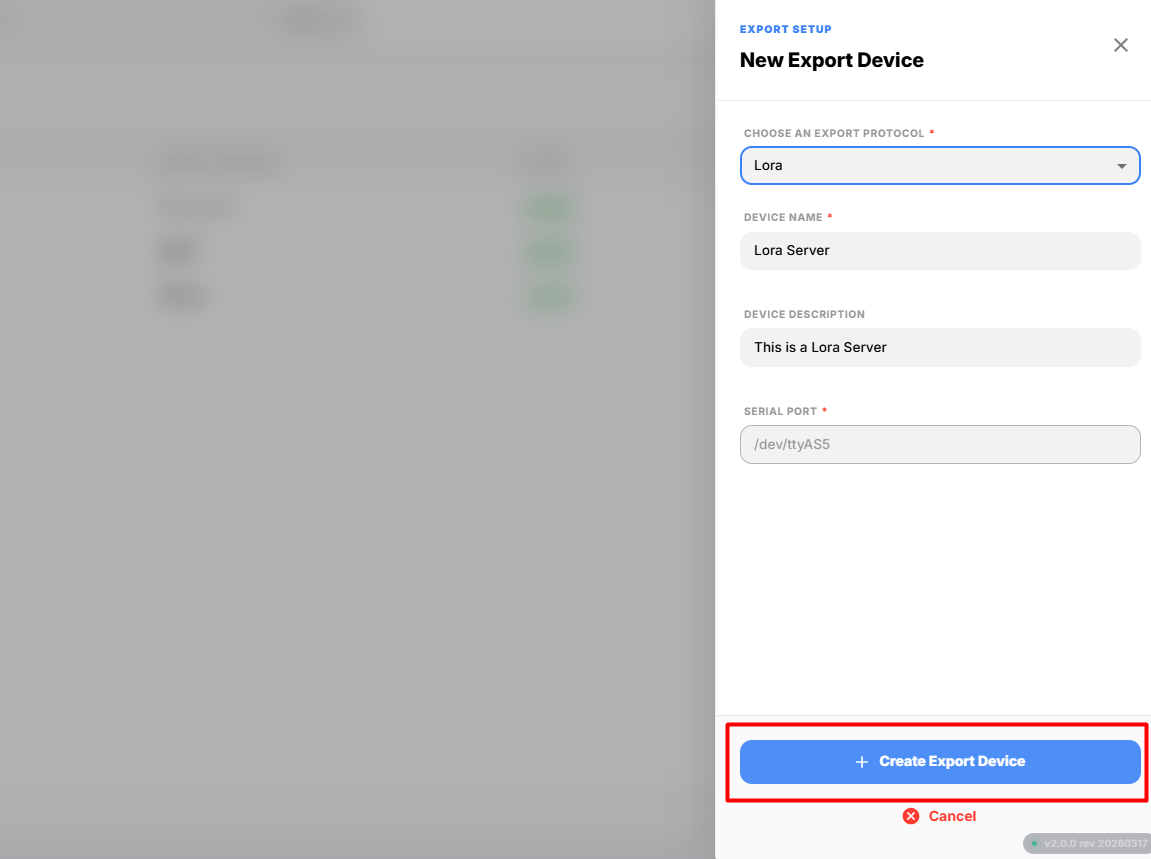
Enter the following configuration details:
| Field | Description |
|---|---|
| Device Name | Enter a unique name to identify the LoRa export device. |
| Device Description | Enter a brief description to help identify the purpose or location of the device. |
| Serial Port | Select the serial port that will be used for communication with the LoRa device. |
After entering all the required details, click Create Export Device.
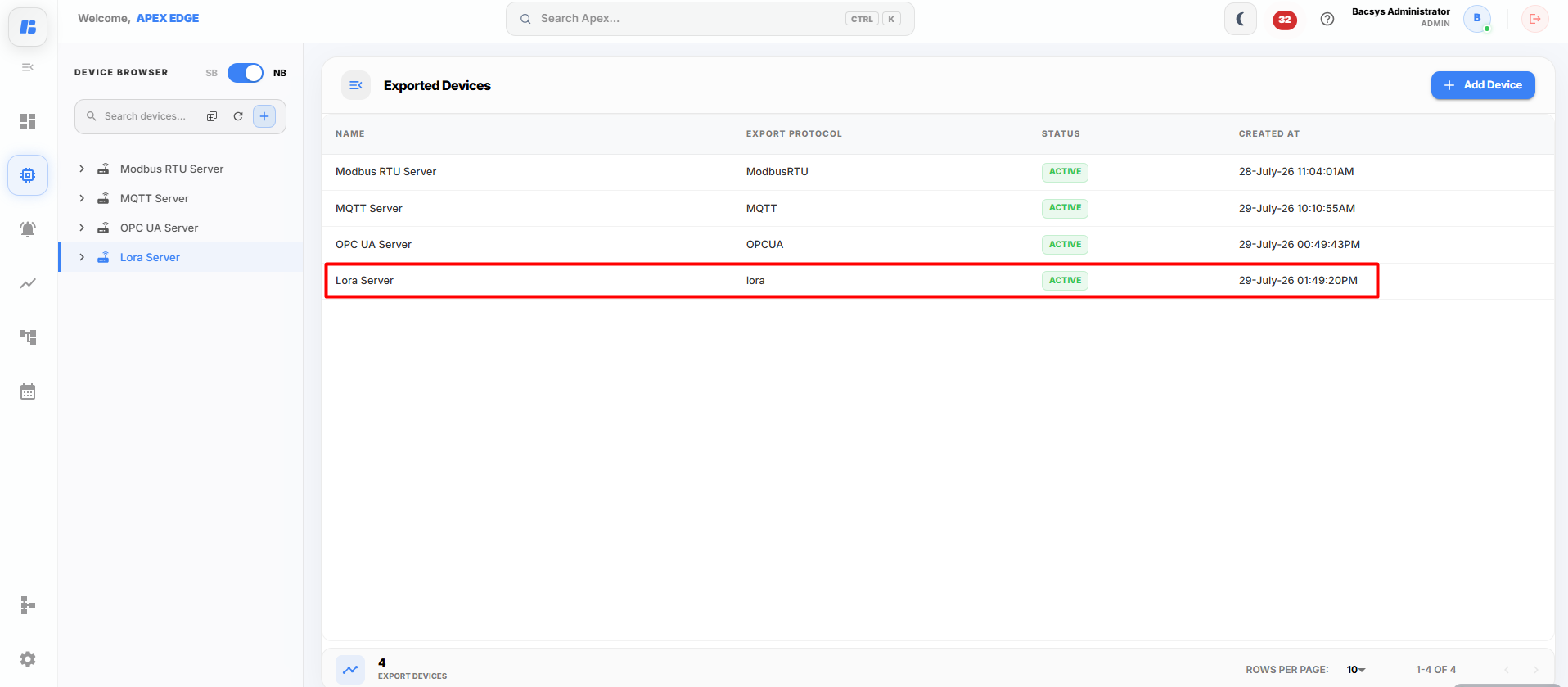
The newly created LoRa export device is displayed in the device list.
Discovering and Adding Points
Step 1: Open the LoRa Export Device
Open the LoRa export device that you created.
Step 2: Add Points
Click Add Points.
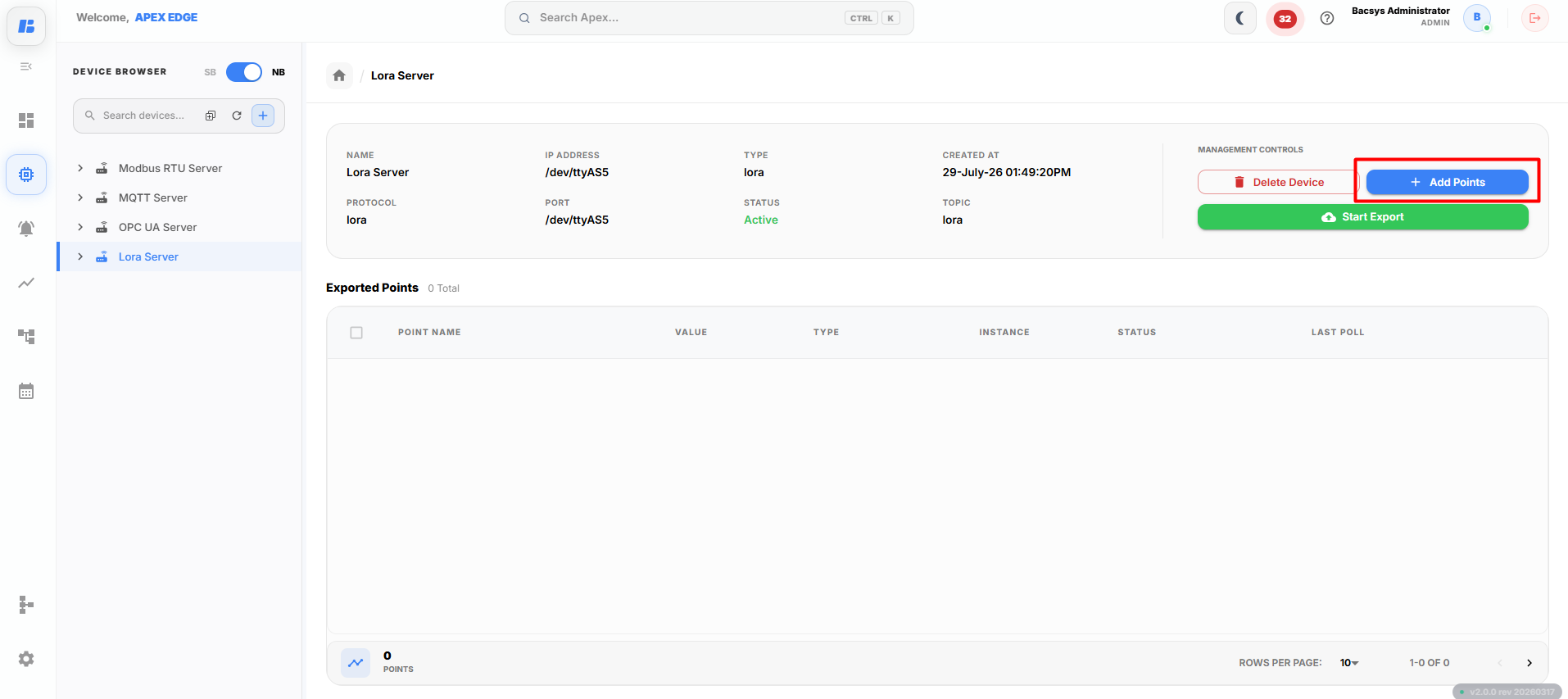
The Add Points window displays all the available points configured in the APEX device.
Select the required points and click Add Selected Points.
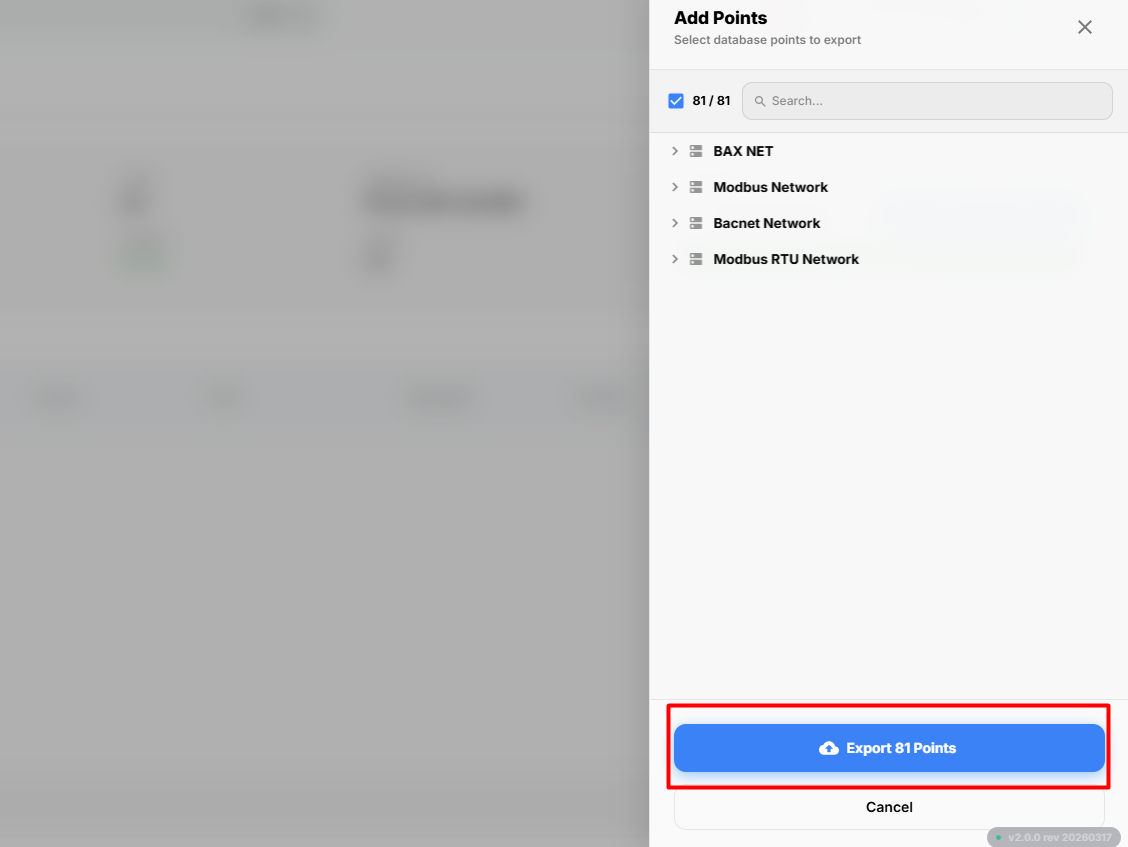
The selected points are added to the LoRa export device.
Managing Exported Points
After adding points to the LoRa export device, you can manage the export using the available action buttons.
Step 1: Start Export
Click Start Export to begin exporting the selected points through the LoRa protocol.
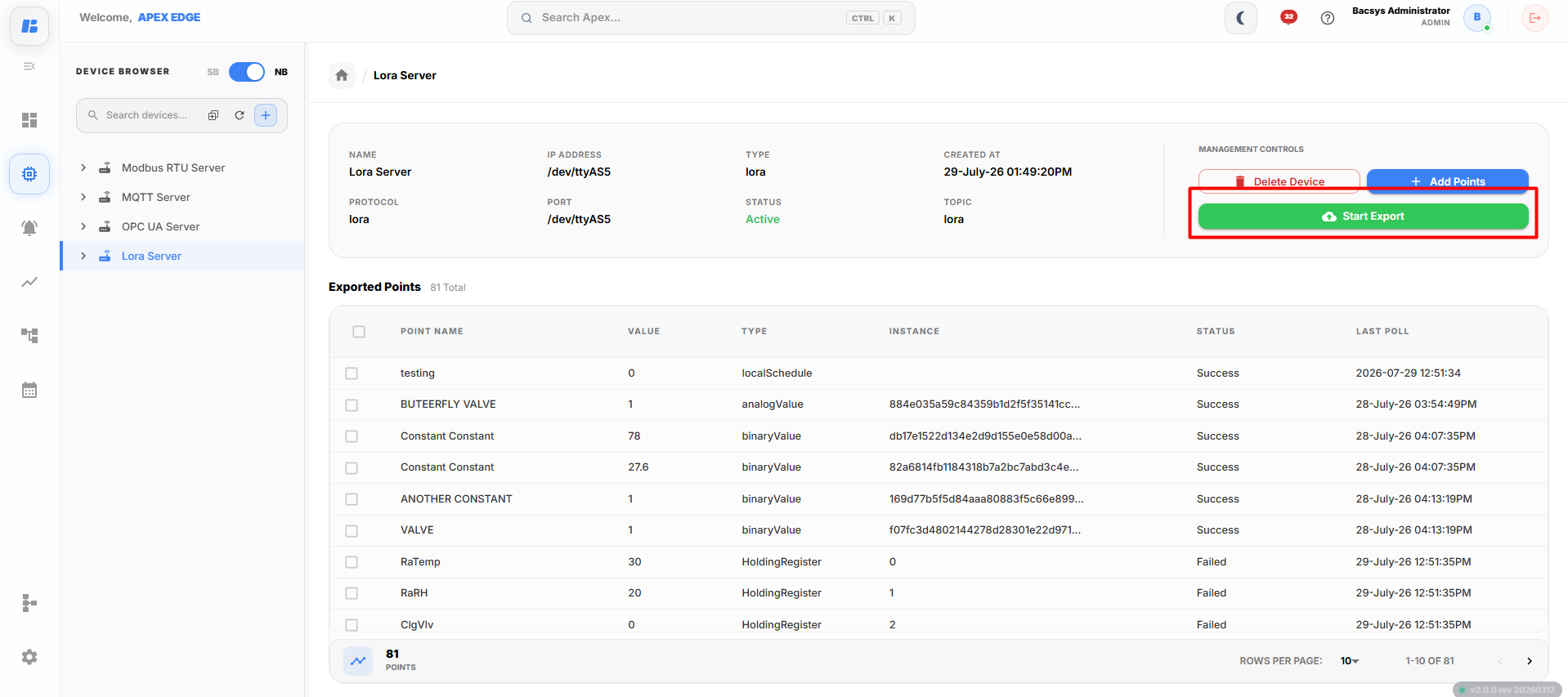
Once the export starts successfully, the selected points are published through the configured LoRa export device.
Step 2: Stop Export
Click Stop Export to stop exporting the selected points.
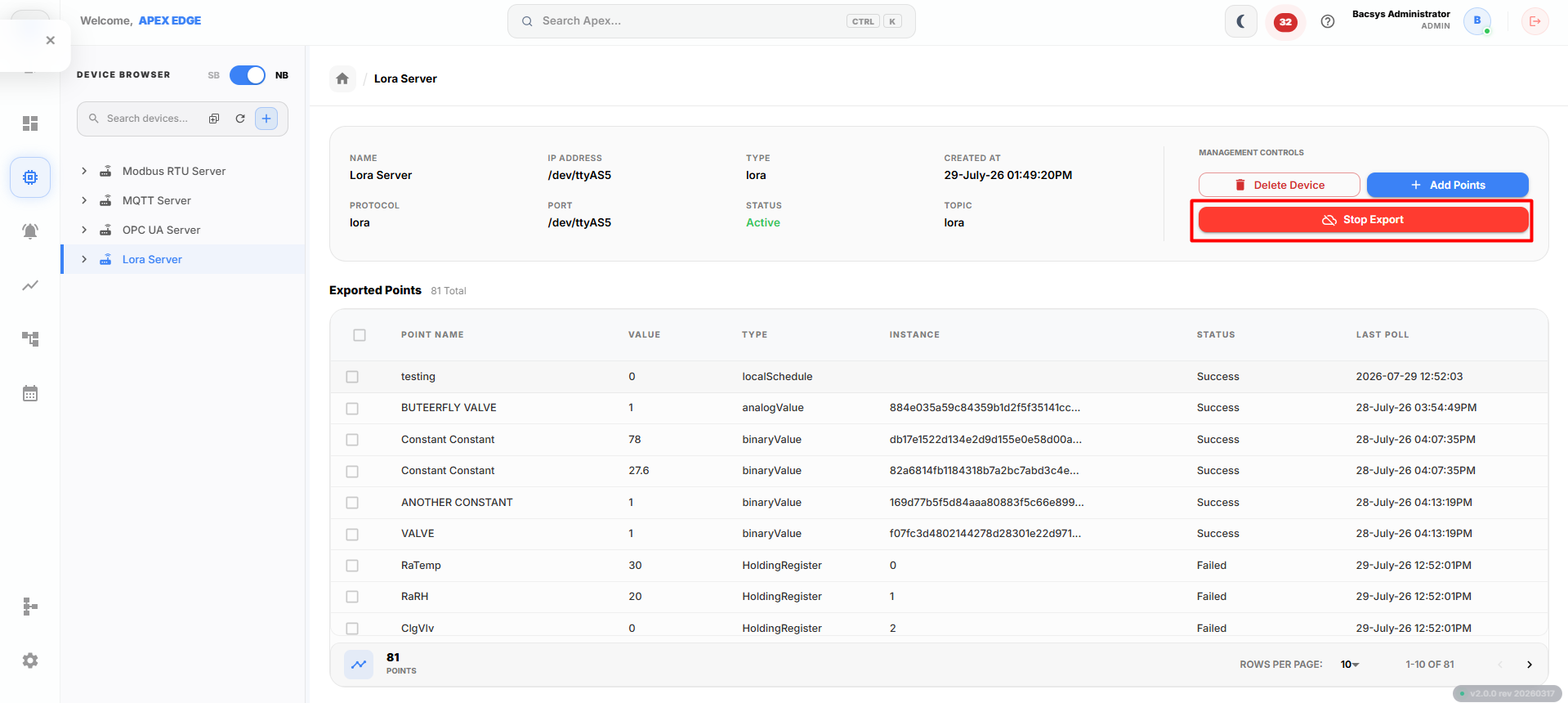
The export process stops immediately. The configured points remain in the export device and can be exported again by clicking Start Export.
Step 3: Remove Selected Points
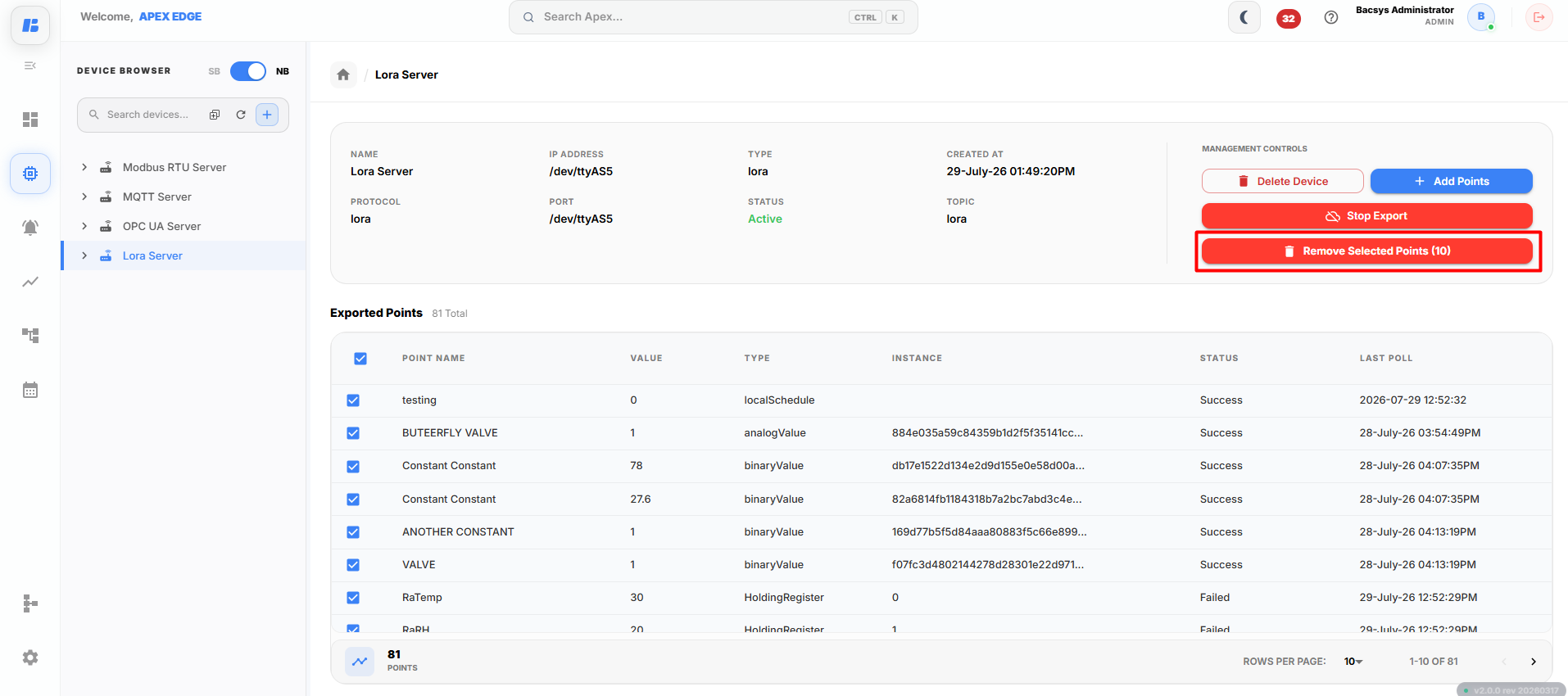
If you want to remove specific points without deleting the export device:
- Select the point(s) you want to remove.
- The application displays the number of selected points.
- Click Remove Selected Points.
- Confirm the action.
The selected points are removed from the export device and will no longer be exported.
Step 4: Delete Device
Click Delete Device to permanently remove the selected LoRa export device.
Note: Deleting the export device also removes all the points associated with it.