

Configuring Modbus RTU (RS-485) v2
Configuring Modbus RTU (RS-485)
The Modbus RTU (RS-485) network allows the platform to communicate with Modbus RTU devices over an RS-485 serial communication interface.
Creating a Modbus RTU (RS-485) Network
-
Navigate to the Devices module from the sidebar.
-
Click the + (Add) icon.
-
Drag and drop Modbus RTU (RS-485) into the Create Network window.
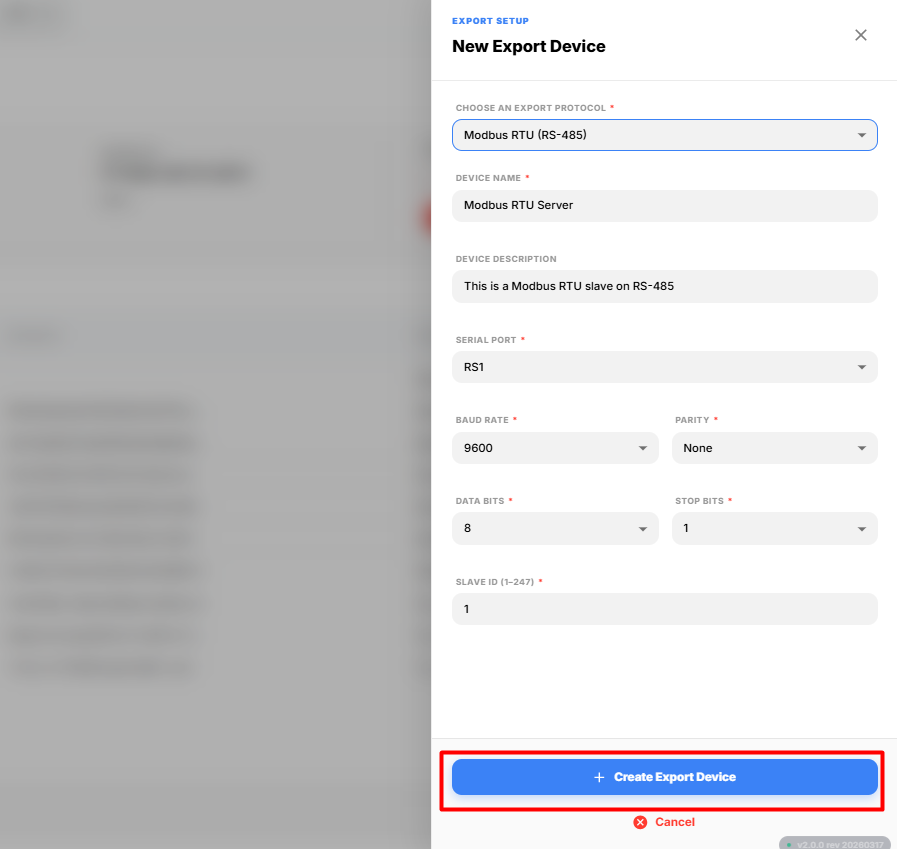
The Create Network dialog box appears.
-
Enter the required network details.
Field Description Device Name Enter a unique name to identify the Modbus RTU (RS-485) network. Device Description Enter a brief description of the network.
Serial Port Configuration
Configure the serial communication parameters.
| Field | Description |
|---|---|
| Baud Rate | Select the communication speed used by the Modbus RTU (RS-485) device. |
| Parity | Select the parity mode used for serial communication. |
| Data Bits | Select the number of data bits used by the device. |
| Stop Bits | Select the number of stop bits used for communication. |
| Slave ID | Enter the Modbus slave ID of the device. |
-
After entering all the required details, click Create Network.
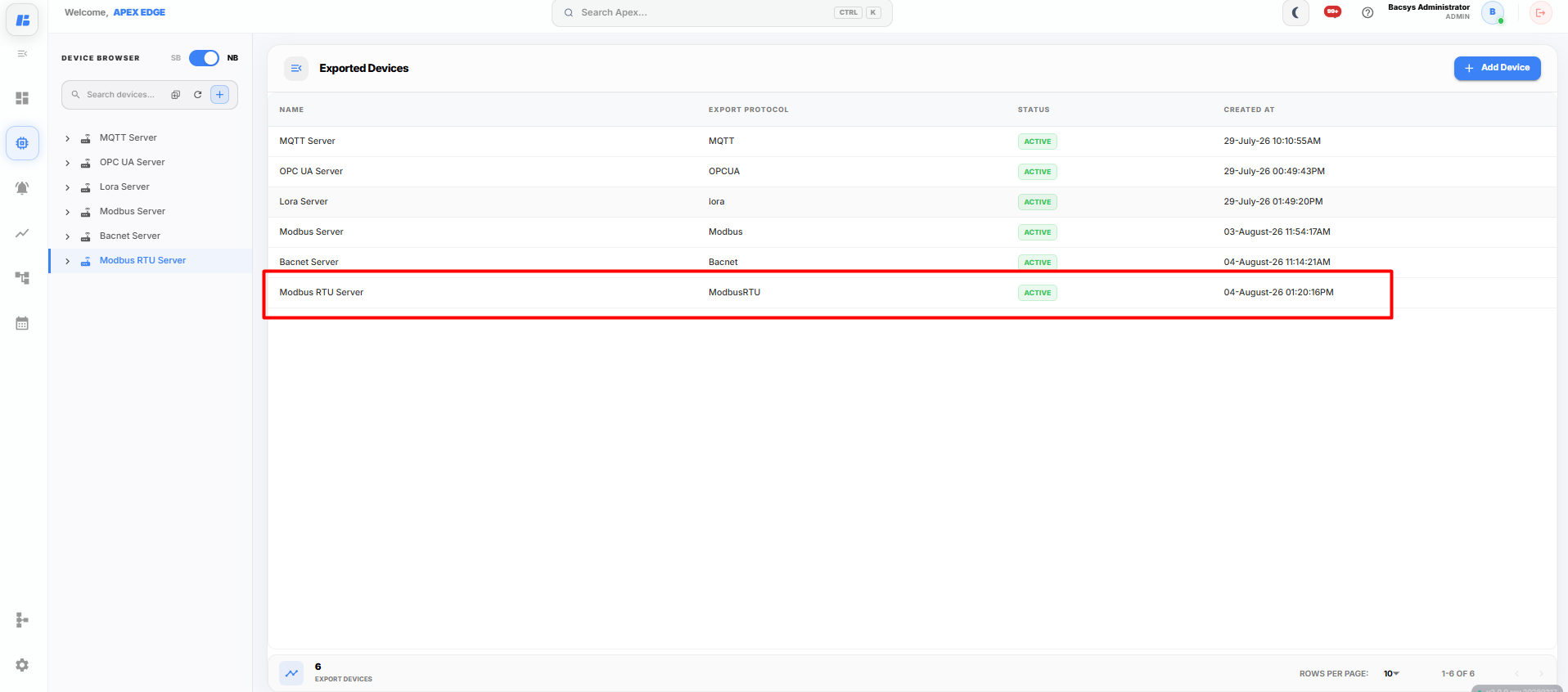
The Modbus RTU (RS-485) network is successfully created and is displayed in the Devices module.
Adding Points
After creating the Modbus RTU (RS-485) network, you can add monitoring points.
-
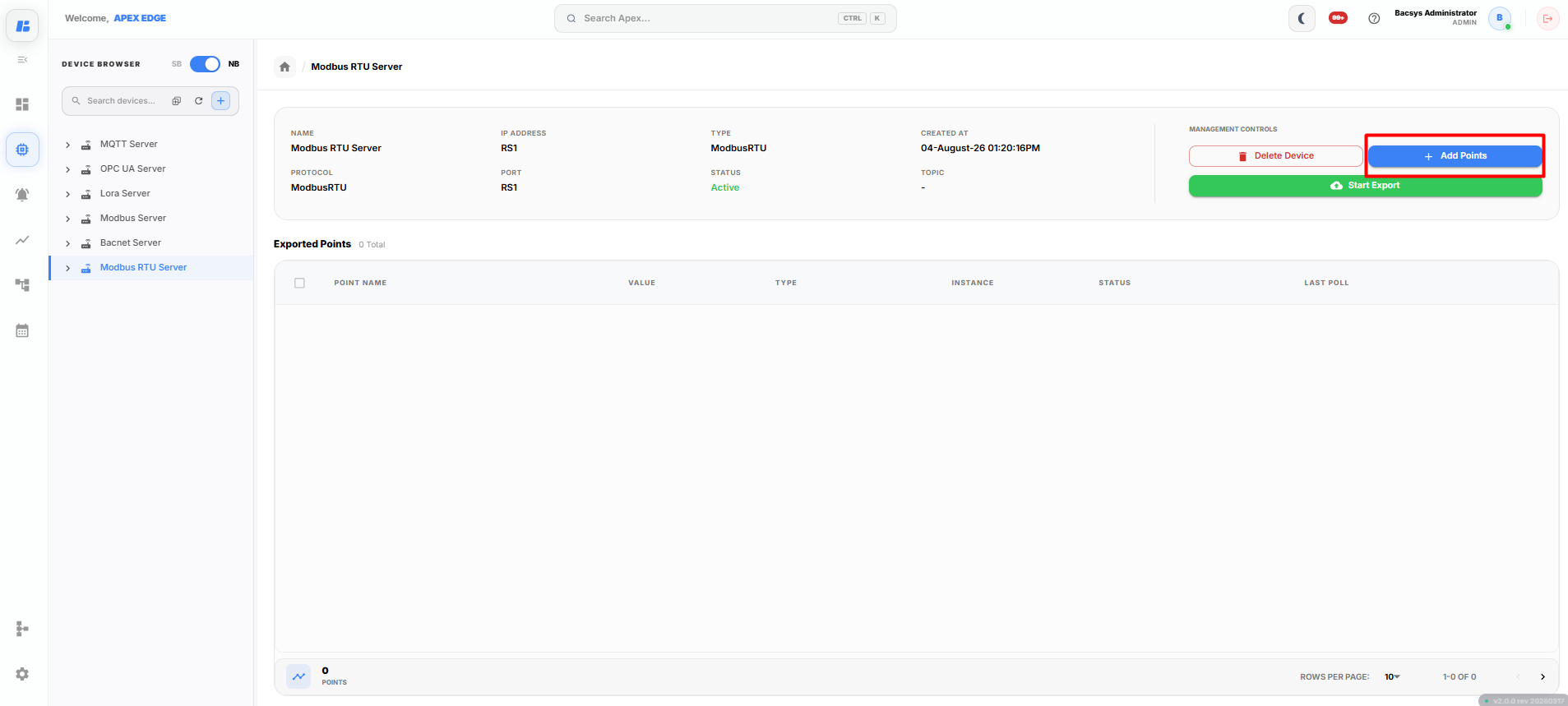
Select the newly created Modbus RTU (RS-485) network from the Devices module.
-
Click Add Points.
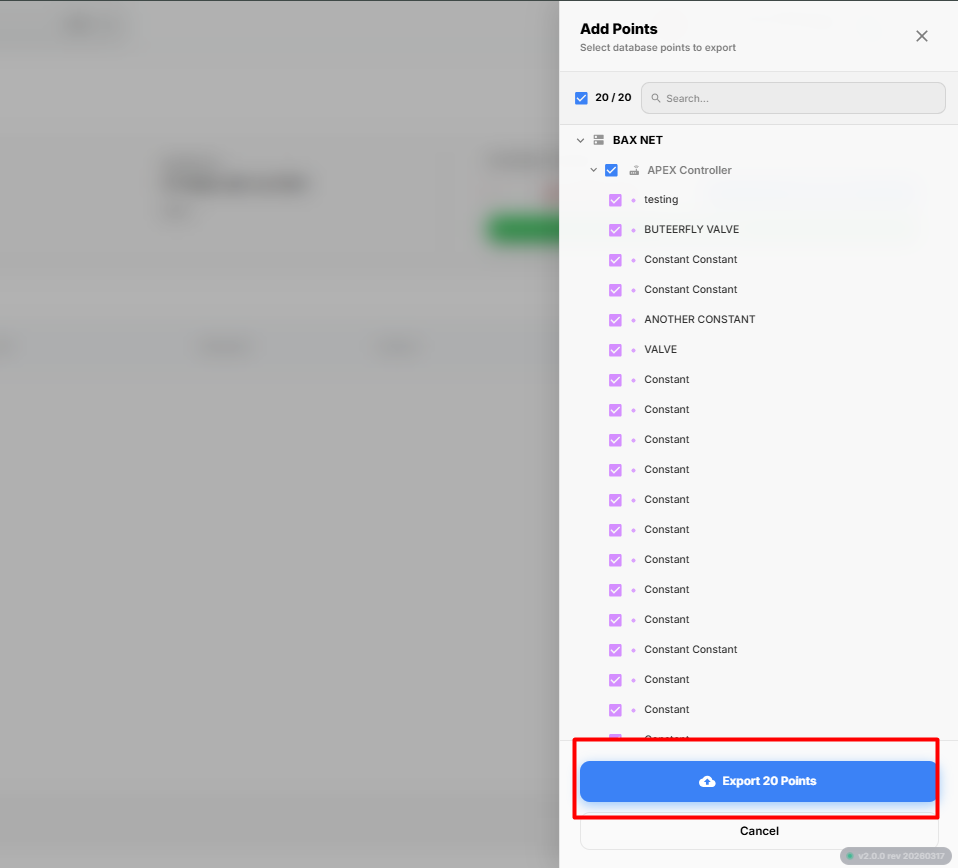
The Add Points dialog box appears.
-
Enter the required point details.
-
Click Add Points.
The selected points are successfully added to the Modbus RTU (RS-485) network.
Managing Points
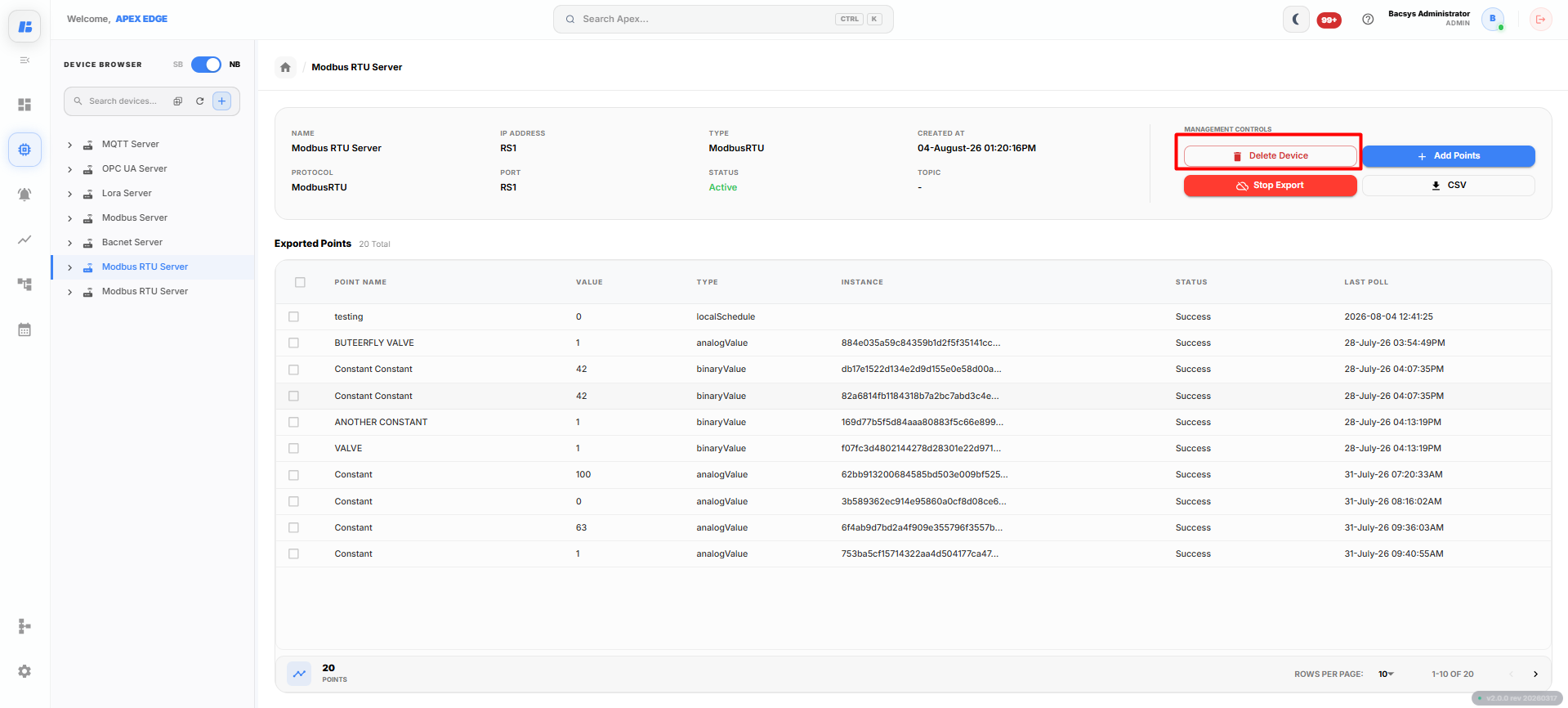
After adding the required points, you can manage the configured points using the available actions in the Modbus RTU (RS-485) network.
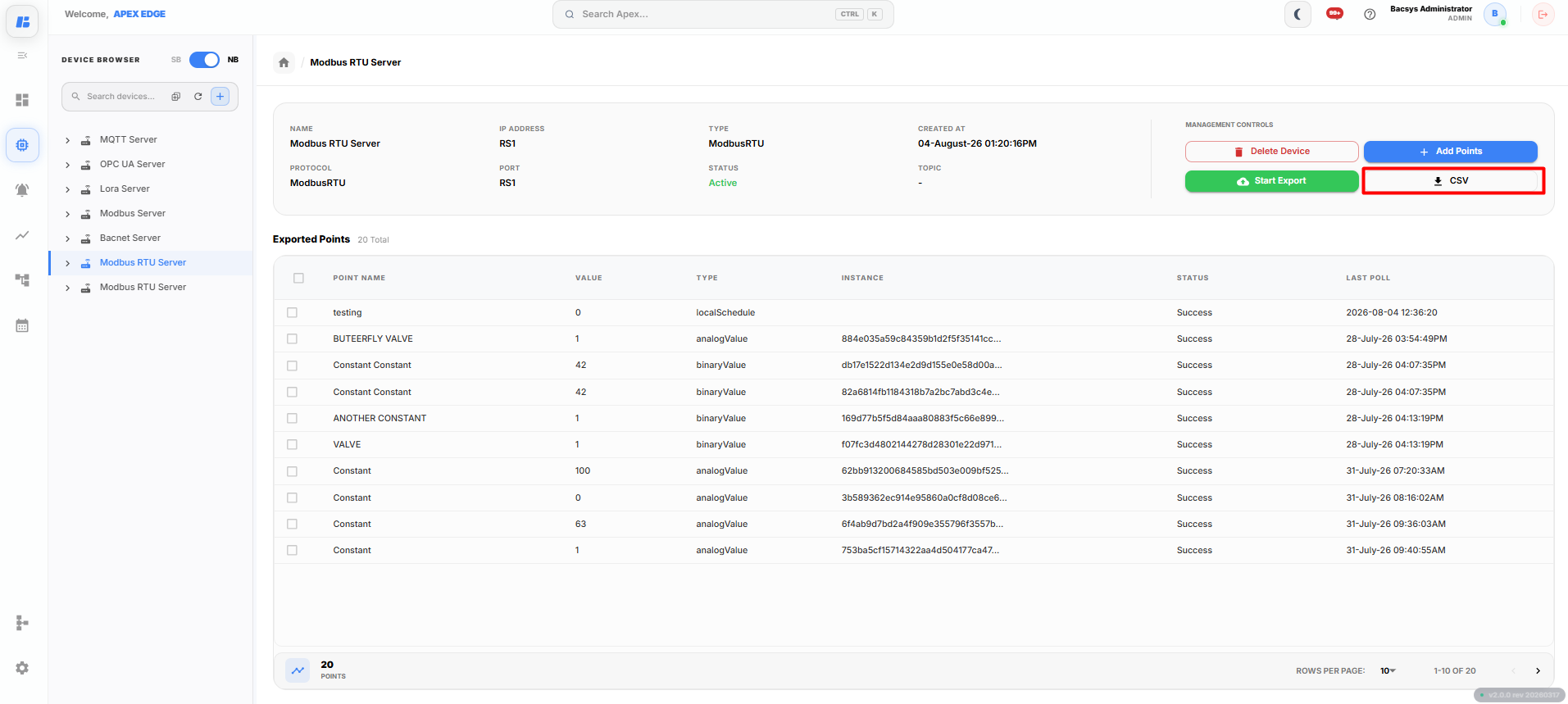
Download CSV
Click Download CSV to export the configured point details as a CSV file.
The downloaded file contains the current point configuration and can be used for reference or backup purposes.
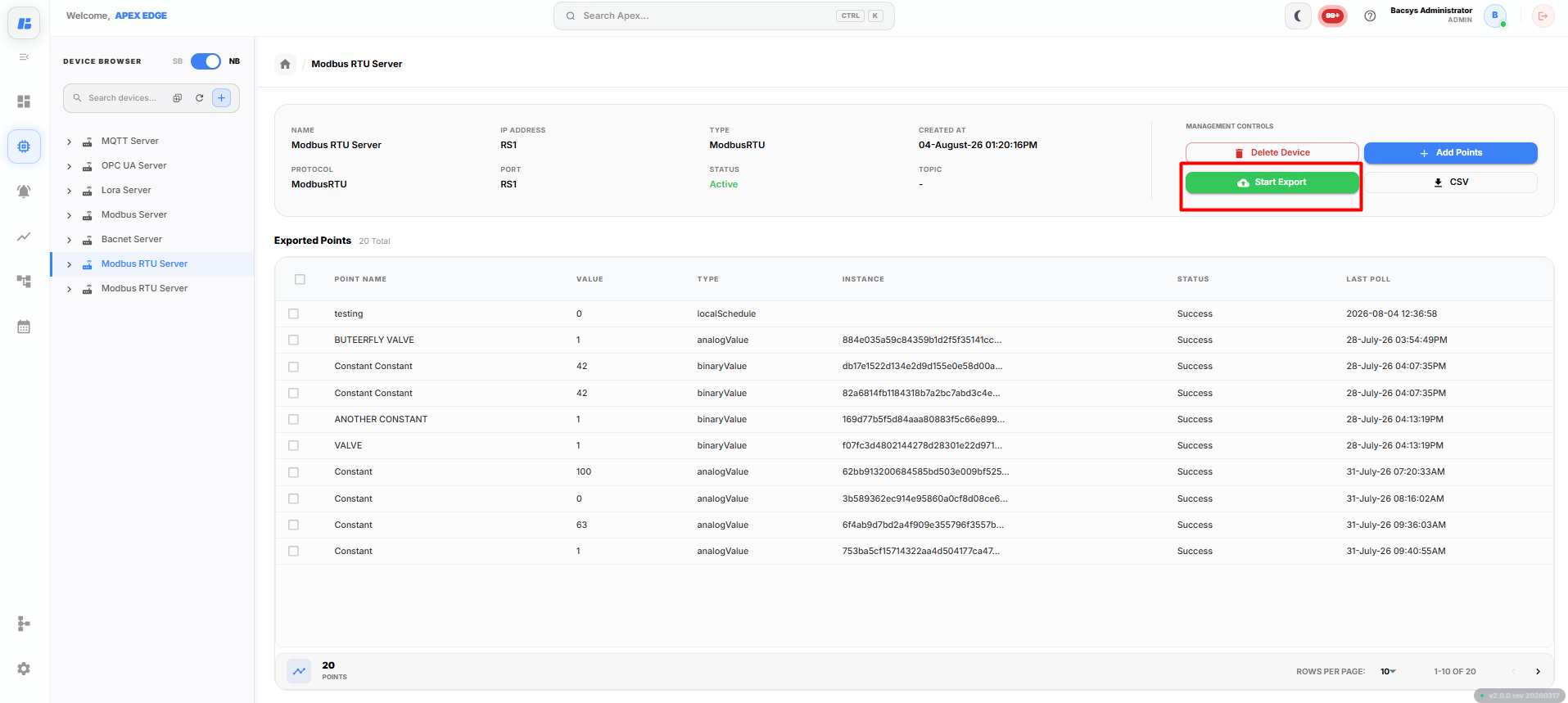
Start Export
Click Start Export to begin exporting the configured point data.
Once enabled, the platform continuously exports the configured point values.
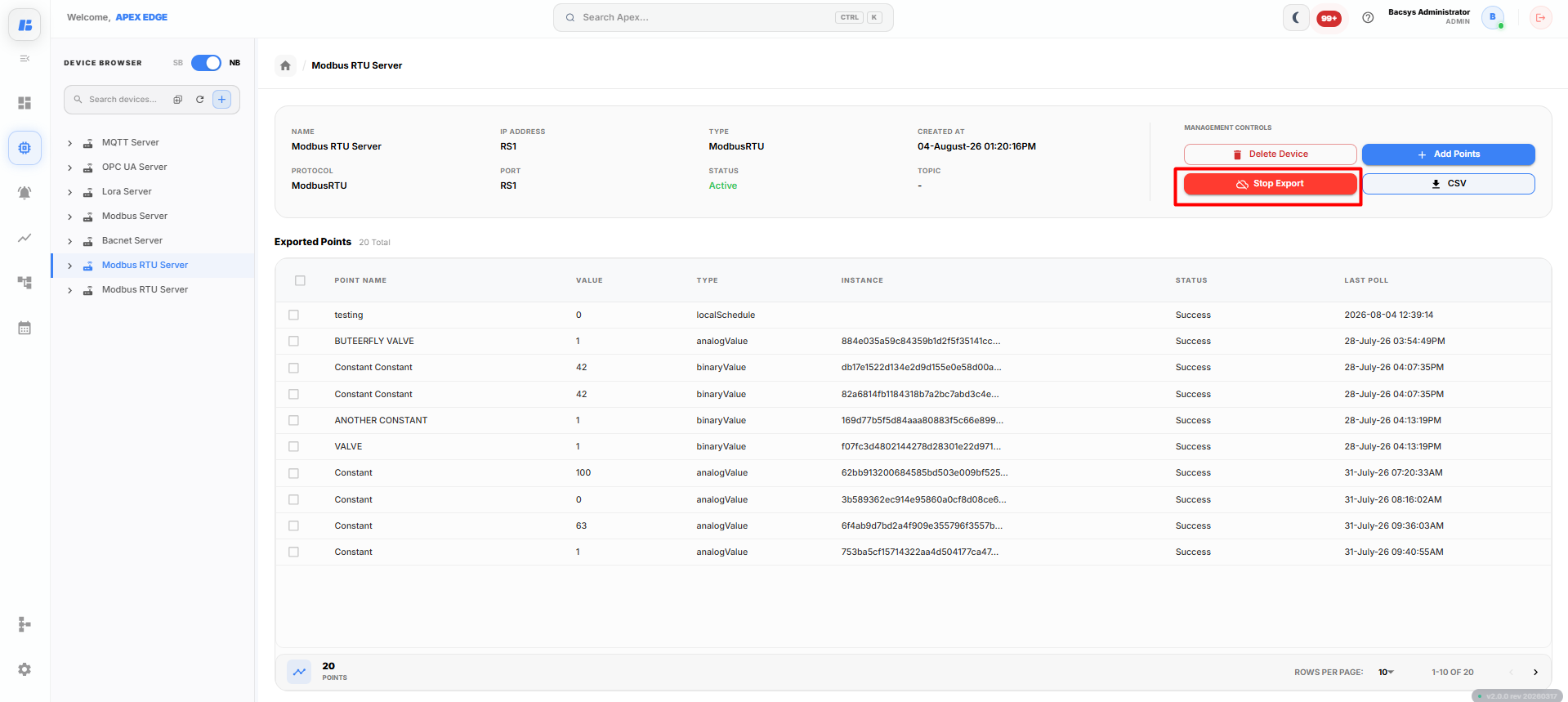
Stop Export
Click Stop Export to stop exporting the point data.
The export process stops, and no additional point data is exported until Start Export is enabled again.
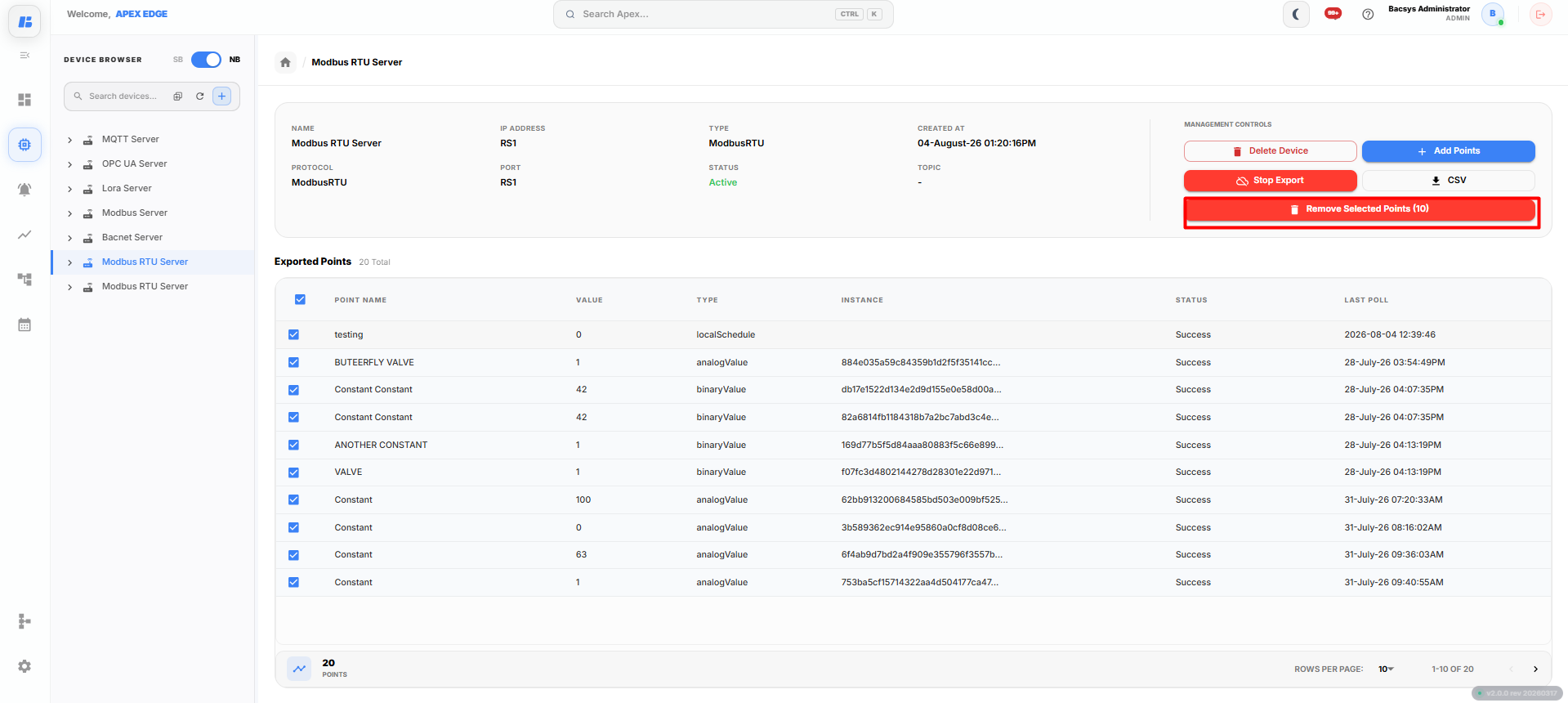
Remove a Point
If a point is no longer required, you can remove it from the network.
To remove a point:
- Locate the required point in the point list.
- Click the Delete icon corresponding to the point.
- Confirm the deletion when prompted.
The selected point is removed from the Modbus RTU (RS-485) network.
Delete Network
If the Modbus RTU (RS-485) network is no longer required, you can delete it along with all its configured points.
To delete the network:
- Select the required Modbus RTU (RS-485) network.
- Click Delete Network.
- Confirm the deletion when prompted.
The selected network and all associated points are permanently removed from the Devices module.
Complete Workflow
Follow the steps below to configure and manage a Modbus RTU (RS-485) network.
- Open the Devices module.
- Click the + (Add) icon.
- Drag and drop Modbus RTU (RS-485) into the Create Network window.
- Enter the Device Name and Device Description.
- Configure the serial communication parameters:
- Baud Rate
- Parity
- Data Bits
- Stop Bits
- Slave ID
- Click Create Network.
- Select the newly created Modbus RTU (RS-485) network.
- Click Add Points.
- Enter the required point details.
- Click Add Points to add the configured points.
- Click Download CSV to export the configured point details if required.
- Click Start Export to begin exporting point data.
- Click Stop Export whenever you want to stop exporting the point data.
- To remove a point, click the Delete icon corresponding to the required point.
- To delete the network, select the Modbus RTU (RS-485) network and click Delete Network.