

Invoice Management
The Invoice Management module allows users to generate invoices for tenants, review utility consumption, view billing details, track payment status, d...
The Invoice Management module allows users to generate invoices for tenants, review utility consumption, view billing details, track payment status, download invoices, and manage generated invoices.
Generating an Invoice
To generate an invoice for a tenant:
- Navigate to the Invoice module.
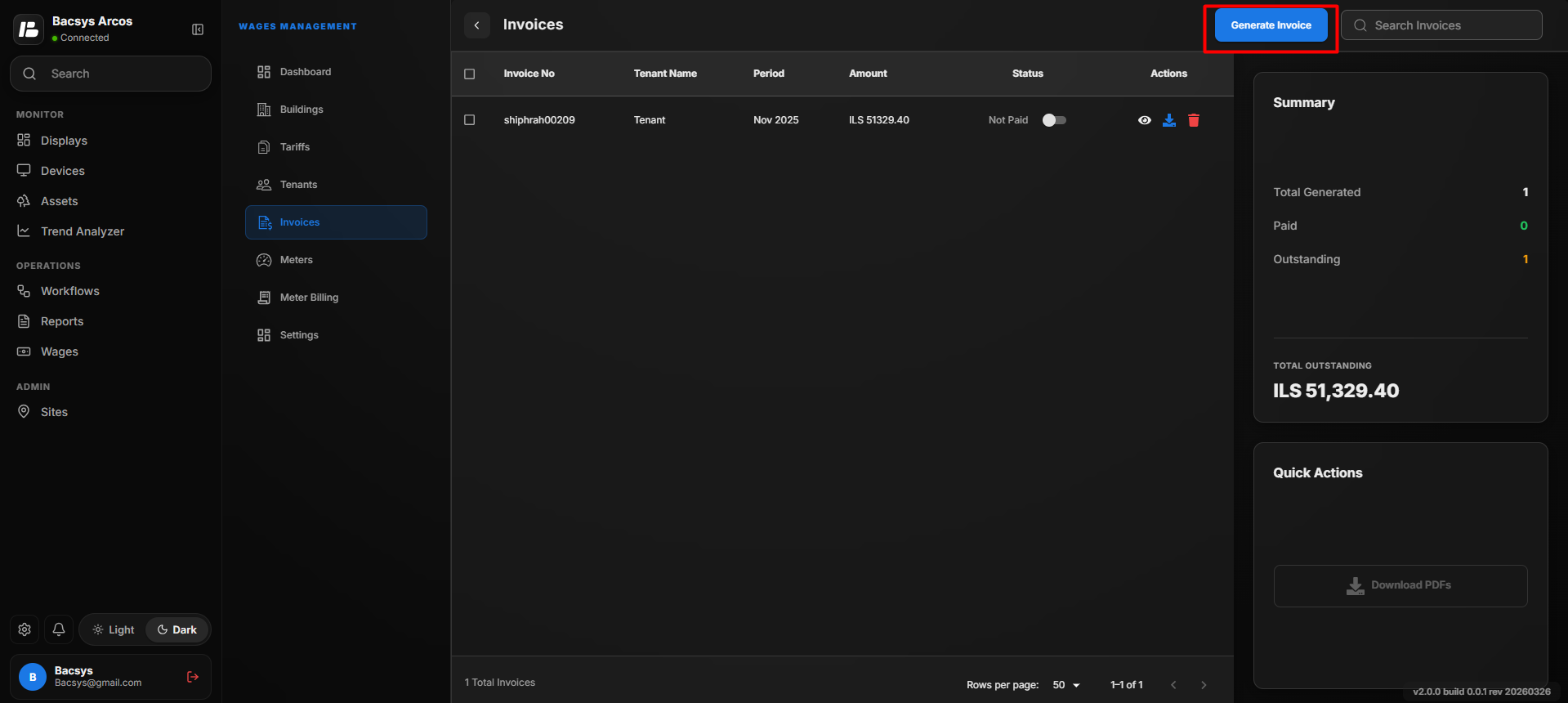
- Click Generate Invoice.
The Generate Invoice pop-up window appears.
- Enter the following information:
| Field | Description |
|---|---|
| Tenant | Select the tenant for whom the invoice will be generated. |
| Start Date | Select the beginning of the billing period. |
| End Date | Select the end of the billing period. |
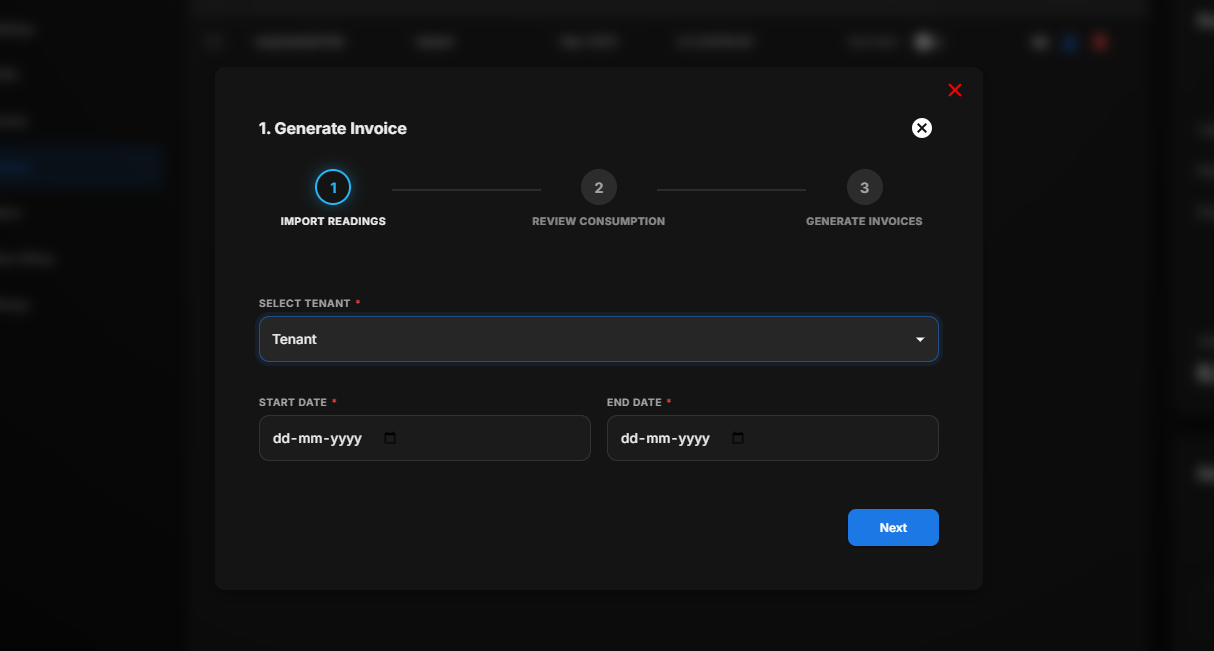
- Click Next.
Reviewing Consumption
After selecting the tenant and billing period, the Review Consumption page is displayed.
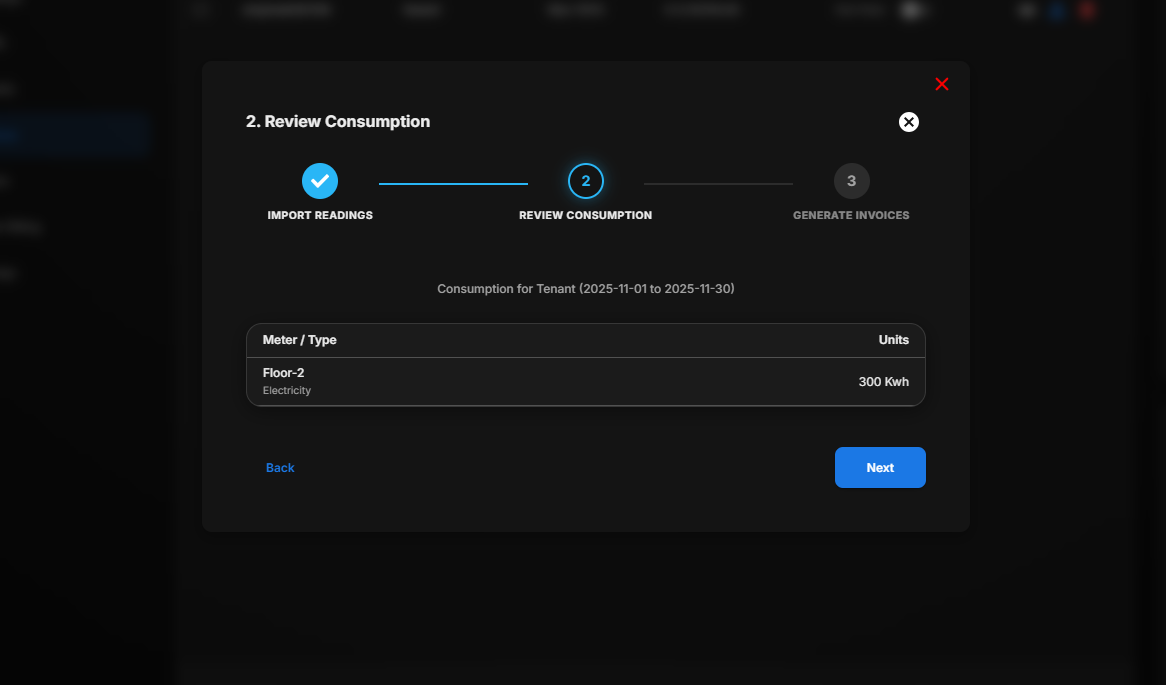
This page displays the consumption details for all meters assigned to the selected tenant.
The following information is available:
| Column | Description |
|---|---|
| Meter / Type | Displays the assigned meter and utility type. |
| Units | Displays the total consumption units for the selected billing period. |
Steps
- Review the displayed consumption details.
- Verify that the meter readings are correct.
- Click Next to continue.
Note
- All assigned utility meters are displayed automatically.
- The consumption values are calculated for the selected billing period.
Billing Details
The Billing Details page displays the calculated charges for the selected billing period.
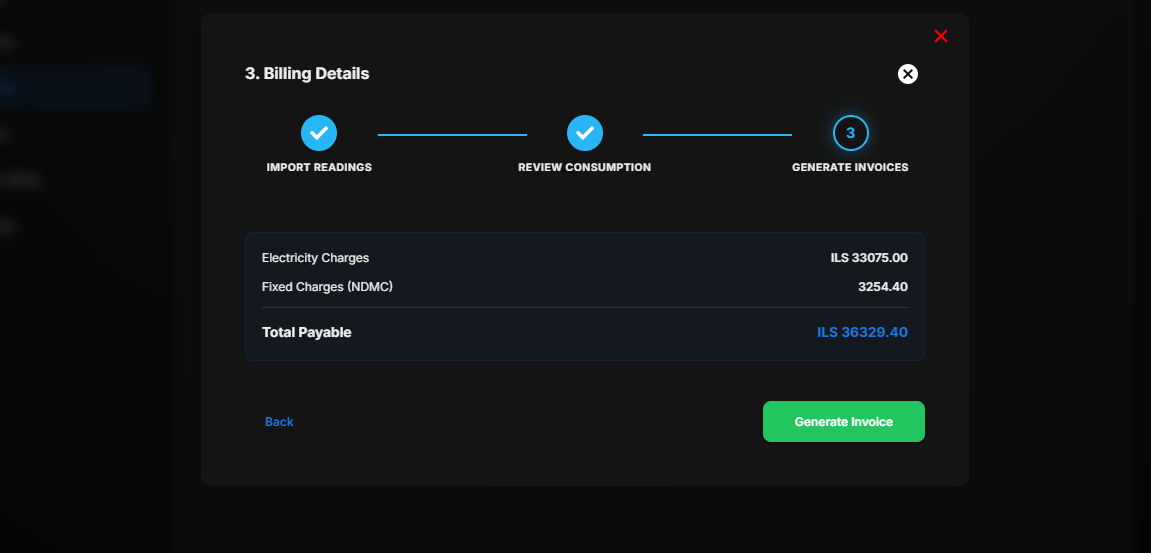
The billing summary includes:
- Electricity Charges
- Fixed Charges (NDMC)
- Additional Charges (if applicable)
- Total Payable Amount
Review the billing summary and click Generate Invoice.
The invoice is generated successfully.
Viewing Generated Invoices
After generating an invoice, it is displayed in the invoice list.
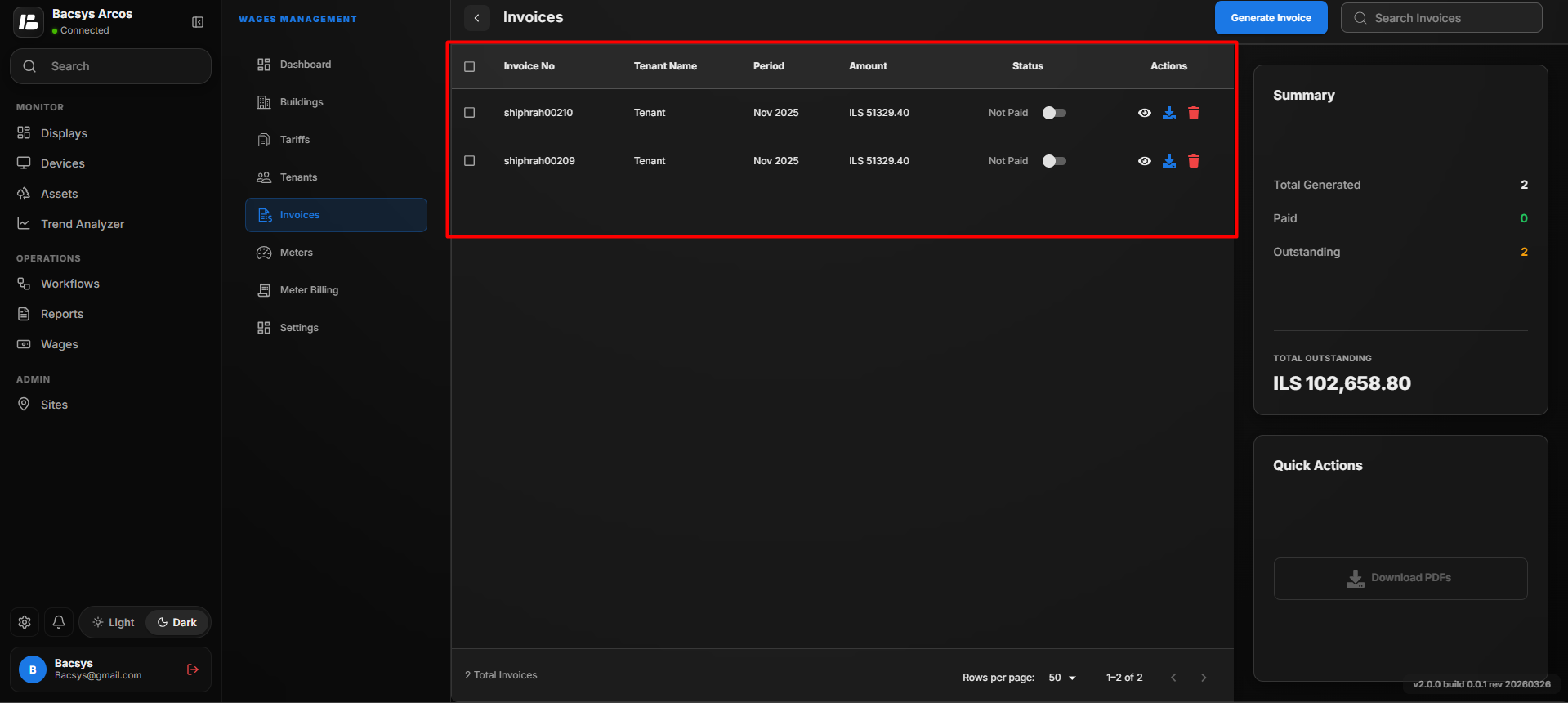
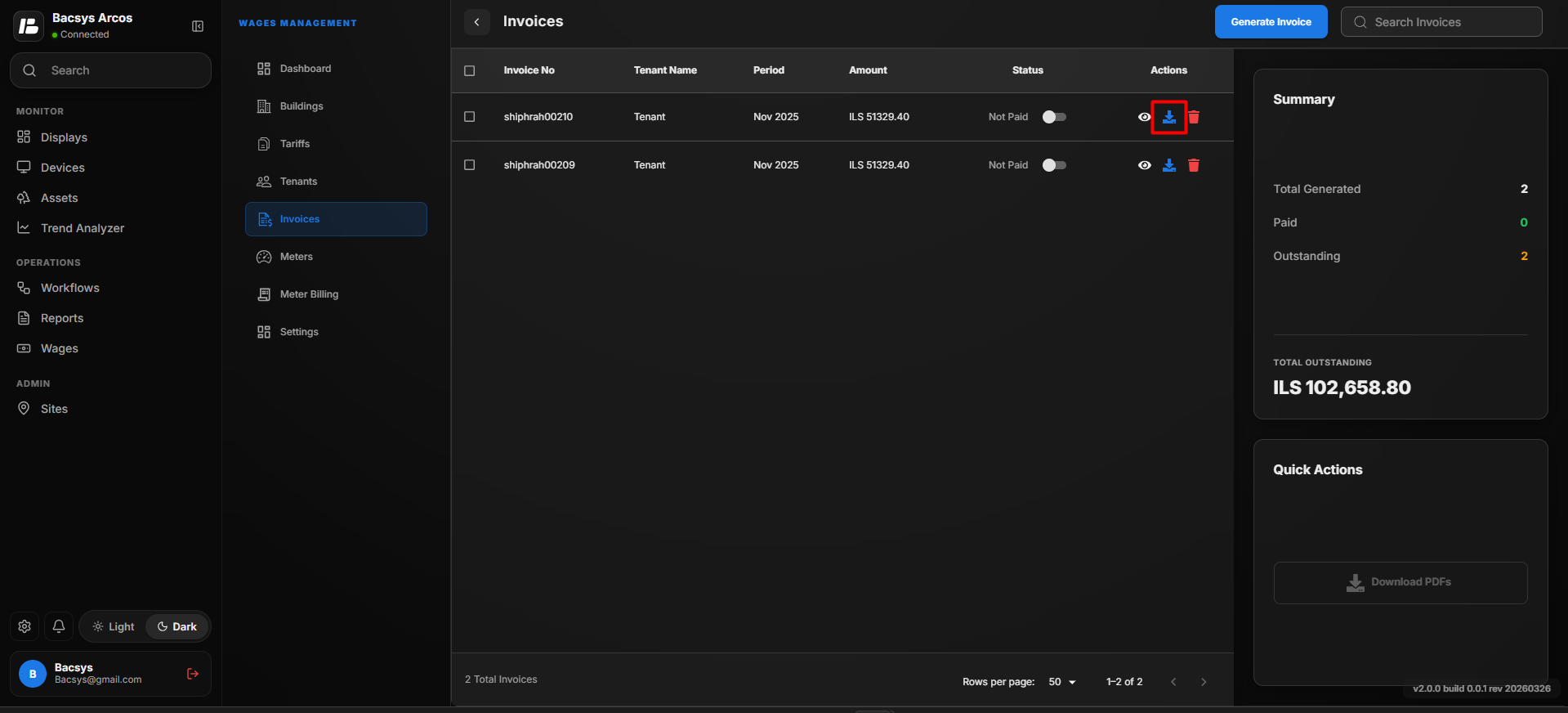
The invoice list contains the following information:
| Column | Description |
|---|---|
| Invoice No | Displays the unique invoice number. |
| Tenant Name | Displays the tenant name. |
| Period | Displays the billing period. |
| Amount | Displays the total invoice amount. |
| Status | Displays whether the invoice is Paid or Unpaid. |
| Actions | Displays the available actions for the invoice. |
Viewing an Invoice
To view the generated invoice:
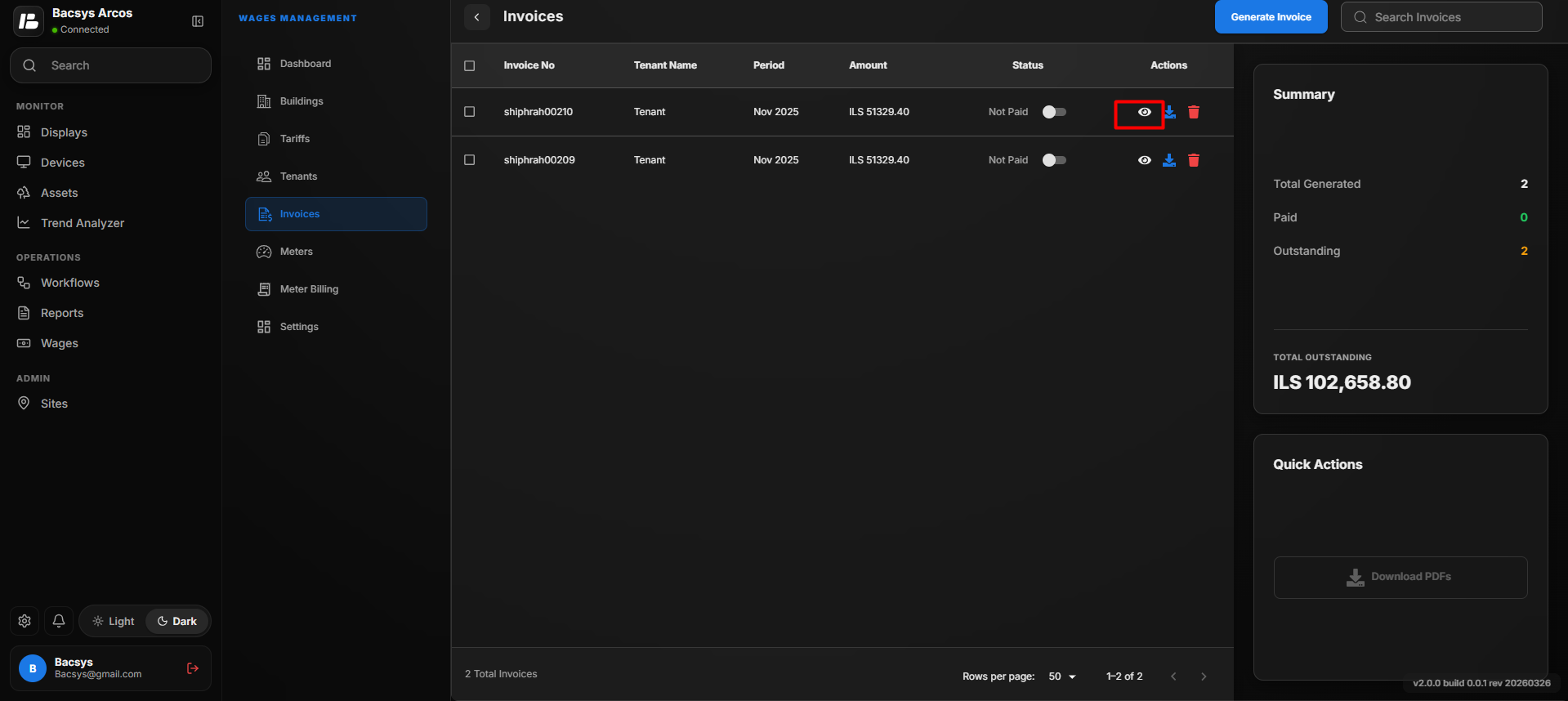
- Click the View (👁) icon in the Actions column.
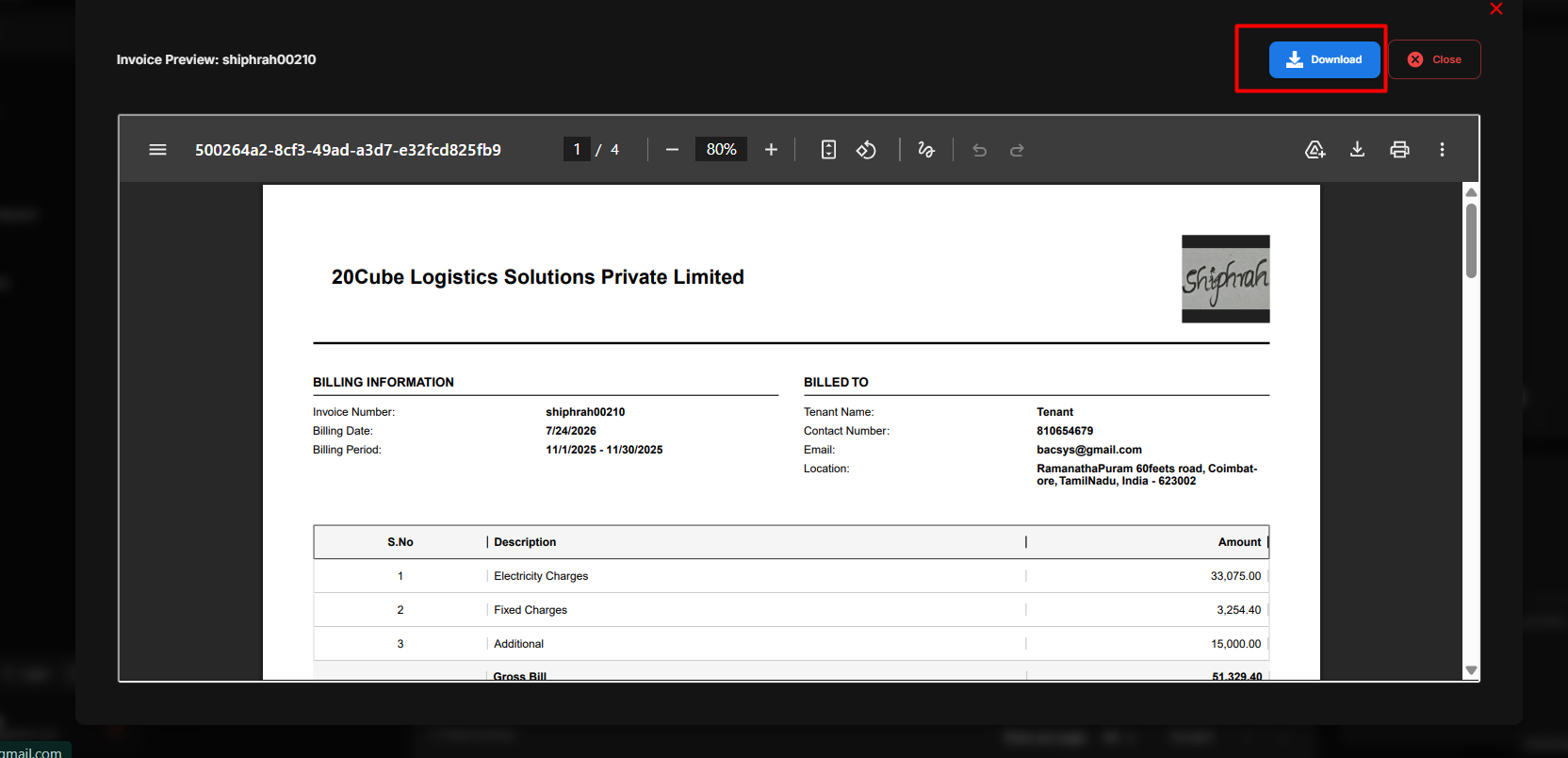
The invoice opens in a preview window.
From the preview window, you can:
- View the complete invoice.
- Download the invoice as a PDF.
- Close the invoice preview.
Invoice Replay
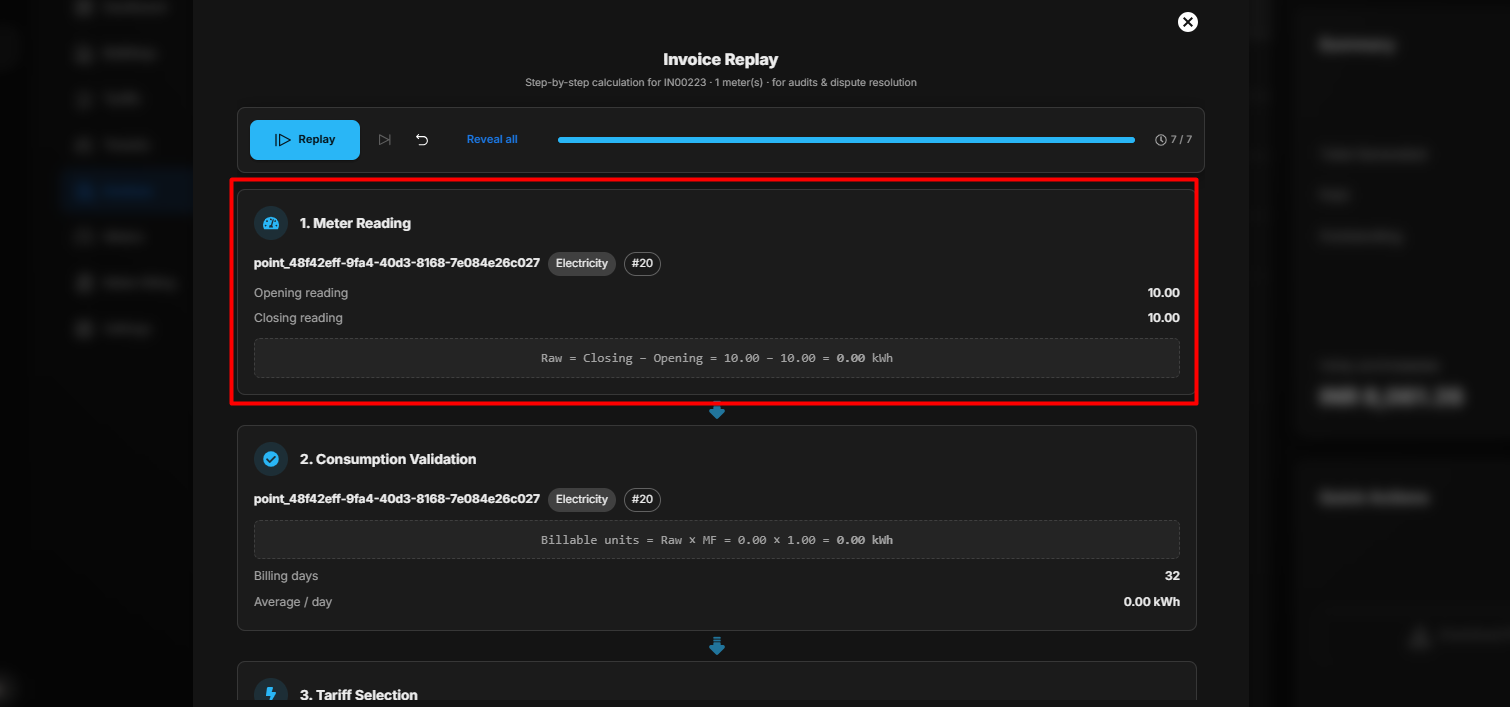
The Invoice Replay feature allows users to review how an invoice was calculated step by step. It provides a detailed calculation sequence across all meters included in the invoice, which can be useful for audits and dispute resolution.
Access Invoice Replay
- Open the required invoice from the invoice list.
- Click the View icon to open the invoice preview.
- In the invoice preview, open Invoice Replay.
- The Invoice Replay panel displays the calculation stages for the invoice.
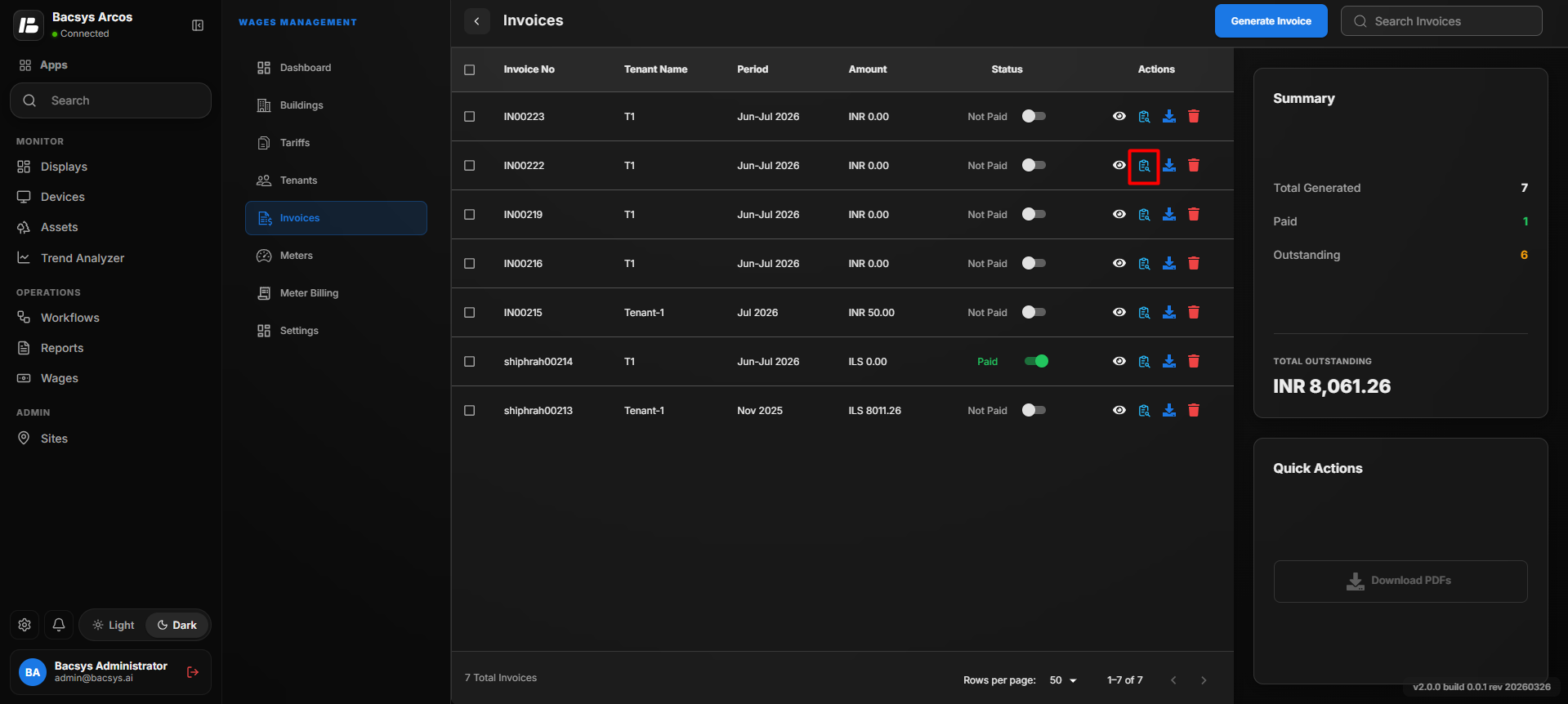
Replay the Invoice Calculation
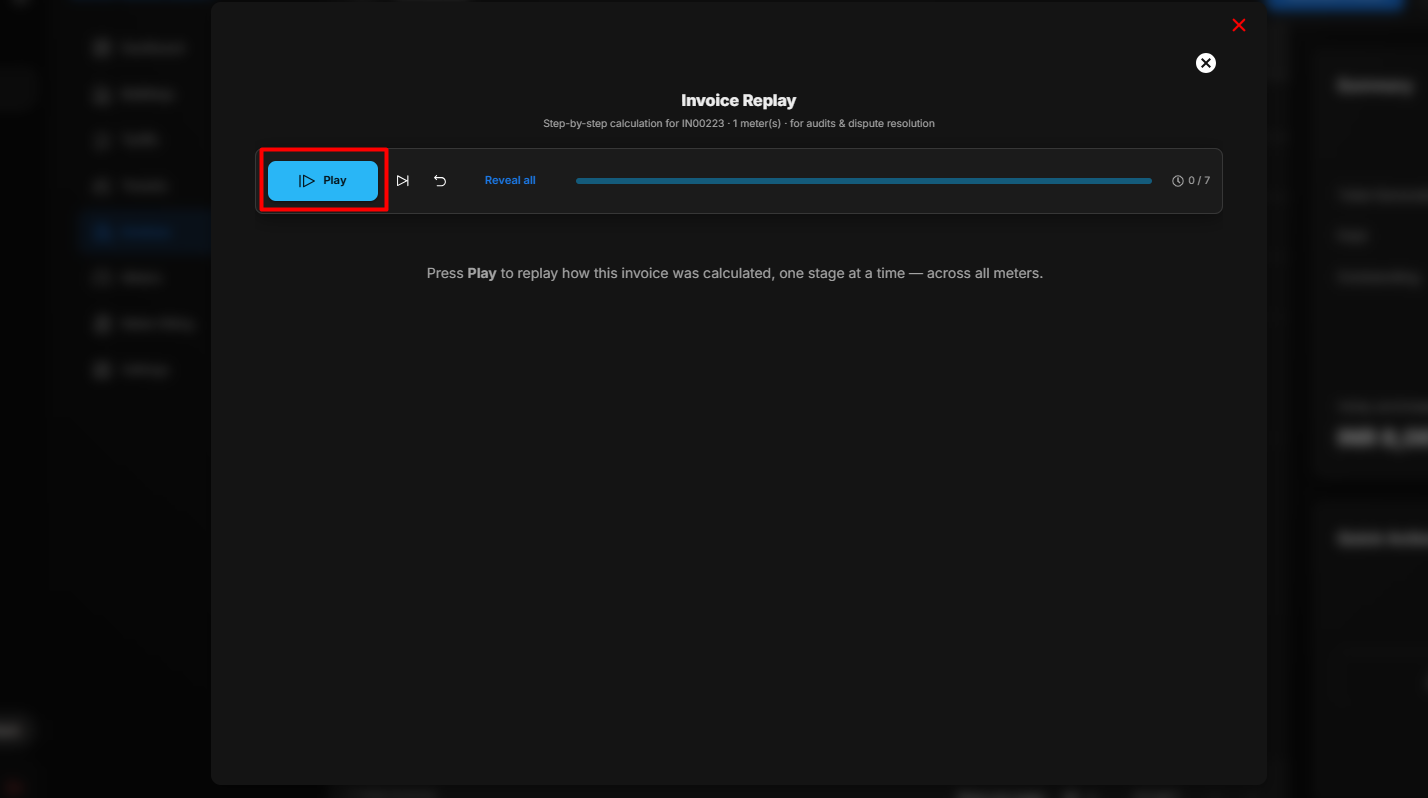
- Click the Play button to start the replay.
- The calculation is displayed one stage at a time.
- Each stage shows the calculation performed for the invoice.
- The replay continues across all meters included in the invoice.
- Use the progress bar to track the replay progress.
- The stage counter indicates the current calculation stage and the total number of stages.
- Use Reveal All to display all calculation stages at once when required.
- Use the available replay controls to pause, move through, or restart the calculation sequence.
Invoice Calculation Review
The Invoice Replay feature allows users to:
- Review each calculation stage individually.
- Understand how the final invoice amount was calculated.
- Review calculations across multiple meters.
- Identify calculation stages during an audit.
- Trace the calculation process when resolving billing disputes.
Note
Click Play to view the invoice calculation sequentially. Each calculation stage is revealed as the replay progresses.
Downloading an Invoice
Invoices can be downloaded in two ways.
From the Invoice Preview
- Open the invoice by clicking the View icon.
- Click Download PDF.
Direct Download
Click the Download icon in the invoice list to download the invoice directly.
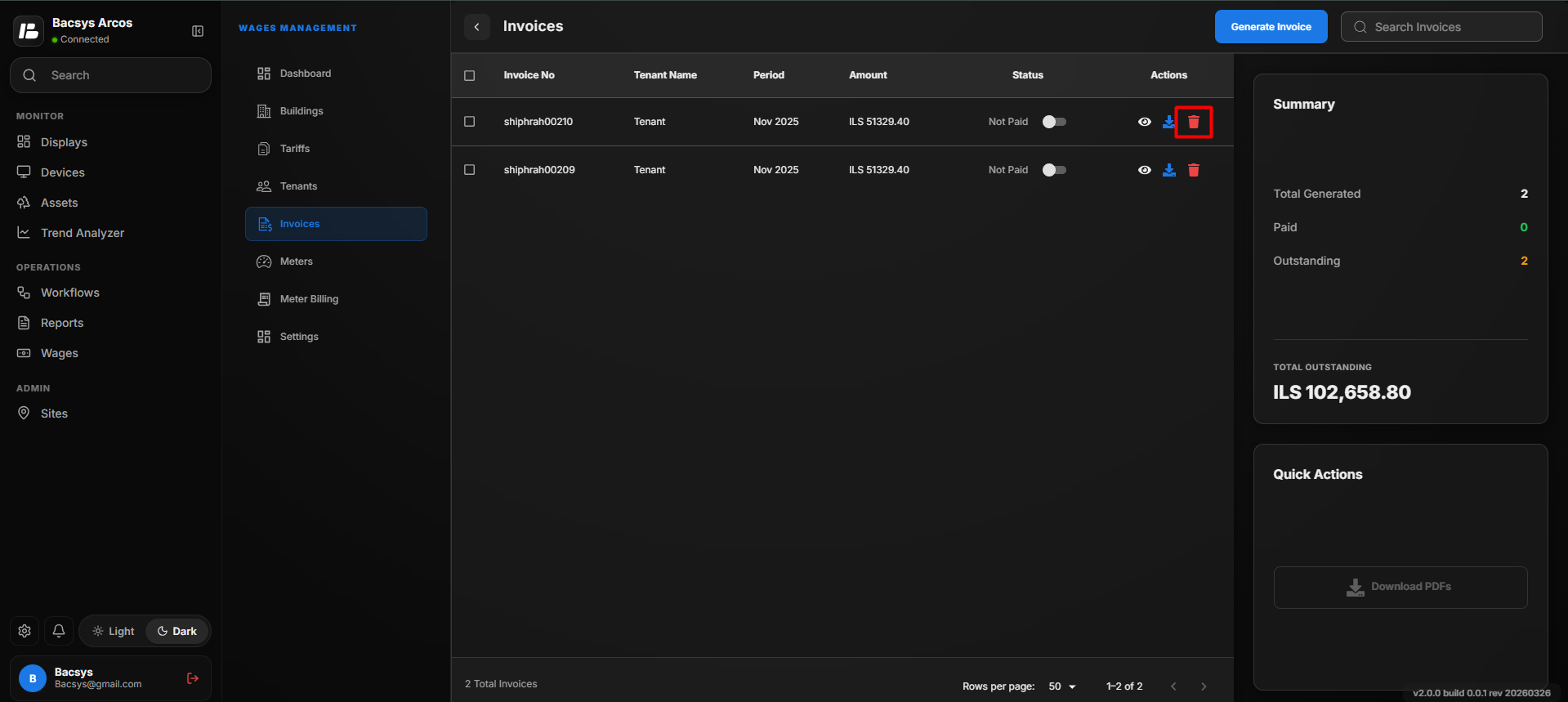
Deleting an Invoice
To delete an invoice:
- Select the required invoice.
- Click the Delete icon.
- Confirm the deletion.
The invoice is removed from the invoice list.
Bulk Download Invoices
Each invoice includes a selection checkbox that allows users to select one or more invoices.
Steps
- Select the checkbox for the required invoice(s).
- You can select a single invoice or multiple invoices.
- Click the Download button.
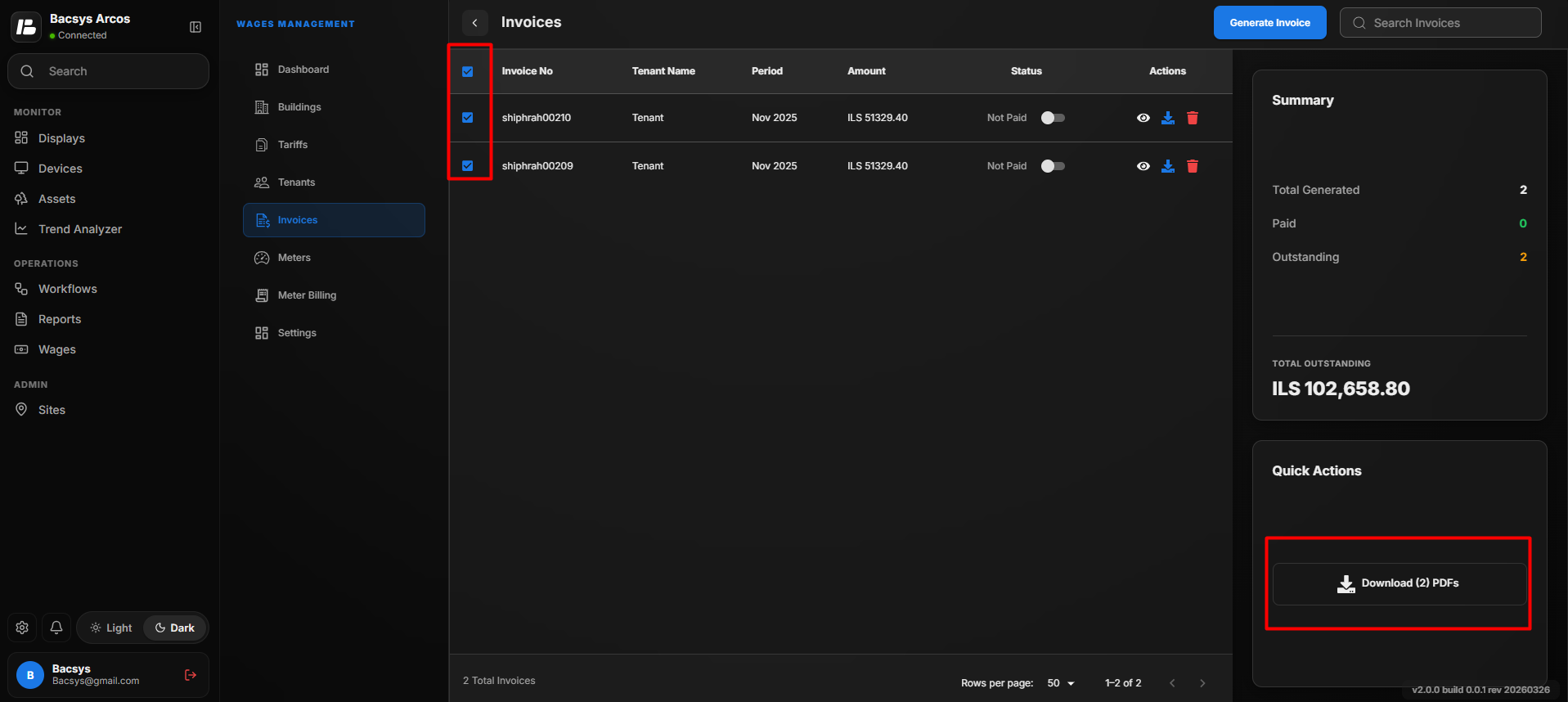
The selected invoices are downloaded together as a bulk download.
Note
- Multiple invoices can be selected at the same time.
- The Download option downloads all selected invoices in a single operation.
- This feature allows users to download multiple invoices without opening each invoice individually.
Managing Invoices
The Invoice Management module allows users to:
- Generate invoices.
- Review consumption before invoice generation.
- View billing details.
- Track invoice payment status.
- View invoice information.
- Download invoices.
- Delete invoices.
- Select one or multiple invoices using the checkbox.
These features help users efficiently generate and manage tenant invoices.