

Tariff Management
The Tariff Management module is used to configure utility tariffs and additional charges for billing. Users can create and manage tariffs for differen...
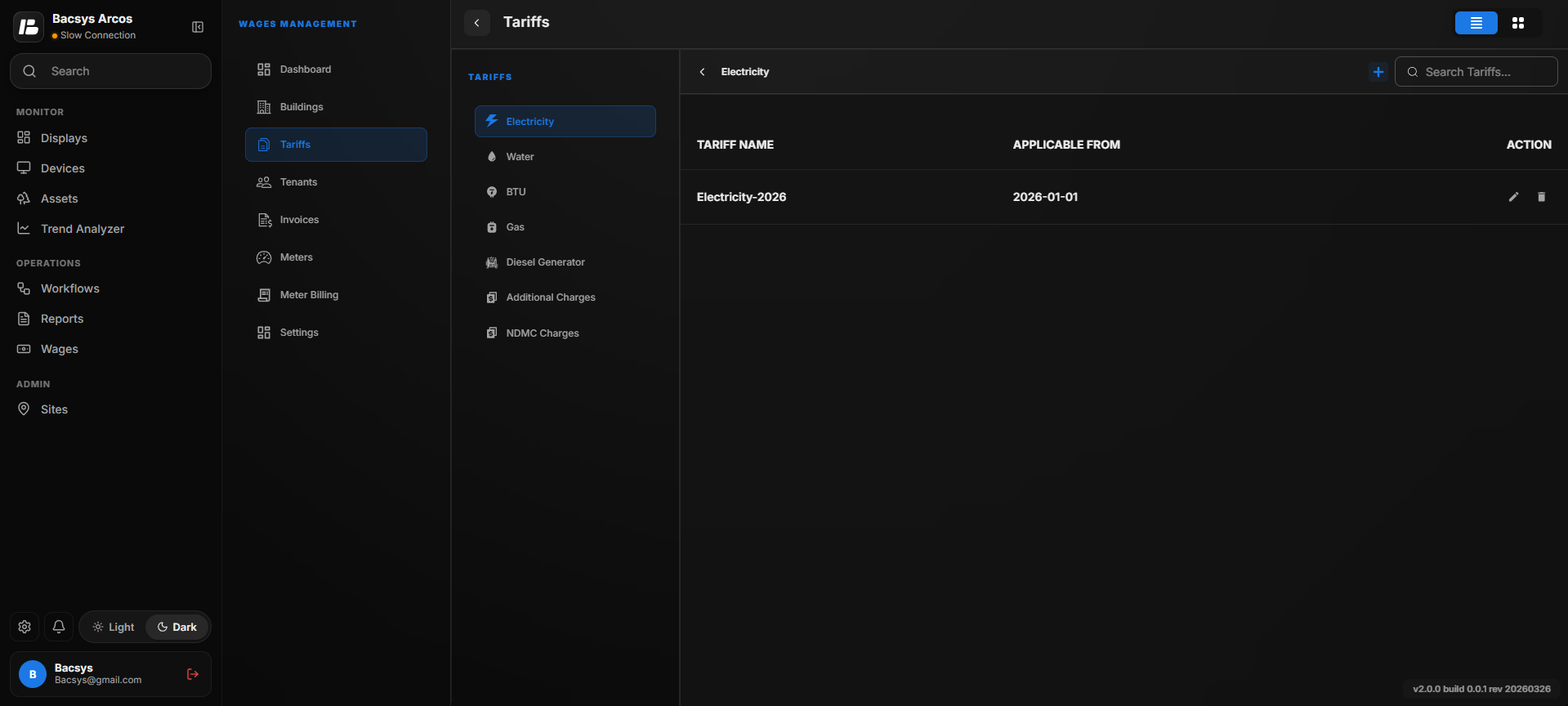
The Tariff Management module is used to configure utility tariffs and additional charges for billing. Users can create and manage tariffs for different utility types, define slabs and events, configure additional charges, and assign tariffs to units.
The following tariff categories are available:
- Electricity
- Water
- BTU
- Gas
- Diesel Generator
- Additional Charges
- NDMC Charges
Each tariff category supports both Card View and List View, allowing users to view and manage tariff configurations in their preferred layout.
Electricity Tariff
Creating an Electricity Tariff
- Select the Electricity tab.
- Click the + icon.
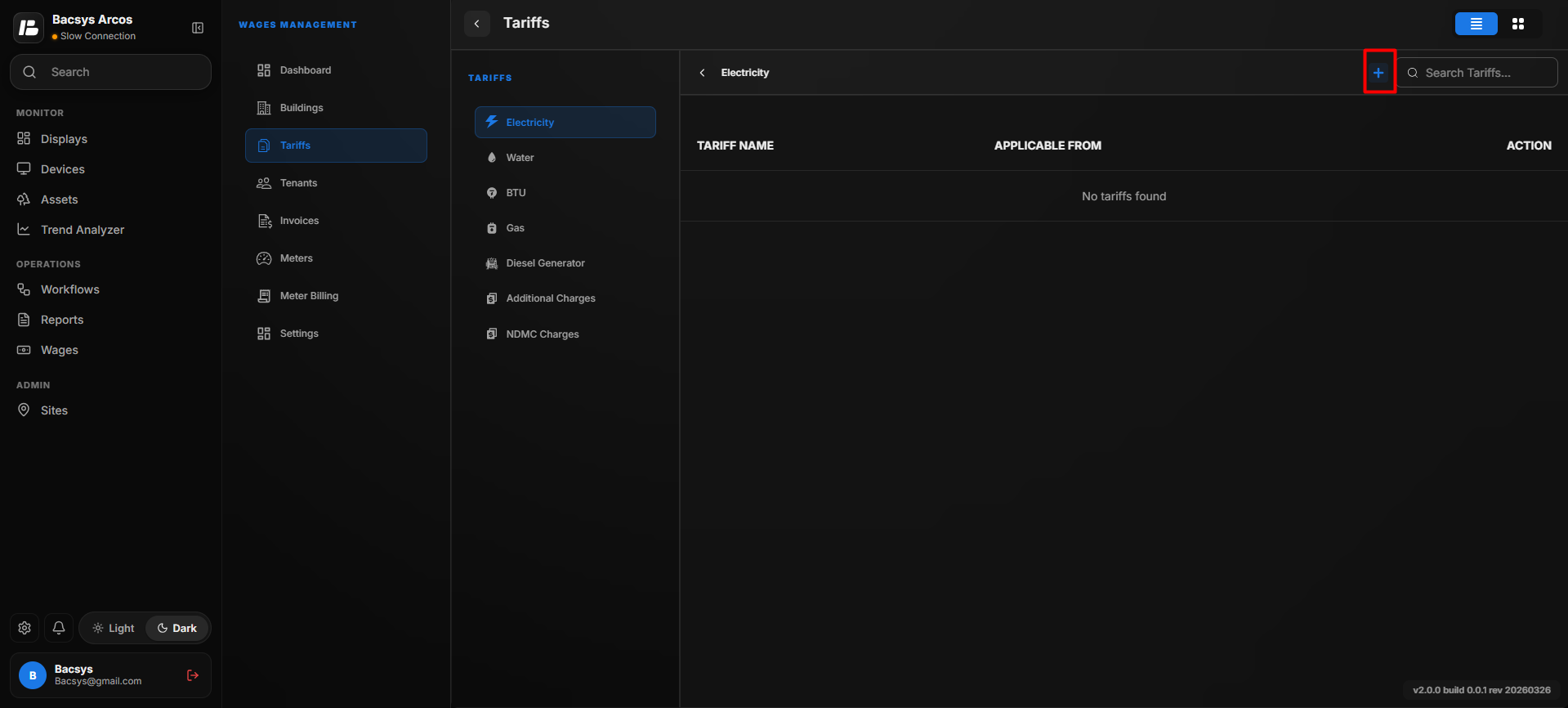
- The Add Tariff window appears.
- Enter the following information:
- Tariff Name
- Applicable from
- Slab
- Event Name
- If additional slabs are required, click Add Slab.
- If additional events are required, click Add Event.
- Click Save.
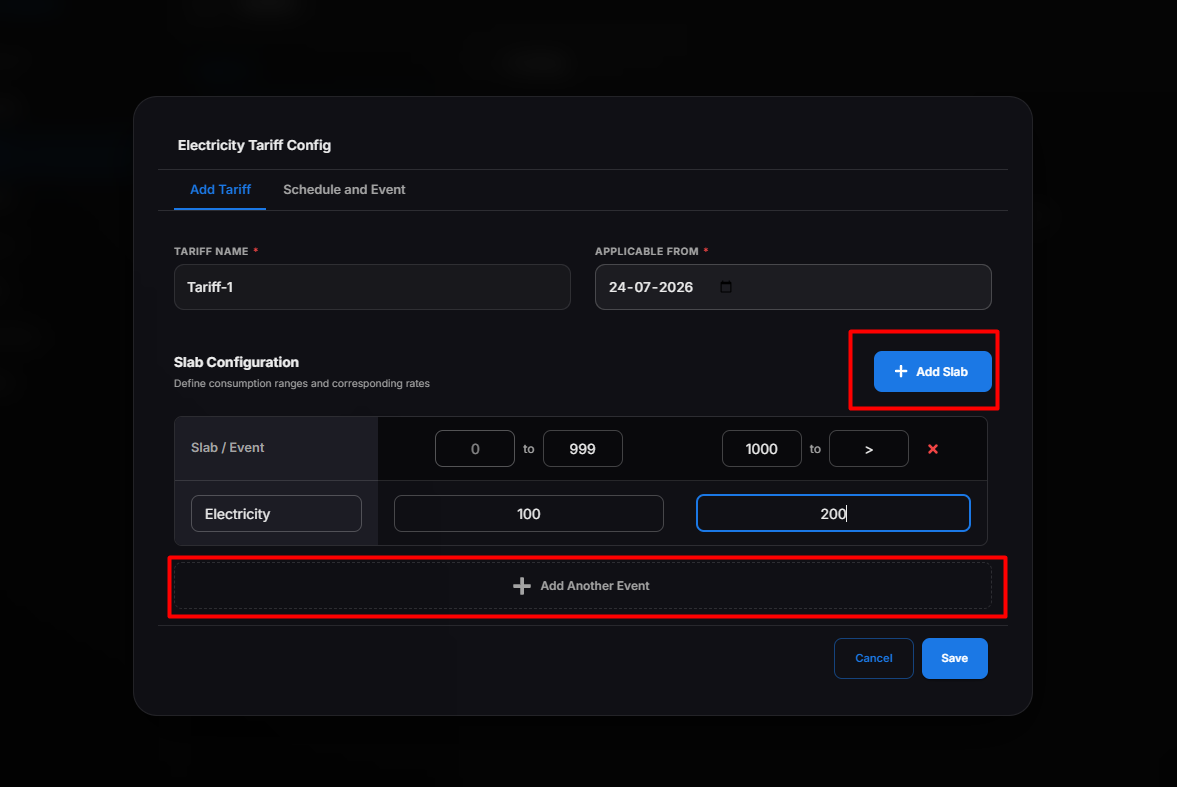
The electricity tariff is created successfully.
Note
- You can create one or more slabs for a tariff.
- Multiple events can be configured within the same tariff.
Scheduling an Electricity Tariff
After creating an electricity tariff, you can configure a schedule to apply the tariff automatically at a specific date and time.
Steps
- Click Edit Schedule for the required electricity tariff.
- The Schedule pop-up window appears.
- Select the Event from the available list.
- Choose the required Date and Time for when the tariff should become active.
- Click Save.
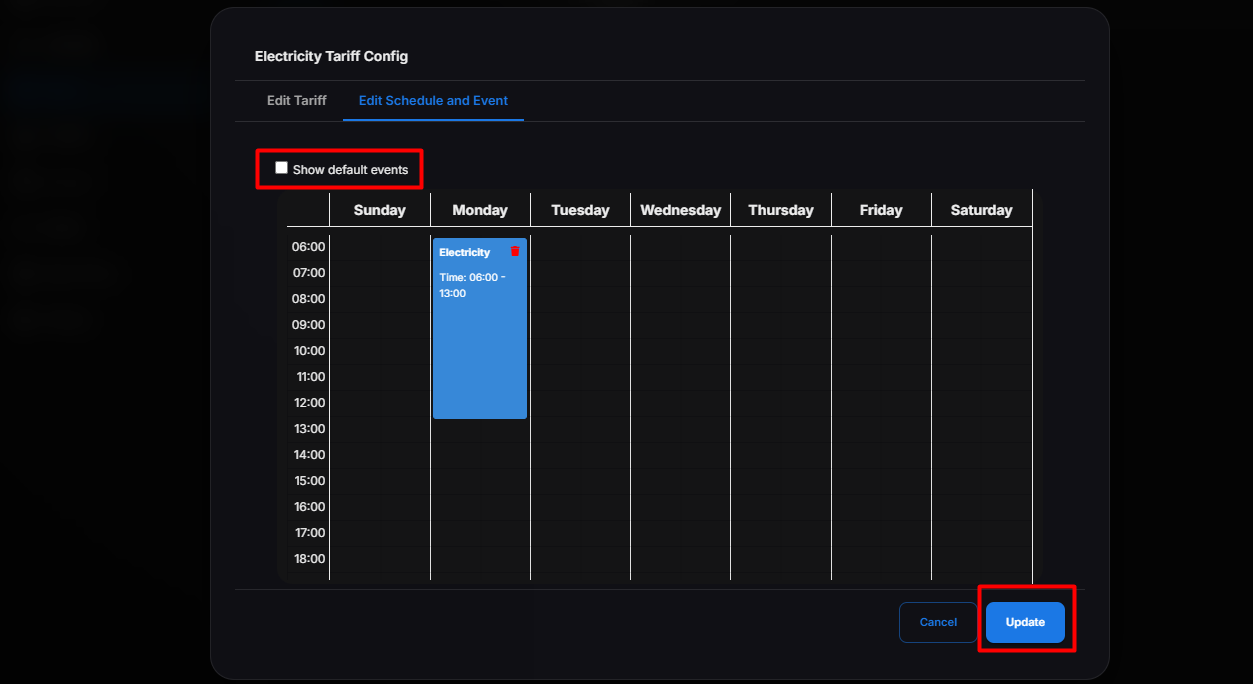 The electricity tariff schedule is saved successfully, and the selected tariff is applied automatically based on the configured event, date, and time.
Note
- You can create multiple schedules for different events.
- Scheduled tariffs can be edited or updated whenever required.
- The configured tariff is applied automatically when the scheduled event is triggered.
Managing Electricity Tariffs
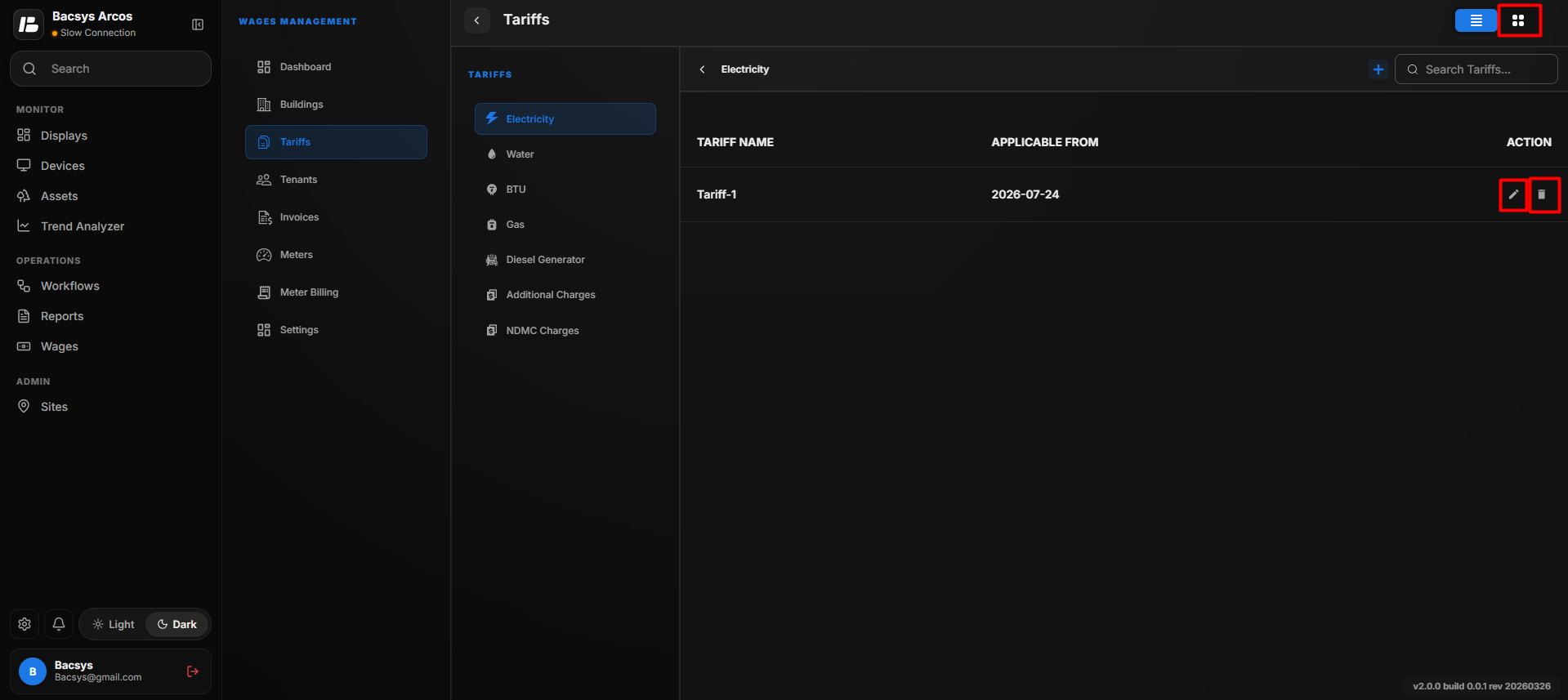 Users can perform the following actions:
- Edit a tariff
- Delete a tariff
- Search for a tariff
- Switch between Card View and List View
Water Tariff
The Water Tariff section is used to configure water billing tariffs. Users can create one or more tariffs, define slabs and events, schedule tariff periods, and manage tariff configurations.
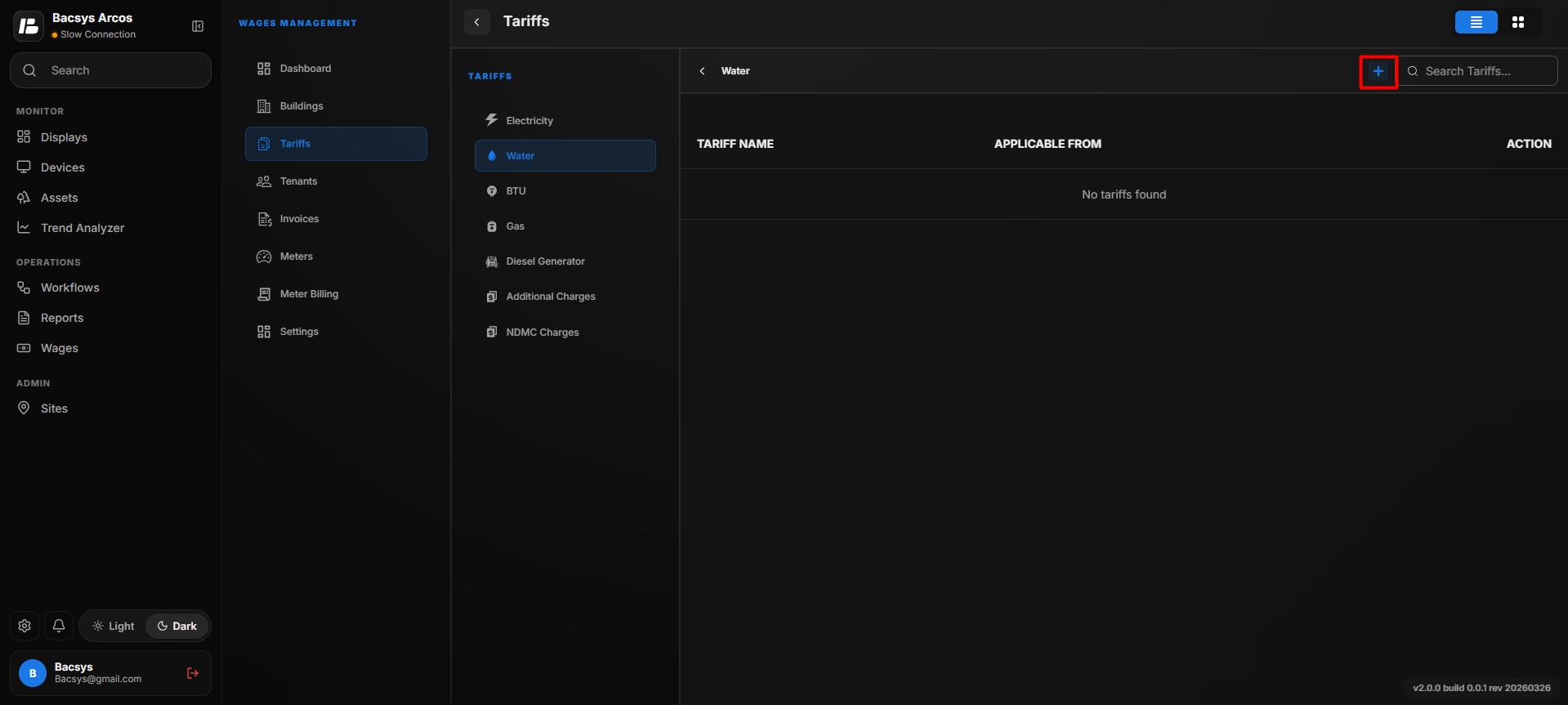
Creating a Water Tariff
- Select the Water tab.
- Click the + icon.
- The Add Tariff pop-up window appears.
- Enter the following information:
- Tariff Name
- Slab
- Event Name
- To create another slab, click Add Slab.
- To create another event, click Add Event.
- Click Save.
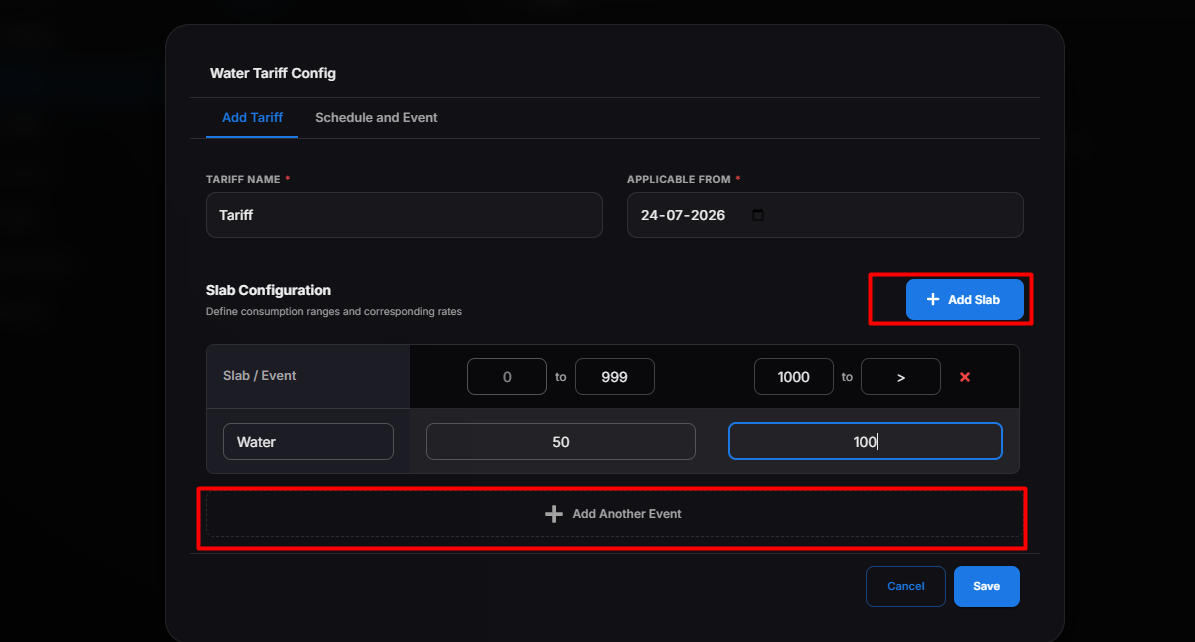
The water tariff is created successfully.
Scheduling a Water Tariff
After creating the tariff, you can configure a schedule to apply the tariff automatically for a specific date and time.
Steps
- Click Edit Schedule for the required tariff.
- The Schedule pop-up window appears.
- Select the Event from the available list.
- Choose the required Date and Time for when the tariff should become active.
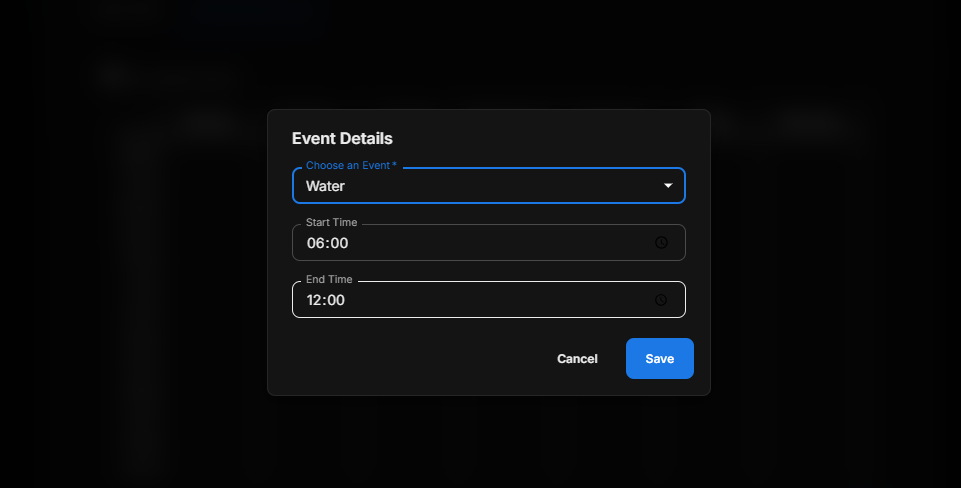
- Click Save.
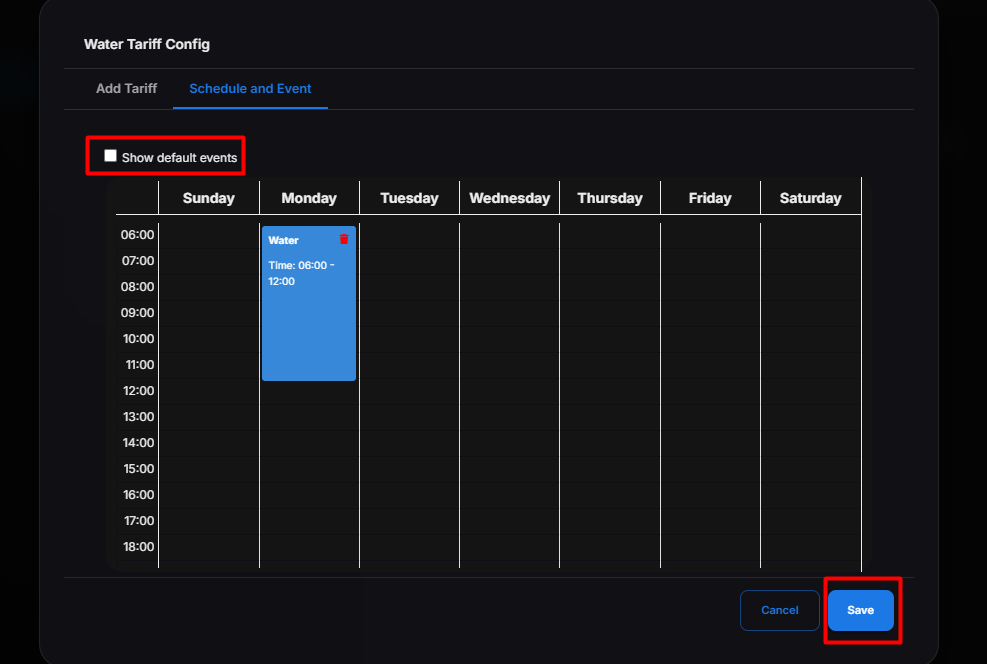
The schedule is successfully saved and the selected tariff is automatically applied according to the configured date, time, and event.
Note
- Multiple schedules can be created for different events.
- Schedules can be edited or deleted whenever required.
- The configured tariff is applied automatically when the scheduled event occurs.
Managing Water Tariffs
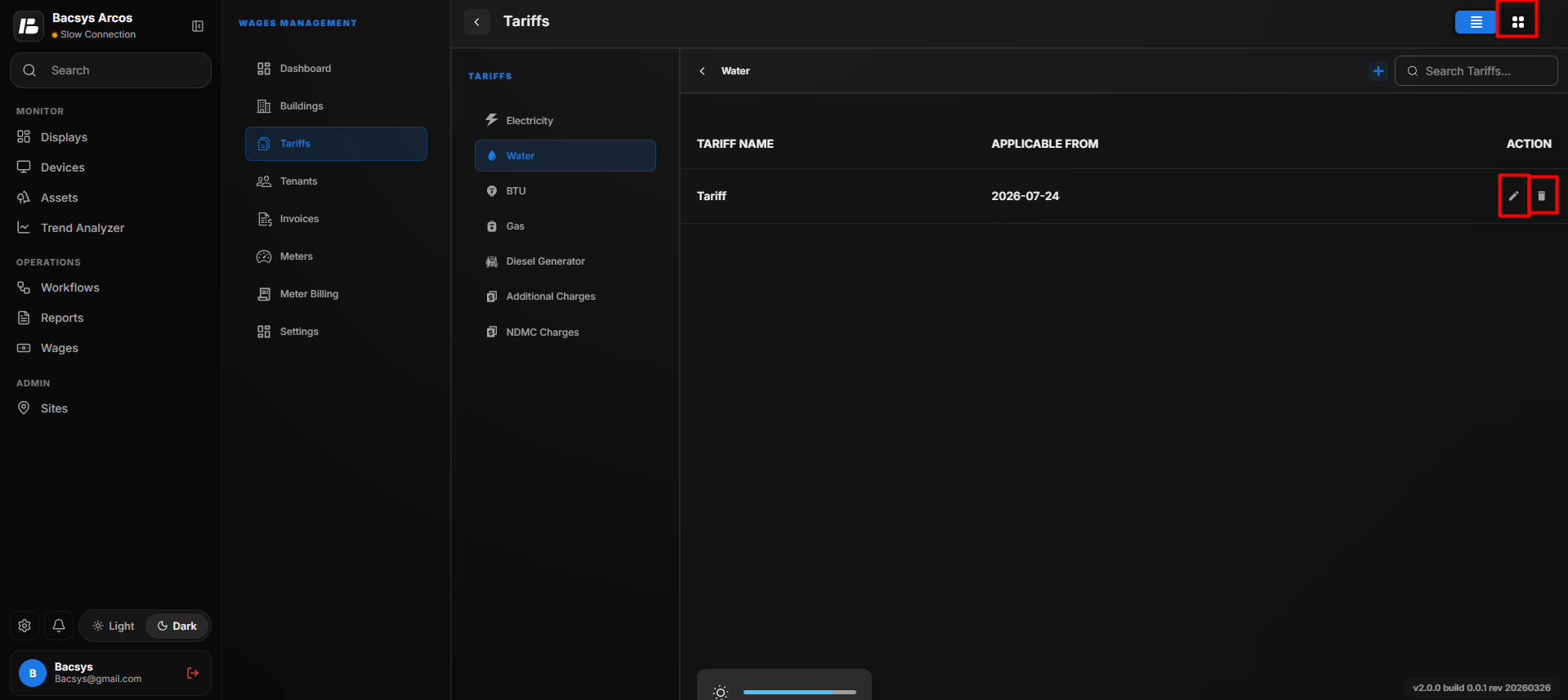 After a tariff has been created, users can:
- Create multiple water tariffs.
- Edit an existing tariff.
- Delete a tariff.
- Search for a tariff using the search box.
- Switch between Card View and List View.
Note
- You can create multiple water tariffs.
- Each tariff can contain multiple slabs and events.
- Tariff schedules can be updated at any time.
BTU Tariff
The BTU Tariff section is used to configure tariffs for BTU (British Thermal Unit) consumption. Users can create one or more BTU tariffs, define slabs and events, configure schedules, and manage tariff settings.
Creating a BTU Tariff
- Select the BTU tab.
- Click the + icon.
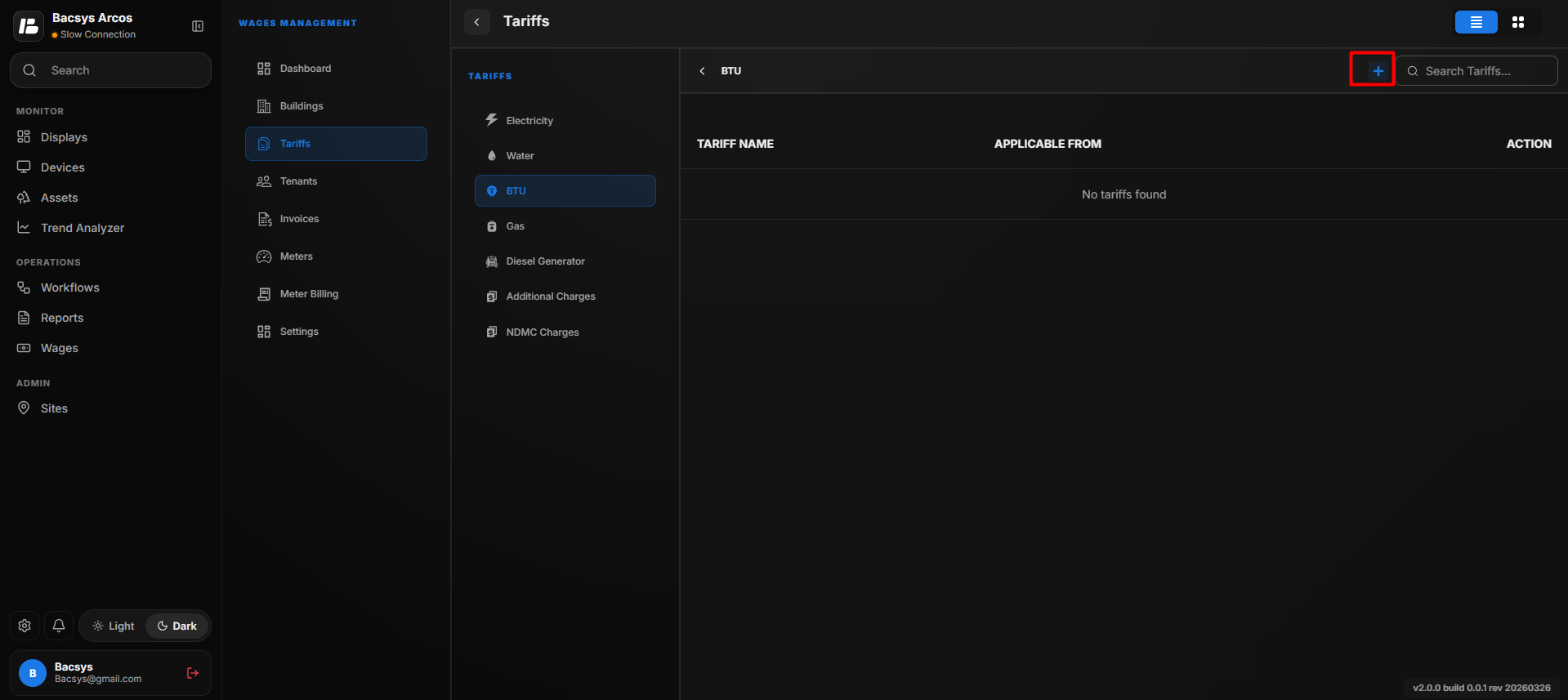
- The Add Tariff pop-up window appears.
- Enter the following information:
- Tariff Name
- Slab
- Event Name
- To create another slab, click Add Slab.
- To create another event, click Add Event.
- Click Save.
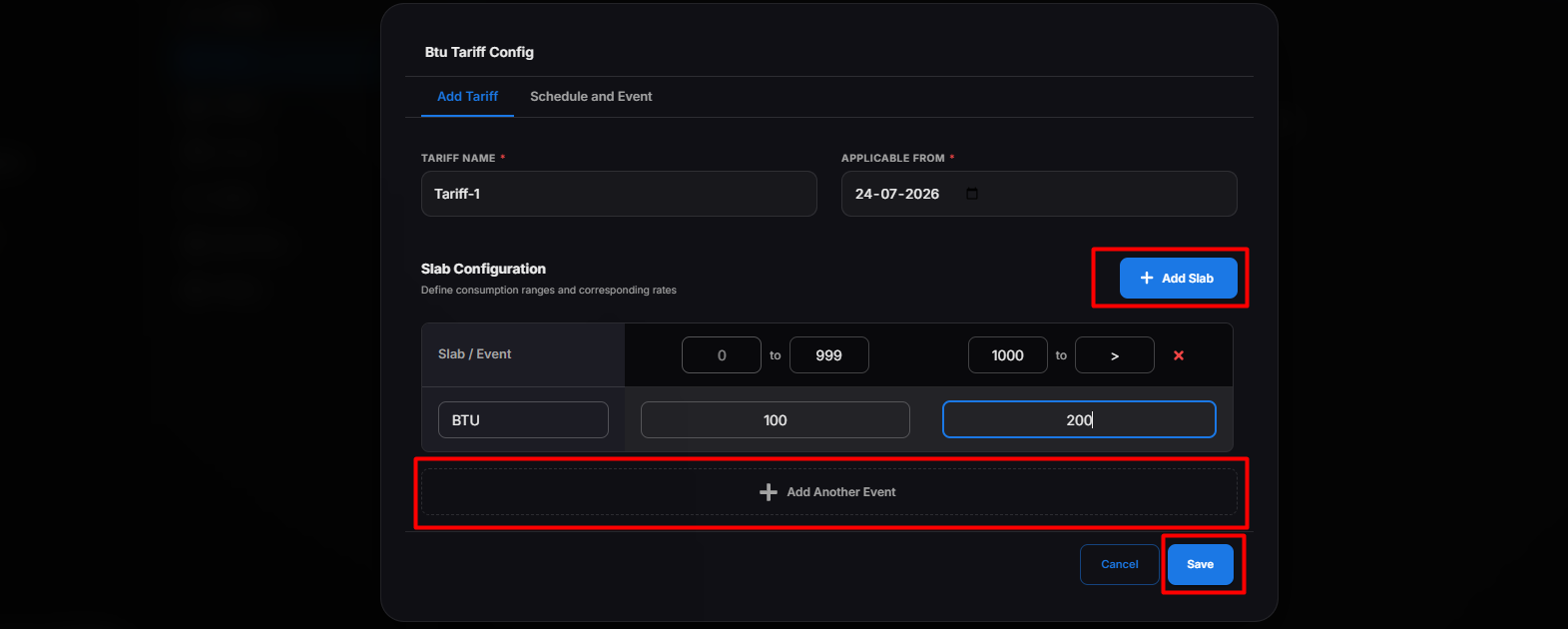
The BTU tariff is created successfully.
Scheduling a BTU Tariff
After creating the tariff, you can configure a schedule to apply the tariff automatically for a specific date and time.
Steps
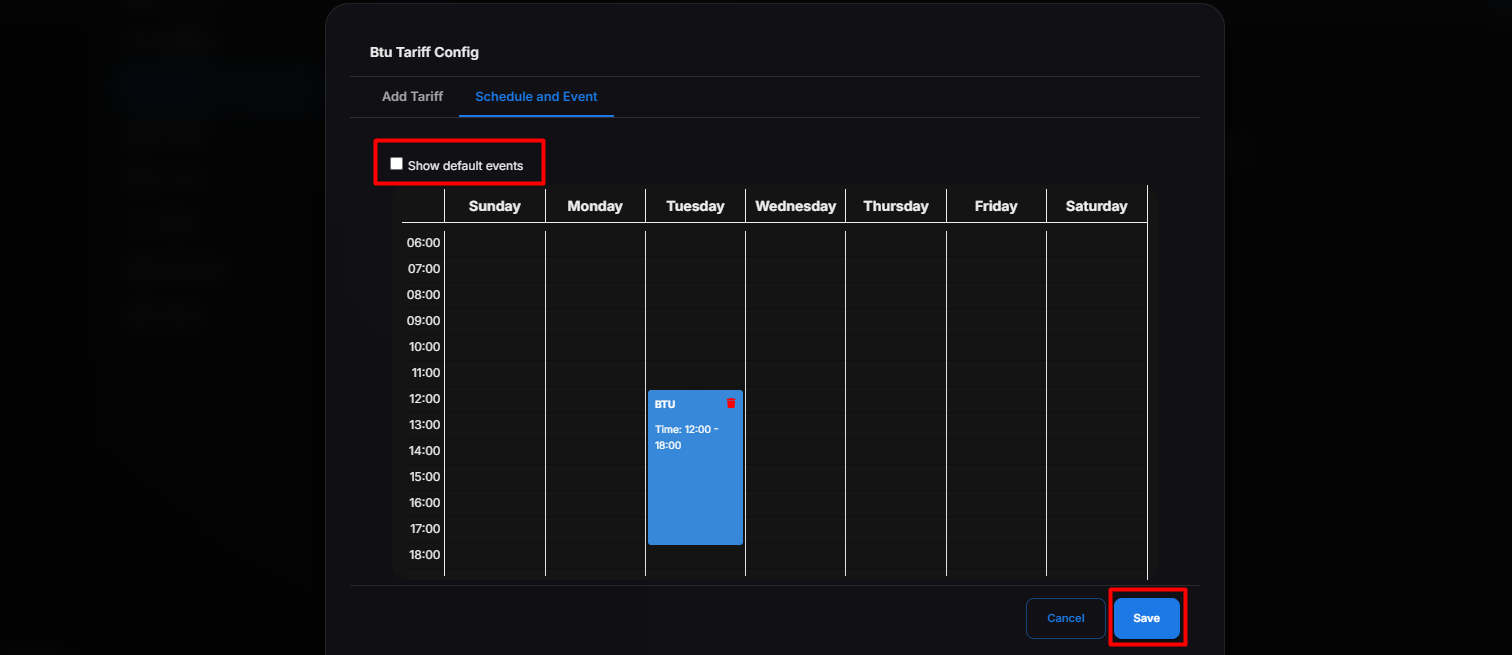
- Click Edit Schedule for the required tariff.
- The Schedule pop-up window appears.
- Select the Event from the available list.
- Choose the required Date and Time for when the tariff should become active.
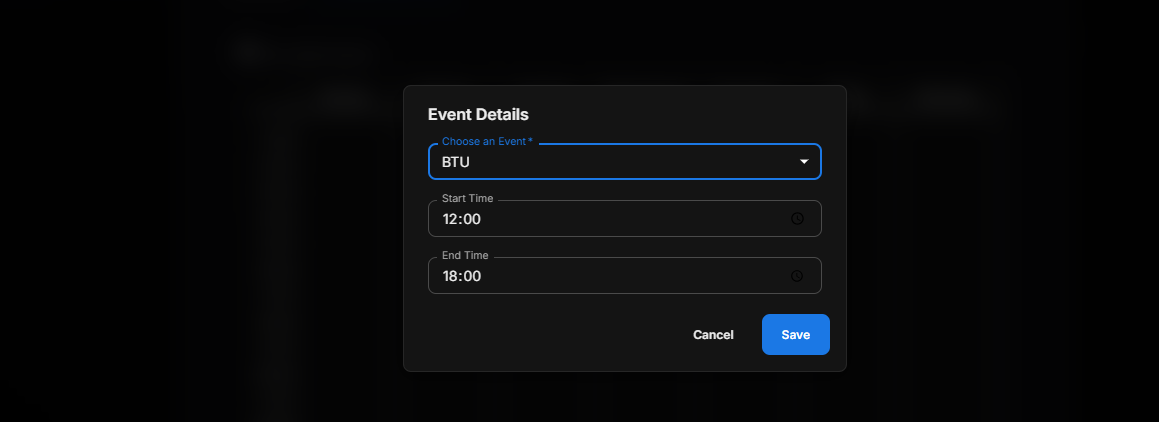
- Click Save. The schedule is successfully saved and the selected tariff is automatically applied according to the configured date, time, and event.
Note
- Multiple schedules can be created for different events.
- Schedules can be edited or deleted whenever required.
- The configured tariff is applied automatically when the scheduled event occurs.
Managing BTU Tariffs
After a tariff has been created, users can:
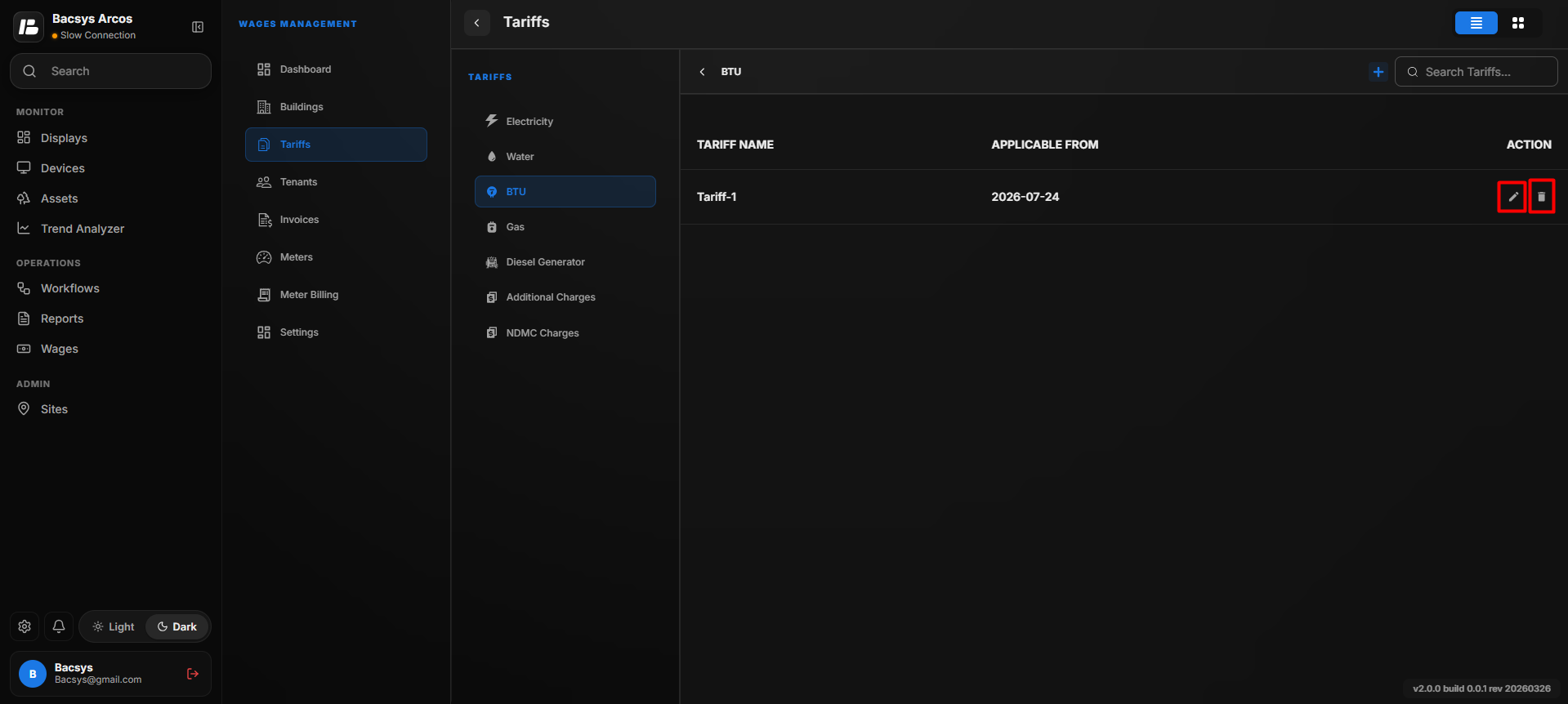
- Create multiple BTU tariffs.
- Edit an existing tariff.
- Delete a tariff.
- Search for a tariff using the search box.
- Switch between Card View and List View.
Note
- You can create multiple BTU tariffs.
- Each tariff can contain multiple slabs and events.
- Tariff schedules can be updated at any time.
Gas Tariff
The Gas Tariff section is used to configure tariffs for gas consumption. Users can create one or more gas tariffs, define slabs and events, configure schedules, and manage tariff settings.
Creating a Gas Tariff
- Select the Gas tab.
- Click the + icon.
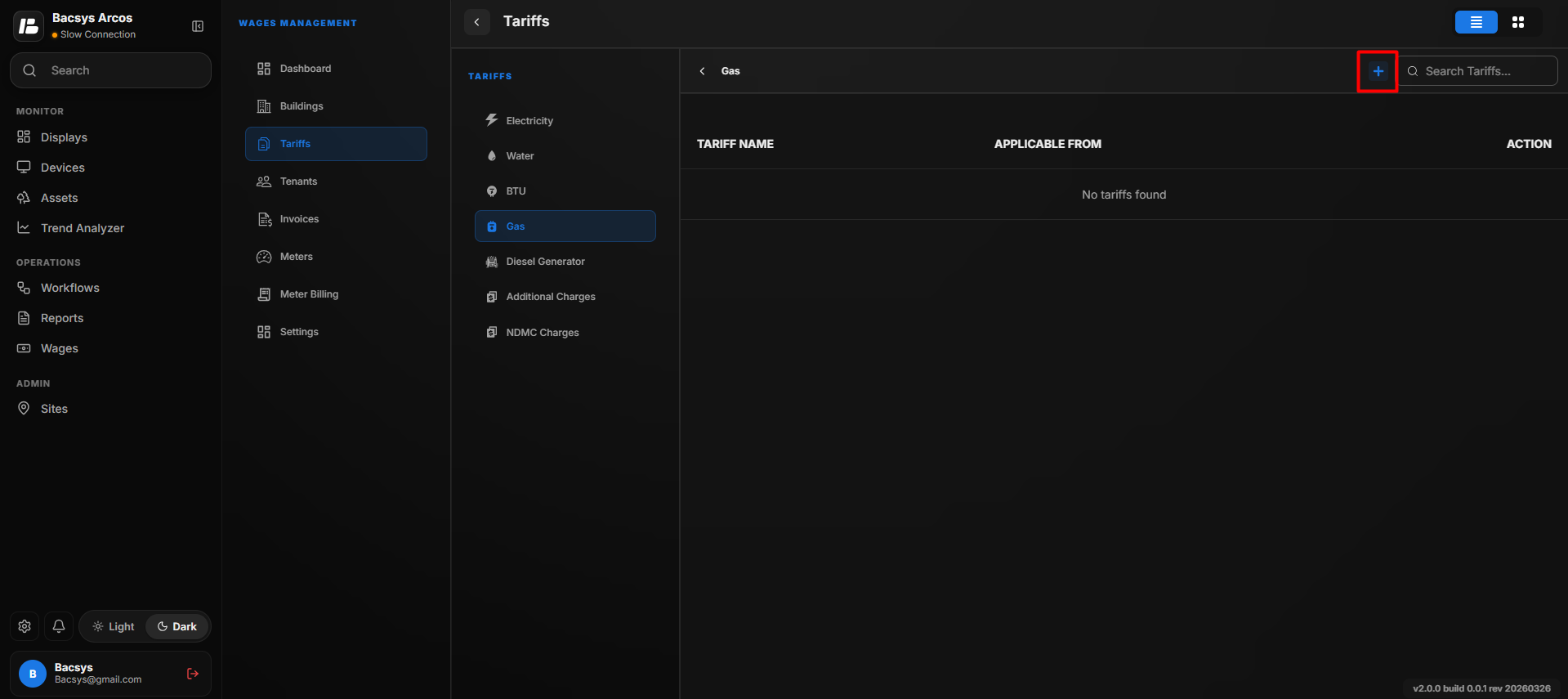
- The Add Tariff pop-up window appears.
- Enter the following information:
- Tariff Name
- Slab
- Event Name
- To create another slab, click Add Slab.
- To create another event, click Add Event.
- Click Save.
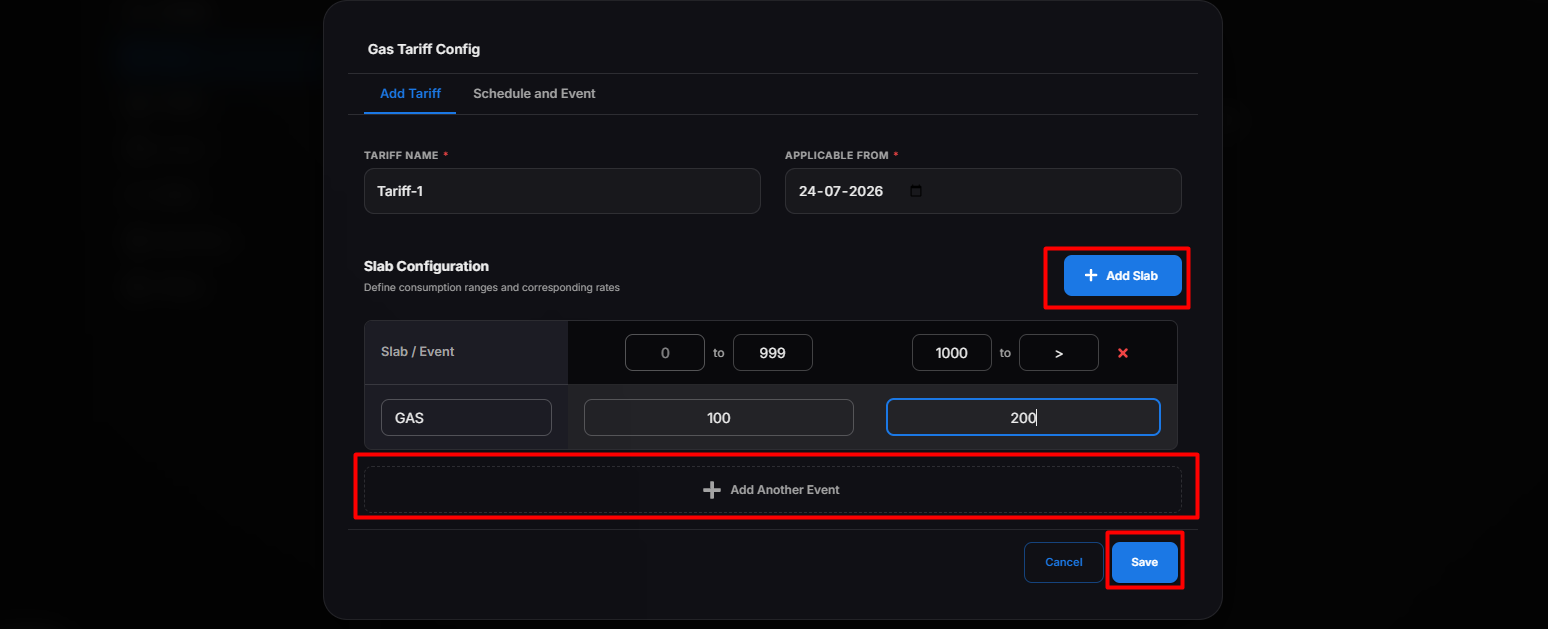
The gas tariff is created successfully.
Scheduling a Gas Tariff
After creating the tariff, you can configure a schedule to apply the tariff automatically for a specific date and time.
Steps
- Click Edit Schedule for the required tariff.
- The Schedule pop-up window appears.
- Select the Event from the available list.
- Choose the required Date and Time for when the tariff should become active.
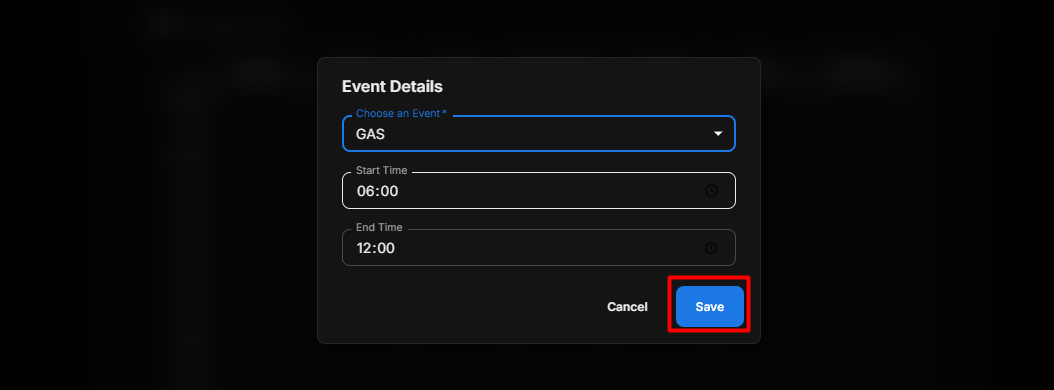
- Click Save.
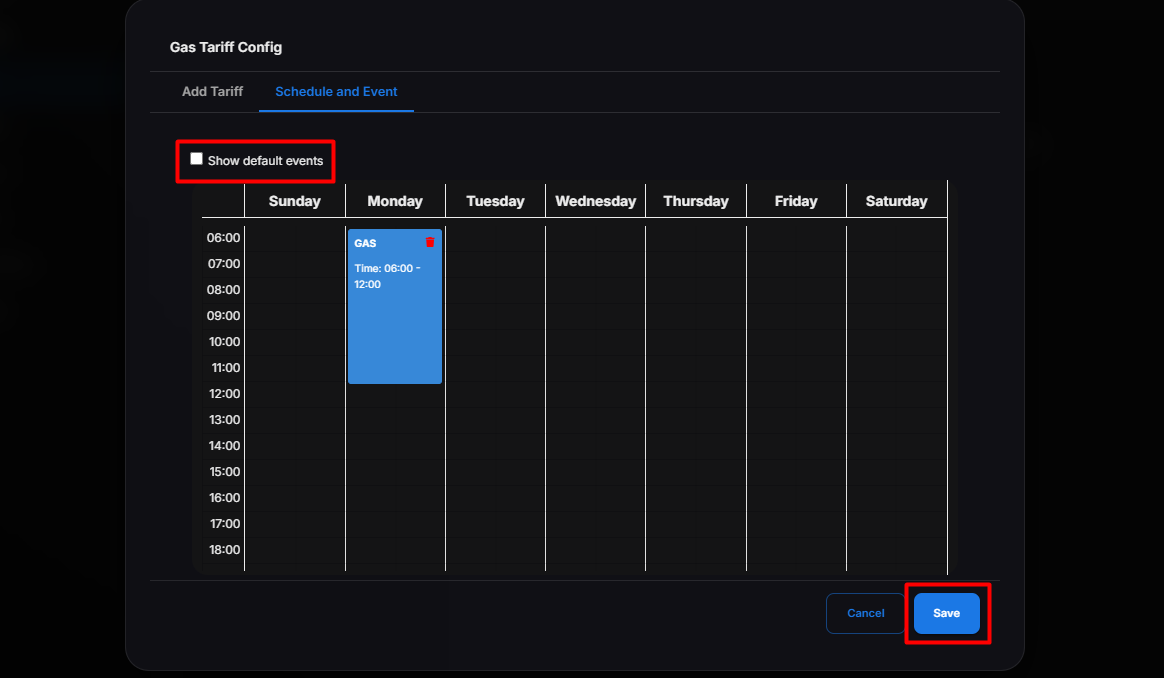
The schedule is successfully saved and the selected tariff is automatically applied according to the configured date, time, and event.
Note
- Multiple schedules can be created for different events.
- Schedules can be edited or deleted whenever required.
- The configured tariff is applied automatically when the scheduled event occurs.
Managing Gas Tariffs
After a tariff has been created, users can:
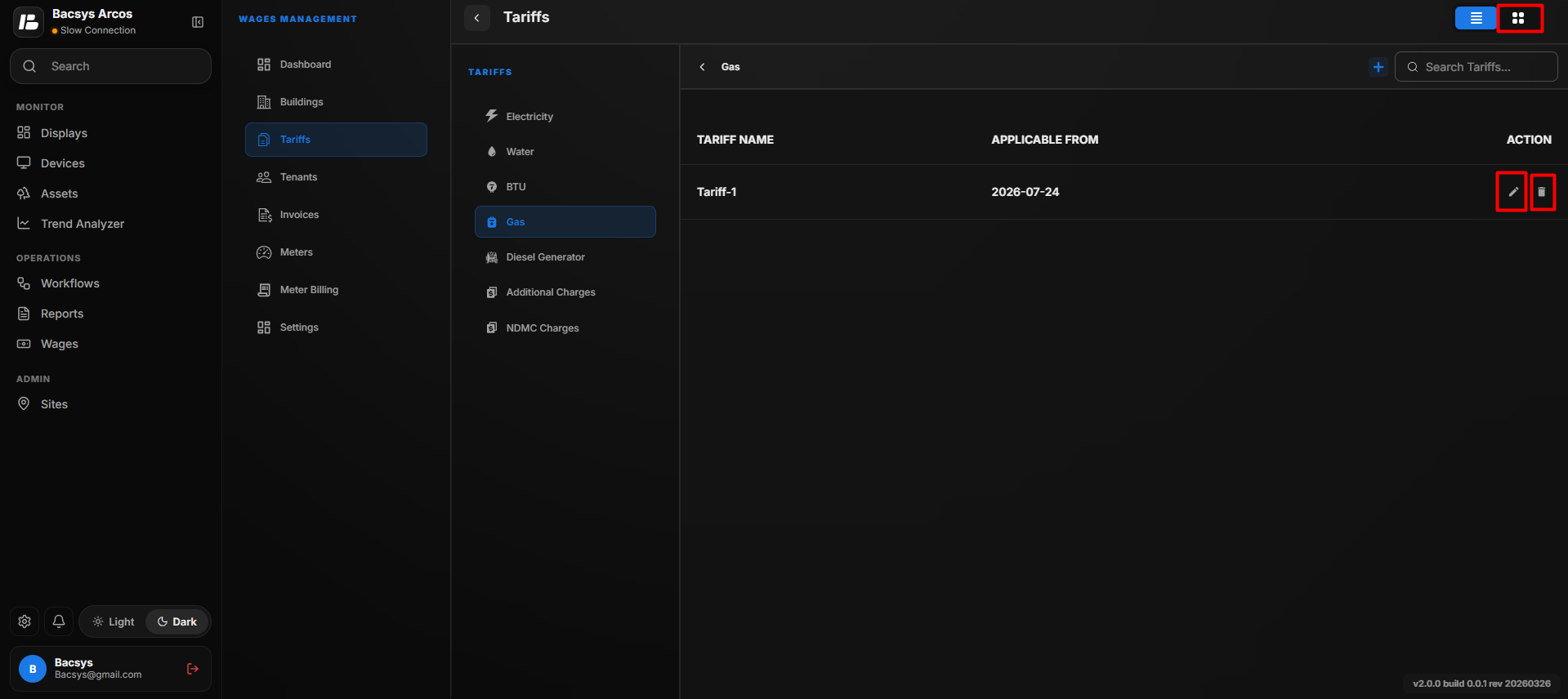
- Create multiple gas tariffs.
- Edit an existing tariff.
- Delete a tariff.
- Search for a tariff using the search box.
- Switch between Card View and List View.
Note
- You can create multiple gas tariffs.
- Each tariff can contain multiple slabs and events.
- Tariff schedules can be updated at any time.
Diesel Generator Tariff
The Diesel Generator Tariff section is used to configure tariffs for diesel generator consumption. Users can create one or more diesel generator tariffs, define slabs and events, configure schedules, and manage tariff settings.
Creating a Diesel Generator Tariff
- Select the Diesel Generator tab.
- Click the + icon.
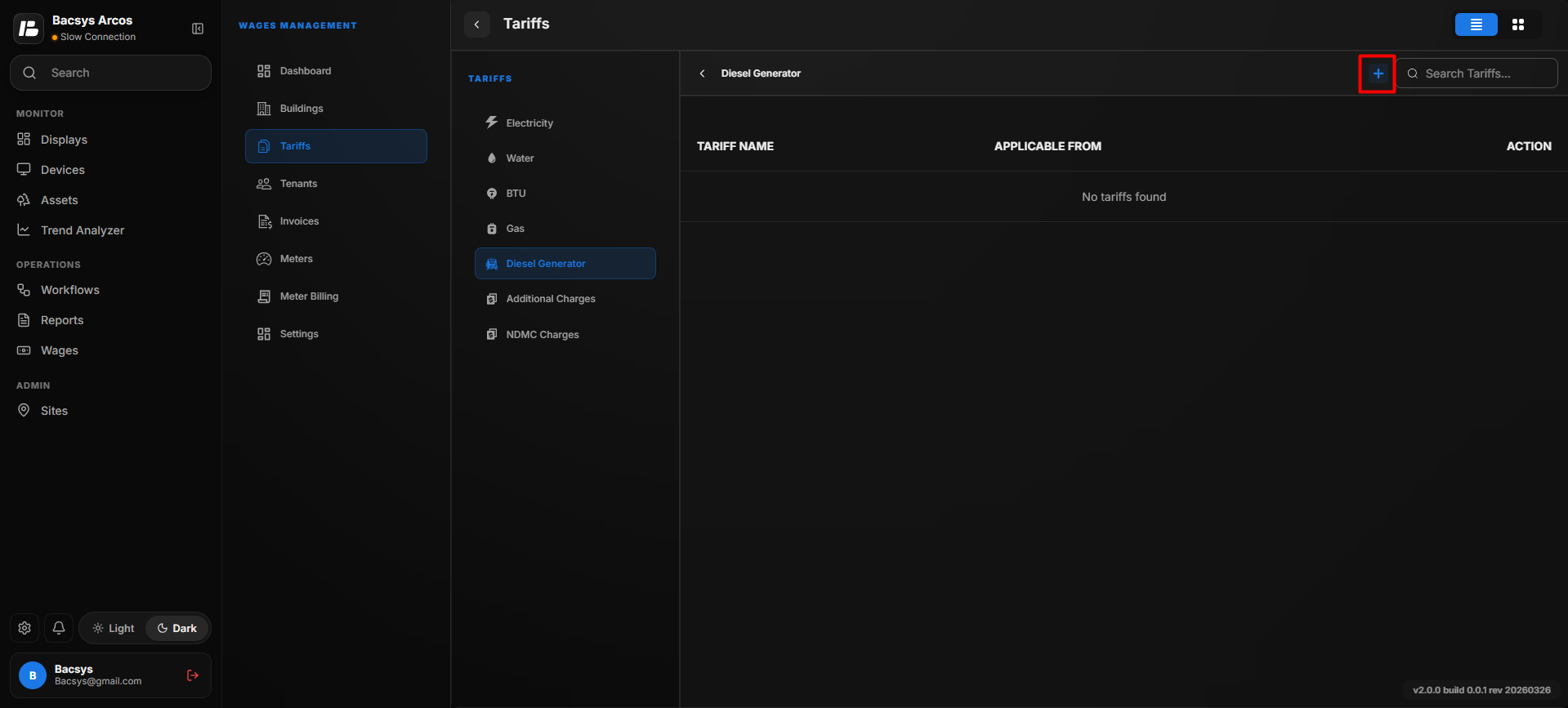
- The Add Tariff pop-up window appears.
- Enter the following information:
- Tariff Name
- Slab
- Event Name
- To create another slab, click Add Slab.
- To create another event, click Add Event.
- Click Save.
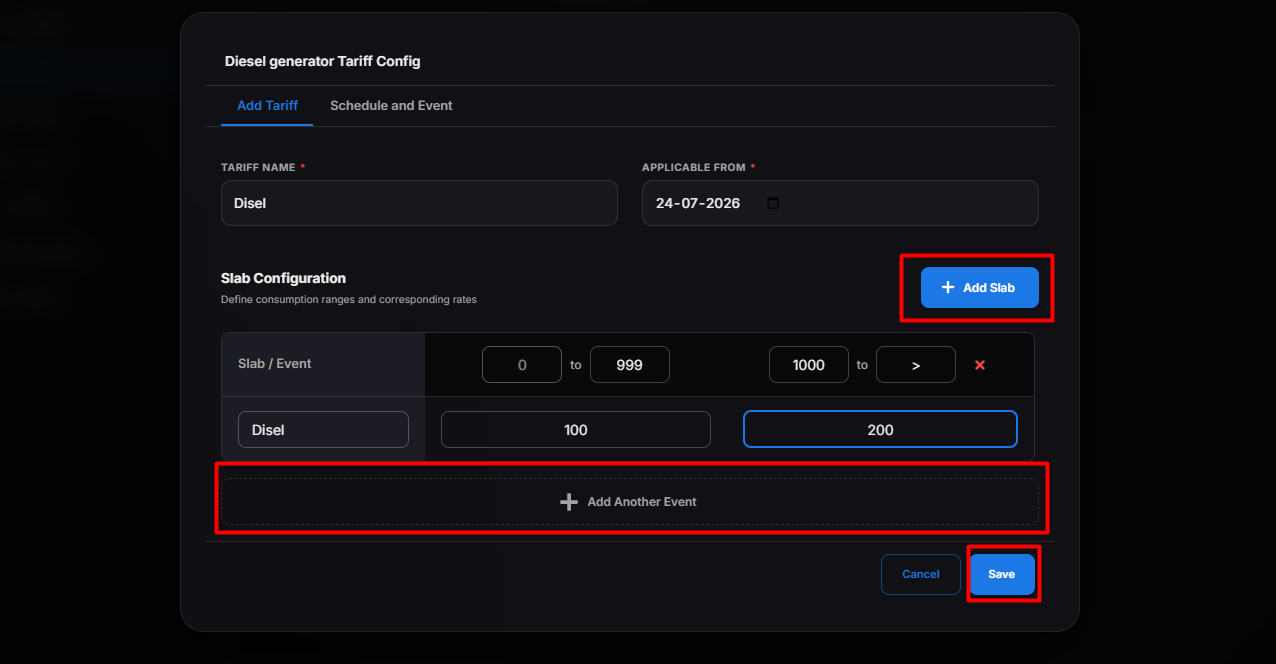
The diesel generator tariff is created successfully.
Scheduling a Diesel Generator Tariff
After creating the tariff, you can configure a schedule to apply the tariff automatically for a specific date and time.
Steps
- Click Edit Schedule for the required tariff.
- The Schedule pop-up window appears.
- Select the Event from the available list.
- Choose the required Date and Time for when the tariff should become active.
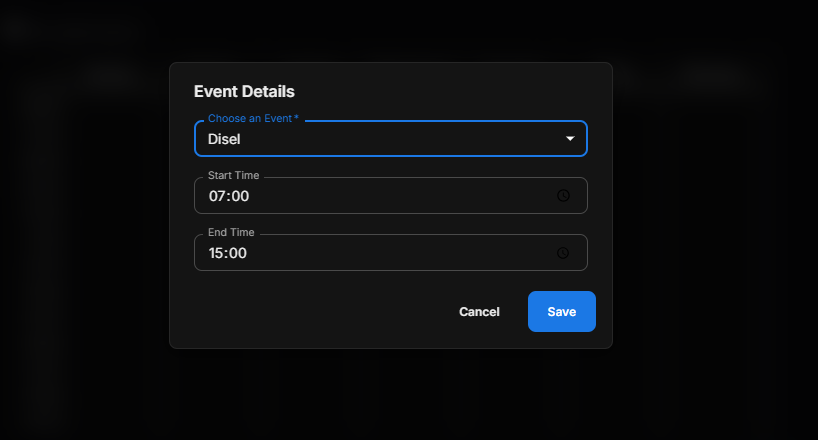
- Click Save.
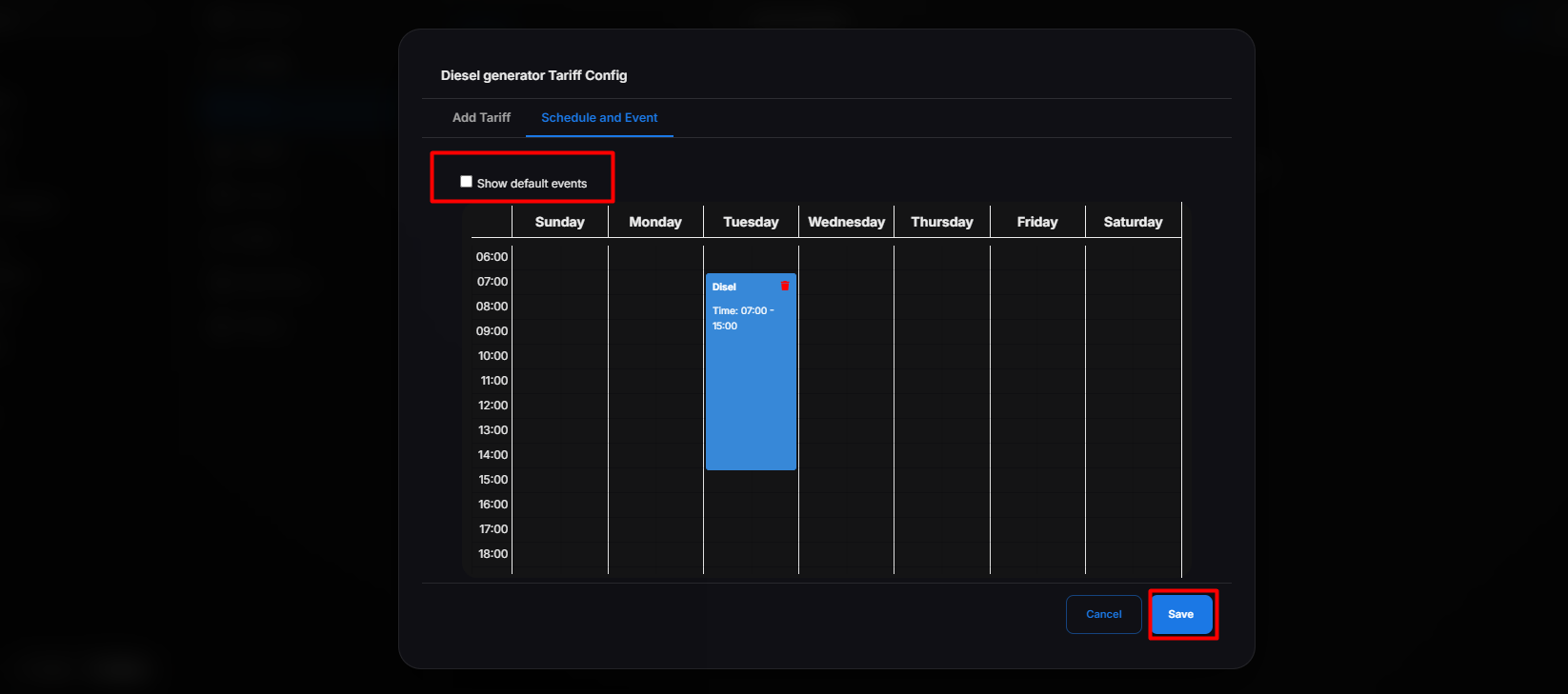 The schedule is successfully saved and the selected tariff is automatically applied according to the configured date, time, and event.
Note
- Multiple schedules can be created for different events.
- Schedules can be edited or deleted whenever required.
- The configured tariff is applied automatically when the scheduled event occurs.
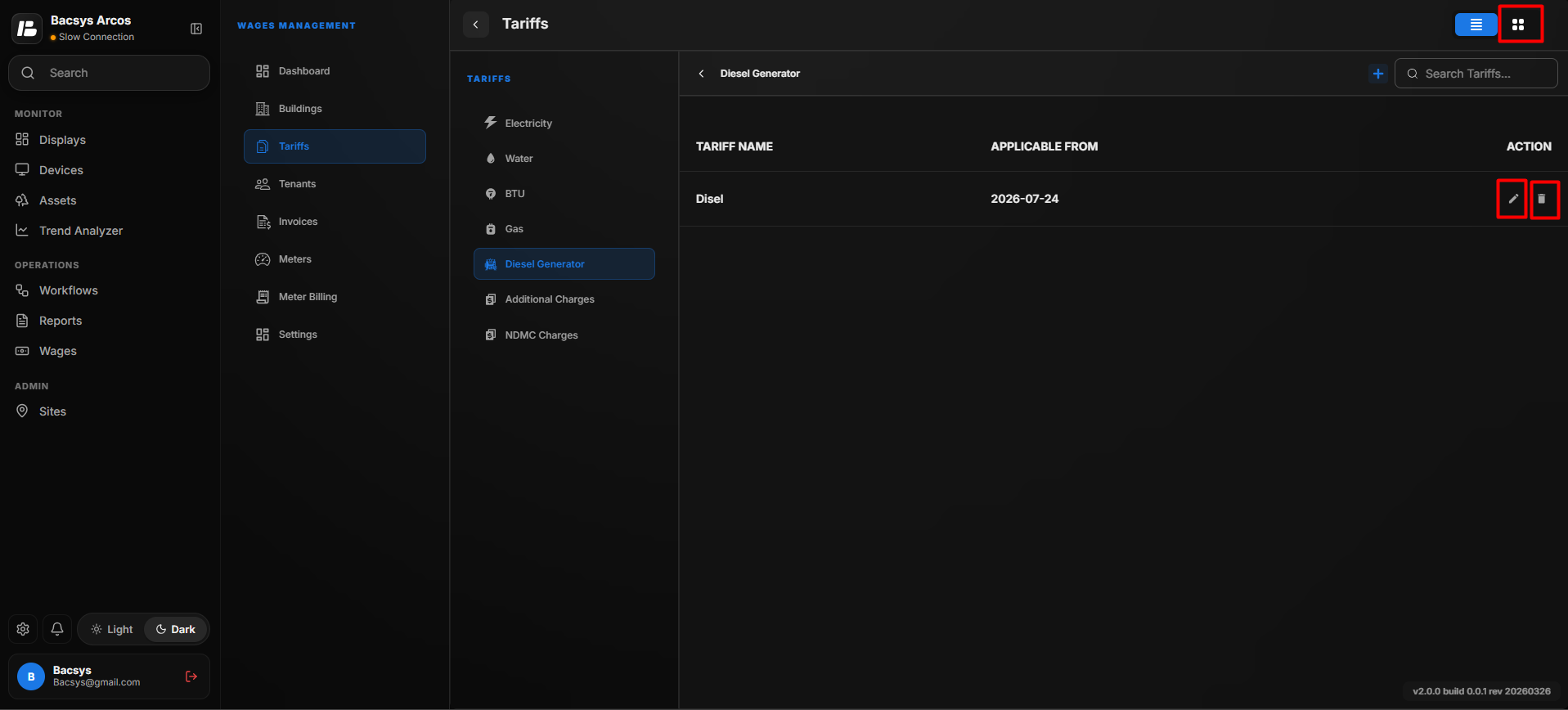
Managing Diesel Generator Tariffs
After a tariff has been created, users can:
- Create multiple diesel generator tariffs.
- Edit an existing tariff.
- Delete a tariff.
- Search for a tariff using the search box.
- Switch between Card View and List View.
Note
- You can create multiple diesel generator tariffs.
- Each tariff can contain multiple slabs and events.
- Tariff schedules can be updated at any time.
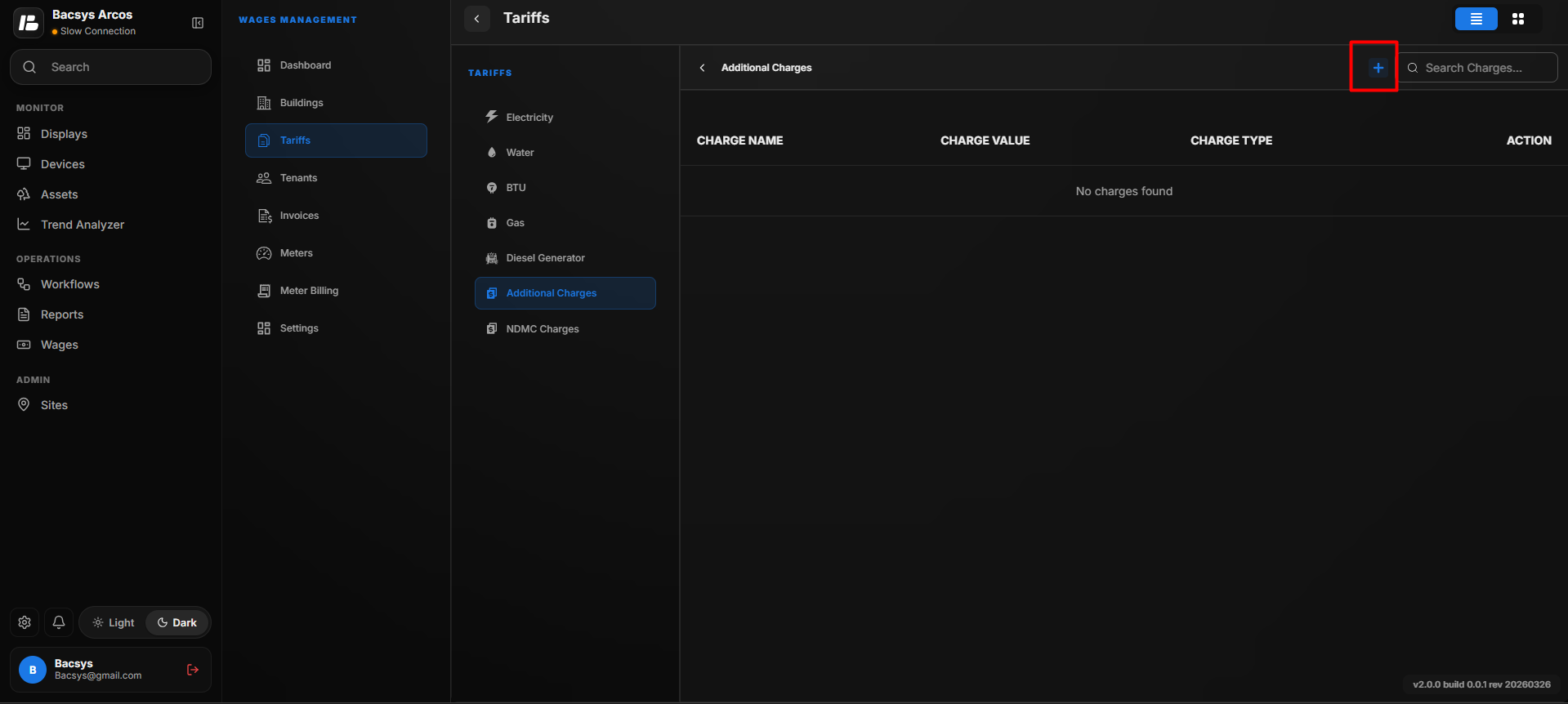
Additional Charges
Additional Charges allow users to configure charges that are applied separately from utility tariffs.
Creating an Additional Charge
- Select Additional Charges.
- Click the + icon.
- Enter the following information:
| Field | Description |
|---|---|
| Charge Name | Name of the additional charge. |
| Charge Value | Value of the charge. |
| Charge Type | Select the charge calculation method. |
The available Charge Types are:
- Fixed Amount
- Percentage
- Common Charges
- Click Save.
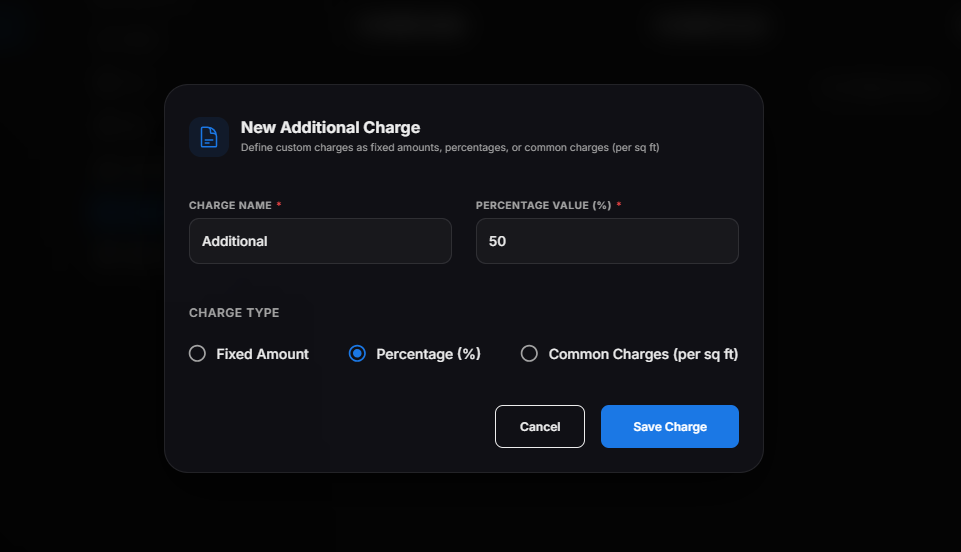
The additional charge is created successfully.
Assigning Additional Charges to Units
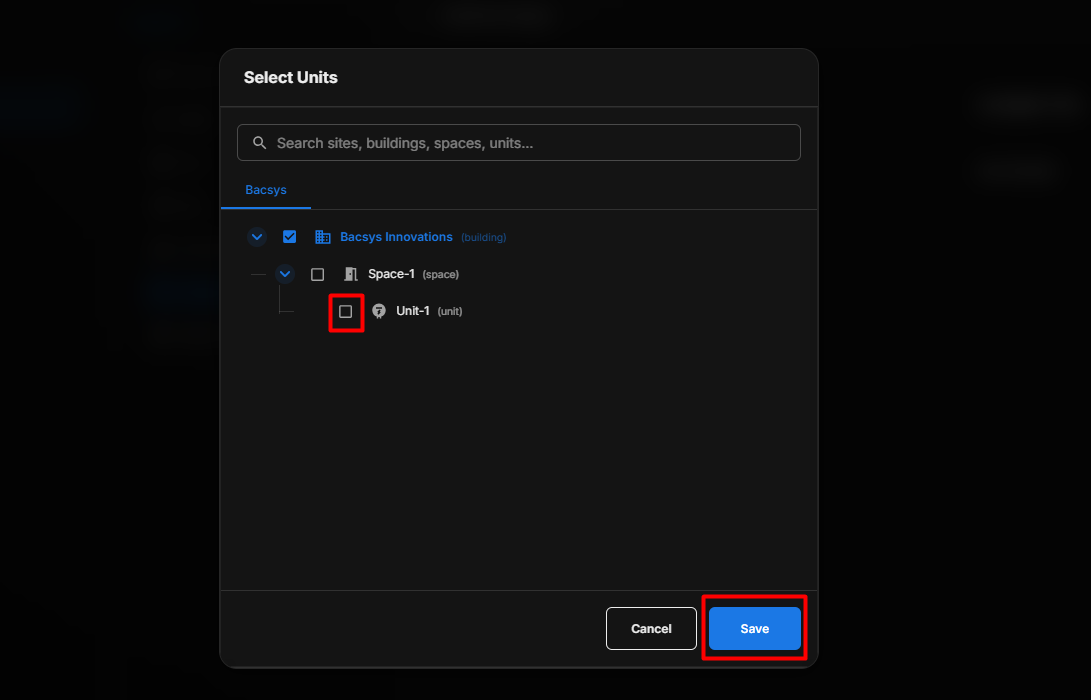
After creating the charge:
- Click the + icon.
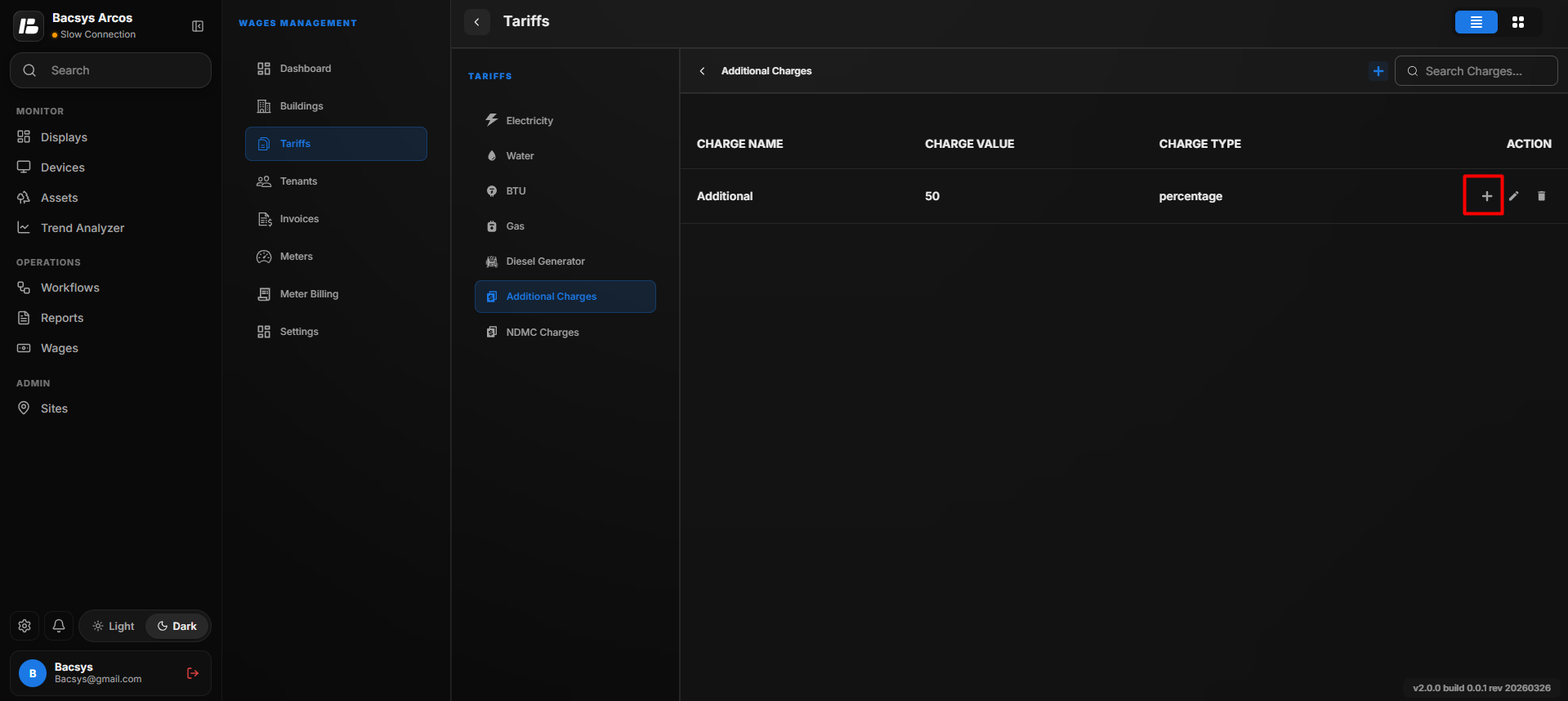
- Select the required units.
- Click Save. The selected units are assigned to the additional charge.
Managing Additional Charges
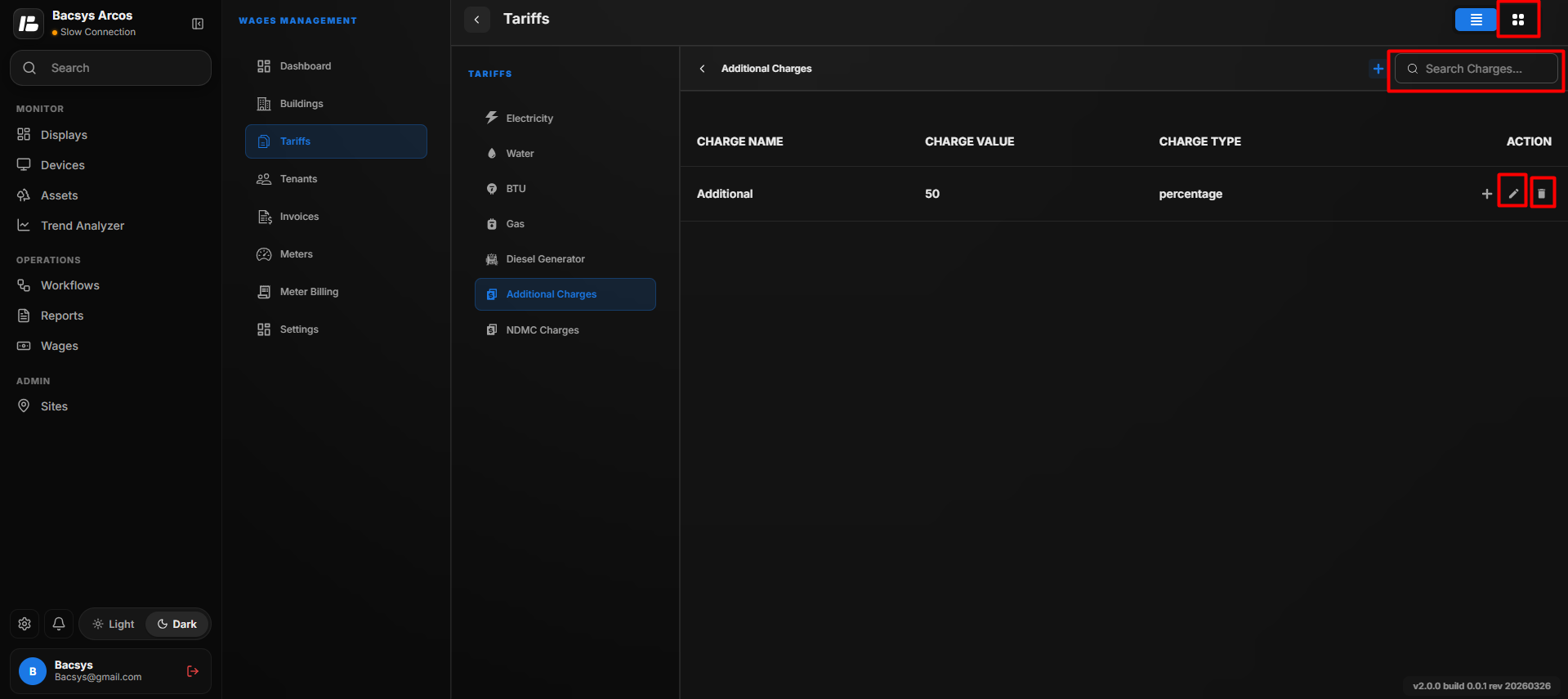
Users can:
- Edit charges
- Delete charges
- Search charges
- Assign charges to different units
NDMC Charges
The NDMC Charges section is used to configure fixed charges, subsidies, and electricity tax calculations.
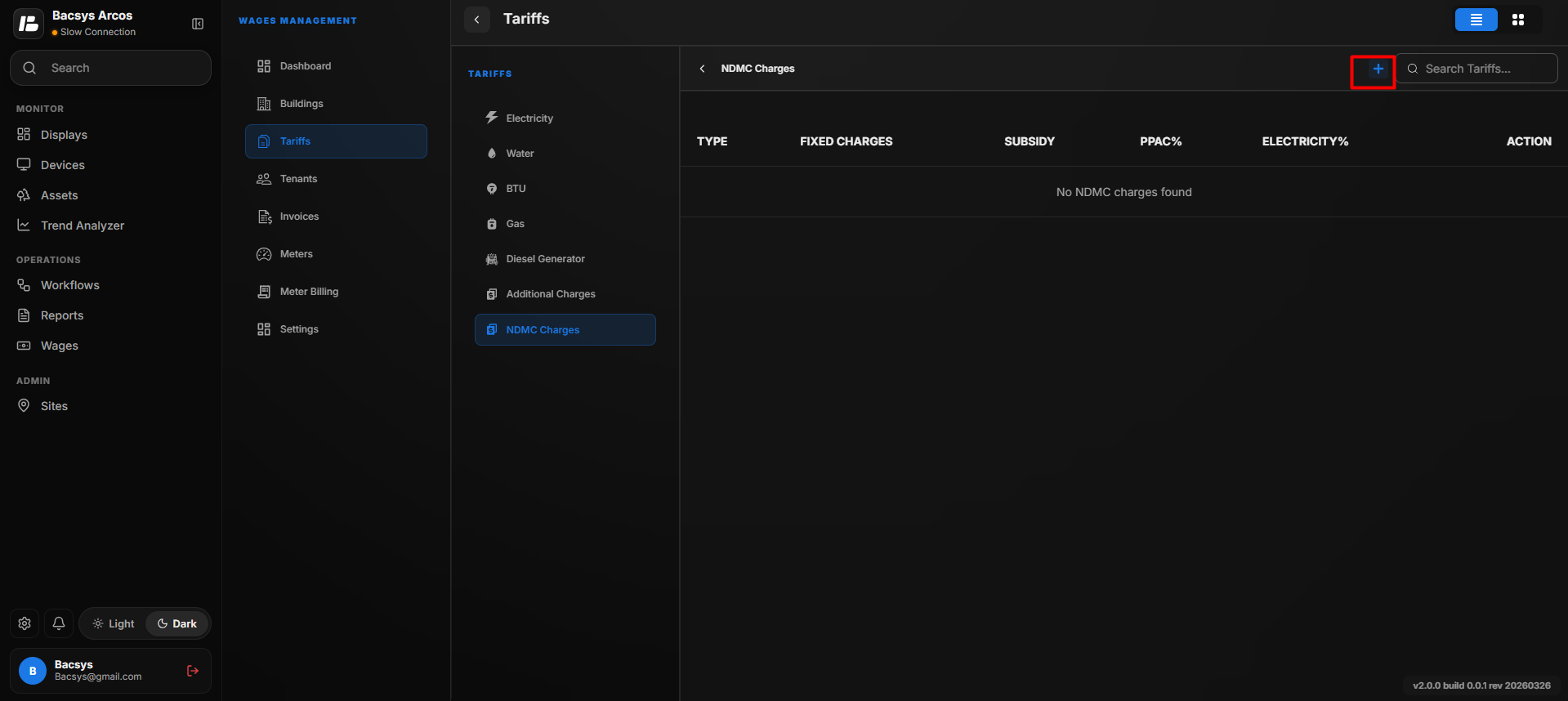
Creating NDMC Charges
- Select NDMC Charges.
- Click the + icon.
- Enter the required information.
| Field | Description |
|---|---|
| Fixed Charges | Enter the fixed charge amount. |
| Subsidy | Enter the subsidy amount. |
| Fixed Charge After Subsidy | Displays the calculated amount after subsidy. |
| PPAC Percentage | Enter the PPAC percentage. |
| Computed PPAC Amount | Displays the calculated PPAC amount. |
| Electricity Tax Percentage | Enter the electricity tax percentage. |
| Computed Tax Amount | Displays the calculated tax amount. |
- Click Save.
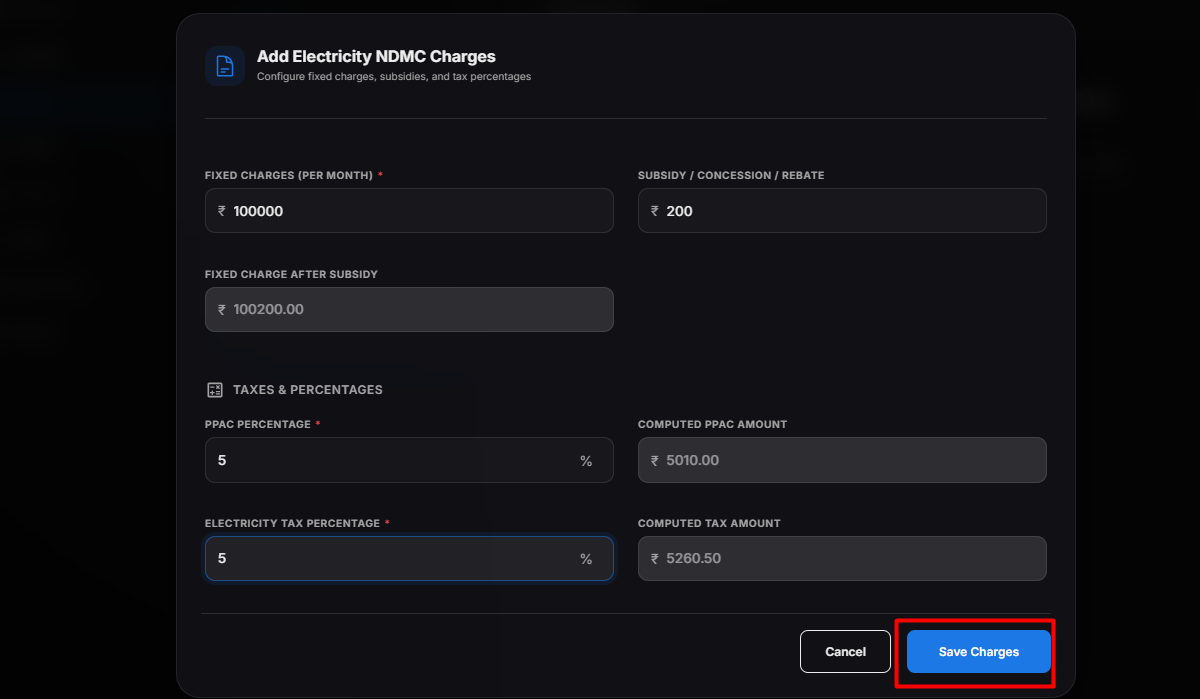
The NDMC charge configuration is saved successfully.
Note
Only one NDMC charge configuration can be created.
Assigning NDMC Charges to Units
After creating the NDMC charge:
- Click the + icon.
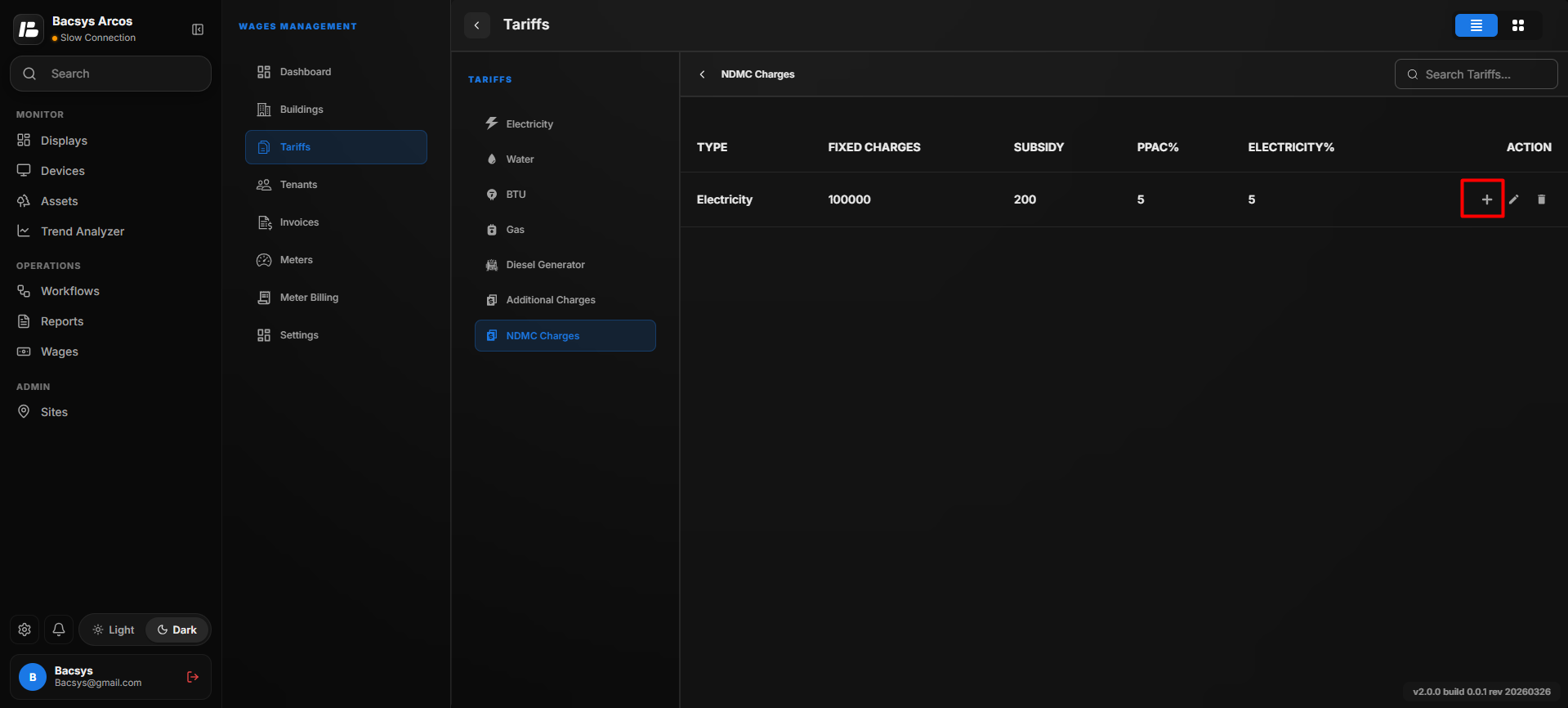
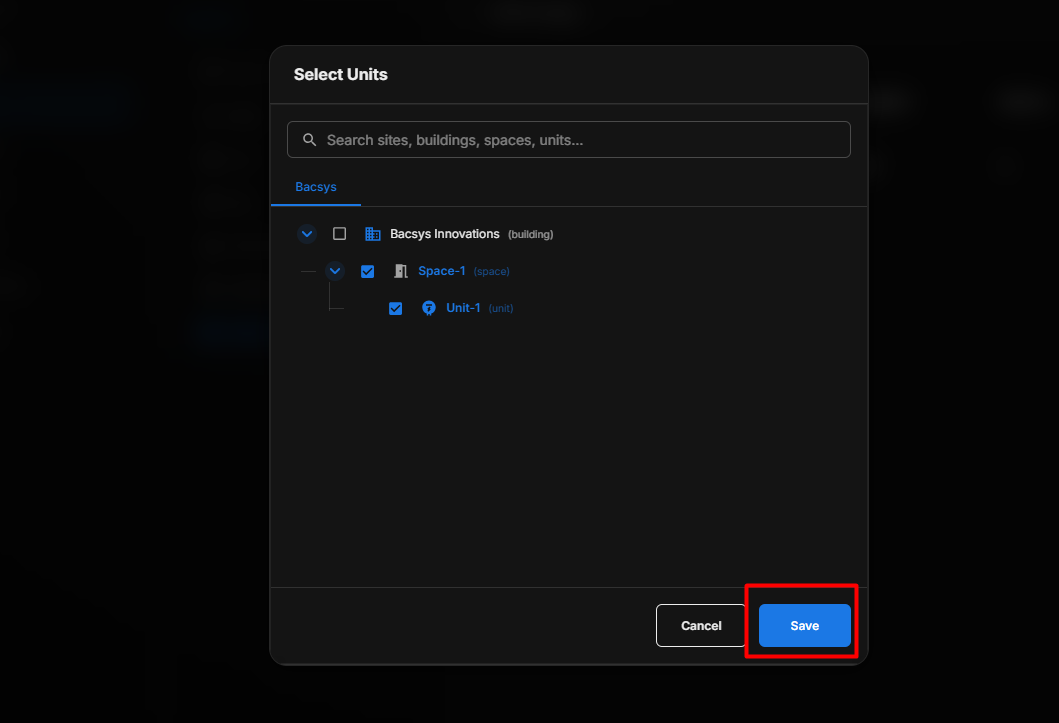
- Select the required units.
- Click Save. The selected units are assigned to the NDMC charge.
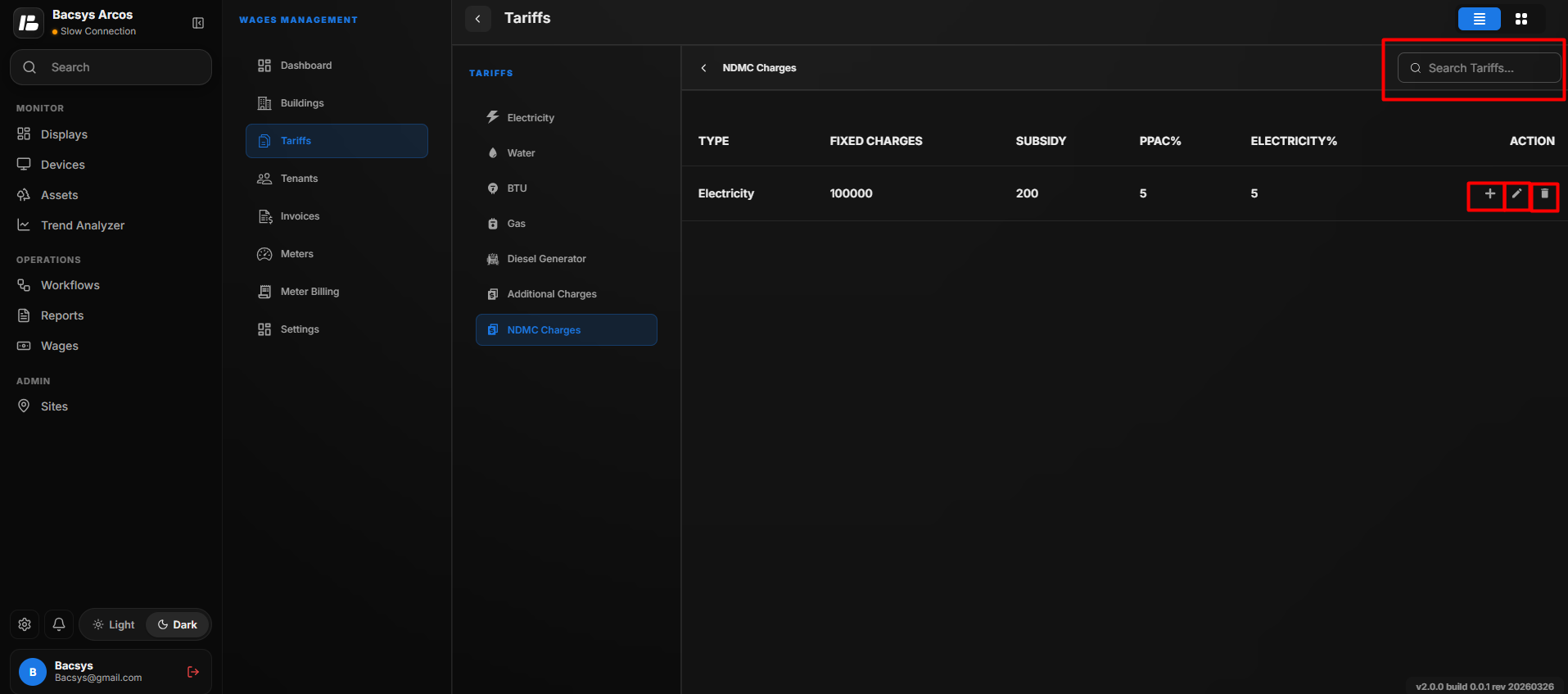
Managing NDMC Charges
Users can:
- Edit the charge configuration
- Delete the charge configuration
- Search the configuration
- Assign or update units
Tariff Workflow
Select Tariff Type
        ↓
Create Tariff
        ↓
Add Slabs (Optional)
        ↓
Add Events (Optional)
        ↓
Save Tariff
        ↓
Configure Schedule
        ↓
Assign Units (if applicable)
        ↓
Edit or Delete Tariff
The Tariff Management module provides a centralized way to configure utility tariffs, additional charges, and NDMC charges. It enables users to create multiple tariff configurations, assign them to units, and maintain accurate billing across different utility types.