

SMS Configuration
The SMS Configuration section allows users to configure SMS notifications for alarms and system events. Notifications can be sent using a Hardware Modem, an SMS Country API, or SMS notifications can be disabled.
Accessing SMS Configuration
Steps
- Navigate to Settings.
- Select SMS from the System Configurations page.
- The SMS Configuration page opens.
Hardware Modem Configuration
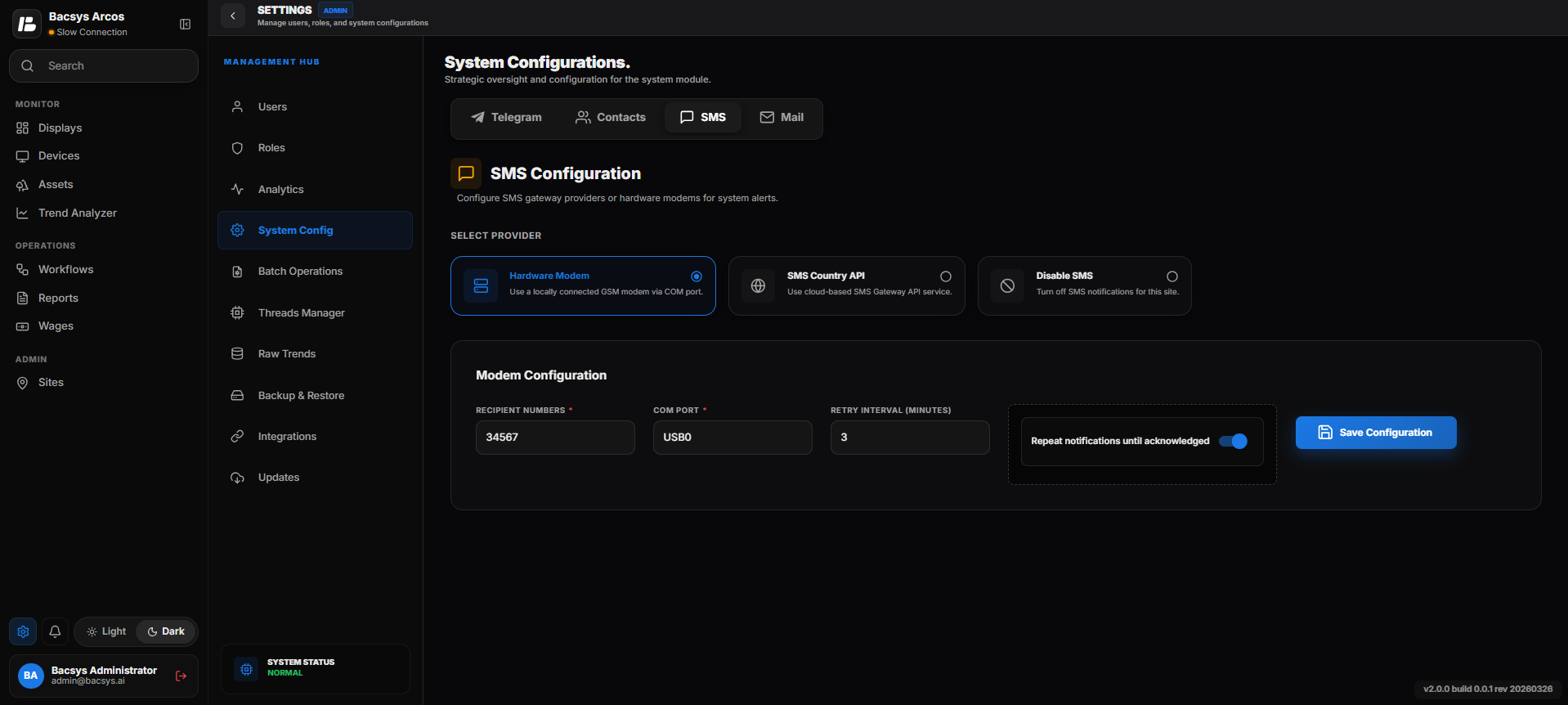
Hardware Modem Configuration
The Hardware Modem option allows the system to send SMS notifications using a GSM modem connected to the server through a COM (Serial/USB) port.
Configuration Fields
| Field | Description |
|---|---|
| Recipient Numbers | Enter one or more mobile numbers that should receive SMS notifications. |
| COM Port | Select the COM port to which the GSM modem is connected. |
| Retry Interval (Minutes) | Specify the time interval between notification retry attempts. |
| Repeat Notifications Until Acknowledged | When enabled, SMS notifications are resent at the configured retry interval until the alarm is acknowledged. |
| Save Configuration | Saves the SMS configuration and applies it to the system. |
Steps
- Select Hardware Modem as the SMS provider.
- Connect the GSM modem to the server.
- Select the appropriate COM Port.
- Enter the Recipient Number(s).
- Specify the Retry Interval.
- Enable Repeat Notifications Until Acknowledged if required.
- Click Save Configuration.
The SMS configuration is saved successfully.
Note
- A compatible GSM modem must be connected to the server before selecting the COM port.
- Ensure that the modem contains an active SIM card capable of sending SMS messages.
- SMS notifications are sent to the configured recipient numbers whenever a configured alarm is triggered.
- When Repeat Notifications Until Acknowledged is enabled, the system continues sending SMS notifications until the alarm is acknowledged.
SMS Country API Configuration
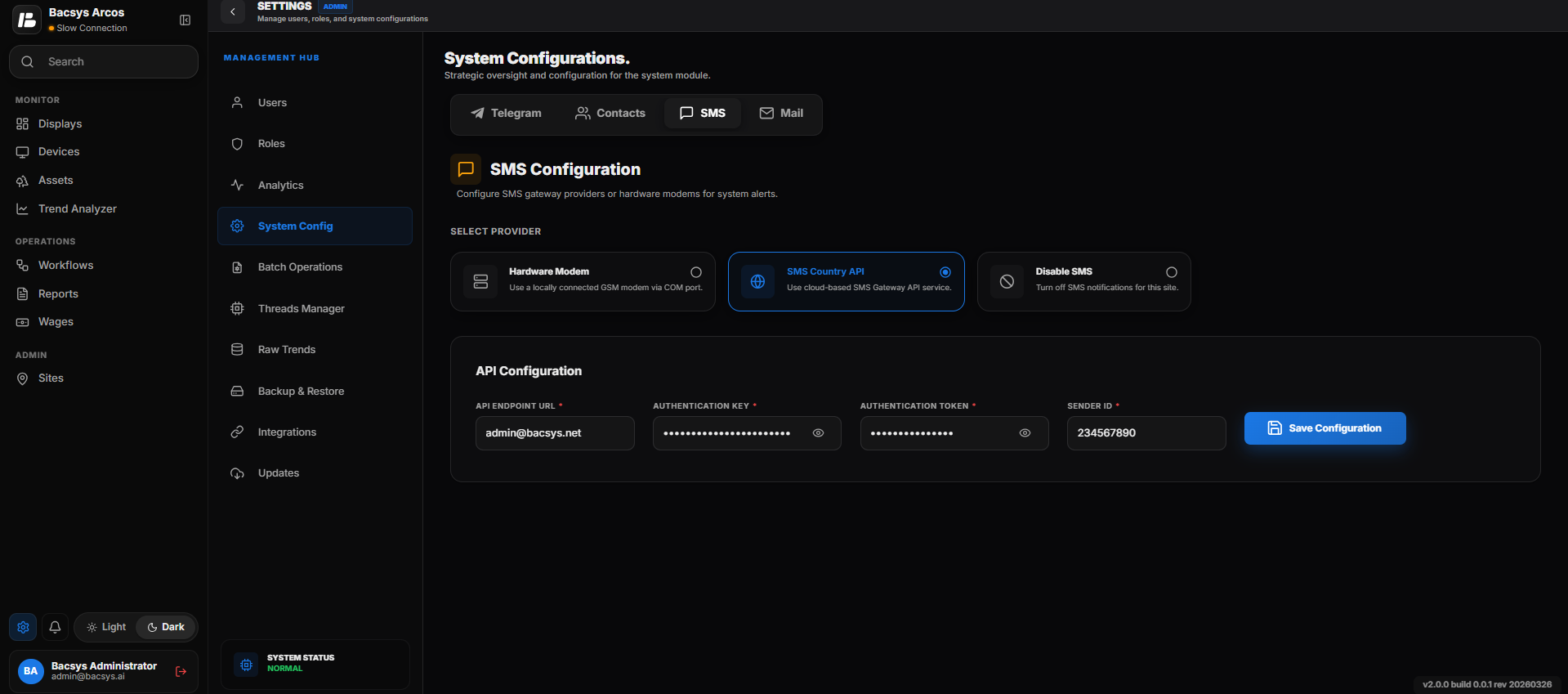
SMS Country API Configuration
The SMS Country API option allows the Bacsys platform to send SMS notifications using a cloud-based SMS gateway service. Instead of connecting a physical GSM modem, the system communicates with the SMS provider through its API using the configured credentials.
Configuration Fields
| Field | Description |
|---|---|
| API Endpoint URL | Enter the API endpoint URL provided by the SMS gateway service. |
| Authentication Key | Enter the authentication key issued by the SMS service provider. |
| Authentication Token | Enter the authentication token used to authenticate API requests. |
| Sender ID | Enter the registered sender ID that will appear as the sender of the SMS notifications. |
| Save Configuration | Saves the API configuration and enables SMS notifications through the configured SMS gateway. |
Steps
- Select SMS Country API as the SMS provider.
- Enter the API Endpoint URL provided by the SMS gateway service.
- Enter the Authentication Key.
- Enter the Authentication Token.
- Enter the Sender ID.
- Click Save Configuration.
The SMS API configuration is saved successfully.
Note
- The API Endpoint URL, Authentication Key, Authentication Token, and Sender ID are provided by your SMS gateway service provider.
- An active internet connection is required to communicate with the SMS gateway API.
- Once configured, the system sends SMS notifications through the cloud-based SMS service whenever a configured alarm is triggered.
Disable SMS Notifications
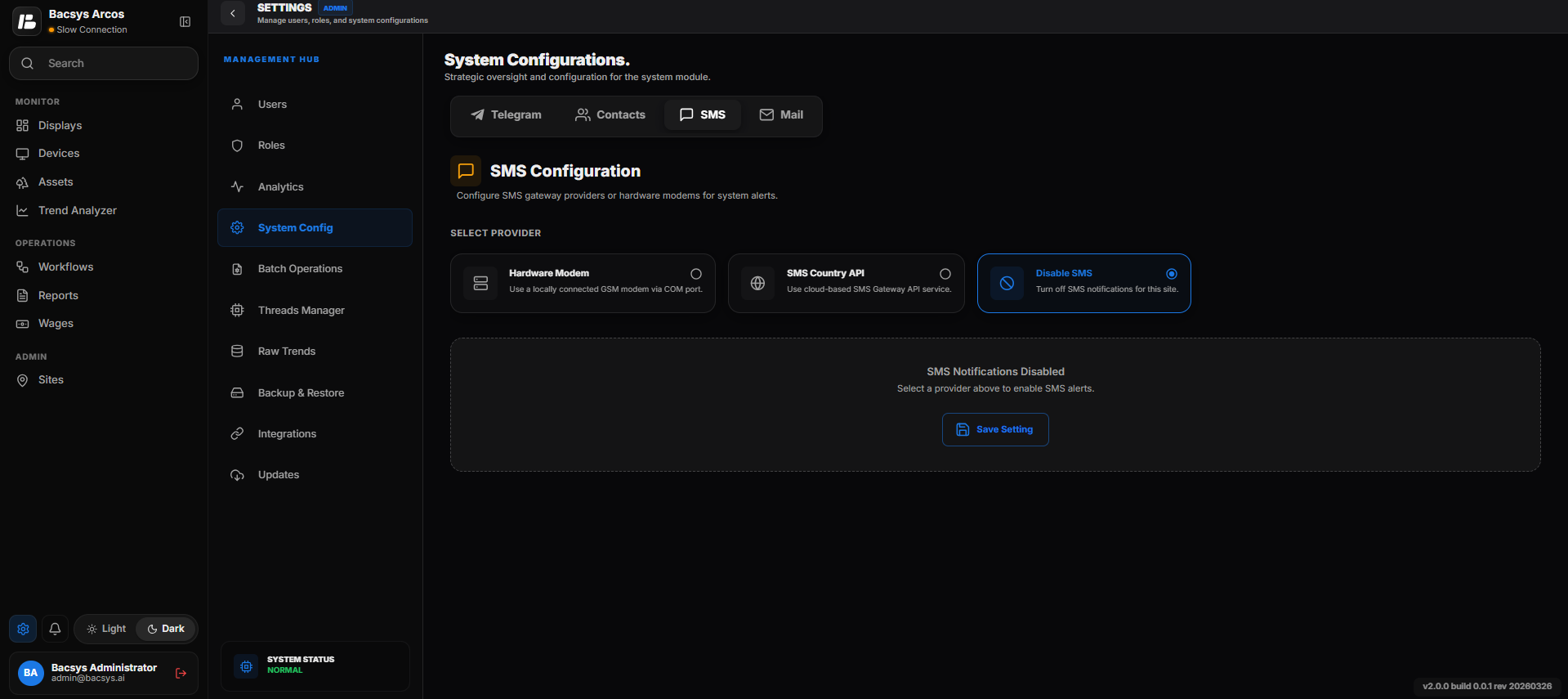
Disable SMS Notifications
The Disable SMS option allows users to turn off SMS notifications for the system. When this option is enabled, the system will not send SMS notifications for alarms or events until another SMS provider is configured.
Steps
- Navigate to Settings > System Configurations > SMS.
- Select Disable SMS from the available SMS provider options.
- Click Save Setting.
- The system disables all SMS notifications.
Note
- When Disable SMS is selected, no SMS notifications are sent for alarms or system events.
- SMS notifications can be re-enabled at any time by selecting Hardware Modem or SMS Country API and saving the configuration.