

Chat
Chat Module
The Chat module allows users to communicate directly with other members through conversations. Users can start a direct conversation, send text or voice messages, view conversation information, clear messages, and delete conversations.
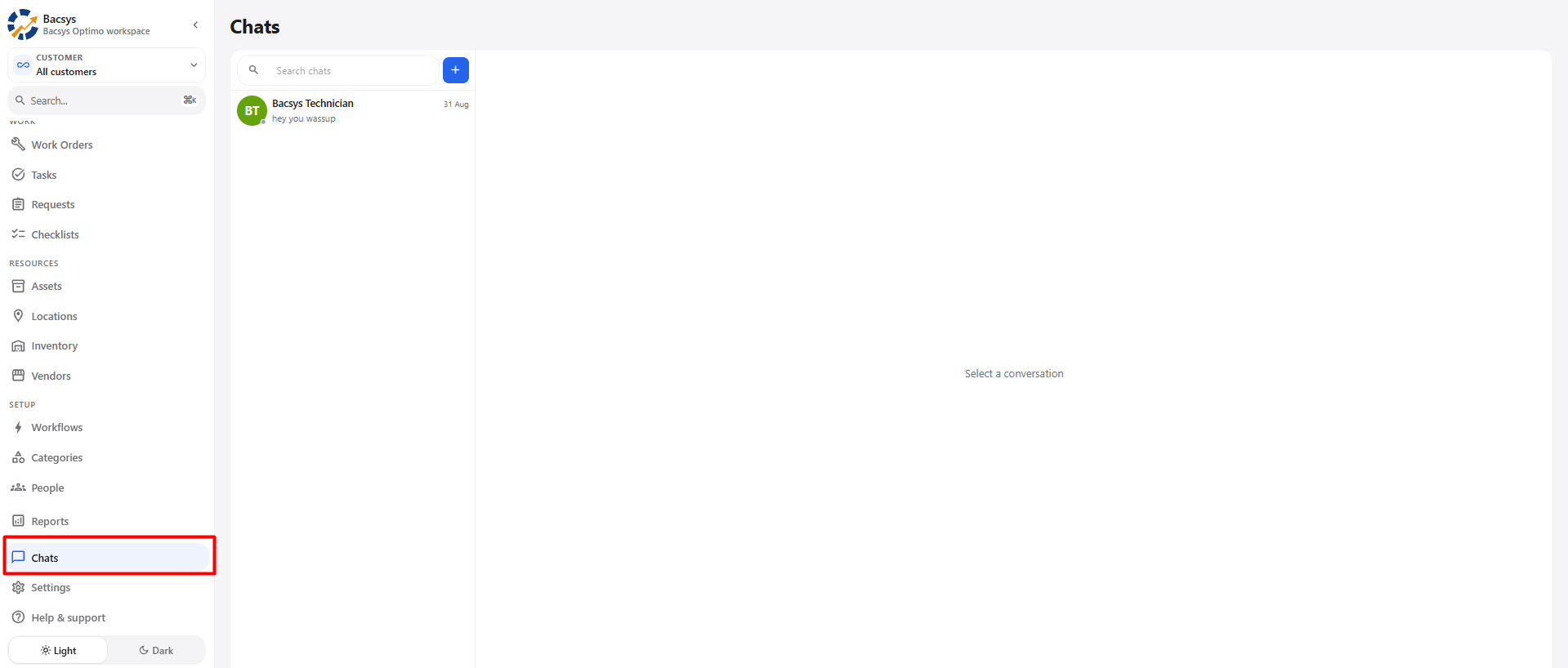
1. Start a New Conversation
To start a conversation with another member:
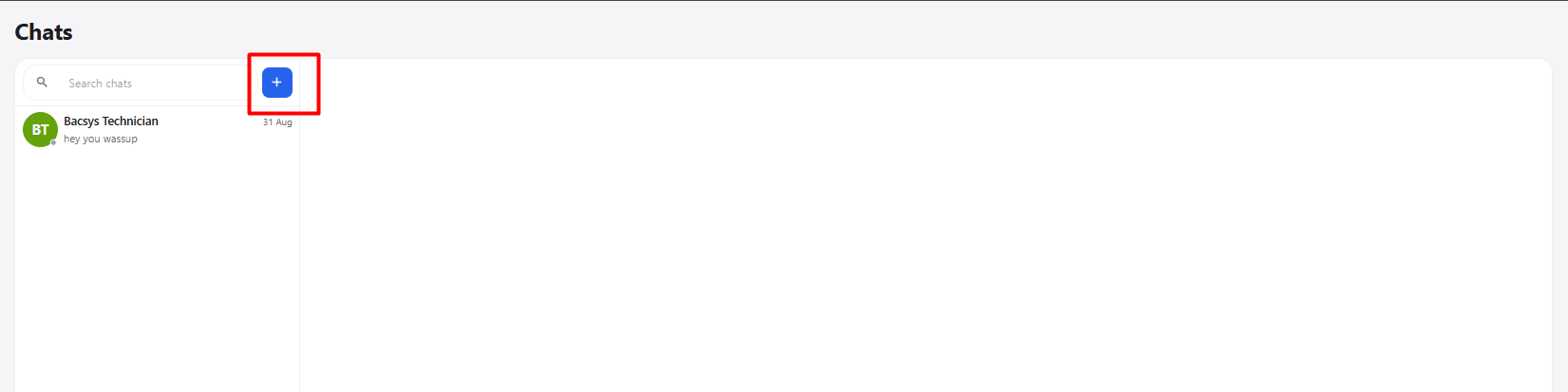
- Open the Chat module.
- Click the + icon.
- The New conversation pop-up is displayed.
- Keep Direct message selected.
- Select the person you want to chat with.
- Click Start chat.
- The conversation opens with the selected person.
1.1 New Conversation Options
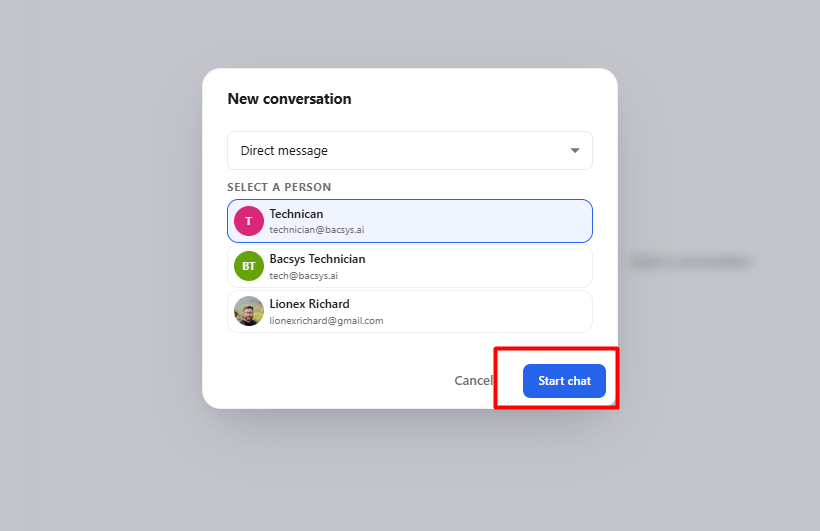
| Field / Option | Description |
|---|---|
| New conversation | Opens the option to start a new conversation. |
| Direct message | Allows you to start a conversation with one member. |
| Select a person | Displays the available members who can be selected for the conversation. |
| Cancel | Closes the pop-up without starting a conversation. |
| Start chat | Starts the conversation with the selected member. |
2. Send Messages
After selecting a member and clicking Start chat, the conversation window is opened.
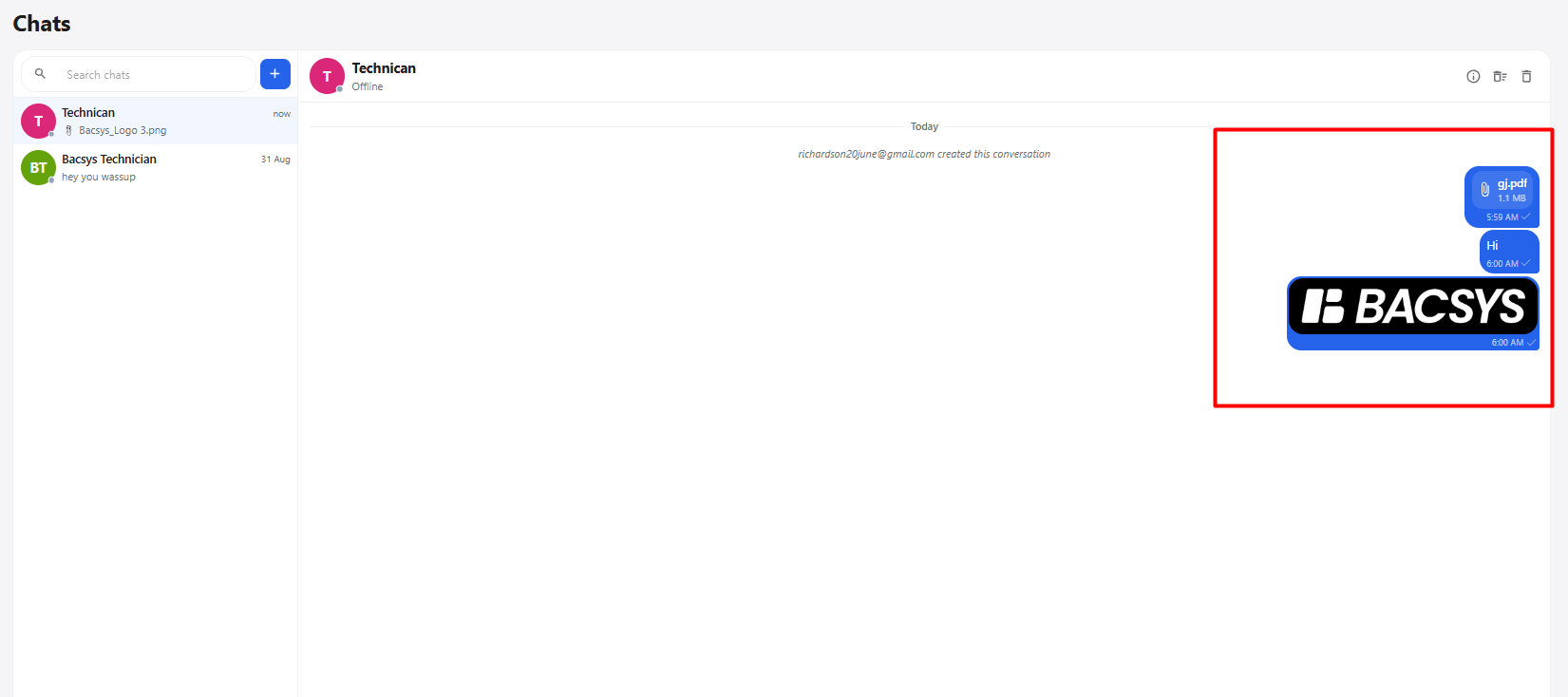
| Option | Description |
|---|---|
| Text message | Allows users to type and send text messages. |
| Voice message | Allows users to record and send voice messages. |
| Send | Sends the entered message to the selected member. |
Note: The Chat module supports text and voice messages. Image and PDF file sharing are not supported.
3. Conversation Information
The Conversation info option allows users to view information about the current conversation and its participants.
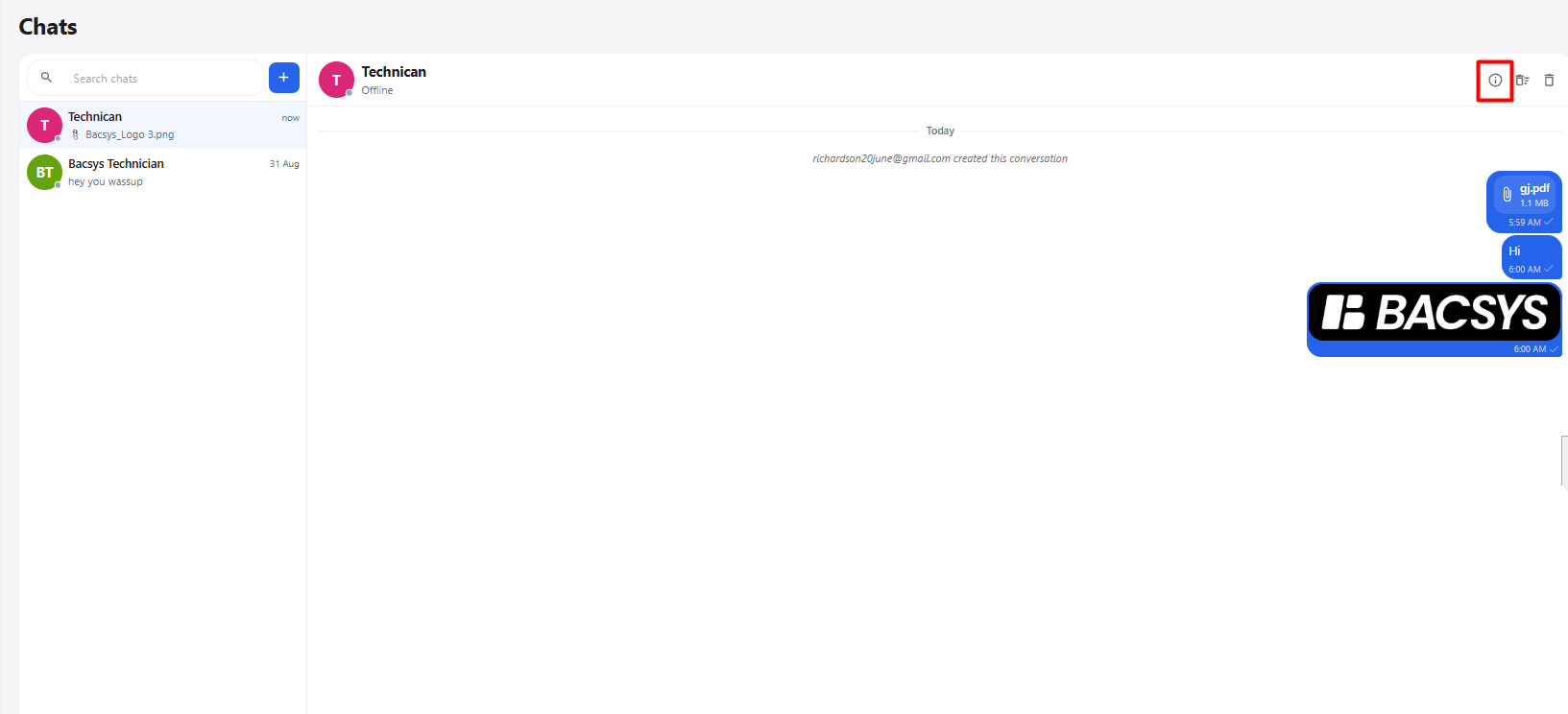
| Section / Option | Description |
|---|---|
| Conversation info | Displays information about the current conversation and its participants. |
| Profile | Displays the selected member's profile image and name. |
| Online / Offline Status | Displays the current availability status of the member. |
| About | Displays the participants in the conversation and their current status. |
| Pinned (0) | Displays the number of pinned items in the conversation. |
| Search | Allows users to search within the conversation. |
| Close (X) | Closes the Conversation info window. |
3.1 Conversation Members
| Information | Description |
|---|---|
| Member Name | Displays the name of the conversation participant. |
| Profile Image | Displays the participant's profile image or avatar. |
| Online | Indicates that the member is currently online. |
| Offline | Indicates that the member is currently offline. |
Steps
- Open the required conversation.
- Open Conversation info.
- Review the participant information.
- Use About to view the conversation participants.
- Use Pinned to view pinned items, when available.
- Use Search to search within the conversation.
- Click X to close the Conversation info window.
4. Clear Messages
The Clear messages option removes all messages from the current conversation.
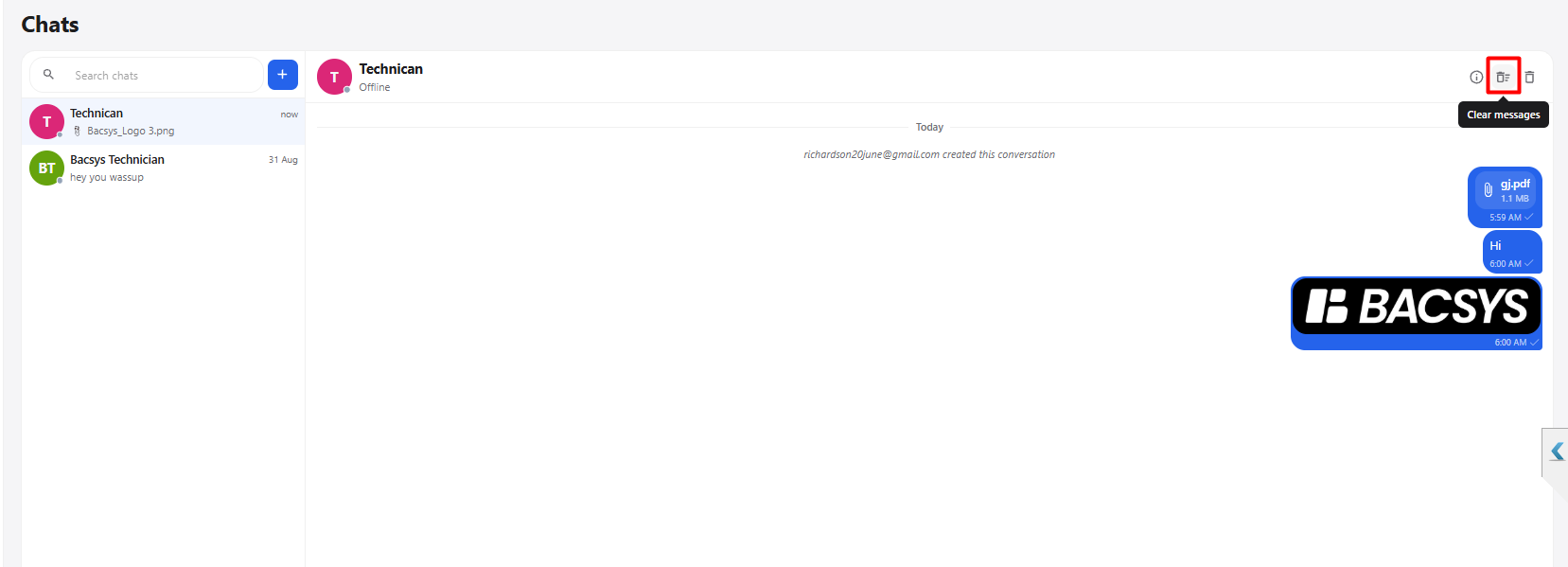
| Option | Description |
|---|---|
| Clear messages | Clears all messages from the current conversation. |
Steps
- Open the required conversation.
- Select Clear messages.
- Confirm the action if prompted.
- The messages in the conversation are cleared.
5. Delete Conversation
The Delete option removes the selected conversation from the conversation list.
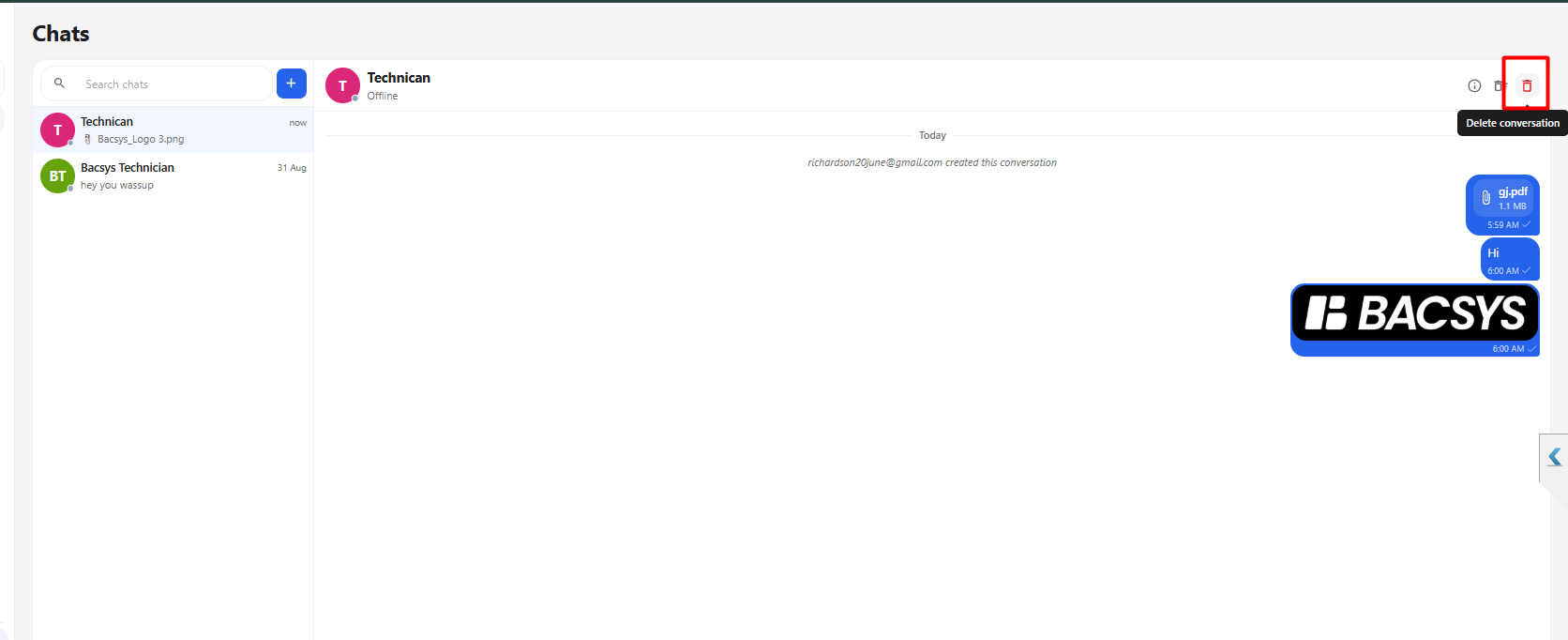
Delete Conversation Options
| Option | Description |
|---|---|
| Delete | Deletes the selected conversation and removes it from the conversation list. |
| Cancel | Closes the confirmation pop-up without deleting the conversation. |
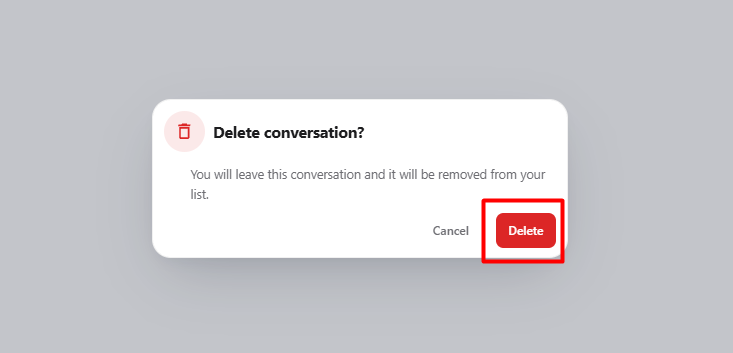
Steps
- Open the required conversation.
- Click Delete.
- The Delete conversation? confirmation pop-up is displayed.
- Click Delete to confirm.
- The conversation is removed from the conversation list.
6. Chat Workflow
Open Chat Module
      ↓
Click + Icon
      ↓
New Conversation
      ↓
Select Direct Message
      ↓
Select Person
      ↓
Click Start Chat
      ↓
Conversation Opened
      ↓
Send Text / Voice Message
      ↓
Open Conversation Info
      ↓
View Participants / Status / Search / Pinned Items
      ↓
Choose Required Action
      ↓
Clear Messages
      OR
Delete Conversation
      ↓
Chat Management Completed