

Telegram OPC Configuration - V2
Telegram OPC Configuration
The Telegram OPC module allows users to configure Telegram notifications for system alerts and events. Once configured, the system sends notifications to the specified Telegram account or group using the configured Telegram Chat ID.
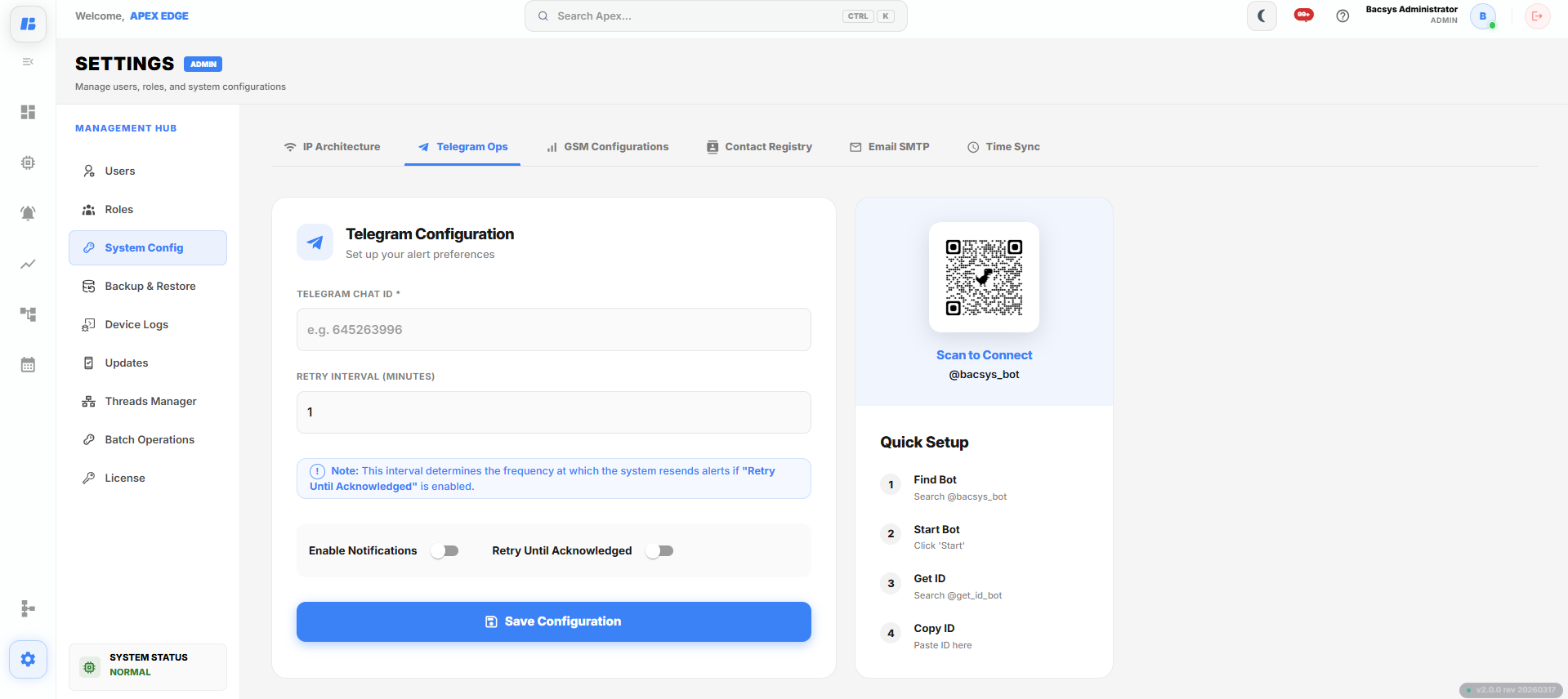
Configuring Telegram OPC
To configure Telegram notifications:
- Open the System Protocol module.
- Navigate to Telegram OPC.
- Open the Telegram Configuration page.
- Enter the Telegram Chat ID.
- Enter the Retry Interval in minutes.
- Enable or disable Notifications as required.
- Enable or disable Retry Until Acknowledged as required.
- Click Save Configuration to save the settings.
The following configuration options are available:
| Field | Description |
|---|---|
| Telegram Chat ID | Specifies the Telegram Chat ID that receives system notifications. |
| Retry Interval | Specifies the time interval, in minutes, between notification retry attempts if message delivery fails. |
| Enable Notification | Enables or disables Telegram notifications. |
| Retry Until Acknowledged | Continues sending notifications until the alert is acknowledged. |
Obtaining the Telegram Chat ID
The Telegram Chat ID is required before notifications can be sent.
To obtain the Chat ID:
- Open the Telegram application on your mobile device.
- Scan the QR Code displayed on the Telegram Configuration page.
- The Telegram Bot opens automatically.
- Click Start in the Telegram Bot.
- The bot displays the Telegram Chat ID.
- Copy the displayed Chat ID.
- Paste the Chat ID into the Telegram Chat ID field.
- Click Save Configuration.
The Telegram account is now configured to receive notifications.
QR Code Setup
The QR Code provides a quick way to connect to the Telegram Bot without manually searching for it.
To use the QR Code:
- Open the Telegram application.
- Scan the displayed QR Code.
- The Telegram Bot opens automatically.
- Click Start to activate the bot.
- Copy the generated Chat ID.
- Paste the Chat ID into the Telegram Chat ID field.
- Save the configuration.
Complete Workflow
Configure Telegram notifications by following the workflow below:
- Open the System Protocol module.
- Navigate to Telegram OPC.
- Open the Telegram Configuration page.
- Scan the displayed QR Code using the Telegram application.
- Open the Telegram Bot and click Start.
- Copy the generated Telegram Chat ID.
- Paste the Chat ID into the Telegram Chat ID field.
- Enter the required Retry Interval.
- Enable Notifications, if required.
- Enable Retry Until Acknowledged, if required.
- Click Save Configuration.
The Telegram OPC configuration is saved successfully, and the configured Telegram account receives system notifications based on the selected settings.