

Ticket Overview
3. Tickets Overview
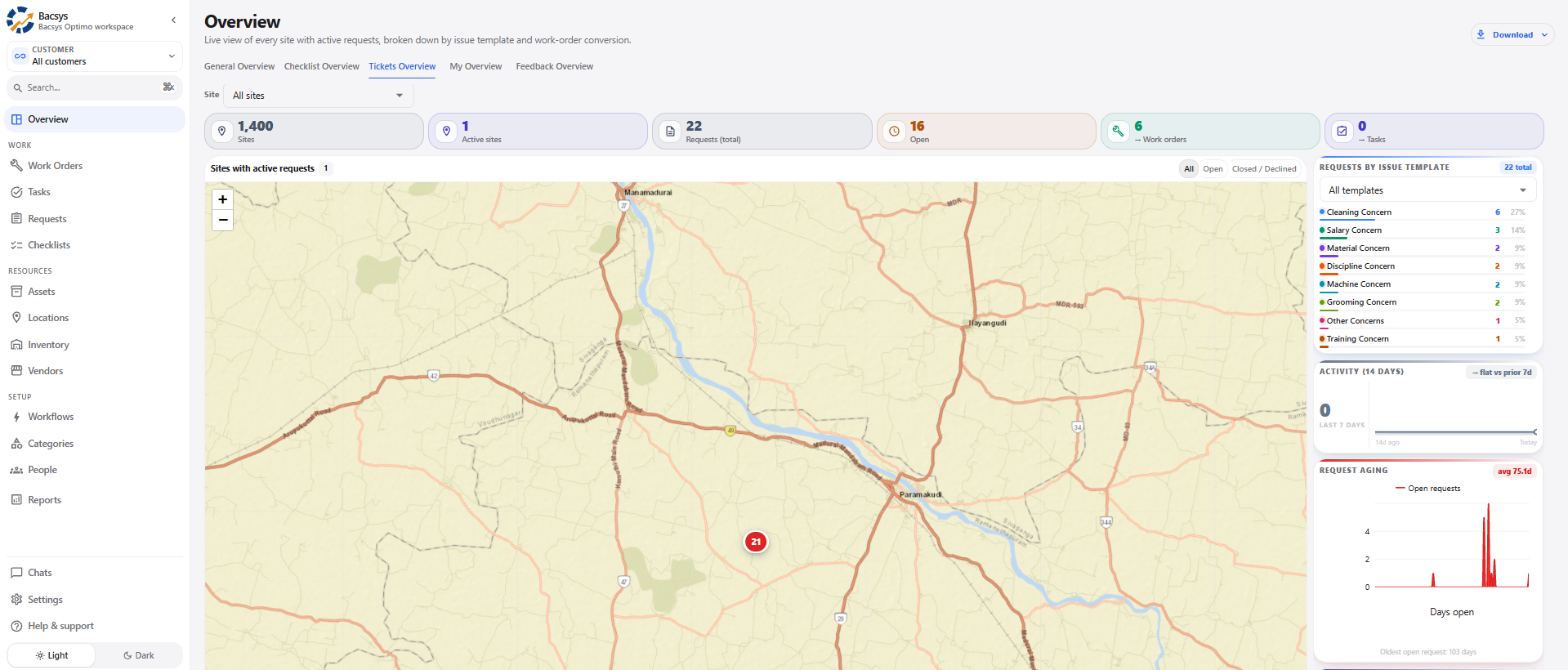
The Tickets Overview provides a centralized view of service requests raised across sites.
It helps users monitor active requests, request status, work-order conversion, task conversion, issue types, request activity, request aging, reporters, and sites requiring attention.
3.3 Overview Navigation
The Overview page provides the following sections:
- General Overview
- Checklist Overview
- Tickets Overview
- My Overview
- Feedback Overview
Steps to Open Tickets Overview
- Navigate to the Overview section.
- Select the Tickets Overview tab.
- The Tickets Overview dashboard is displayed.
3.2 Download Report
The Download option allows users to export the Tickets Overview report in different formats.
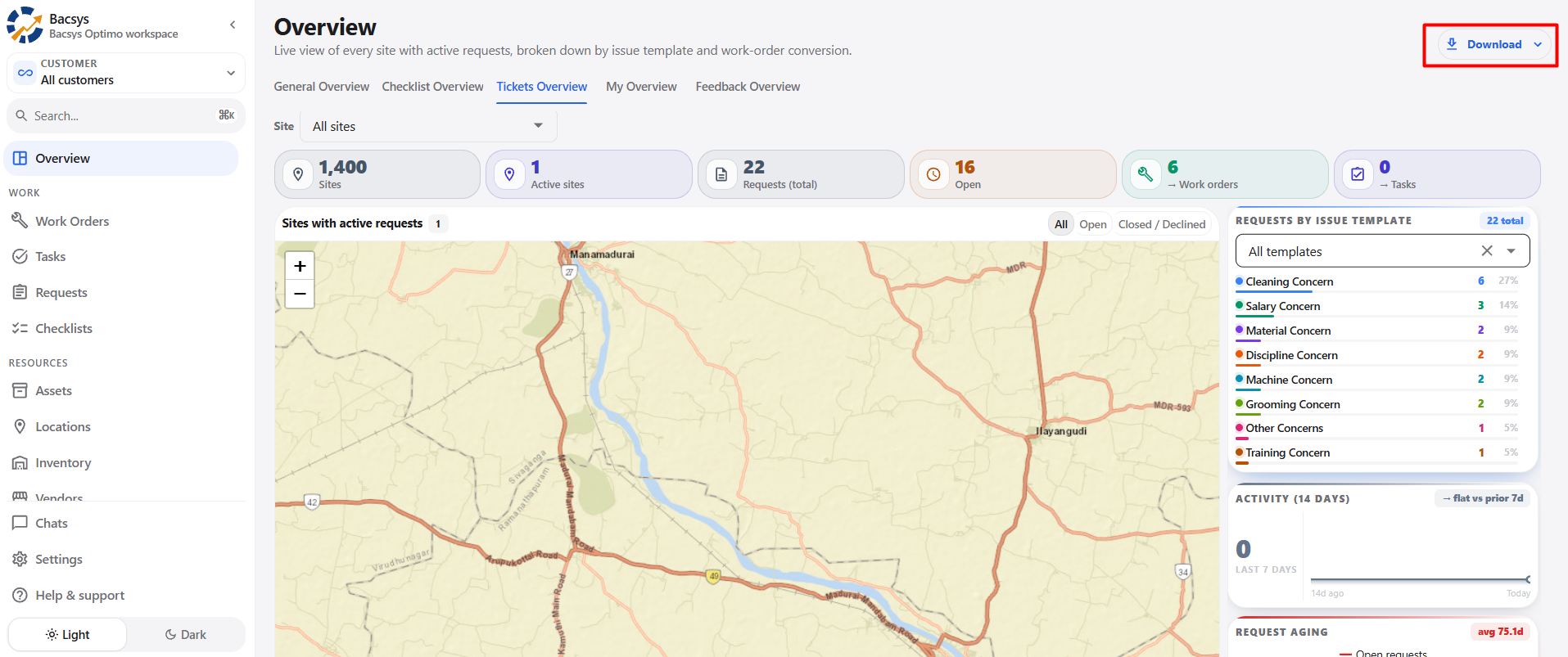
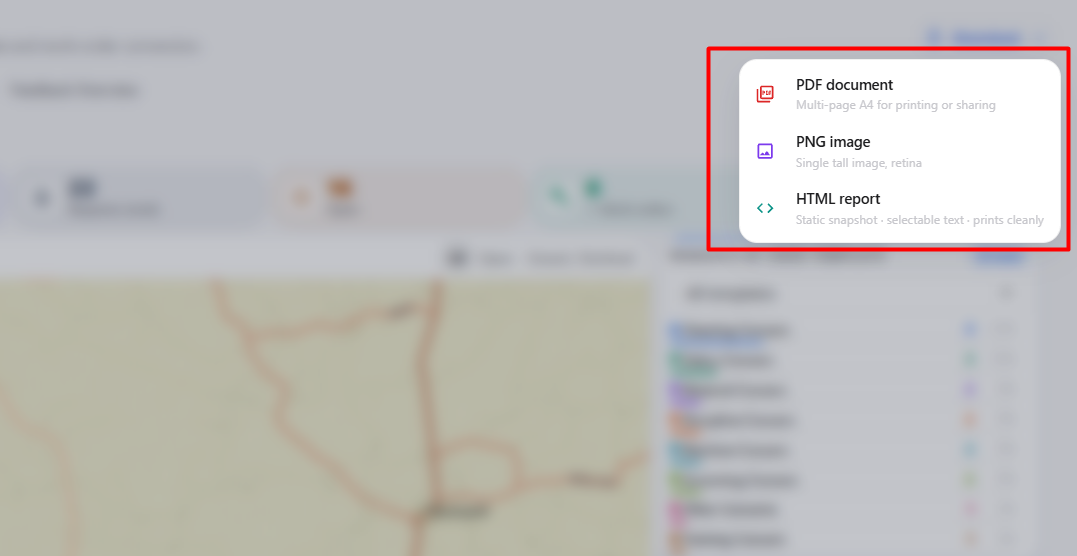
Available Formats
- PDF – Downloads the report as a PDF document.
- PNG – Downloads the dashboard as an image.
- HTML – Downloads the report as an HTML document.
Steps to Download
- Click the Download button.
- Select the required format.
- The report is generated and downloaded in the selected format.
3.3 Site Filter
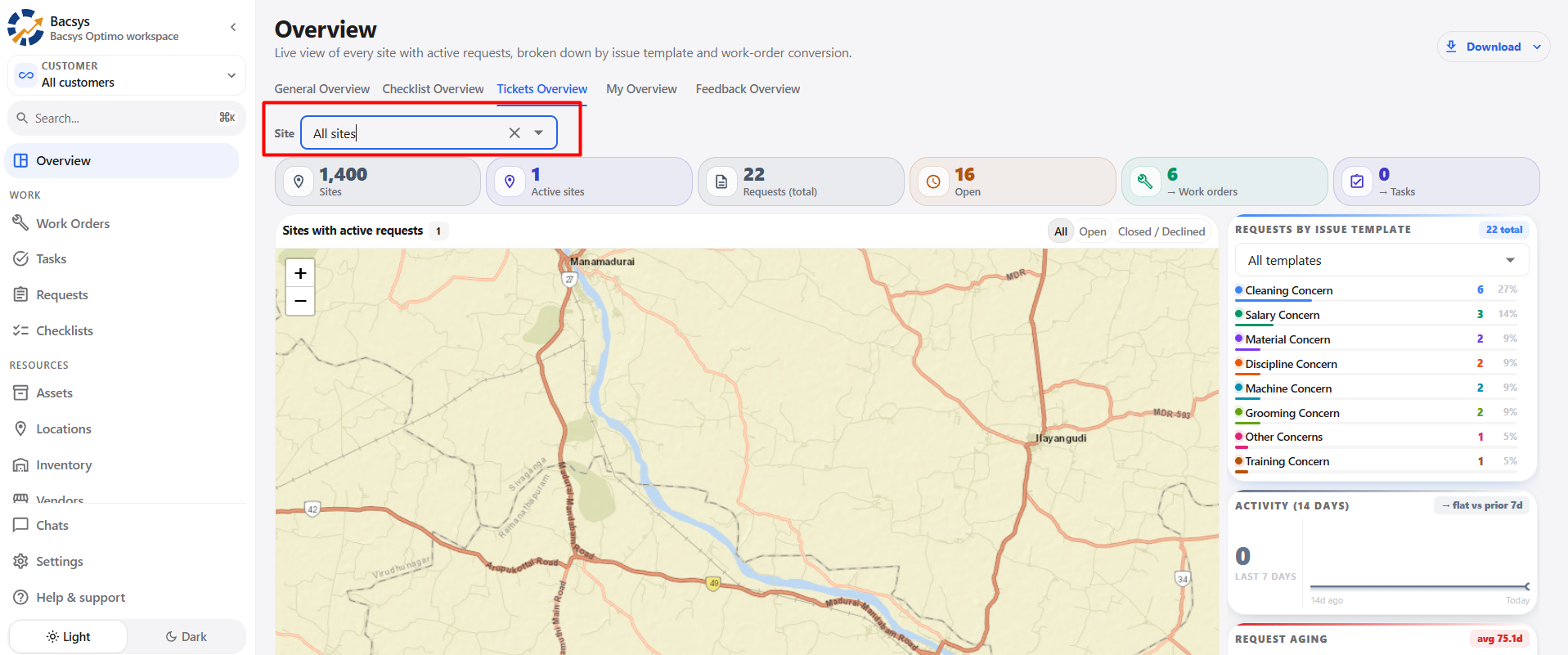
The Site filter allows users to view ticket information for a specific site or across all available sites.
Steps to Filter by Site
- Locate the Site dropdown.
- Open the dropdown.
- Select the required site.
- Review the updated ticket information.
Functionality Details
- The selected site should be displayed in the filter.
- Dashboard metrics should update according to the selected site.
- Selecting All sites should display information across all available sites.
3.4 Summary Metrics
The summary cards provide a quick overview of the current ticket/request status.
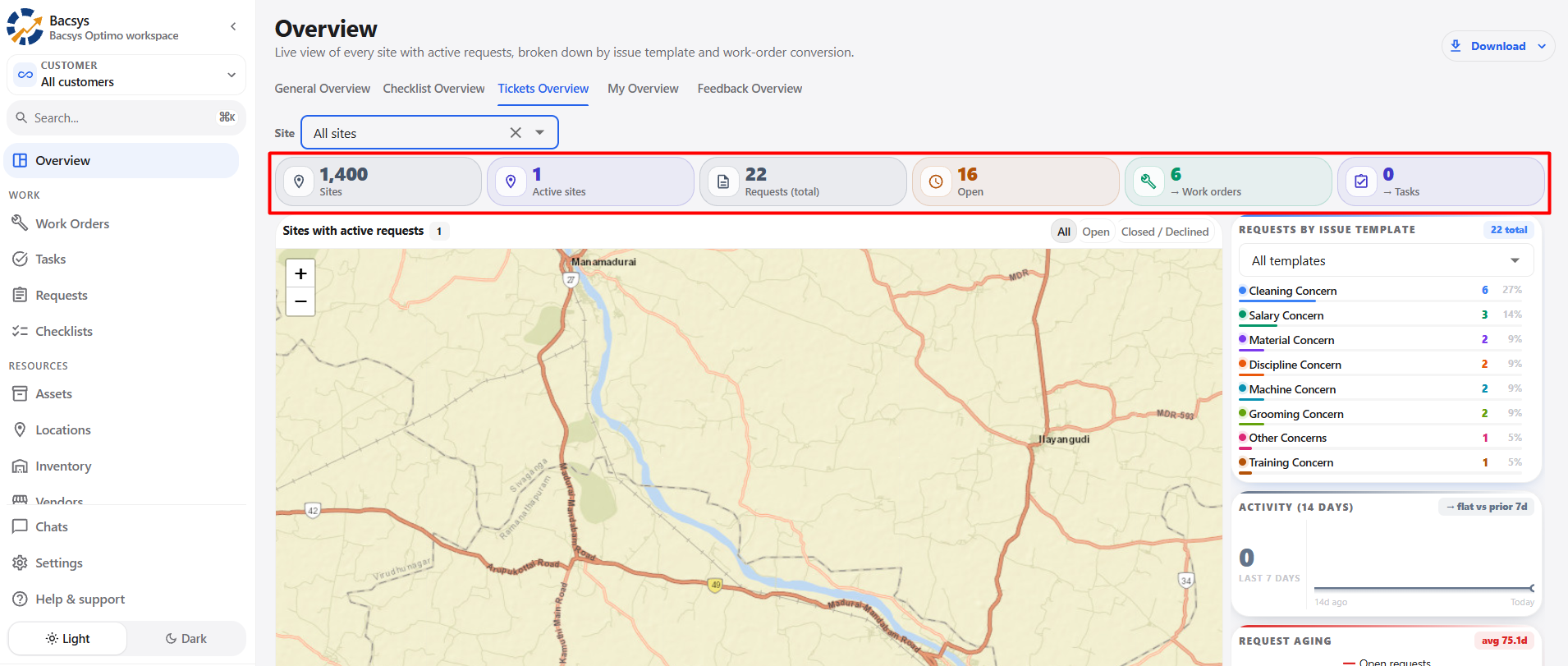
Available Metrics
| Metric | Description |
|---|---|
| Sites | Total number of available sites. |
| Active Sites | Number of sites currently having active requests. |
| Requests | Total number of requests. |
| Open | Number of currently open requests. |
| Work Orders | Number of requests converted into work orders. |
| Tasks | Number of requests converted into tasks. |
Steps to Review Summary
- Apply the required site filter.
- Review the summary cards.
- Check the total requests and open requests.
- Review the number of requests converted to work orders or tasks.
3.5 Sites with Active Requests
The Sites with Active Requests section displays sites that currently have active requests.
The map provides a geographical view of the sites and their request activity.
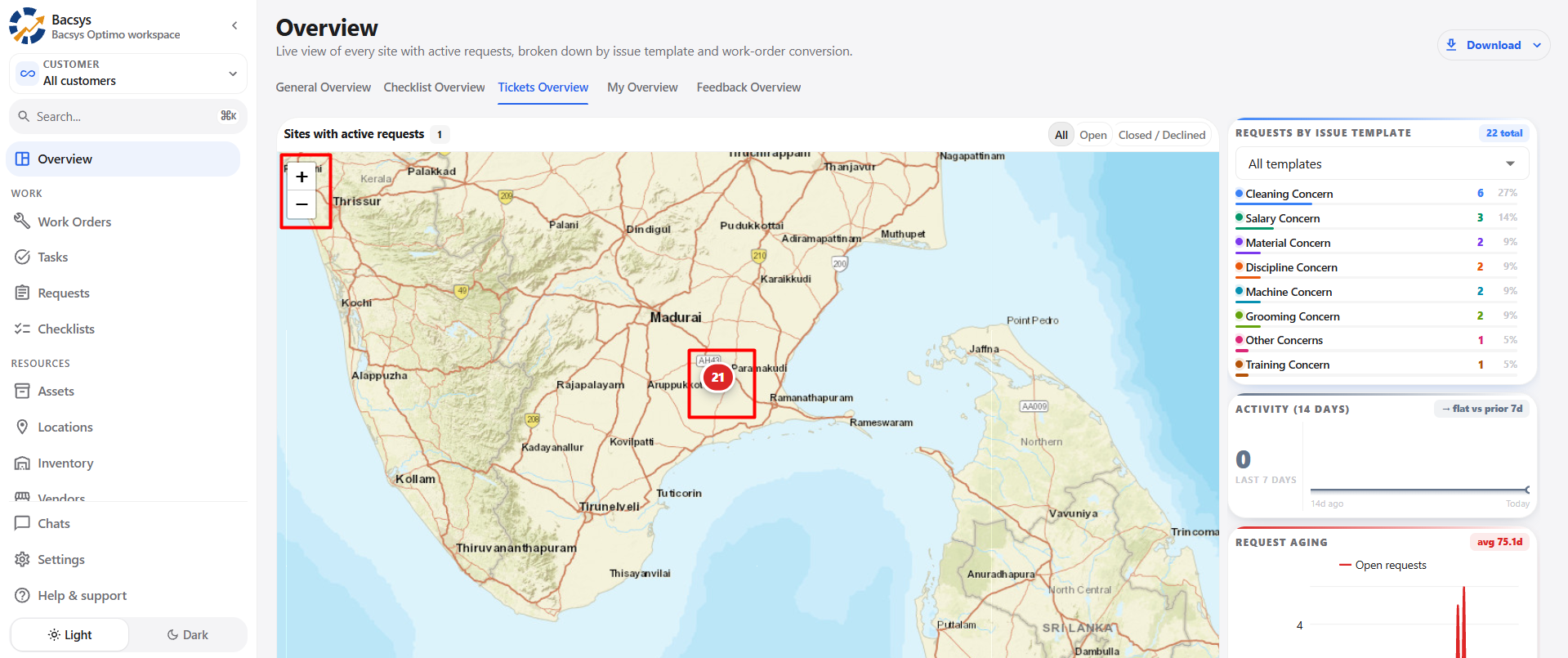
Available Filters
- All
- Open
- Closed / Declined
Map Controls
- + – Zoom in.
- − – Zoom out.
- Map markers – Identify sites with request activity.
Steps to Review Sites
- Navigate to the Sites with Active Requests section.
- Select the required request status filter.
- Review the sites displayed on the map.
- Zoom in or out to navigate the map.
- Select a site marker to review the relevant information.
3.6 Requests by Issue Template
The Requests by Issue Template section displays requests grouped according to their issue template.
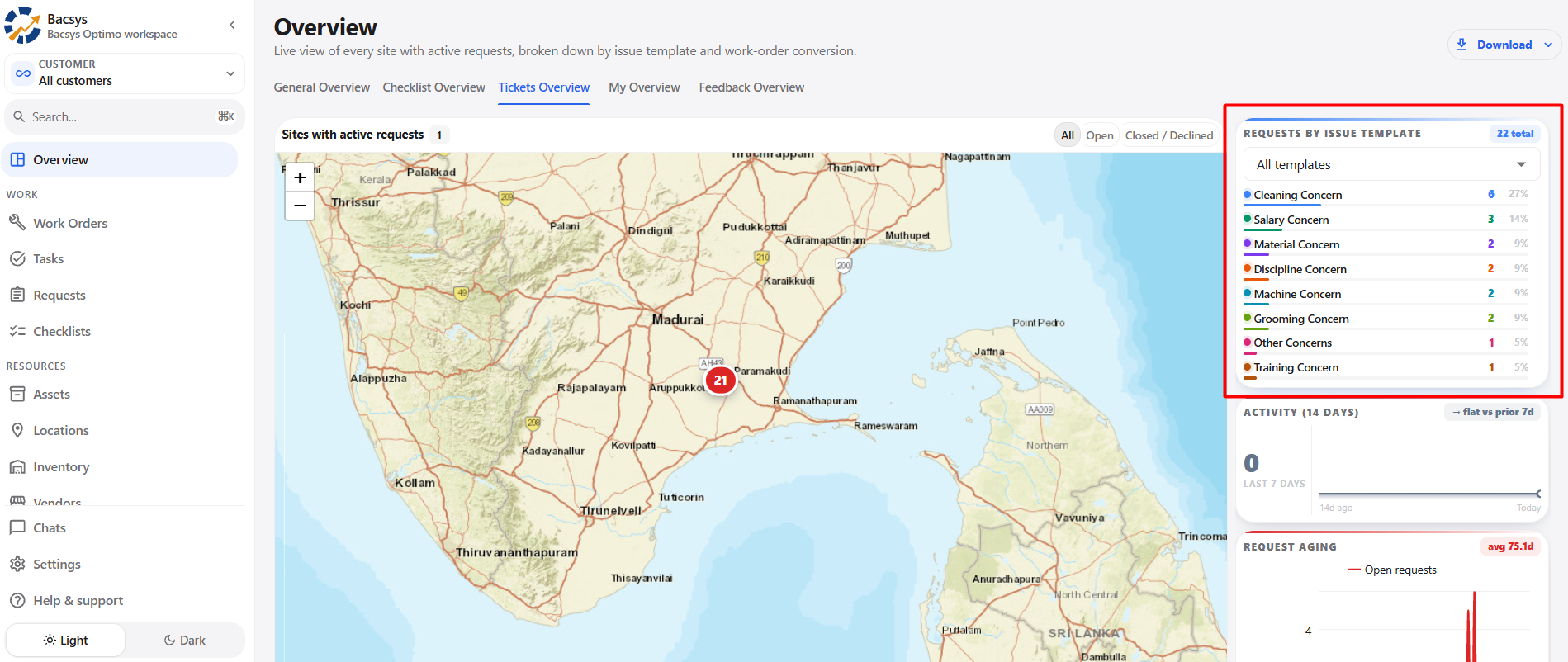
It helps users understand the types of issues being reported.
Information Displayed
- Issue template
- Number of requests
- Percentage of total requests
- Total request count
Steps to Review Issue Templates
- Navigate to Requests by Issue Template.
- Select an issue template from the dropdown, if required.
- Review the request count and percentage.
- Compare the distribution of different issue types.
Functionality Details
- Issue templates should be displayed correctly.
- Request counts should match the available request records.
- Percentages should represent the relevant request distribution.
- Changing the template filter should update the displayed information.
3.7 Activity
The Activity section provides an overview of request activity over a recent period.
It helps users understand whether request activity is increasing, decreasing, or remaining stable.
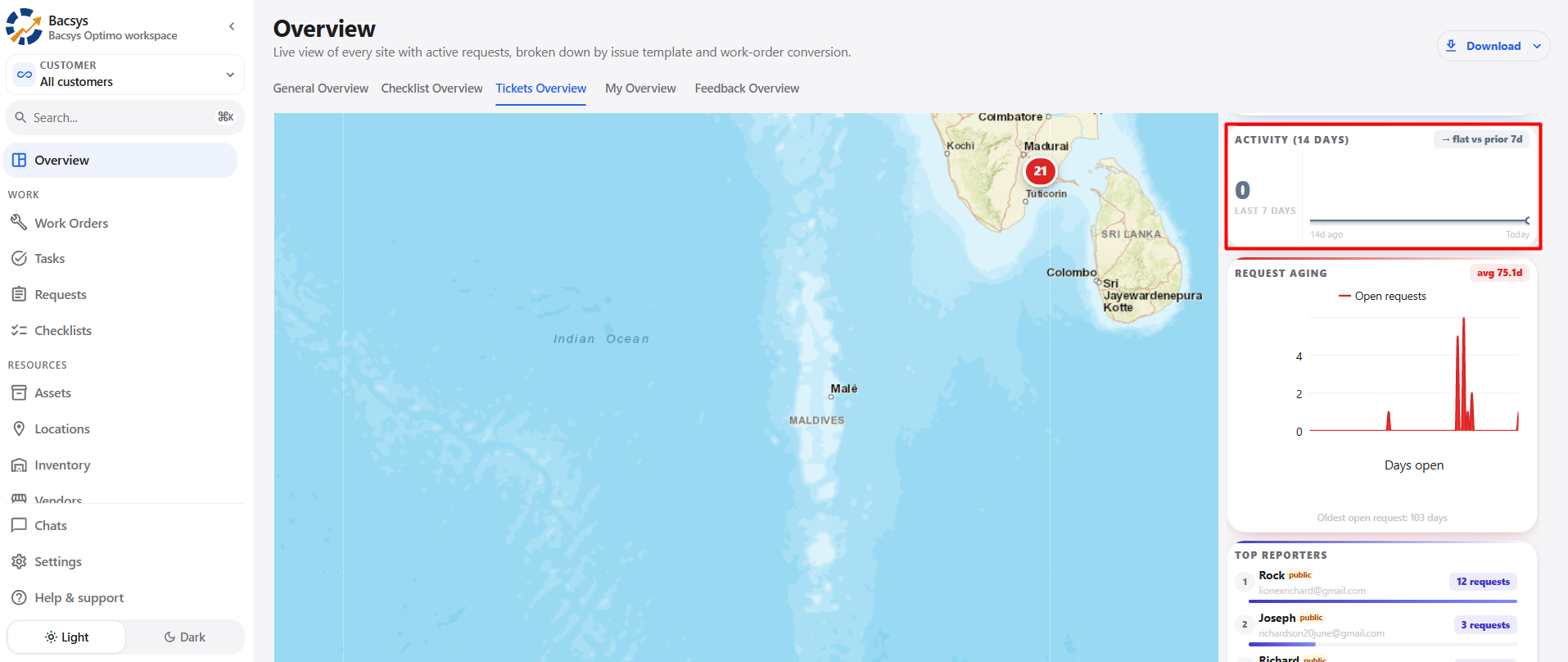
Information Displayed
- Recent activity period
- Request activity trend
- Comparison with the previous period
Steps to Review Activity
- Navigate to the Activity section.
- Review the activity chart.
- Compare the current activity with the previous period.
- Review the overall request trend.
3.8 Request Aging
The Request Aging section shows how long open requests have remained unresolved.
It helps users identify older requests that may require attention.
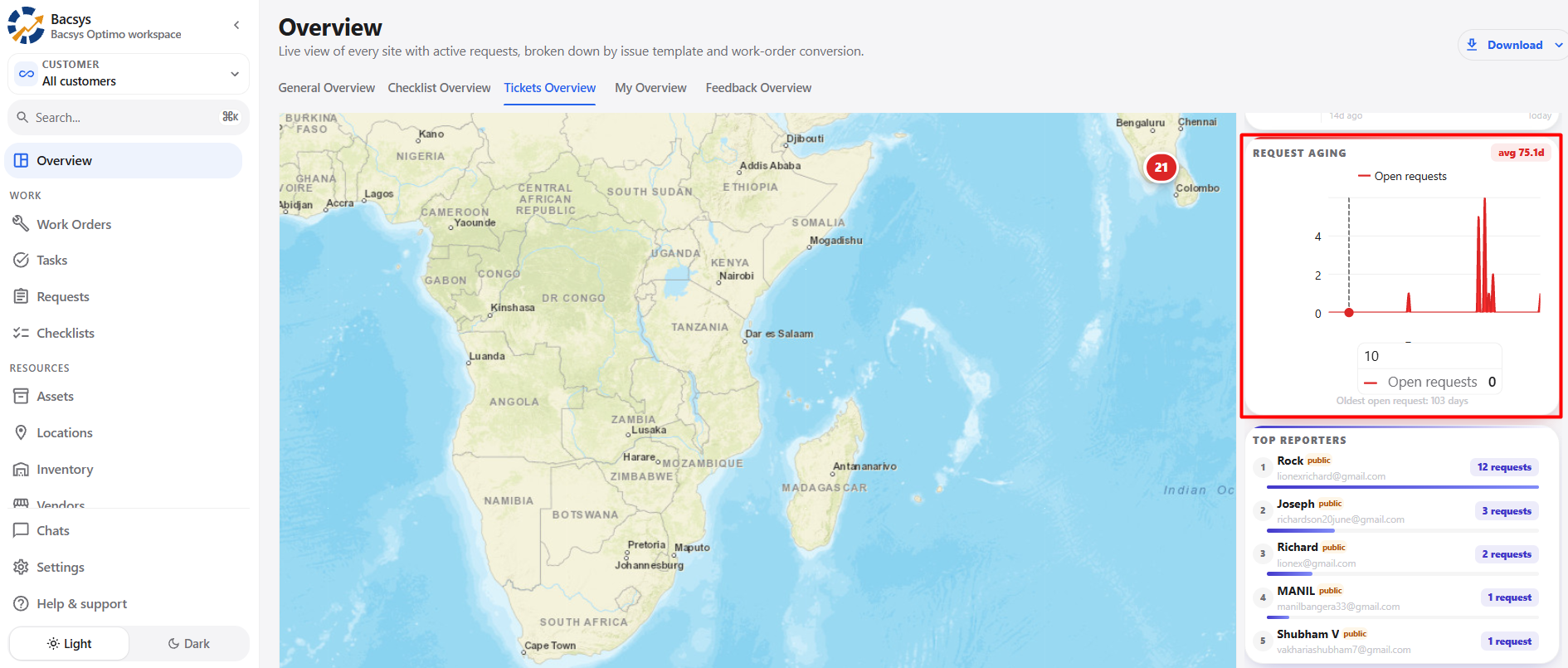
Information Displayed
- Open request distribution
- Number of days requests have remained open
- Average request age
- Oldest open request
Steps to Review Request Aging
- Navigate to the Request Aging section.
- Review the aging chart.
- Check the average request age.
- Identify older open requests.
- Review the requests that require follow-up.
Functionality Details
- Aging information should be based on open requests.
- Request age should be calculated from the relevant request dates.
- Average aging should reflect the available open requests.
- The oldest open request should be identified correctly.
3.9 Top Reporters
The Top Reporters section displays users who have submitted the highest number of requests.
It helps users understand request activity by reporter.
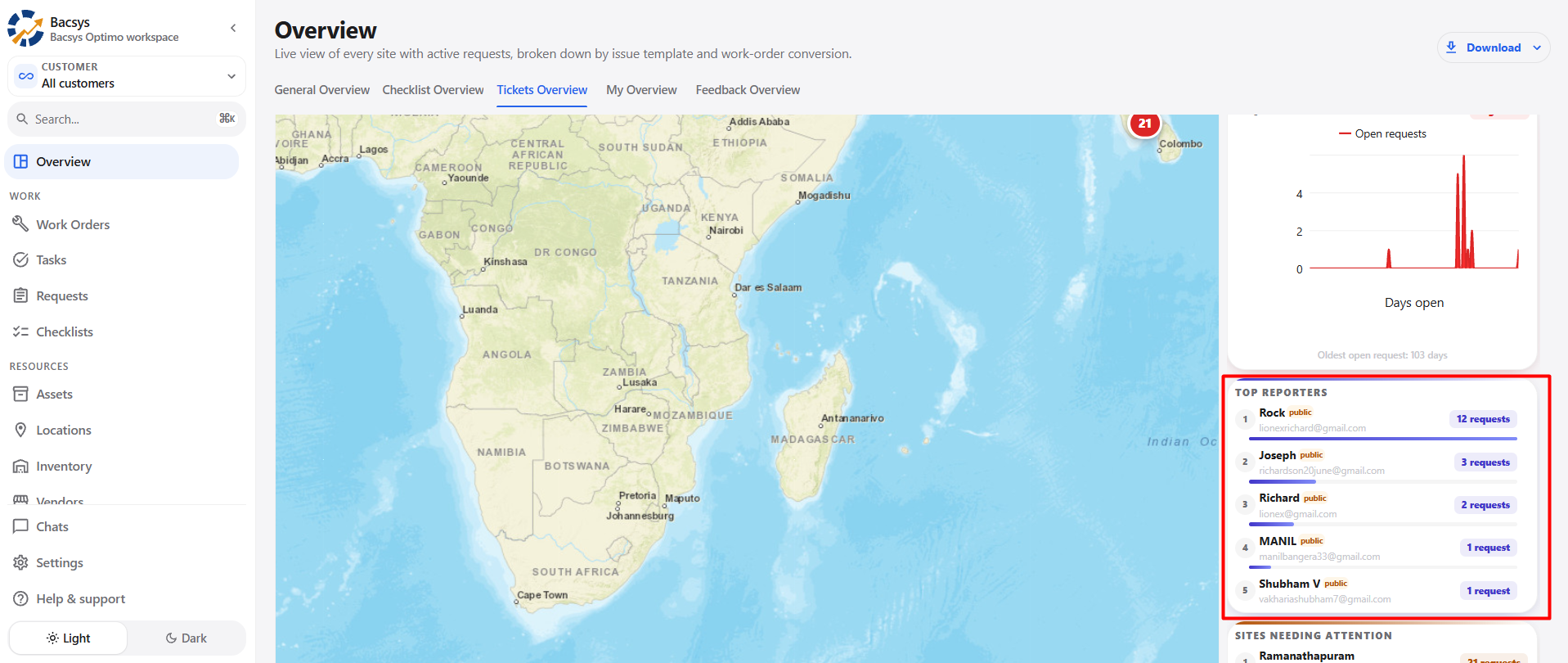
Information Displayed
- Reporter name
- Reporter information
- Request count
- Ranking
Steps to Review Top Reporters
- Navigate to the Top Reporters section.
- Review the displayed ranking.
- Check the number of requests submitted by each reporter.
- Compare request activity between reporters.
Functionality Details
- Reporters should be ranked according to their request count.
- Request counts should match the relevant request records.
- The ranking should update when the underlying request data changes.
3.10 Sites Needing Attention
The Sites Needing Attention section identifies sites with a high number of requests or significant request activity.
It helps users identify locations that may require additional review or follow-up.
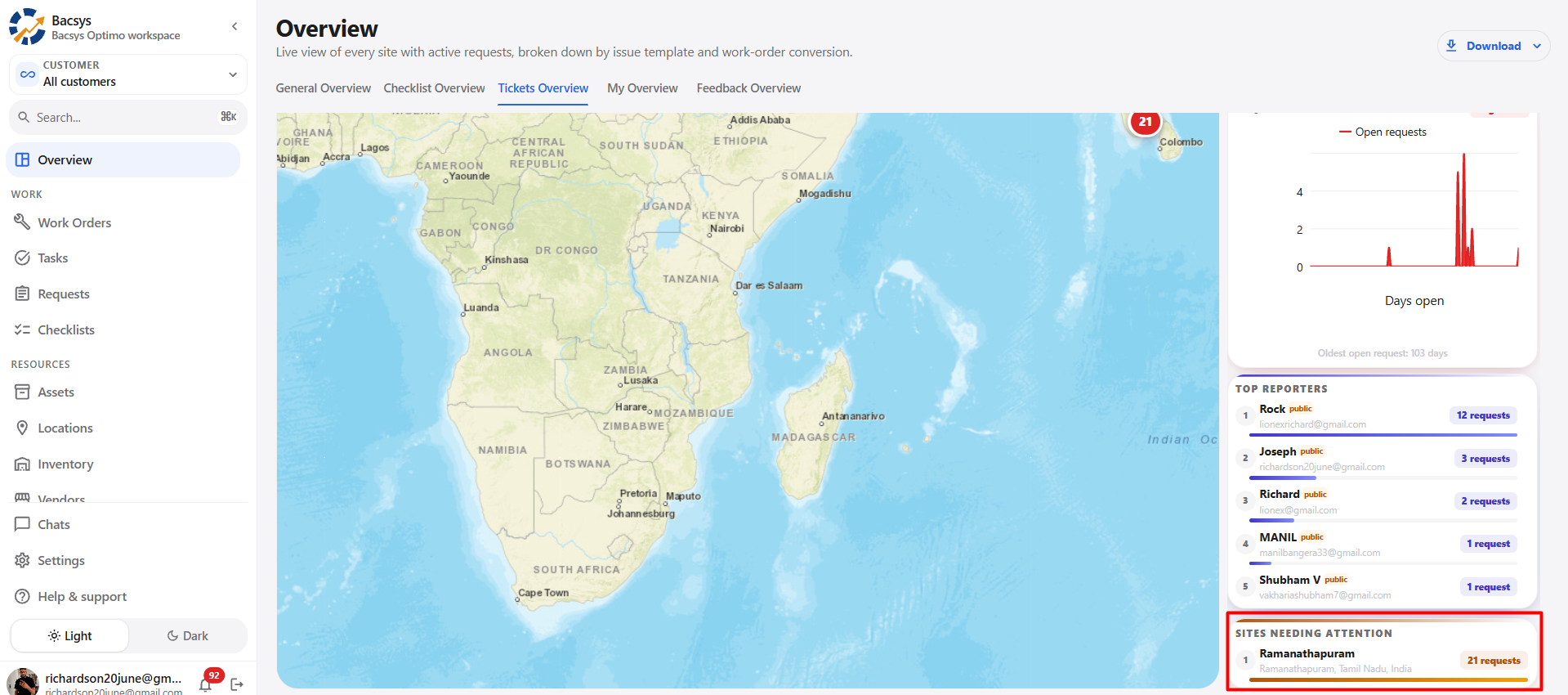
Information Displayed
- Site name
- Request count
- Ranking or priority indicator
Steps to Review Sites Needing Attention
- Navigate to the Sites Needing Attention section.
- Review the listed sites.
- Check the number of requests associated with each site.
- Identify sites requiring further investigation.
- Review the related requests as required.
Functionality Details
- Sites should be displayed based on the configured request criteria.
- Request counts should be accurate.
- The information should update according to the selected site filter and available data.
3.11 Overall Workflow
The Tickets Overview can be reviewed using the following workflow:
- Open Overview.
- Select Tickets Overview.
- Use Search to locate specific ticket or request information.
- Apply the Site filter if required.
- Review the summary metrics.
- Check sites with active requests on the map.
- Review requests by issue template.
- Check recent request activity.
- Review request aging for unresolved requests.
- Review the top reporters.
- Check sites needing attention.
- Use Download to export the overview as PDF, PNG, or HTML when required.